Taxes
Settings › Taxes holds your shop's tax rates. One of them is the default tax: it is the VAT of every sale and the rate used for every price shown with tax. For most shops in Saudi Arabia this is one tax, VAT at 15%, set as the default.
Taxes are used by the POS and by purchases, so this page is there whatever add-ons your shop has.
How VAT and taxes work together
Taxes only apply when your shop is registered for VAT:
- In Settings › General settings, under VAT and invoices, choose Registered for VAT ("Invoices carry VAT and your VAT number (ZATCA).") rather than Not registered. If the shop has no tax yet, a 15% "Default tax" is created for you. See General settings.
- While VAT is off, the Taxes page shows VAT is currently off: "Sales are made without tax until VAT is enabled in General settings."
- With taxes but no default, it warns Choose a default tax: "Without one, new sales are calculated at 0%."
Only the default tax is charged at the till. Other rates are kept (as Optional tax rate) so you can switch to them later.
The tax list
The top of the page shows Tax rates, Default rate and Other rates. Each tax shows its name and Tax rate, and either the Default tax badge ("Applied automatically at checkout") or a Make default button. View switches between Cards and Table.
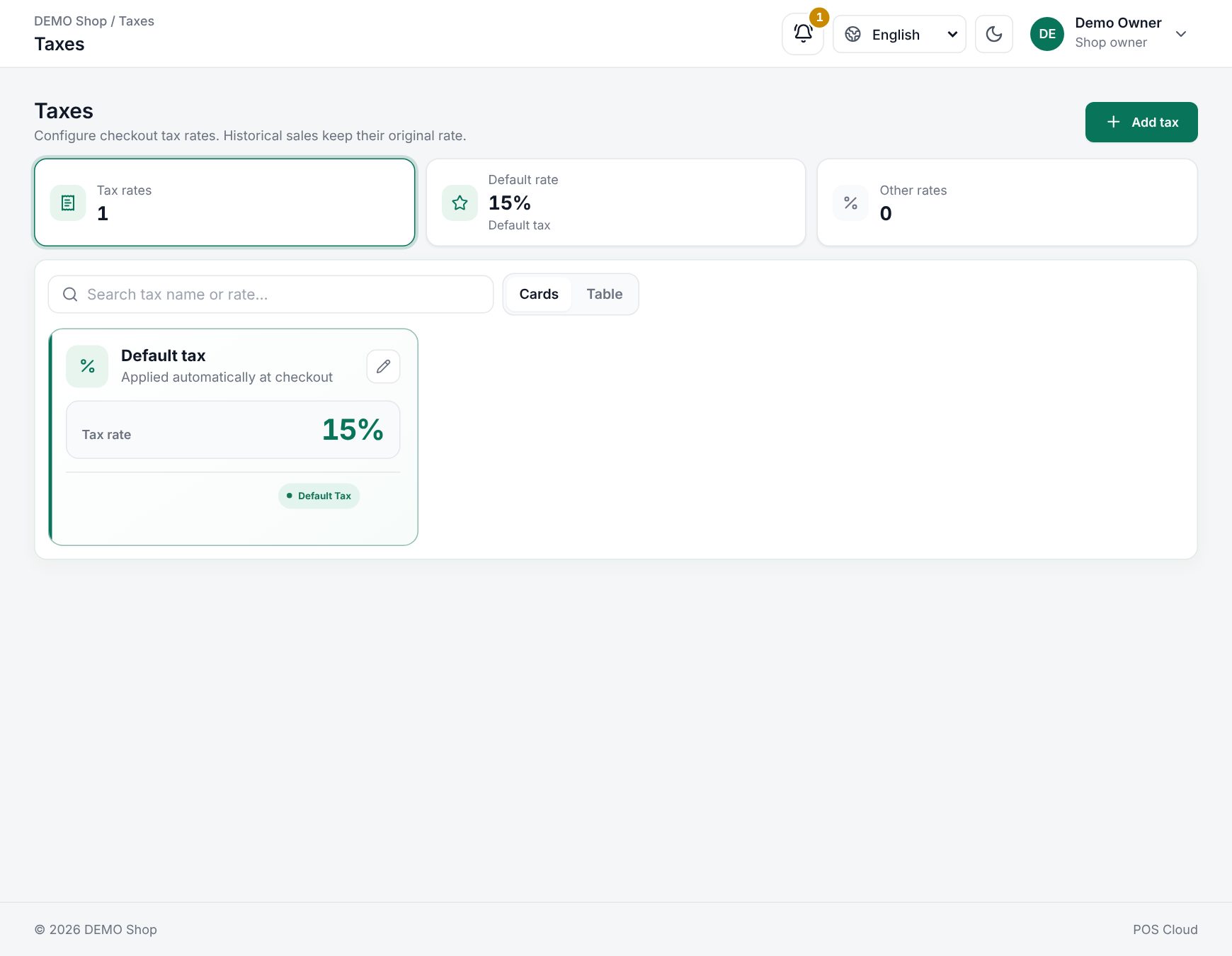 Settings › Taxes with the default tax
Add a tax
- Choose Add tax.
- Fill in Name (at least 3 characters, unique in your shop, for example
VAT) and Rate (%) (0 to 100, up to three decimals, for example15). - Choose Add tax.
The first tax you add becomes the default automatically.
Change the default tax
Choose Make default on the tax you want. The switch happens in one step: new sales use that rate from then on.
Edit or delete a tax
Click a tax (or its Edit tax button) to change its name or rate, and choose Save changes. When you edit the default tax, the form reminds you: "Changes apply to new sales. Historical sales keep their original tax rate."
Delete is refused for:
- the default tax: "Make another tax the default before deleting this one."
- the last tax: "The last tax rate cannot be deleted."
Prices with and without tax
Every product, menu item, modifier group and combo has a Price includes tax switch (VAT shops; it needs a default tax):
- Yes: the price you type includes VAT. Typing 11.50 at 15% stores 10.00 before VAT.
- No: the price you type is before VAT. Typing 10.00 shows 11.50 on the till.
Prices are kept before VAT. So when the default rate changes, prices shown with tax change too: an item entered as 11.50 at 15% (10.00 before VAT) shows 11.60 at 16%.
What happens at the till
- Tiles, option prices and line totals are shown with VAT.
- The totals list Subtotal (before VAT), any Discount, Coupon, Points, service charge and Tobacco fee rows (all before VAT), then VAT 15%, and the Pay button shows the total with VAT. A shop that is not registered shows no VAT row.
- How VAT is worked out: each line is priced and discounted before VAT, VAT is added and the line is rounded once to two decimals; the totals are the sums of the lines. For a price that includes tax, the line keeps exactly the price you typed (11.50 stays 11.50).
- Receipt: VAT shops print Simplified tax invoice (or Tax invoice for a business customer under ZATCA Phase 2) with your VAT number, Total excluding VAT, VAT 15% and Total. Not registered: a plain Receipt without VAT.
- Each sale keeps its rate. Returns and credit notes use the rate of the original sale.
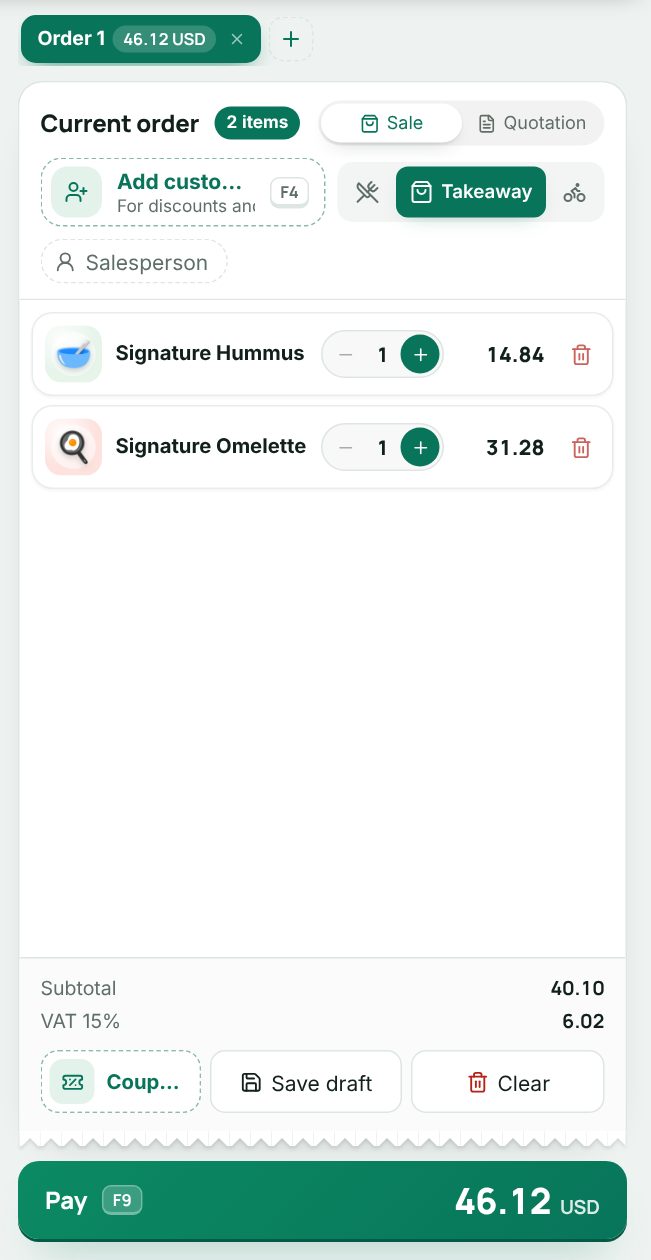 The till totals with the VAT row
Worked example
VAT 15%. A mug entered at 11.50 with Price includes tax Yes, and a notebook entered at 10.00 with No. Both show 11.50 on the till.
| Mug | Notebook | Order | |
|---|---|---|---|
| Before VAT | 10.00 | 10.00 | Subtotal 20.00 |
| VAT 15% | 1.50 | 1.50 | VAT 15% 3.00 |
| With VAT | 11.50 | 11.50 | Pay 23.00 |
The receipt shows Total excluding VAT 20.00, VAT 15% 3.00 and Total 23.00.
The VAT on an order at the till
A rate change on a set date. Add "VAT 2027" with the new rate. On the day it takes effect, choose Make default on it. Sales from that moment use the new rate; earlier sales keep theirs.
Who can change taxes
Adding, editing and deleting taxes each need their own permission (tax_read to see the page). Users without them see the list read-only. See Users and permissions.
Related pages
Last updated 17 Oct 2026