Variants
Use variants when one item comes in versions that are really different things on the shelf: a T-shirt in sizes and colours, a coffee in Small, Medium and Large. Each combination gets its own SKU, barcode, price and stock, and the cashier picks the combination at the till.
Variant or modifier?
| Variant | Modifier | |
|---|---|---|
| Changes | What the item is | How it is made, or extras added to it |
| Examples | Size, Colour | Milk type, sauce, toppings, "No onions" |
| Own SKU, barcode, price, stock | Yes, per combination | No new SKUs |
| Used on | Products and menu items | Menu items only |
If a choice should be scanned, counted in stock or priced as its own item, make it a variant. Otherwise use a modifier group.
How variants work
- A main variant is the attribute, for example Size or Colour.
- Sub variants are its values, for example S, M, L, or White, Black. Each can have an Additional price, added to the item's base selling price.
- The item gets one SKU row for every combination of one value from each main variant: 4 sizes × 2 colours = 8 rows. On products, each permitted unit multiplies the rows again.
Add variants to an item
- Open the product (Inventory Management › Product Settings › Product Details) or the menu item (Restaurant Management › Menu Management › Menu Items) and edit it.
- Turn on This product has variants (menu items: This menu has variants). The Variants section appears with one empty main variant.
- Type the Main variant name, for example Size. Suggestions come from the variant library.
- Fill in the first value, then choose Sub variant for each further value. Give a value an Additional price when it costs more.
- Choose Add main variant for a second attribute, such as Colour.
- In SKU combinations, choose Generate SKU & barcode, then Fill prices. You can then type a different price on any single row.
- Save the item.
From library chips list the library values the item does not have yet. Click one to add it, or Add all. A library value brings its Arabic name and its suggested extra price.
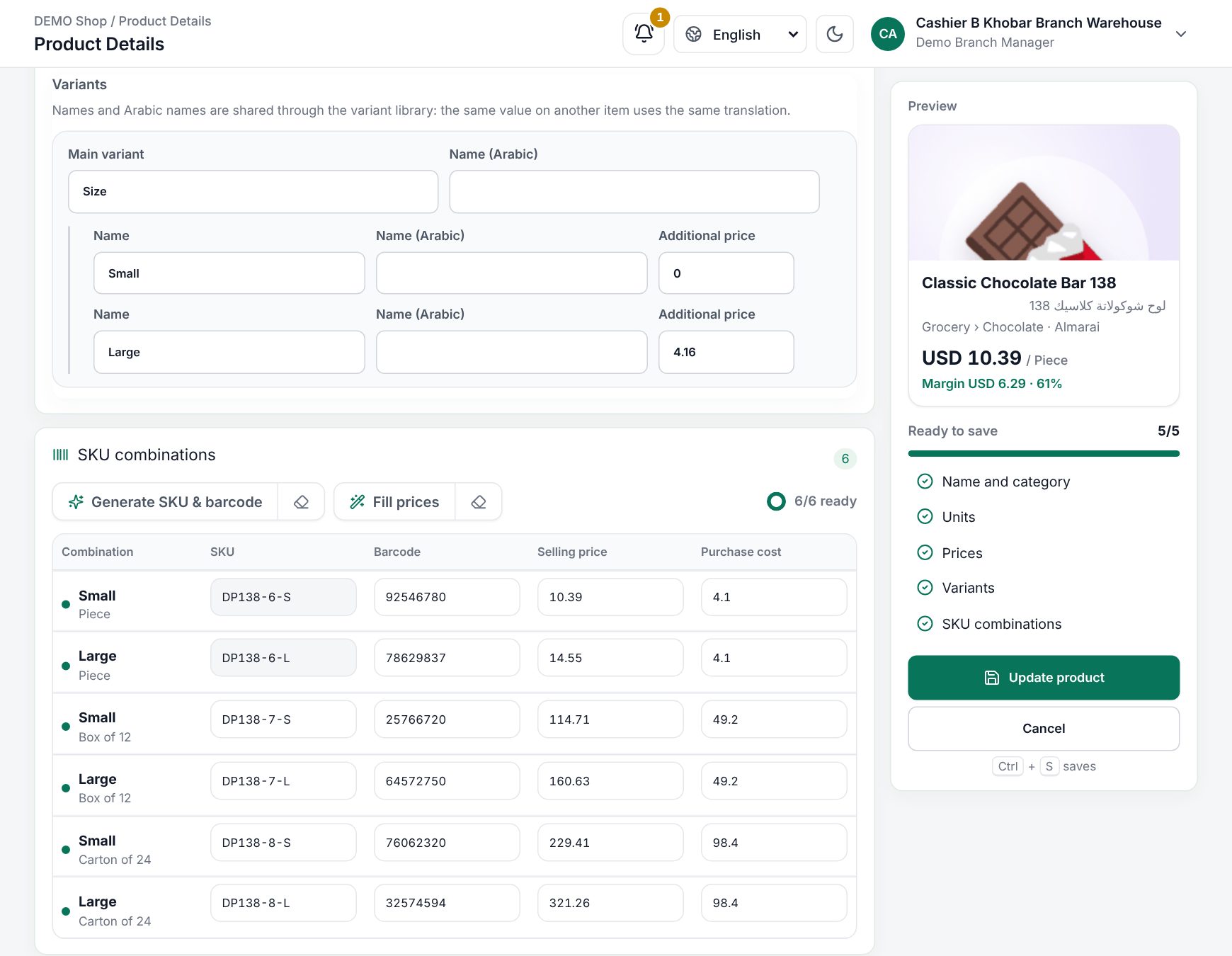 The variant editor and SKU combinations on a product
Example: a T-shirt with size and colour
Basic T-shirt, Selling price 40.00, Price includes tax Yes. Size: S, M, L, XL (XL Additional price 5.00). Colour: White, Black.
| Combination | Selling price |
|---|---|
| S, M and L, in White and Black | 40.00 |
| XL - White, XL - Black | 45.00 |
Tip: Fill prices only fills empty cells. To recalculate every price, choose its Clear button first.
The variant library
Variant names are shared across the shop, so "Large" means the same thing on every item and is translated once. Open Inventory Management › Product Settings › Variants. Each variant shows its values, their suggested extra price and how many items use them; Arabic missing flags a value without an Arabic name. The Show filter has All, Missing Arabic and Not used.
- Add variant creates an attribute, such as Size. Add value (on a variant) adds a value, such as Large.
- The pencil button edits it. Fields: Name, Name (Arabic), Display order (lower shows first) and, for values, Suggested extra price (filled in when the value is added to an item).
- Renaming or translating here updates every item that uses it. An attribute or value in use cannot be deleted ("Items use it, so it cannot be deleted.").
What happens at the till
- The tile shows from and the cheapest combination's price with VAT, and the sliders icon (Options).
- Tap the tile. A dialog opens with one step per main variant (Choose one). Each value tile shows the price of the combination it leads to. A value whose combination has no SKU is greyed out as Not sold, and the footer says This combination is not sold.
- The left side shows the price and Your selection. When every step is chosen the footer says Ready to add; choose Add to order (the button shows the line total). Use the stepper for the quantity.
- Scan a combination's barcode and that exact combination goes straight into the order.
- The order line shows the name and the combination, for example Basic T-shirt XL - Black. Tap it and choose Change options to switch the size.
- Stock is taken from the combination sold only. Reports list each combination as its own SKU.
- Receipt:
1 × Basic T-shirt (XL - Black). A menu item's size is also printed on its kitchen ticket.
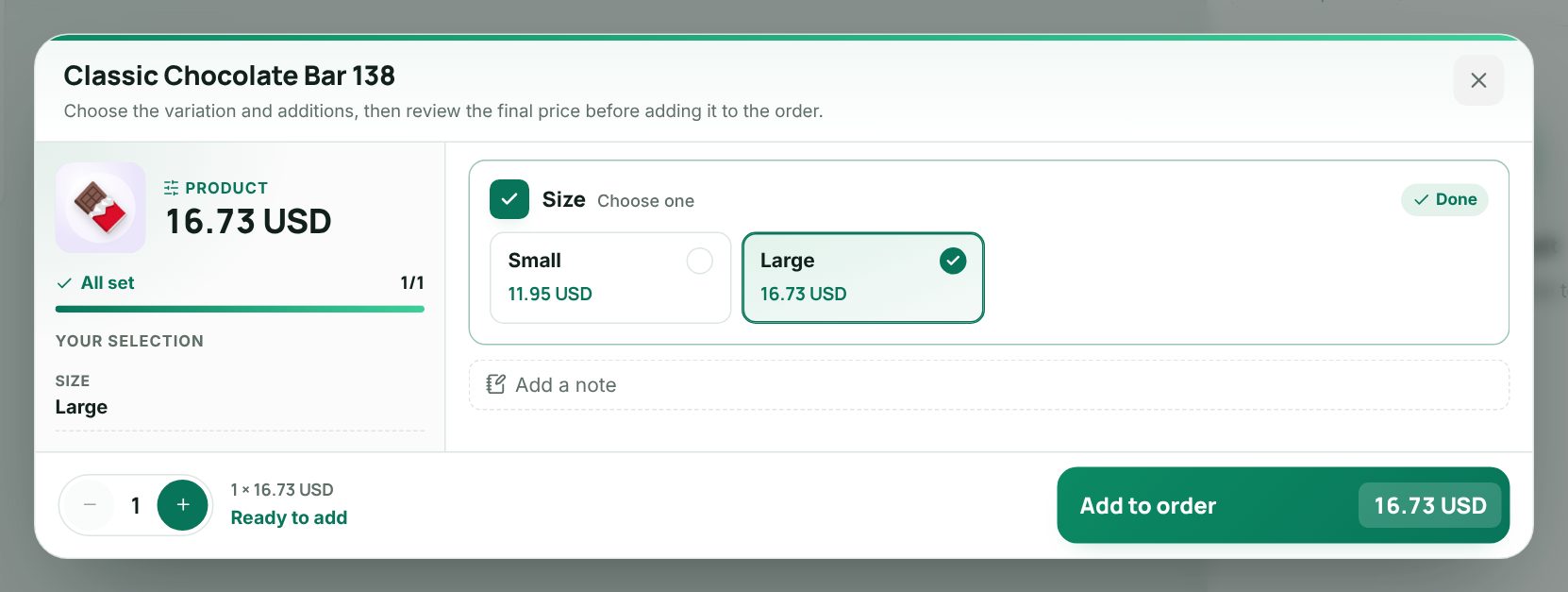 The size choice in the till for a product with sizes
Worked example
A customer takes two XL - Black T-shirts at 45.00 (VAT 15%, price includes tax):
| Amount | |
|---|---|
| Line (2 × 45.00) | 90.00 |
| Subtotal (before VAT) | 78.26 |
| VAT 15% | 11.74 |
| Pay | 90.00 |
Stock of the XL - Black SKU goes down by 2; XL - White and the other sizes are untouched.
Choosing a size at the till
Rules
- An item uses each main variant once, and each value name once ("Sub variant name must be unique.").
- SKUs are required on every row; barcodes are optional. Both must be unique in the shop.
- Once an item is sold, its main variants are locked. On products, units and variants are locked. On menu items you can still add sub variants, but values in a sold SKU stay. Names, prices and barcodes can always change, and a sold row keeps its SKU code.
Variants on menu items
Menu items use the same editor, without units or cost column. Each row's price follows the base Selling price plus the extras. To give the same sizes to many menu items, choose Add bulk variants on the menu item list: tick the menus, build the main and sub variants with their Additional price, and leave Auto generate SKU & barcode on. Only menu items without variants that were never sold are listed. Each item's current SKU becomes its first combination, and the extra prices follow each menu's own tax mode.
Related pages
Last updated 17 Oct 2026