Purchase orders
A purchase order is what you ask a supplier to deliver. You build it, send it (by email with a PDF, or yourself), and when the goods arrive you receive them on the order. An order never changes stock by itself: receiving it makes a purchase that you check against the supplier's invoice and post.
Open Purchases › Purchase orders. Purchase orders are part of the Purchasing add-on. Viewing needs the purchase read permission; creating, sending, receiving and closing need purchase create.
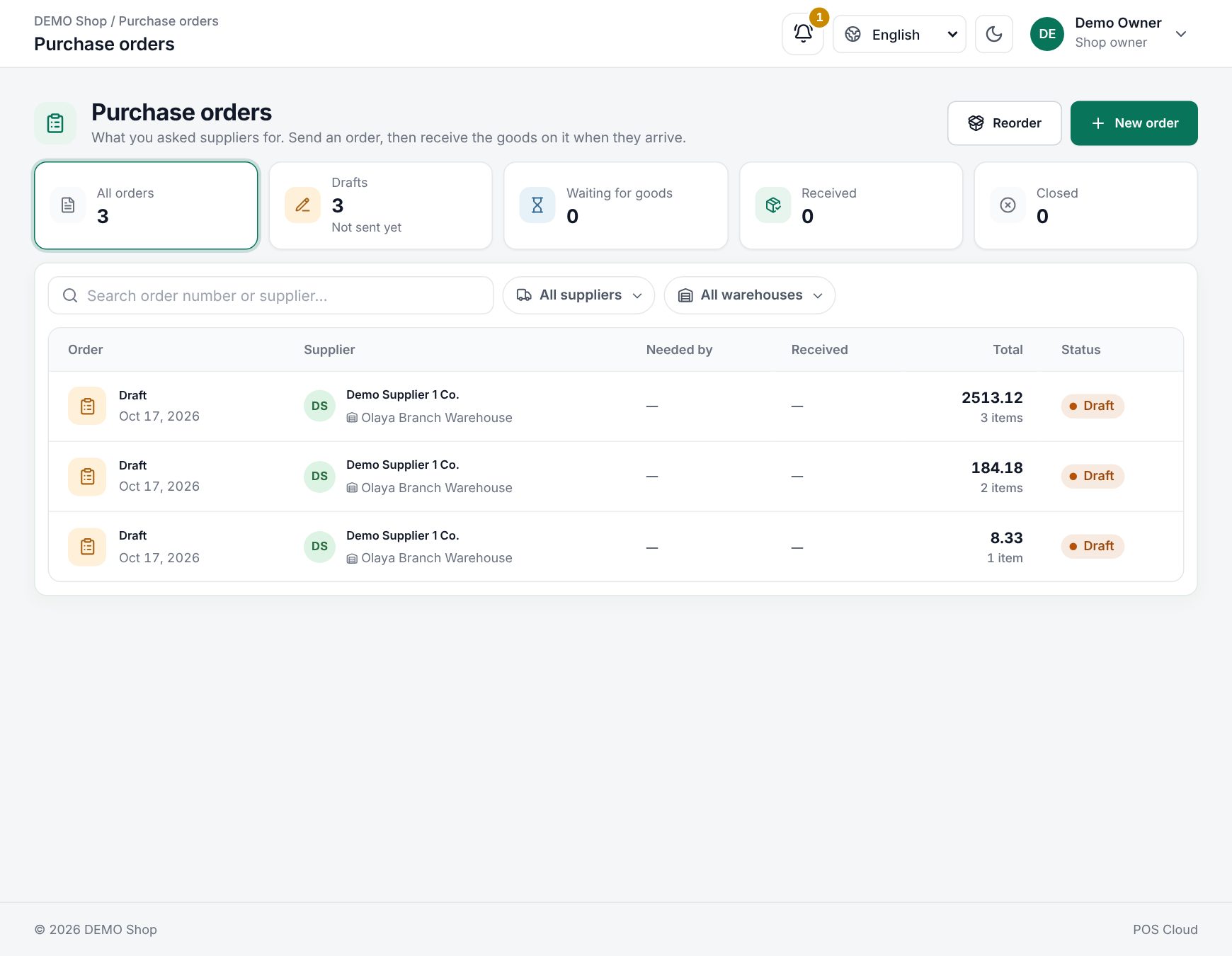 The purchase order list
Statuses
| Status | Meaning |
|---|---|
| Draft | Being prepared. No number yet, can be changed or deleted |
| Sent | Numbered (PO-000001 …) and waiting for the goods |
| Partly received | Some of the goods arrived |
| Received | Everything ordered arrived |
| Closed | Part arrived and nothing more is expected |
| Cancelled | Nothing arrived and the order was called off |
A sent or partly received order past its Needed by date is tagged Late.
The order list
The tiles count All orders, Drafts, Waiting for goods (sent or partly received), Received and Closed; click one to filter. You can also filter by Supplier and Warehouse and search by order number or supplier. Each row shows the order number and date, the supplier and the warehouse, Needed by, a Received bar, the total and the status (a small envelope means it was emailed).
Make an order
- Click New order (or let Reorder make the drafts for you).
- Under Supplier and delivery, choose the Supplier, the Needed by date (optional, not in the past) and the warehouse under Deliver to. Click Add a note if needed, for example "deliver before 10 am".
- Scan or search items. The last purchase price is filled in.
- For each line, set the Quantity, the Expected price (excluding VAT) and, with VAT, the VAT %. An item can be on the order only once.
- Check the Order total and the checklist on the right.
- Click Save draft, or Send to supplier.
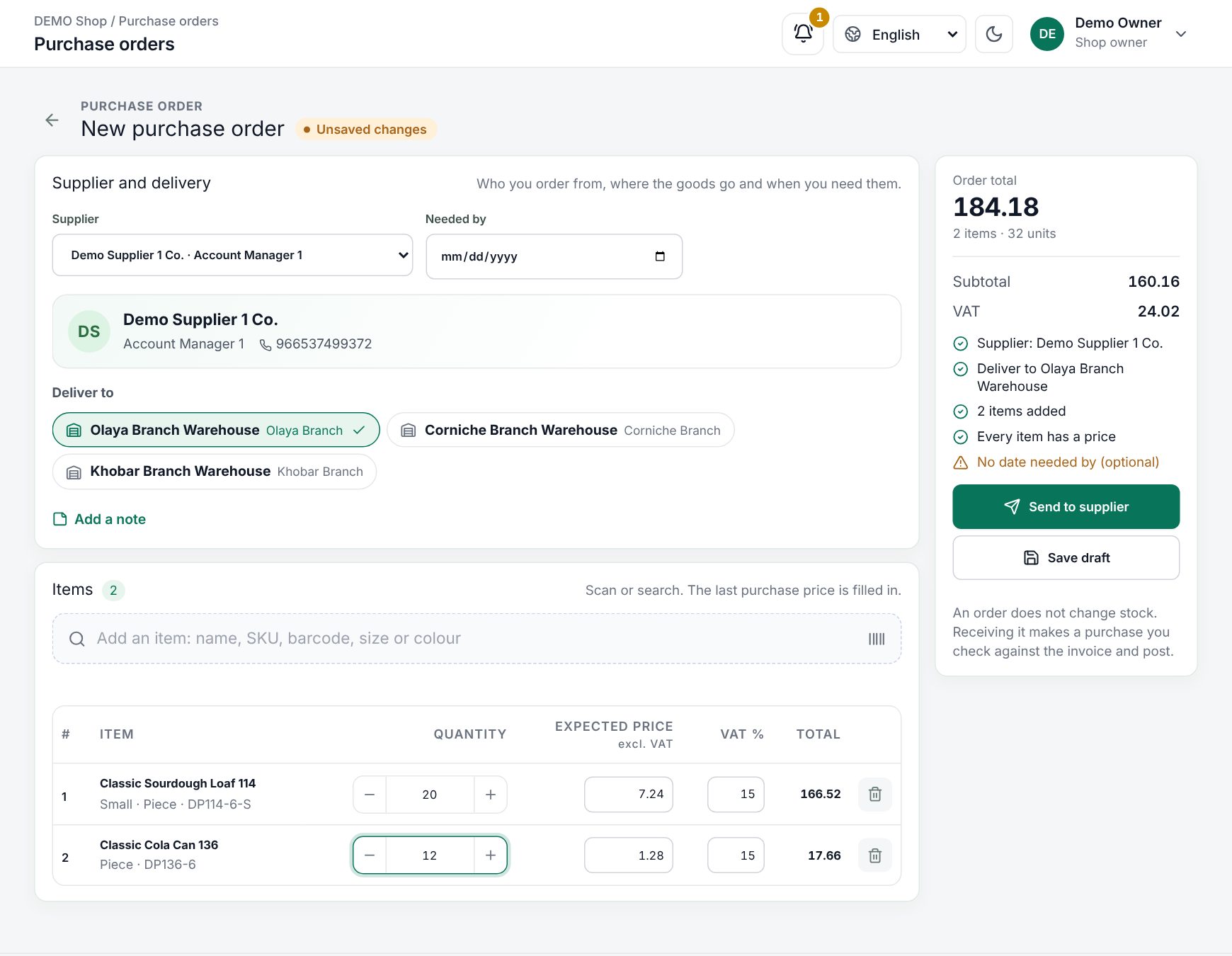 A new purchase order with its checklist
Send it
Send to supplier saves the order as a draft and opens Send this order, with the supplier, the number of items and the total. Sending gives the order its number, and it can no longer be deleted. Cancel leaves it as a draft.
- Leave Email it to the supplier on to email it now. Check Email to (the supplier's address is filled in) and pick the Language of the PDF: English, Arabic or Bangla. Click Send and email. The supplier gets a link to download the order as a PDF, without signing in.
- Switch it off and click Mark as sent if you send it another way. If email is not set up on the server, only this option is available (see Email (SMTP)).
Making a purchase order and opening Send this order
A sent order has PDF to download it and Email to send it again, to the same or another address. While nothing has arrived on it, Edit order lets you change it; it keeps its number. Save with Save changes.
Receive the goods
- Open the order and click Receive goods.
- A draft purchase opens with everything still to come, at the order's prices. If a draft purchase for this order already exists, that one opens instead.
- Change the quantities to what actually arrived, fix prices to the invoice, add the supplier invoice number, and post it.
Once the purchase is posted, the order counts the goods as received and its status moves to Partly received or Received. The order shows a progress line (Created, Sent, Goods arriving, Received), the Ordered, Received and Still to come quantity of each line, and a Deliveries card listing its purchases. If a delivery comes in two parts, receive again for the rest. Voiding a purchase takes its goods off the order again.
Close or cancel
- Close order: some goods arrived and you expect no more (for example Delivered short, accepted). What arrived stays received.
- Cancel order: the order was sent but nothing arrived (for example Supplier cannot deliver). It stays in the list, marked as cancelled.
A reason is optional. Neither is possible while a draft purchase is receiving the order: post or delete it first. Only a draft can be deleted (Delete draft); cancel a sent order instead.
Good to know:
- Quantities still to come on drafts and open orders count as "on order" in Reorder, so you do not order twice.
- A purchase that receives an order must be from the same supplier.
- Staff see only the warehouses they are assigned to.
Example
A café orders 20 bags of coffee beans and 10 boxes of cups from its wholesaler, needed by Thursday, and sends the order by email. On Thursday 20 bags and 6 boxes arrive. The manager clicks Receive goods, changes the cups to 6, enters the invoice number and posts: the order is Partly received. The wholesaler says the cups are out of stock, so the manager clicks Close order with the reason Supplier is out of stock.
Last updated 17 Oct 2026