Coupons
A coupon is a code the cashier enters at the till for a discount on the whole order. You decide the discount, the minimum order, how many times it can be used and on which days. The server checks the code and counts each use, so two tills can never both take the last use of a coupon.
Use coupons for printed vouchers, social media codes, or a goodwill gesture after a complaint. For discounts that should apply by themselves, use Promotions instead.
The coupon list
Open Sales › Coupons (permission coupon_read). Each coupon shows:
| Column | Shows |
|---|---|
| Code | The code the cashier types (with a Copy code button) |
| Discount | For example "10% off, at most 30.00", with Orders from when there is a minimum |
| Valid | The first and last day, Any day, Now or No end |
| Used | Uses so far, out of the limit (with a bar), or no limit |
| Discount given | What the coupon has cost so far |
| Status | See below |
Filter by status with the All coupons menu, or search by code or name.
| Status | Meaning |
|---|---|
| Active | Can be used now |
| Starts later | Its first day is still to come |
| Expired | Its last day has passed |
| Used up | It reached its number of uses |
| Switched off | Coupon can be used is off |
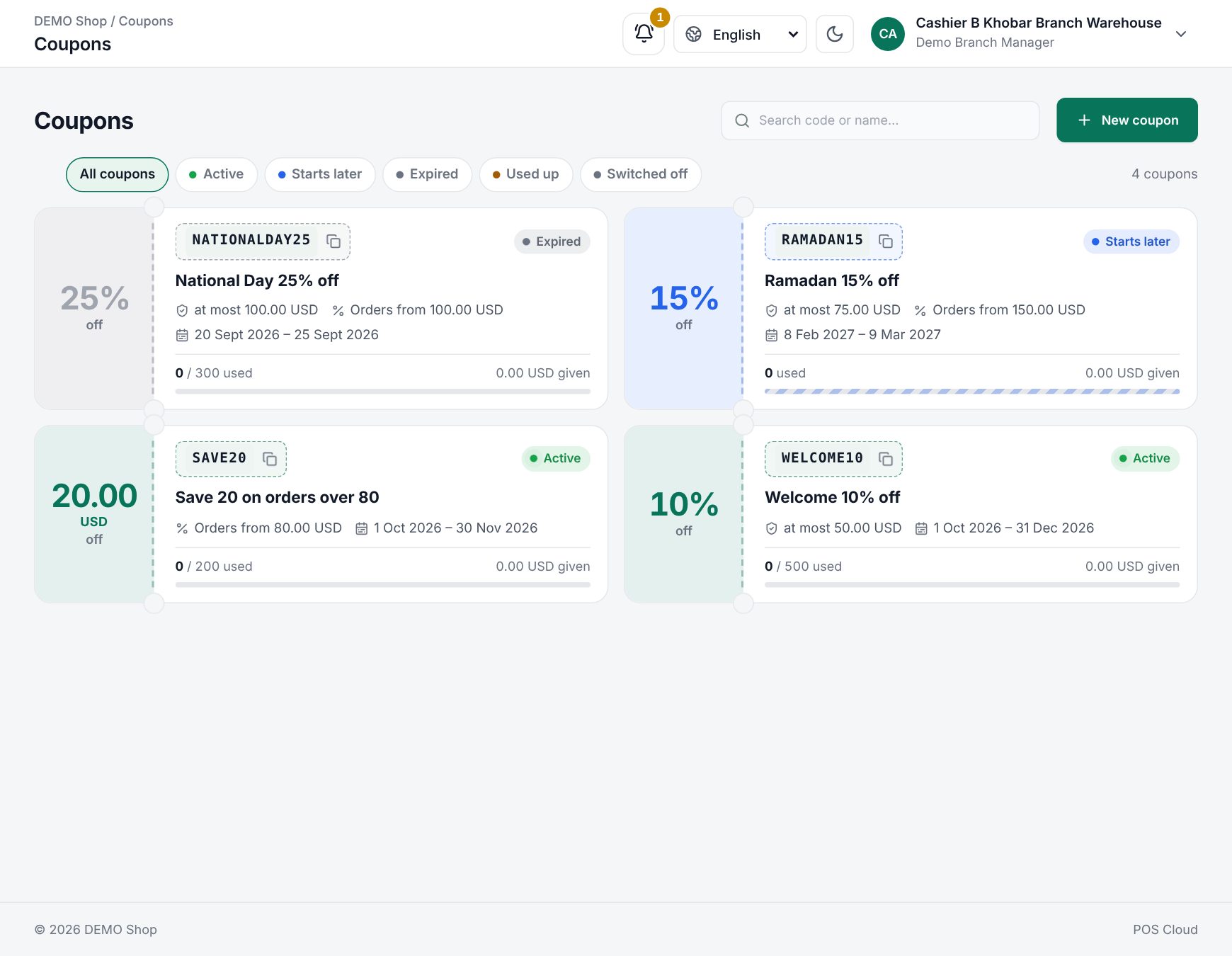 Sales › Coupons with codes, usage and status
Create a coupon
- Choose New coupon. A code is generated for you.
- Fill in the fields below.
- Read the summary sentence at the bottom, for example "Customers get 10% off, at most 30.00 SAR, on orders from 100.00 SAR, for the first 200 sales, from 1 Mar 2026, until 31 Mar 2026."
- Choose Create coupon.
| Field | What it does |
|---|---|
| Code | What the cashier types. Letters, numbers, - and _. Not case-sensitive (ramadan10 = RAMADAN10). Unique among your coupons. Generate makes a new random code |
| Name, Name (Arabic) | For you and the receipt, for example "Ramadan 10% off" |
| Percent off / Amount off | The type of discount |
| Percent or Amount | The value. An amount is what the customer pays less, VAT included |
| At most | Percent coupons only: a cap on the discount. Empty: no cap |
| Minimum order | The order total, with VAT and before the coupon, needed to use it. Empty: any order |
| Number of uses | How many sales can use it. Empty: unlimited. When editing, the hint shows how many times it was used so far |
| First day, Last day | The days it can be used (the shop's business days). Both optional |
| Coupon can be used | Switch a coupon off without deleting it |
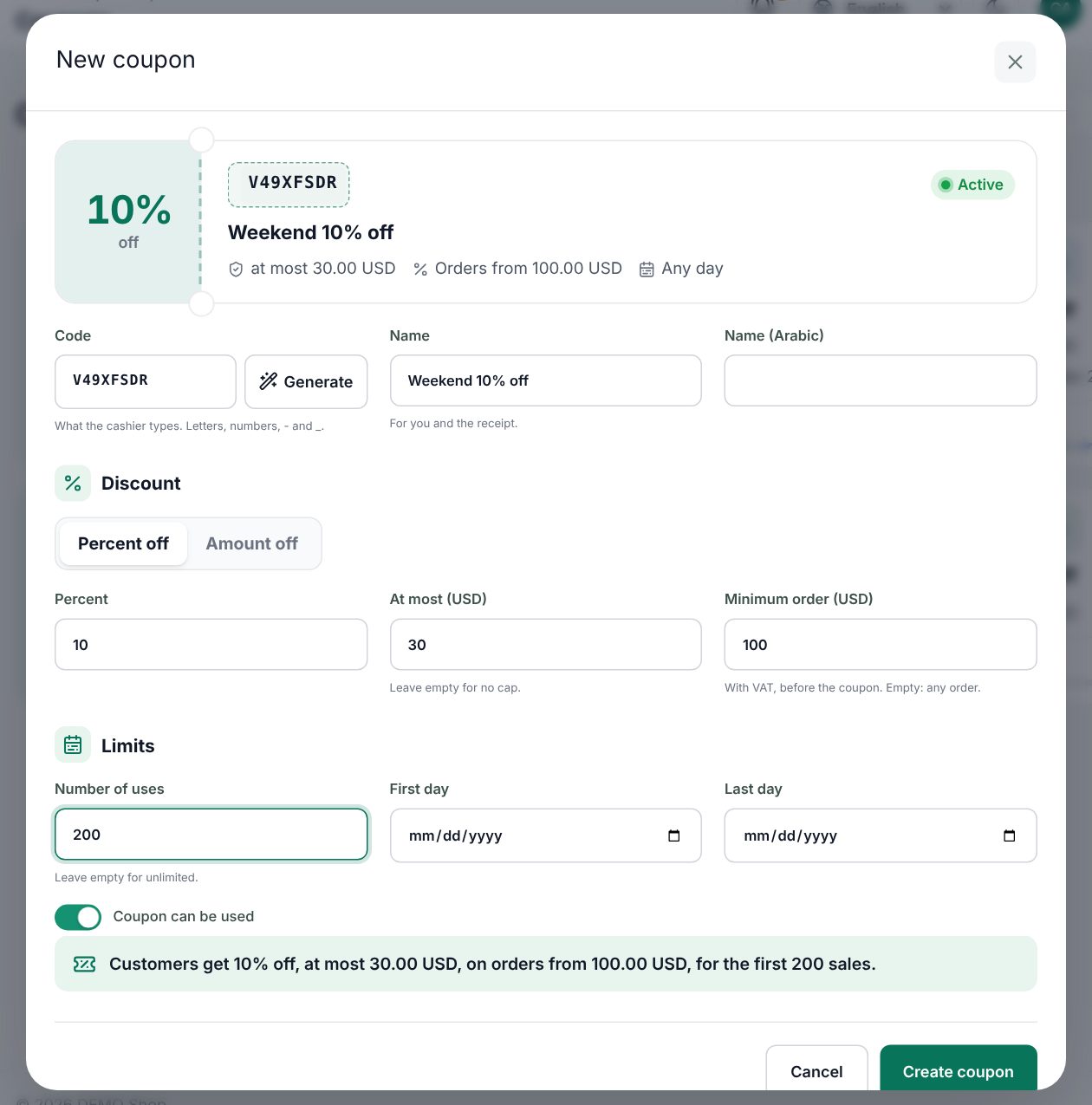 The New coupon form with the summary sentence
To change a coupon, open it, edit, and choose Save changes. To remove it, choose Delete and confirm at Delete this coupon? (or Keep). A deleted coupon stays on the sales that used it.
What happens at the till
- With items in the order, choose Coupon in the cart actions, or press F8. The button is disabled while the order is empty.
- The Coupon dialog opens ("Type or scan the code on the customer's coupon."). Type or scan the code under Coupon code and press Enter or Apply coupon. The till shows Checking the code…, then Coupon applied with the coupon's terms, and closes.
- The totals show a Coupon row with the code and the amount off. The Coupon button now shows the code and the amount; hover over it for the terms. The × (Remove coupon) takes it off.
To change the coupon, open the dialog again: it shows the one On this order and a Use another code box.
What the cashier may see:
| Message | Meaning |
|---|---|
| Coupons need a connection | The till is offline: codes cannot be checked |
| Not applied on the button, and "Coupon CODE: the order must be at least 80.00." | The order is below the minimum (for example after removing items). The coupon comes back by itself when the order reaches it |
| "Coupon CODE: items on offer are left out of it." | A promotion that does not combine with coupons is on some items |
| "Too many wrong coupon codes; try again in 15 minutes." | 20 unknown codes in 15 minutes |
The coupon is checked again when the sale is saved: it must exist, be switched on, be inside its days, have uses left, and the order must reach its minimum.
How the discount is worked out
The coupon applies after promotions, the customer group discount and the cashier's line discounts, and before loyalty points, the tobacco fee and VAT. It is spread over the lines by their remaining amount, so each line carries its share. An amount coupon never takes off more than the order. The Coupon row in the totals is before VAT, like the Subtotal; the receipt shows the same Coupon row.
Worked examples
A fixed amount. SAVE20: Amount off 20.00, Minimum order 80.00. The order is 120.00 with VAT (15%).
| Totals | Without coupon | With SAVE20 |
|---|---|---|
| Subtotal | 104.35 | 104.35 |
| Coupon SAVE20 | −17.39 | |
| VAT 15% | 15.65 | 13.04 |
| Pay | 120.00 | 100.00 |
The customer pays 20.00 less; 17.39 of it is the price and 2.61 the VAT on it.
A capped percentage. WELCOME10: Percent off 10, At most 50.00. An order of 150.00 gets 15.00 off and pays 135.00 (Coupon −13.04, VAT 17.61). An order of 600.00 would get 60.00, but the cap limits it to 50.00: it pays 550.00.
Applying a coupon at the till
Good to know
- One coupon per order. Coupons are not kept in a quotation.
- Cashiers without discount permission can still use coupons, and coupons do not count toward the cashier's discount limit (see Discounts and manager approval).
- A coupon saved with a draft is not counted until the draft is paid. When the draft is opened again, the coupon is checked again and dropped if no longer valid.
- An offline sale keeps its coupon even if the coupon was switched off or used up before the sale reached the server; the use is still counted.
- On restaurant tables, a check with a coupon cannot be merged into another check; splitting a check keeps the coupon on the original one.
- When items are returned, each returned line gives back its share of the coupon (see Returns and credit notes).
Last updated 17 Oct 2026