Waiter handheld
The waiter handheld is the till made for a phone or tablet. A waiter walks to the table, opens a check, takes the order seat by seat and course by course, and sends it to the kitchen from the table. Later the waiter fires the next course, prints the bill and takes the payment at the table. The waiter also gets an alert when the dishes are ready to serve.
What you need
- The Waiter app add-on on your subscription. Your plan sets how many staff can use it.
- Each waiter must have the waiter app switched on. Open the employee in Users & Permissions › Employees and turn on the waiter app under App access. Only the shop owner can change app access.
- The waiter's role needs the POS operation permission.
- Tables on your floor plan (see Tables and floor plan).
Open Restaurant Management › Waiter handheld on the waiter's device (the page is /shop/waiter). A waiter without the waiter app sees "You do not have access to the Waiter app. Ask the shop owner." A shared device can also be paired, so staff sign in with their PIN.
The tables
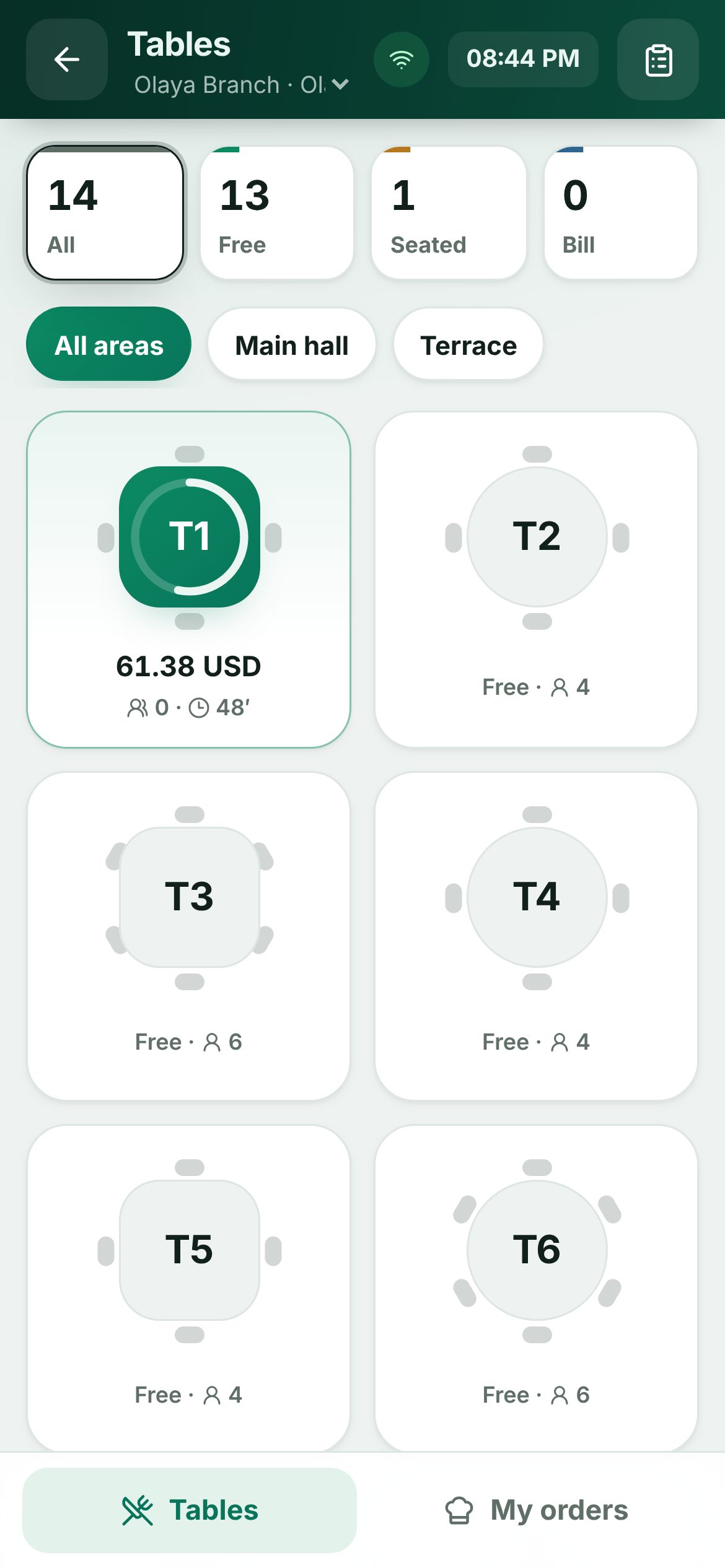 The waiter handheld's table view on a phone
The Tables view shows each table with its chairs, how long the guests have been seated and the check total. Filter with All, Free, Seated and Bill, and by area. If you work in several branches, pick one at the top. Badges on a table show dishes Ready to serve, QR orders waiting, and a next course that fires by itself or is held.
Tap a table:
- A free table asks How many guests? Pick the number to start a new check.
- A table with one check opens it.
- A table with several checks asks you to Choose a check, or start a New check.
Take the order
Taking a dine-in order on the waiter handheld
- Pick who the next items are for: a seat number, or the table icon for dishes Shared by the table. Use + (Add a guest) for one more guest.
- If your shop uses courses, pick the course: Auto puts each dish in its own course, Now sends it at once, or pick a course such as Starter or Main.
- On the Menu tab, search or pick a category and tap items. Sizes, options and combos open the same dialogs as the till.
- The Check tab lists the items by course. Tap a line to change the quantity, seat or course, add a Note for the kitchen, Remove it, or choose Done.
- Choose Send order (it shows how many items will be sent). The app confirms Sent to the kitchen. On an open check, the button says Send round and shows how many items are new.
Only new items go to the kitchen. If you change a dish that was already sent, the kitchen gets a cancel and a new dish. If you leave a check with unsent items, the app asks first.
Fire the next course
Later courses wait until you fire them. When nothing new is waiting to send, the bottom bar shows Fire and the next course name, for example Fire Main. The timer button next to it lets you choose:
| Choice | What happens |
|---|---|
| Fire now | The course goes to the kitchen at once |
| 5 to 45 min | The course fires by itself after that time |
| Hold | The course waits until you fire it |
| Course setting | Use the timer set for the course in Courses |
My orders
My orders lists the orders you sent, with each dish as it is cooked: Sent, Cooking, Ready to serve and Served. When an order is ready, a banner pops up with a chime. Choose Turn on alerts to get a notification even with the screen off. When you bring the dishes, choose Served. Open check opens the check. Staff who can see the order center can switch between Mine and Everyone.
Bill and payment
- Bill prints the bill, and the table shows as Bill on the floor.
- Pay opens the till's payment screen with the check's total, including any service charge. Guests can add a tip. If your shop needs an open cash session, the app asks you to Open a cash session with your Starting cash first.
- QR pay shows the table's QR code. The guest scans it, sees the bill and pays from their phone, and a cashier confirms the payment at the till. This button appears only when QR ordering is on with Guests see their table's bill.
Good to know
- The app needs a connection. When offline it shows "No connection. Sending and paying wait until it is back."
- If another device changed the check, you see "This check changed on another device. Go back and open it again."
- If a check is paid or closed on another device, it closes on the handheld too, so it is never paid twice.
- With required courses, every dish needs a course before you can send it.
- If a dish has no kitchen printer, the message after sending shows No printer takes and the dish name. See Kitchen stations and printers.
Examples
A table of four with courses. The waiter taps table 7 and picks 4 guests. Seat 1 orders soup and steak, seat 2 a salad and fish. With Auto, the soup and salad go as Starter and the mains wait. When the starters are cleared, the waiter taps Fire Main.
Pay at the table. A couple asks for the bill. The waiter chooses Bill, then Pay, takes 85.00 by card with a 5.00 tip, and the receipt opens on the phone.
Last updated 17 Oct 2026