Using the POS till
The till is where cashiers build orders, attach customers and take payment. It runs in the browser, keeps working through short connection drops, and prices every order with the same rules the server uses, so the total on screen is the total on the receipt. One cashier can keep several orders open at once and switch between them with tabs.
What you set up in the back office first
The till shows what the back office holds. Before the first sale:
- Add your categories and products, with their prices, barcodes and sizes (see Products and Variants). Restaurants add menu items, modifier groups and combos.
- Set the VAT in Taxes and your Payment methods.
- Create the store and warehouse you sell from and assign the cashiers to it (see Stores and warehouses and Users and permissions).
- Optionally set up customer groups, promotions, coupons and drawer reasons (Settings › Reasons).
A change saved in the back office reaches an open till within a few seconds.
Open the till
Choose POS in the sidebar (it needs the POS operation permission). The till opens at /shop/pos.
Before you can sell:
- You must be assigned to at least one warehouse. Otherwise the till shows You are not assigned to a warehouse. Ask the shop owner to assign you (see Users and permissions).
- If the shop uses cash closing, you need an open cash session. The till shows Open a cash session to start selling. See Cash sessions and X/Z reports.
- Sell from one browser tab only. If the till is already open in another tab, you see The POS is open in another tab. Choose Use the POS here to move it to this tab, or Back. This keeps two tabs from overwriting the same orders.
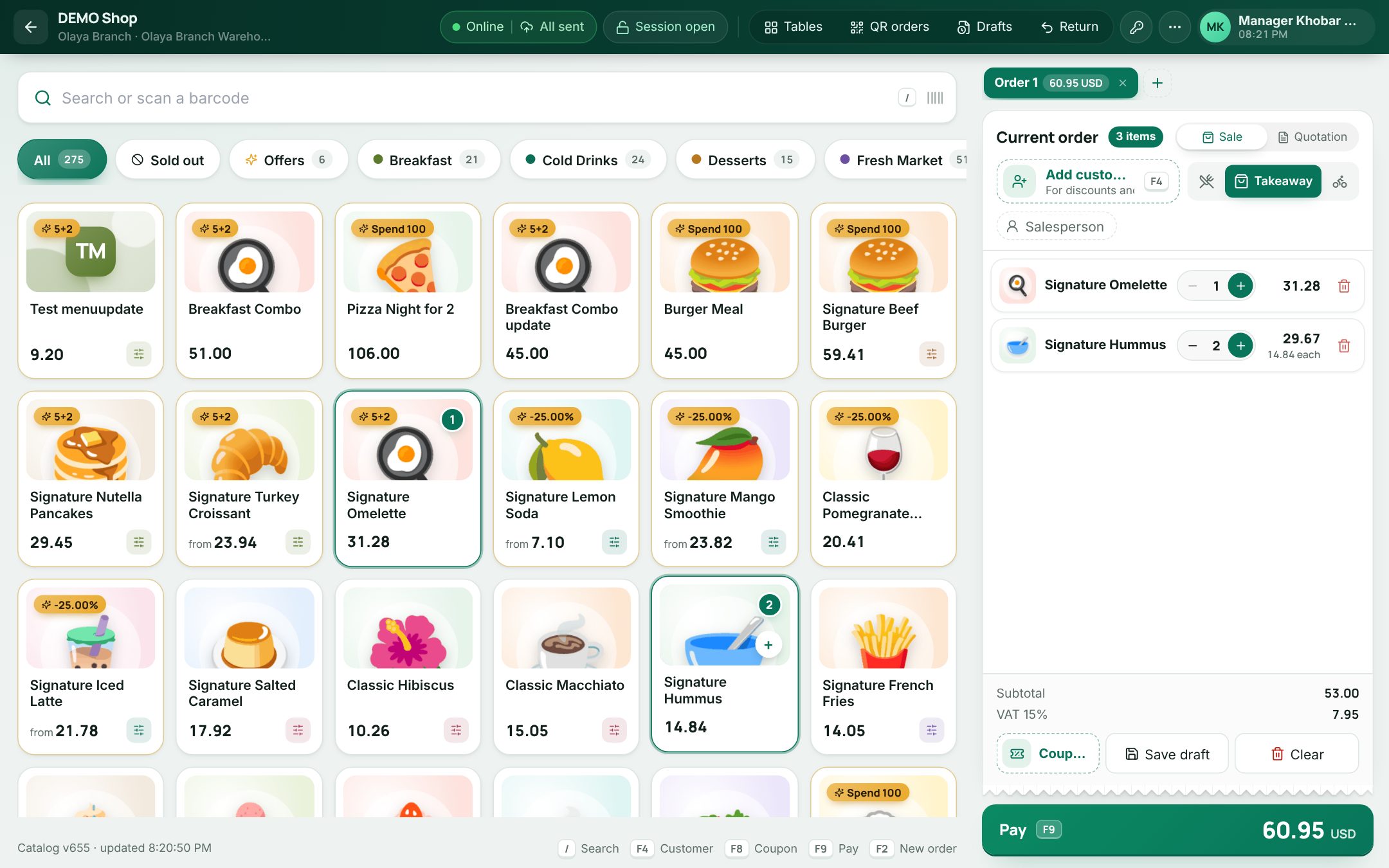 The POS till with the catalog on one side and the current order on the other
The screen at a glance
| Area | What it holds |
|---|---|
| Header bar | Back arrow, shop name, the warehouse you sell from, the connection chip, the cash session button, Tables and QR orders (restaurants), Drafts, Return, the lock button, the More menu, your name and a clock |
| Catalog | Search or scan a barcode, the category rail and the item tiles. The footer shows the catalog version and the main shortcuts |
| Order tabs | One tab per open order, and + for a new one |
| Order ticket | Current order with the customer, order type, lines, offers, totals and the cart actions |
| Pay slab | The big Pay button with the order total |
On phones and small tablets, the order is a bottom sheet: tap the bar at the bottom (item count, number of open orders and total) to open it.
The header bar
- Warehouse: every store and warehouse you are assigned to, shown as "Store · Warehouse". It can only change while no open order has items: otherwise it shows Finish or clear the open orders to change the warehouse.
- Connection chip: Online or Offline, with the offline sales counter (All sent, n waiting or n refused). Tap it to open Offline sales (see Selling offline).
- Cash session: Open session when none is open, Session open to open the cash drawer (below), or Close old session when the session is from an earlier business day.
- Tables (restaurants) opens the floor plan (see Tables and floor plan). QR orders shows when guests order from a table's QR code, with the number waiting.
- Drafts and Return (see Drafts and held orders and Returns and credit notes). Both need a connection.
- The key button, Lock the till (staff PIN), covers the till with Till locked until a staff member enters their PIN; the till then continues as whoever owns that PIN. A PIN needs a connection.
- More holds the tools used now and then: Customer display (opens the order as the customer sees it, for a second screen), Sound (On / Off) and, when the shop sells gift cards, Sell a gift card.
Serve several customers at once
The order tabs above the ticket hold up to 12 open orders. Each one keeps its own items, customer, discount, coupon and table.
- New order: tap + or press F2. The open order is parked as it is.
- Switch: tap a tab, or press Alt+1 to Alt+9.
- A tab is named after its table, customer or draft number, or "Order 1", "Order 2"… The open tab shows its total; the others show their item count.
- Close an order: the × on its tab. If it has items, you are asked Close this order? (Close order or Keep order). A draft stays in Drafts as it was last saved; an unsaved order is cleared.
When an order is paid or saved as a draft, the till moves to an empty order for the next customer. Open orders survive a reload or a crashed tab.
Categories and tiles
The category rail starts with All, then Sold out (online only), Offers (when offers are running), Favourites (when the shop has featured items), and each main category in its own colour, with its number of items.
- Offers opens a strip of today's offers, each with its tag (for example "1+1", "-20%" or Special price), when it ends and how many items it takes. Tap an offer to show only its items.
- Sold out switches to marking mode: tap tiles to mark them sold out in this branch until the end of the business day, or back on sale. Tap Done marking to finish.
Each tile shows the price (with from when the item has several sizes or units), the old price struck through when a promotional price applies, an offer badge, incl. tobacco fee on tobacco items (see Tobacco fee), an options mark when the item has choices, and a counter of how many are already in the order. A sold-out tile says Sold out and cannot be added.
Add items
- Tap a tile. Items with a single option go straight into the order. Items with sizes, variants, several units or modifiers open the options dialog.
- Search. Type in Search or scan a barcode. The search matches the name, Arabic name, code, SKU and barcode. If nothing matches, you see Nothing found for "…" and Clear the search.
- Scan a barcode. The scanned size goes straight into the order with its default options. The options dialog only opens when a required choice has no default.
- Type a code and press Enter or Tab. This works like a scan.
Each add flies to the order, flashes the line and bumps the item counter, so the cashier sees that the scan was taken.
The options dialog
The dialog shows the picture and the live price on the side, a Required choices progress bar (it turns to All set), and Your selection listing what was picked. Step chips at the top jump to each group; each group says whether it is required and how many you may choose. Tap an option tile to pick it; tiles with a quantity have their own − and +. In a full group, a new tap swaps out the oldest pick. Use Add a note for special instructions.
The bar at the bottom has the quantity, Ready to add or how many choices are left, and Add to order with the line total (Update when you edit a line).
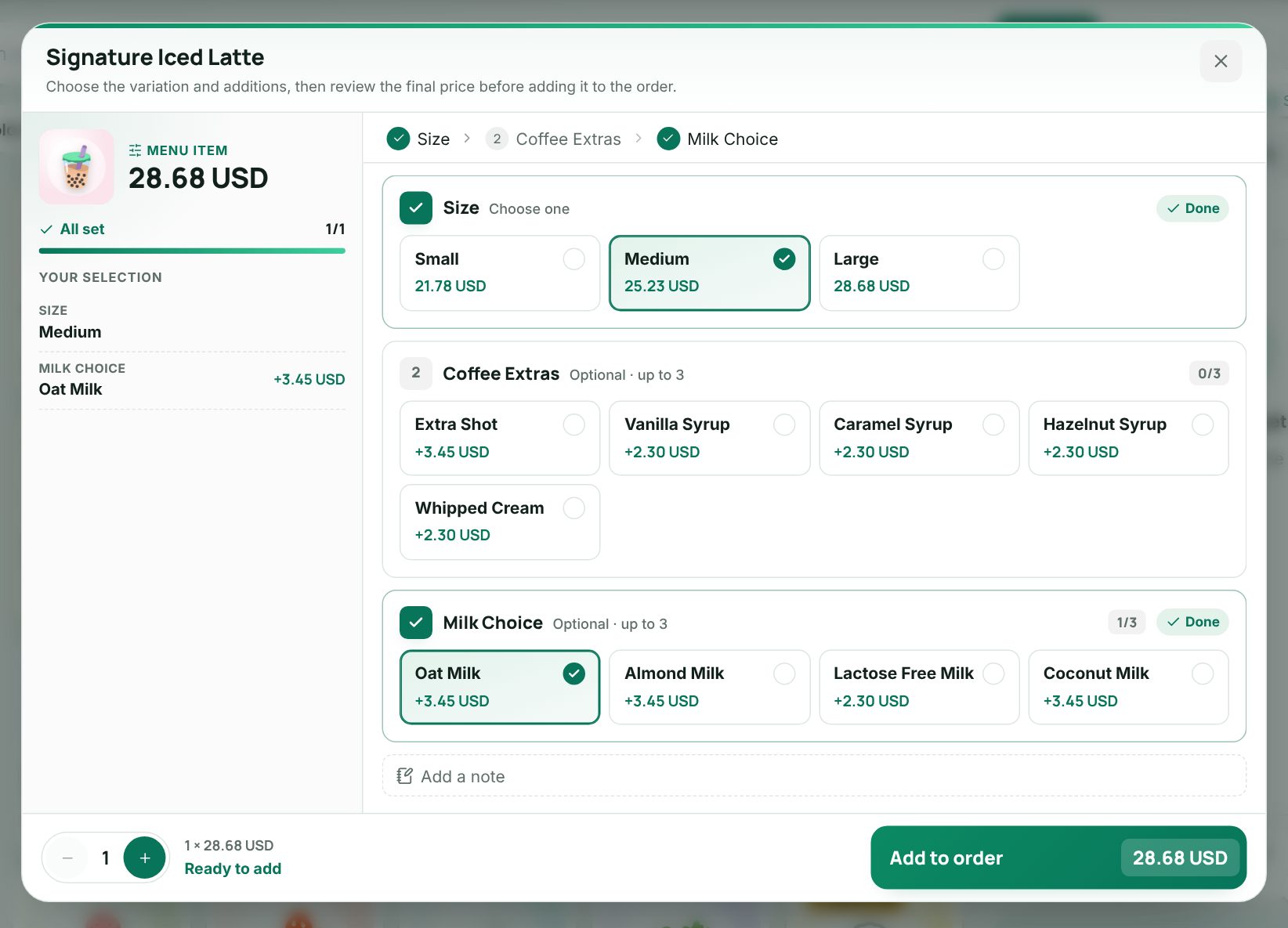 The options dialog with required choices, the selection summary and the Add to order button
Work with the order lines
Each line shows the item, its options and note, and the line total (with the price each when the quantity is more than 1).
- Use − and + to change the quantity. At 1, remove the line with the bin (Remove item). The pencil (Edit choices, or Change picks for a combo) reopens the options.
- Tap the line to open it. There you can change the Quantity (decimals for weighed items), add a Note, Add discount if your role allows it (see Discounts and manager approval), Change options, or Remove it.
- If your role allows price changes, the line also has a Price field (the hint shows the Menu price). When a manager must approve the change, the till asks for the Manager email or phone and Password and shows Approve. The line then reads Price changed · approved by the manager. Price changes need a connection and are not offered on tobacco items.
- A line under an offer shows Promotional item with the offer name and the old price struck through. A discounted line shows You save. See Promotions.
- If an item stops being sold in this store while it is in the cart, its line shows No longer sold here: remove it. You cannot pay until you remove it.
When the catalogue changes in the back office, the open till reloads it within a few seconds.
Customer, order type and offers
- Choose Add customer (or press F4) to find a customer by name, phone, email or VAT number, or add one quickly. The customer's group discount applies at once and shows next to their name (for example −5%), with their points when loyalty is on. Use the × (Remove customer) to take them off. See Customers and customer groups.
- Restaurants see Dine in, Takeaway and Delivery. A new order starts as Takeaway; an order on a table is always Dine in.
- When the shop has salespeople, a Salesperson button sits under the customer, and each line has a small button to set a Line salesperson.
- Above the totals, the offers box tells the cashier what the order is close to, for example "Add 1 more × Cappuccino to get the offer", with Add or Choose to add the item in one tap. At most three hints show at a time.
Totals and cart actions
Below the lines you see Subtotal, Discount, Coupon with its code, Points, any service charge, Tobacco fee and VAT with its rate. Warnings show here too, for example when a discount needs a manager's approval or the cash session is missing.
| Button | What it does |
|---|---|
| Coupon | Apply a coupon code (see Coupons). With a coupon on, it shows the code and the discount, and an × removes it |
| Use points | Pay part of the order with the customer's loyalty points (customer with loyalty only) |
| Save draft / Update draft | Park the order and free the till. On a table this button is Send |
| Clear | Empty the order |
| Pay (F9) | Take payment (see Taking payment) |
When the shop can make quotations, the ticket also has a Sale / Quotation switch. In quotation mode nothing is charged and the pay slab saves the quotation instead.
ring up and pay a sale on the till
The cash drawer
With a session open, choose Session open in the header. The Cash drawer dialog shows Cash in the drawer now, the Opening float and the number of sales, and lets you record:
| Operation | Use it for |
|---|---|
| Pay in | Cash put into the drawer |
| Pay out | Cash taken out to pay for something. A Reason is required |
| Cash drop | Cash moved from the drawer to the safe |
| No sale | Opening the drawer without a sale, through the receipt printer. It is recorded with who and why |
Enter the Amount, an optional Reason (from Settings › Reasons) and a Note, then Save (or Open the drawer for No sale). You cannot take out more than the drawer should hold. Today's Drawer operations are listed below, with X report and Close session. These buttons need the drawer permission.
Keyboard shortcuts
| Key | Action |
|---|---|
| / | Jump to the search field |
| F2 | New order |
| Alt+1 … Alt+9 | Switch to that order tab |
| F4 | Customer |
| F8 | Coupon (when the order has items) |
| F9 | Pay (or save the quotation) |
| Esc | Close the open dialog or menu |
Typing any letter outside a field also jumps to the search field, so a scanner always lands in the right place.
What happens at the till
Every tap reprices the order at once with the same rules the server uses: offers, the customer group discount, line discounts, the coupon, points, the service charge, the tobacco fee and VAT. The pay slab always shows what the customer will pay, and the receipt prints the same lines and totals.
Worked example: pricing an order
A café's prices include 15% VAT. The cashier adds:
| Line | Price |
|---|---|
| Cappuccino, Large + Oat milk (15.00 + 2.00) | 17.00 |
| Water | 3.00 |
| Butter croissant | 9.00 |
The order comes to 29.00. The cashier presses F4 and adds a customer whose group gets 5%: the Discount row shows −1.45 and the pay slab drops to 27.55. The VAT 15% row shows the VAT included in that total, 3.59. If the cashier raises the water to 2 with +, the pay slab becomes 30.40 (32.00 less 5%). The printed receipt lists the three lines, the discount, the VAT and 30.40.
Example: a busy café counter
A cashier scans a bottle of water, taps Cappuccino, picks Large and Oat milk in the options dialog and taps Add to order. The customer is still choosing a pastry, so the cashier presses F2 and serves the next person on a new tab. Back on the first tab, the customer adds a croissant; the cashier presses F4, finds her by phone, her group's 5% discount applies, and F9 takes payment.
The till follows your language (Arabic shows right to left) and dark mode. Animations are turned off when your system asks for reduced motion.
Last updated 17 Oct 2026