Discounts and manager approval
Infotech POS has several kinds of discount. Some apply by themselves, some the cashier gives, and the shop decides how far each cashier may go. Above that limit, a manager approves the discount on the till with their own password.
The kinds of discount
| Discount | Who sets it | Where it applies |
|---|---|---|
| Promotions | The shop, in Sales › Promotions | Automatically on matching items. See Promotions |
| Price lists | The shop, in Sales › Price lists | Other prices for some customer groups, branches or order types. See Price lists |
| Customer group discount | Whoever manages customer groups | Every line sold to a customer of that group. See Customers and customer groups |
| Line discount | The cashier, at the till | One order line |
| Coupon | The shop creates it; the cashier enters the code | The whole order. See Coupons |
| Loyalty points | The customer spends them | The whole order. See Loyalty points |
They are applied in a fixed order: the item price with its options, then promotions, then the customer group percentage, then the cashier's line discount, then a bill discount (older drafts only), then the coupon, then loyalty points, then the tobacco fee, then VAT. Service charges come on top of the result. Each line is rounded once, and the invoice totals are the sums of the lines.
Note: Discount amounts typed by the cashier are what the customer saves, VAT included.
Set a discount limit per role
- Open Users & Permissions › Role & permission and choose Permissions on the role.
- Tick the POS discount permission.
- Fill in Maximum discount at the till (%): "Per item, line and invoice discounts together. Leave empty for no limit." Owners have no limit.
- Choose Save permissions.
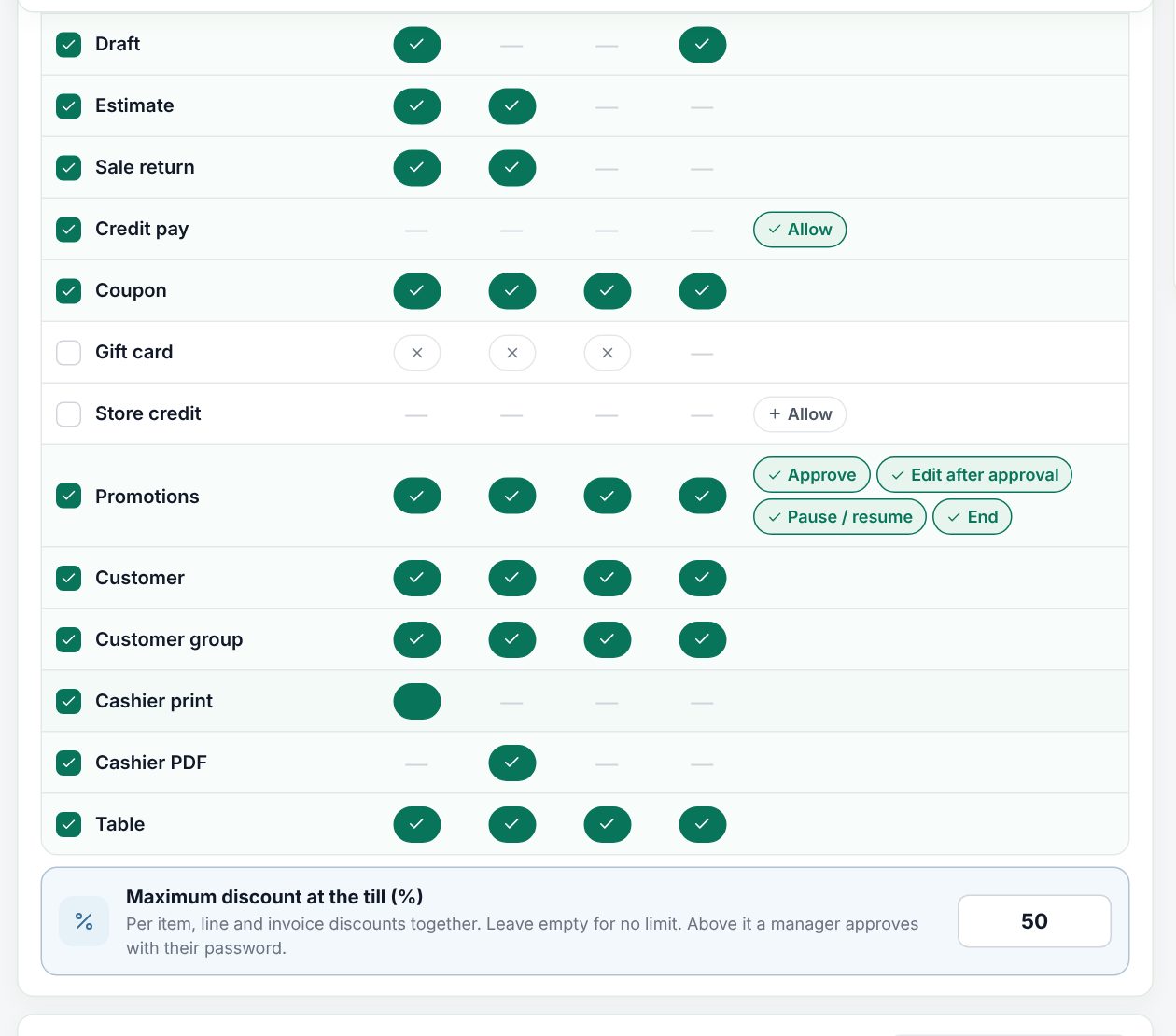 A role's Sales & till permissions with the maximum discount at the till
What counts toward the limit: for each line, the cashier's line discount and any bill discount together, as a share of the line's price after promotions and the customer group discount. The line with the largest share decides; one cent of rounding is allowed. Promotions, the customer group discount, coupons and points do not count. A cashier without POS discount can still use coupons.
What happens at the till
Give a line discount
- Tap the line in the order. The line dialog shows Quantity, Note and Price.
- Choose Add discount. In Item discount, pick % or your currency, type the Discount (%) or Discount amount ("What the customer saves, VAT included") and choose Apply.
- Choose Save. The line shows You save −30.00 (VAT included) and the totals show a Discount row (before VAT).
Remove discount in the same dialog takes it off. A line discounted by hand still counts toward an offer's condition, but is never given as an offer's free gift. Add discount only shows for users with POS discount.
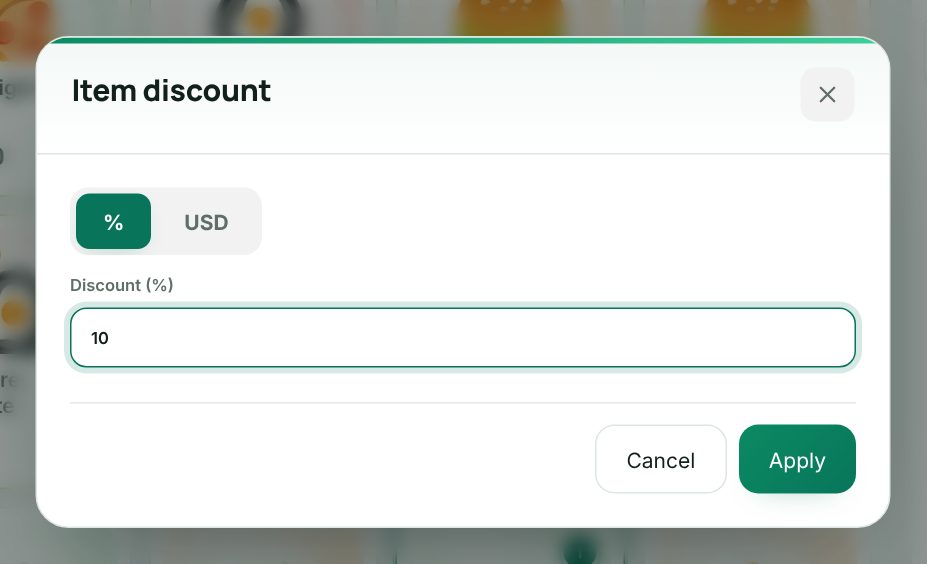 The item discount dialog at the till
Note: The till has no separate whole-order discount button: the Coupon button (F8) took its place. An older draft that carries a bill discount shows it as a button with its value, so you can change or remove it.
Change a line's price
The line dialog's Price field (with the Menu price as a hint) sets a new price with VAT for that line. Users with Change prices at the till save it directly; others get a manager sign-in (Manager email or phone, Password, Approve), which needs a connection. The line then shows Price changed (and approved by with the name). A changed line takes no promotions. Tobacco items have no price field.
Above the limit: manager approval
As soon as the discount goes above the limit, the totals warn: The discount is above your limit of 10%: a manager approves it when you pay. When the cashier chooses Pay:
- The Manager approval dialog opens ("This sale has 20% discount; your limit is 10%").
- The manager types their own Manager email or phone and Password and chooses Approve.
- The order shows Discount approved by with the manager's name, and payment continues.
Rules:
- The approver must be someone else from the same shop with POS discount, and their own limit must cover the percent; otherwise the dialog says how far they may approve ("This person may approve up to 50%.").
- The approval is for this cashier and this sale and expires after 10 minutes. Raising the discount further asks again.
- The password is checked once by the server and never stored on the till. Too many wrong attempts lock approvals for a while (10 per cashier and 10 per approver in 15 minutes). A wrong password never signs the cashier out.
- Offline, the till says Discounts above 10% need a connection for a manager's approval.
The approver is saved on the sale: in the sale's details, in Reports › Sales by cashier, and in the cash session's Z report.
Worked example: everything on one line
A dress at 230.00 with VAT (200.00 before VAT, VAT 15%), sold to a customer in a group with 5% off, with a 10% line discount and coupon SAVE20 (20.00 off):
| Step | Before VAT |
|---|---|
| Price | 200.00 |
| Customer group 5% | −10.00 → 190.00 |
| Line discount 10% (of 190.00) | −19.00 → 171.00 |
| Coupon 20.00 with VAT = 17.39 before VAT | −17.39 → 153.61 |
| VAT 15% | +23.04 |
| Pay | 176.65 |
The totals read Subtotal 200.00, Discount −29.00 (group and line together), Coupon SAVE20 −17.39, VAT 15% 23.04. The cashier gave 10% of 190.00, so a 10% limit is just met. The receipt shows the same rows.
Giving a line discount at the till
Example: a boutique with a 10% cashier limit
The Cashier role has Maximum discount at the till (%) 10, the Manager role 50. A regular customer asks for 20% off a dress at 300.00. The cashier gives 20% on the line; the line shows You save −60.00 and the till warns that the discount is above the limit. At Pay the approval dialog opens, the store manager signs in with her phone number and password, and the sale is saved with Discount approved by and her name. A 10% discount would have gone through without asking.
Offline sales and the limit
If an offline sale carries a discount above the cashier's limit without a valid approval, the server still saves it (the goods are gone) but marks it To review in the Sales list so a manager can check it.
Last updated 17 Oct 2026