Gift cards and store credit
A gift card is prepaid money with a code. The customer pays for the card now and spends it at the till later, in one go or over several visits. Store credit is the same idea kept on a customer instead of a card: returns, exchanges and quotation deposits can be paid back to it, and it pays later sales.
Selling a card is not a sale: no VAT is charged on the card. The VAT is on the sale the card pays for.
Gift cards need the POS add-on. The page needs gift_card_read; selling and topping up need gift_card_create; correcting, changing the end date and cancelling need gift_card_update. Adding or correcting store credit needs store_credit.
Before you start
Gift cards and store credit pay through two built-in payment methods, Gift card and Store credit, in Settings › Payment methods (see Payment methods). Keep them active for the till to offer them.
The gift card list
Open Sales › Gift cards. At the top you see:
| Figure | Shows |
|---|---|
| Owed on cards | The balance left on all cards, and how many are in use |
| Sold this month | Value of cards sold this month |
| Spent this month | Paid sales with cards |
| Store credit | Credit held by customers, and how many customers |
Search by code or customer and filter by status. Switch between Cards and Table view.
| Status | Meaning |
|---|---|
| In use | Has a balance and can pay |
| Used up | The balance is zero |
| Expired | Its end date has passed |
| Cancelled | Cancelled; it cannot pay |
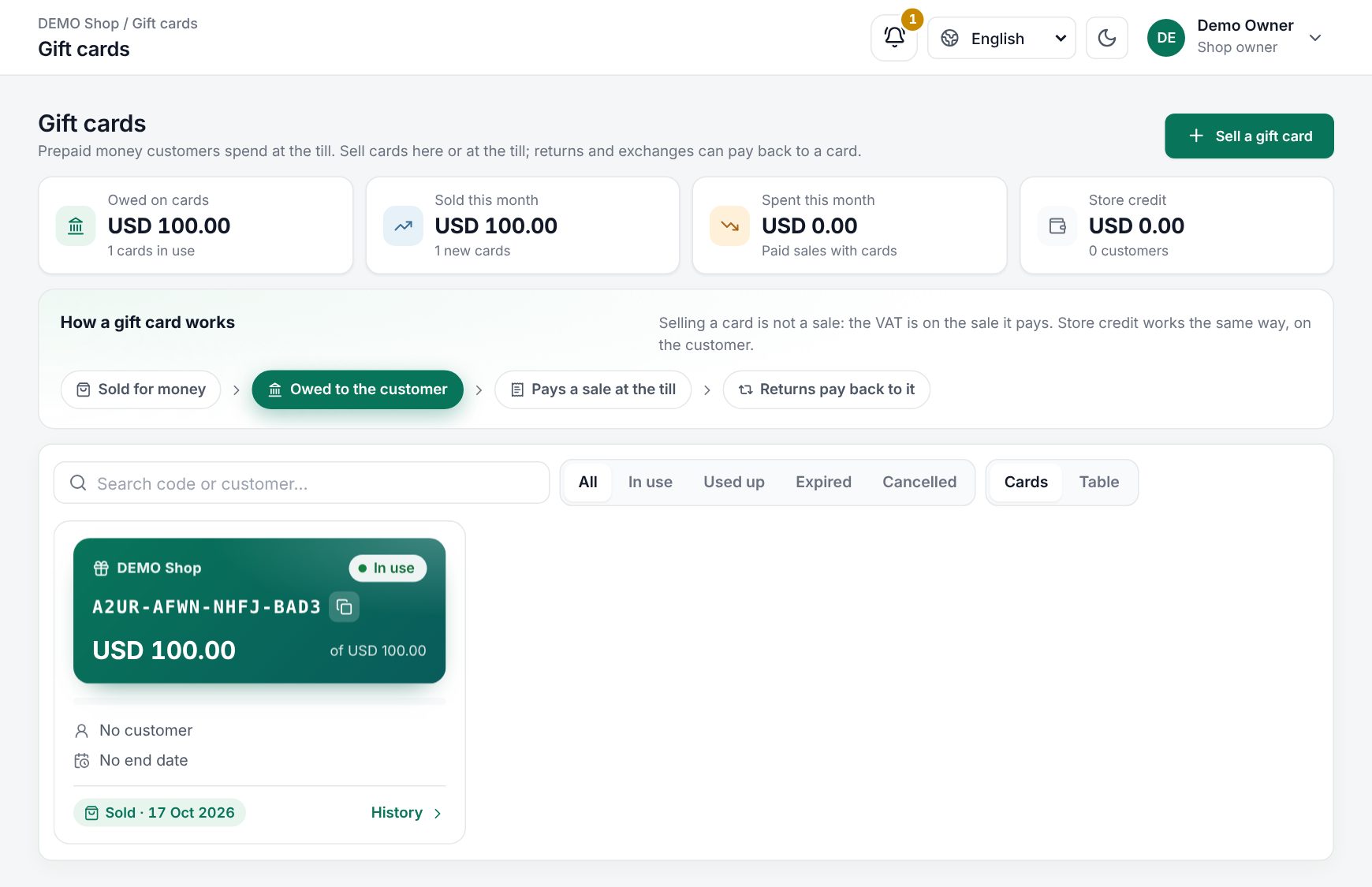 Sales › Gift cards with the totals strip and the cards
Sell a gift card in the back office
- Choose Sell a gift card.
- Pick an amount (50, 100, 200, 500) or type one in Amount.
- Choose Paid by and, for a card or transfer, a Reference.
- Code: leave it empty and a new code is made, or type the code of a printed card.
- Valid until (optional): after this day the card cannot pay. Note is for you.
- Choose Sell with the amount.
The card shows in the list. Open it to Copy code or print it.
Note: If your shop counts cash at closing, taking cash for a card needs an open cash session (see Cash sessions and X/Z reports).
Sell a gift card at the till
- Open the till's More menu and choose Sell a gift card. It needs a connection.
- Tap an amount or type it, and choose how the customer pays.
- If a customer is on the order, tick Link to to attach the card to them.
- Choose Sell. The till shows the code: Copy code, Print, then Done.
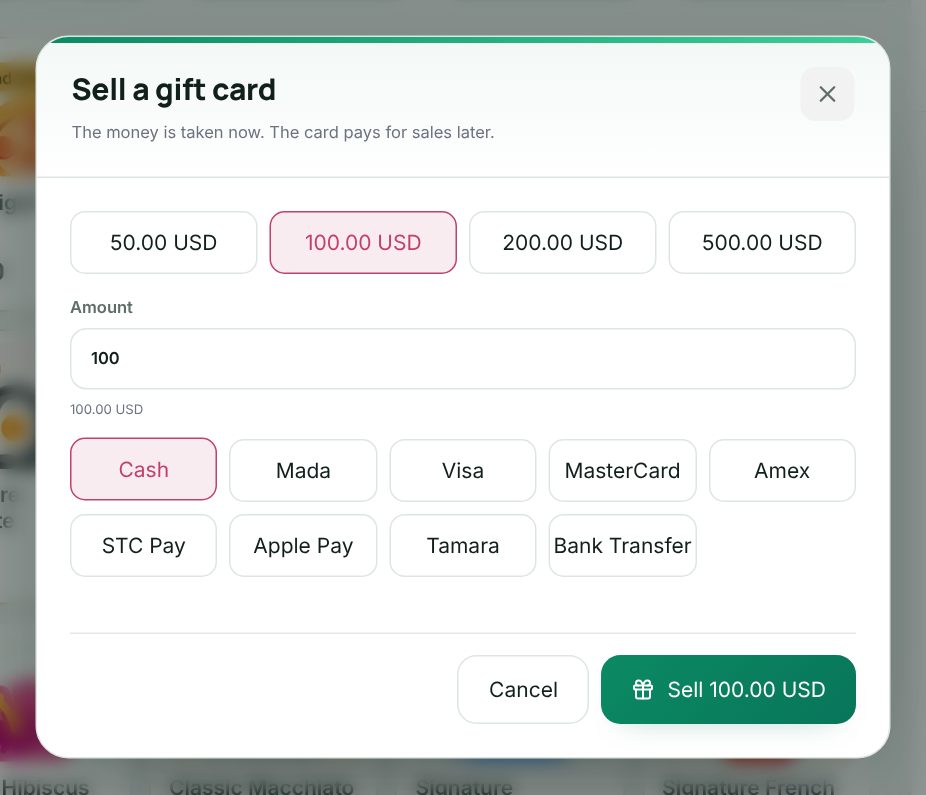 The Sell a gift card dialog in the till
Pay with a gift card
- In the payment screen, choose the Gift card method.
- Type or scan the Gift card code and choose Check. The till shows what is left on it.
- Choose Use. The card pays as much of the bill as it can; the rest moves to cash (or another method) so you can finish the payment.
If the card cannot pay, the till says why: cancelled, expired on a date, or nothing left on it. See Taking payment.
Store credit
Store credit lives on the customer. On the customer's page (Customers, edit) the Store credit card shows the balance and its history.
- To add credit the customer pays for, type the amount, choose Paid by …, and choose Add credit.
- To fix a mistake, choose Correction (no money), type
+50or-20and a reason, and choose Correct the credit.
At the till, choose the customer first. The Store credit method shows how much they have; choose Use to pay with it. Store credit and gift cards need a connection.
Credit is added by itself when:
- a return or an exchange is paid back to store credit (see Returns and credit notes);
- a deposit is taken on a quotation (see Quotations).
Manage a card
Open a card to see Spent, Left and its History:
| Action | What it does |
|---|---|
| Top up | Money is taken now and added to the card |
| Correct | Add or take off an amount without money; the reason is kept in the history |
| End date | Change or remove the date after which the card cannot pay |
| Cancel card | The card cannot pay any more and what is left is taken off. This cannot be undone |
History entries read Sold, Topped up, Paid a sale, Paid back from a return, Corrected and Cancelled, with the balance after each.
Good to know:
- A balance can never go below zero. Each change is kept with the balance after it.
- Two tills cannot spend the same balance at once: the server checks it while saving the sale.
- Gift cards and store credit cannot pay a customer's account (see Customer balances and payments).
Examples
A birthday present. A customer buys a 200.00 card at the till, paid in cash. The cashier prints the code. The receiver spends 120.00 on shoes; the card has 80.00 left and stays In use.
A return to credit. A customer returns a 60.00 shirt and asks for credit. The return pays it back to their store credit. Next week they buy a 90.00 jacket, use 60.00 of Store credit and pay 30.00 by card.
Last updated 17 Oct 2026