Combos
A combo is a meal deal sold as one item at one price: "Burger meal: a burger, a side and a drink". The customer picks from the choices you allow and can pay extra for upgrades. The usual meal is preselected, so the cashier adds it with one tap; the kitchen still gets each dish, and each pick takes its own stock.
Open Restaurant Management › Menu Management › Combos (permission combo_read; creating and changing need the matching create and update permissions). The list shows each combo with What's in it, Category, Price (incl. tax), Cost / margin and whether it is Active. Filter with All combos, On the POS and Switched off.
How a combo is built
- Choices: one per part of the meal (Burger, Side, Drink). Each says how many items the customer picks.
- Items in each choice: menu item sizes and products. Each has an Upgrade charge (0 = included); the starred one is the Usual pick.
- Combo price: the price of the usual meal. Upgrade charges come on top.
Create a combo
Choose New combo. The panel on the right shows a preview, the saving and what is still missing (for example Tick the usual item of each required choice).
1. Name and where it shows
| Field | What it does |
|---|---|
| Combo name / Name (Arabic) | For example Burger meal |
| Category / Sub category | Where the combo appears on the till. Category required |
| Store | When you have several stores: All stores or one |
| SKU | Generated when empty |
| Barcode | Optional, for scanning |
| Image | The till tile picture |
| Show on the POS | Switch it off to stop selling it |
2. What's in the combo
A new combo starts with two empty choices; Add another choice adds more (up to 10). For each choice:
- Name it in the Choice box, for example Burger.
- Set Customer picks: Exactly 1, Up to 1 (optional) (such as Add a dessert) or More than one…, which shows At least and At most (0 to 20).
- Choose Add an item and search menu items and products. Each size is listed on its own (Fries · Large). Additions, other combos and tobacco items cannot be added.
- Set each item's Upgrade charge (the Normal price is shown next to it) and star the Usual pick.
A line under each choice spells out what the cashier will see, for example "The customer picks 1. Preselected: Classic burger." The editor helps:
- The first item added to a choice becomes its usual pick.
- An item that costs more than the usual pick gets the price difference as its upgrade charge ("Upgrade charges were filled in from the price difference to the usual item."). Lower it if you like.
- A usual pick with an upgrade charge is flagged: the usual meal then costs more than the combo price.
- An item no longer for sale is marked "Not for sale now; the till leaves it out."
Use Move up / Move down to order the choices, and Remove choice to drop one.
3. Price
Type the Combo price, or a percentage in Or: discount off the separate price (%). In VAT shops, Prices include tax says whether the combo price and upgrade charges include tax. The breakdown shows Bought separately, the Combo price, Customer saves (or Customer pays more), With every upgrade and, when editing, Cost of the usual meal and Profit before tax.
Choose Create combo (or Save changes). Ctrl + S also saves.
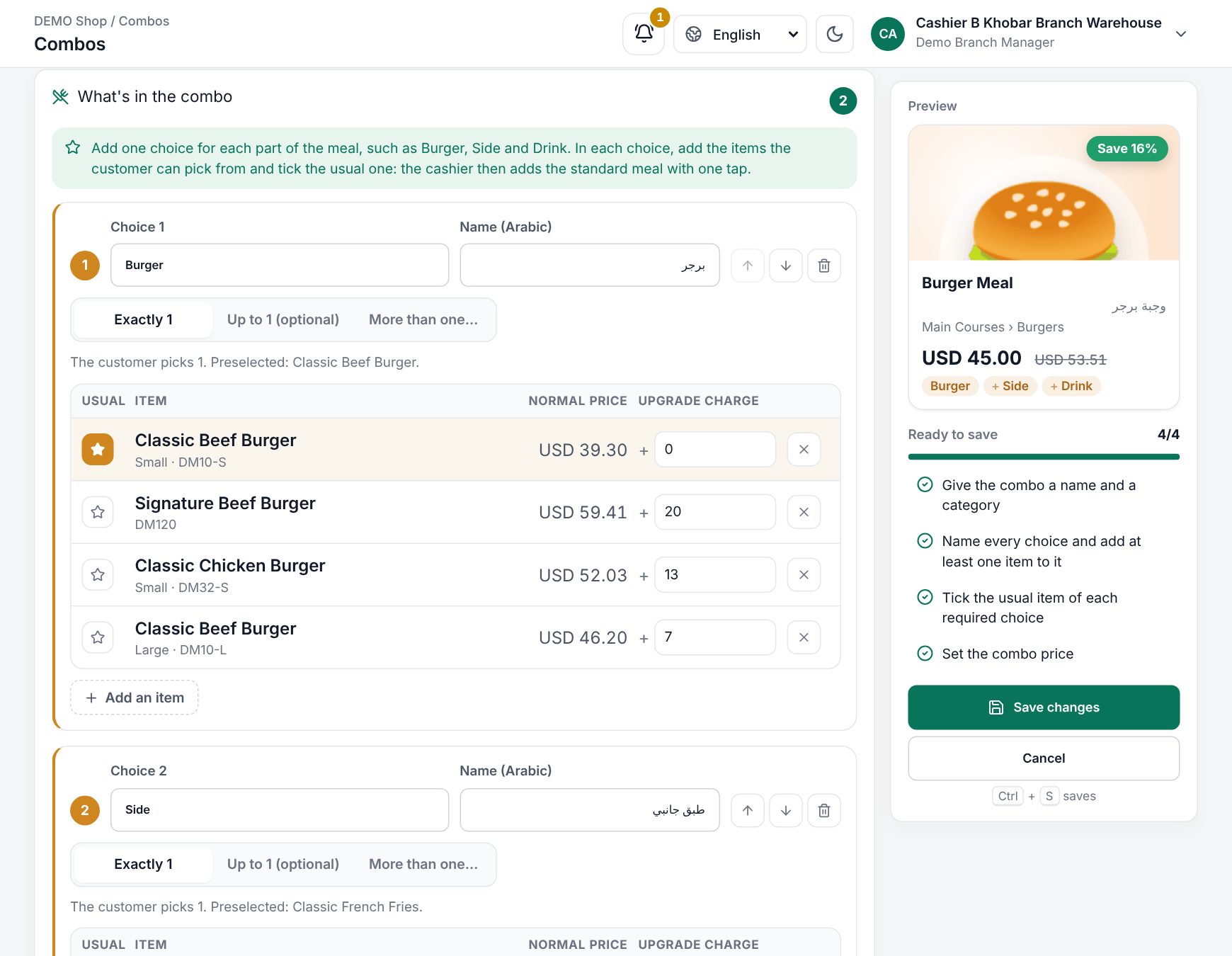 The combo editor with choices, usual picks and the price breakdown
Example: burger meal
Normal prices (incl. tax): Classic burger 22.00, Double burger 30.00, Fries Regular 8.00 / Large 10.00, Cola 6.00, Fresh orange juice 9.00, Ice cream 7.00.
| Choice | Customer picks | Items (upgrade charge) | Usual pick |
|---|---|---|---|
| Burger | Exactly 1 | Classic burger (0), Double burger (8.00) | Classic burger |
| Side | Exactly 1 | Fries · Regular (0), Fries · Large (2.00) | Fries · Regular |
| Drink | Exactly 1 | Cola (0), Fresh orange juice (3.00) | Cola |
| Dessert | Up to 1 (optional) | Ice cream (5.00) | none |
In the dessert choice, un-star Ice cream (it is an extra) and type its charge of 5.00. Bought separately, the usual meal costs 22 + 8 + 6 = 36.00. Typing 15 in the discount box sets the combo price to 30.60: Customer saves 5.40.
What happens at the till
- Tapping a combo always opens its picker, titled with the combo name, with the usual picks already chosen. Each choice is a step with its rule (Pick one, Optional · up to 1, Pick 2). Items show Included or their upgrade charge (+8.00).
- Swapping: in a one-pick choice, tapping another item replaces the pick; tapping an optional pick again removes it. A choice below its minimum says Pick one; one with nothing for sale says Not available now.
- The left side shows the price, Customer saves with the Bought separately price crossed out, and Your selection. Choose Add to order (the button shows the total). Add a note for requests such as "no pickles": modifiers cannot be chosen inside a combo.
- Scanning the combo's barcode adds the usual meal at once when the usual picks complete it.
- The order line shows the combo with its picks underneath, for example Fries (Large). Tap it and Change options to swap a pick.
- Price check: when the sale is saved, the server checks every choice's least and most, that each pick is still for sale in the store, and prices the line as combo price plus upgrades.
- Kitchen: each pick goes as its own dish to the station of its own category (burger to the grill, juice to the bar), with the combo's name as its note. Cancelling the combo cancels exactly its dishes. See Kitchen stations and printers.
- Receipt: one combo line with its picks listed under it. For reports, each pick gets a share of the price by what it is worth on its own.
- Stock and cost: each pick takes its own stock or recipe (the cola can, the burger's patty and bun). The combo's cost is the usual picks' cost and updates when a pick's recipe changes.
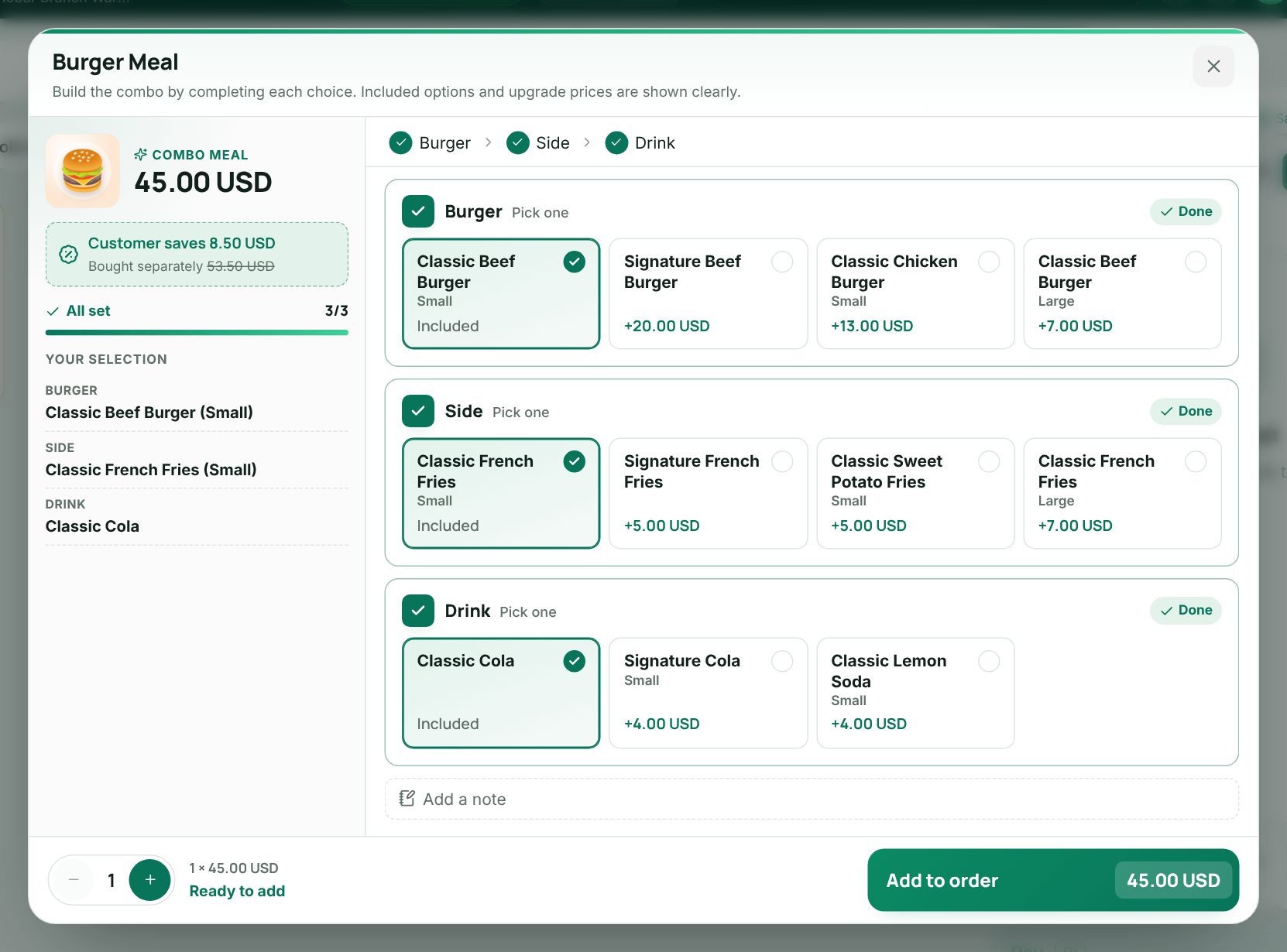 The combo picker at the till with the usual picks chosen
Worked example
A customer wants a double burger, large fries and orange juice. The cashier taps Burger meal, then Double burger, Fries · Large and Fresh orange juice (VAT 15%, prices include tax):
| Amount | |
|---|---|
| Combo price | 30.60 |
| Upgrades: 8.00 + 2.00 + 3.00 | 13.00 |
| Line total | 43.60 |
| Subtotal (before VAT) | 37.91 |
| VAT 15% | 5.69 |
| Shown as Customer saves (49.00 bought separately) | 5.40 |
The grill gets Double burger, the fryer Fries (Large) and the bar Fresh orange juice, each noted Burger meal.
Building a burger meal at the till
Editing and deleting
You can change choices, items and prices at any time; saved orders stay valid. A sold combo cannot be deleted ("This combo was sold: it cannot be deleted (switch it off instead) and keeps its SKU."): turn off Show on the POS. A menu item or SKU that a combo offers cannot be deleted until you remove it from the combo.
Related pages
Last updated 17 Oct 2026