Menu items and recipes
Menu items are what a restaurant or café sells: dishes, drinks, desserts. They are separate from products, which are the things you stock and buy (beans, milk, buns, cans). A recipe links the two: it says what one portion uses from stock, so every sale takes the ingredients from stock and shows its real cost and profit.
Menu items are available in restaurant shops. Open Restaurant Management › Menu Management › Menu Items.
Standard menu items and additions
| Type | What it is | Example |
|---|---|---|
| Standard menu | Sold on the POS, with variants and modifier groups | Latte, Cheeseburger |
| Addition | An extra offered inside modifier groups, never sold on its own | Extra cheese, Oat milk |
Add a menu item
-
Choose Add menu item. Under Menu item type, pick Standard menu or Addition (it cannot be changed later).
-
General information:
Field What it does Menu item name / Name (Arabic) Must be unique in your shop Category and Sub category Both required. Without sub categories the list says "Add a sub category first" Store All to sell it in every store, or one store Average preparation time (minutes) 0 to 1440. Shown to the kitchen and on online orders -
Price and codes: Price includes tax (VAT shops), Selling price (with variants: the base price), SKU (required) and Barcode (optional). Generate makes codes unique in the shop.
-
Where it appears:
- Active: shown on the POS and online menus.
- Tobacco item: shown when your shop sells tobacco. Sold on its own, without additions or modifier groups. See Tobacco fee.
- This menu has variants: for sizes such as Small / Large. See Variants.
-
Modifier groups (standard items): pick groups from the Library to move them to Offered with this menu. Groups linked to the item's category or to all menus are there already, with a lock ("Added automatically. Change it on the modifier group."). New modifier group creates one in a new tab.
-
Choose Save menu item (or Update menu item).
An addition you edit shows Used in modifier groups: the groups that offer it and how many menus that reaches.
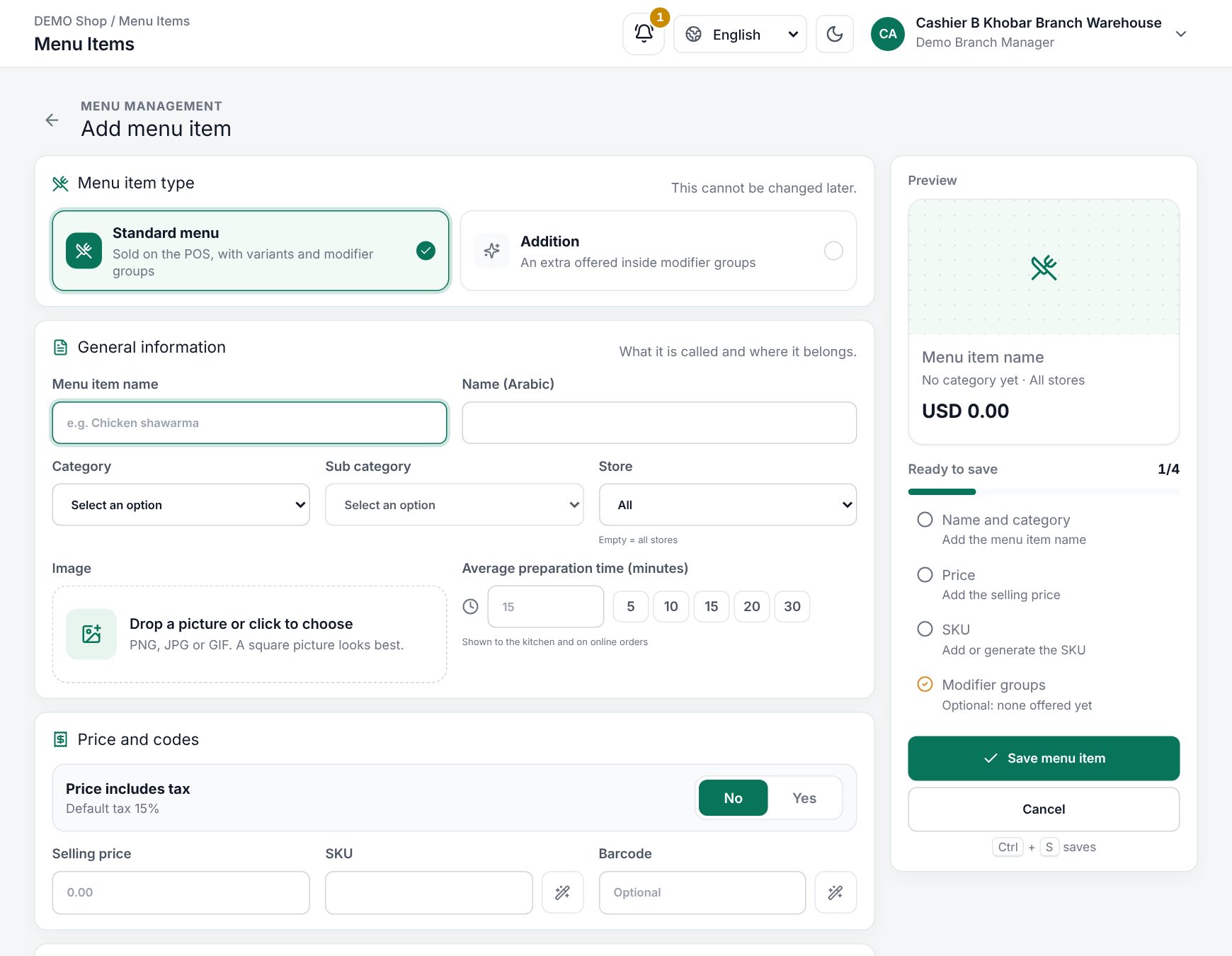 The Add menu item form
Sizes
With This menu has variants on, add a main variant such as Size and its sub variants with an Additional price. The SKU combinations table lists every size with its SKU, Barcode and Selling price (base price plus extras). Generate SKU & barcode fills the codes and Fill prices the prices.
Example: Latte, Selling price 12.00, Size: Small (0), Medium (+2.00), Large (+4.00) gives 12.00, 14.00 and 16.00.
Recipes: stock and cost
Open the menu item (click it in the list) to reach its Recipe card. Recipes work for standard menu items and additions.
- Choose Add ingredient and search the stock item by name, SKU or barcode (ingredients are standard products kept in stock).
- Type the Amount and pick the Unit: any unit of the ingredient's unit family, such as 18 g of beans stocked in kilograms or 200 ml of milk stocked in litres. See Categories, brands and units.
- For items with sizes, set Size: Every size or one size. A size uses its own lines plus the every-size lines.
- Choose Save recipe (or Discard changes). Up to 100 lines.
The cost tiles show each size's (or Per portion) cost, Price and Margin, from the ingredients' current average cost. Saving writes each size's cost to its SKU, and the list shows cost and margin.
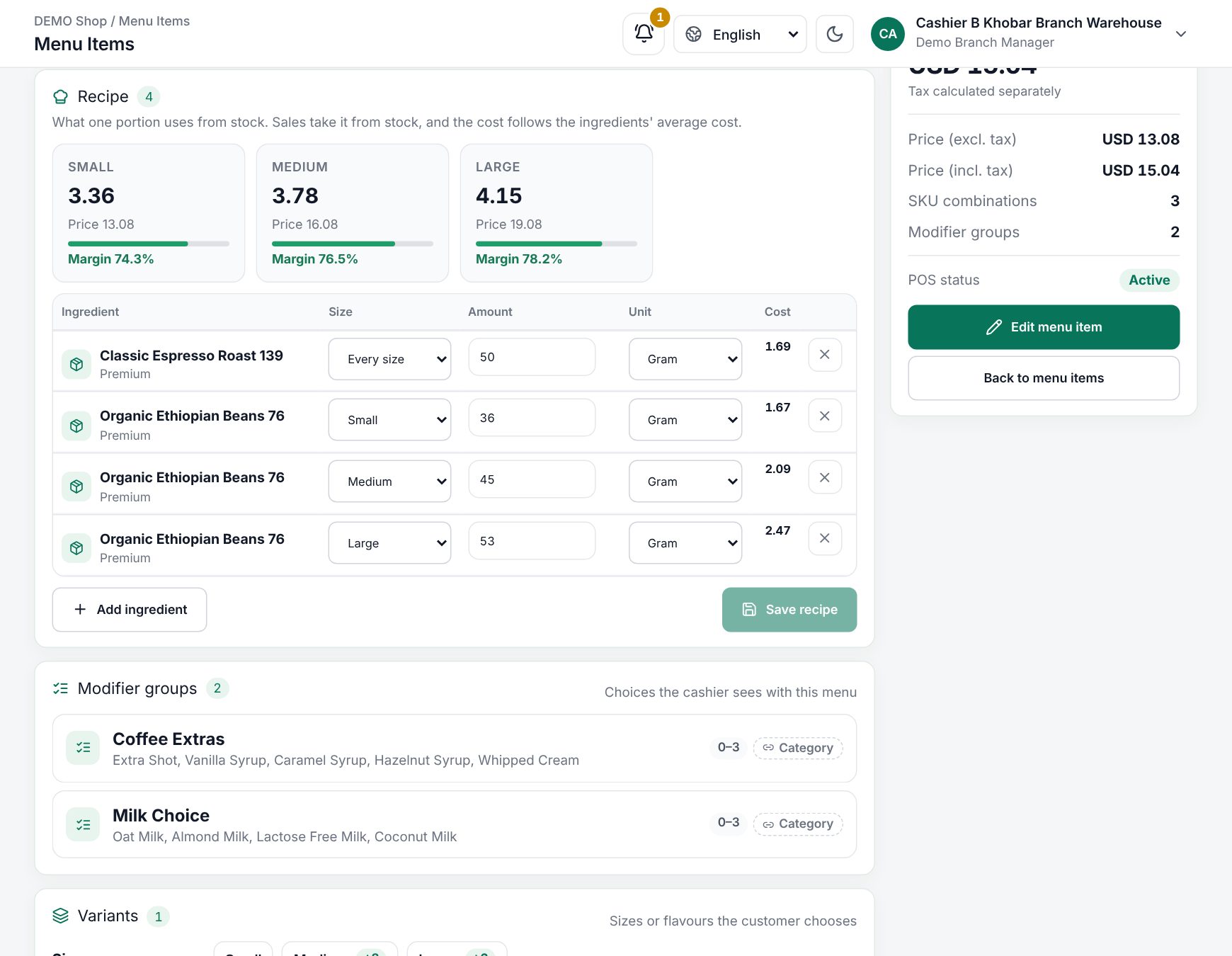 The Recipe card on a menu item, with cost and margin per size
Example: a latte
Stock: Coffee beans in kg (average cost 80.00/kg), Milk in litres (5.00/L), Cup in pieces (0.30 each).
| Ingredient | Amount | Size |
|---|---|---|
| Coffee beans | 18 g | Every size |
| Cup | 1 piece | Every size |
| Milk | 200 ml | Small |
| Milk | 300 ml | Large |
A small latte costs 1.44 + 0.30 + 1.00 = 2.74; a large one 1.44 + 0.30 + 1.50 = 3.24.
What happens at the till
- The tile shows the item's price with VAT (from the cheapest size when it has sizes). A sliders icon means there is something to choose. Inactive items and additions never show as tiles.
- Tap the tile. An item with one size and no modifier groups goes straight into the order. Otherwise the options dialog opens: pick the size, the options, Add to order. See Modifier groups.
- Order type: the item is sold as Dine in, Takeaway or Delivery, as chosen on the order.
- Kitchen: when the order is sent (a table's Send, a saved draft or the payment), the dish goes to the station of its category with its size, options and note. See Kitchen stations and printers.
- Stock and cost: paying takes the recipe from stock (amount × quantity), for the item and every addition sold with it. The sale line's cost is the ingredients' average cost, so profit in Reports is real. A return gives back exactly what the sale took. Your setting for selling below zero stock applies.
- Receipt:
2 × Latte (Small).
Worked example
Two small lattes at 12.00 (price includes tax, VAT 15%), using the recipe above:
| Amount | |
|---|---|
| Line (2 × 12.00) | 24.00 |
| Subtotal (before VAT) | 20.87 |
| VAT 15% | 3.13 |
| Pay | 24.00 |
| Cost of the sale (2 × 2.74) | 5.48 |
| Profit before tax | 15.39 |
Stock goes down by 36 g of beans, 2 cups and 400 ml of milk, as stock ledger movements of the sale (see Stock on hand and the stock ledger).
Selling a menu item at the till
Tip: Put recipes on additions too. An Extra shot with 9 g of beans keeps your bean stock right when customers upgrade.
After a menu item is sold
The form shows: "This menu item was already sold. Its main variants are locked and sold SKUs keep their SKU; names, prices, barcodes and new sub variants can still be changed." A sold menu item cannot be deleted; switch off Active instead. You cannot delete an ingredient product, or remove its SKU row, while a recipe uses it.
Related pages
Last updated 17 Oct 2026