Products
Products are the goods and services you sell and buy: a can of cola, a bag of rice, a phone repair. Every product has at least one SKU: the row the till sells, with its own code, barcode and price. A product sold in several units (a can and a box of 12) has one SKU per unit. For sizes and colours, see Variants.
Note: Restaurant dishes are set up as menu items, not products. Products in a restaurant are the things you stock and buy: ingredients, packaging and ready-to-sell goods such as bottled water. See Menu items and recipes.
Before you start
You need at least one category and one brand and, for stocked products, a base unit. See Categories, brands and units.
Add a product
- Open Inventory Management › Product Settings › Product Details and choose Add product.
- Under Product type, choose Standard product (kept in stock, with units, variants and SKUs) or Service product (no stock: one SKU and a price). This cannot be changed later.
- Fill in the sections below. The Ready to save list on the right shows what is still missing, and the Preview shows the name, price and margin.
- Choose Save product (or Update product when editing).
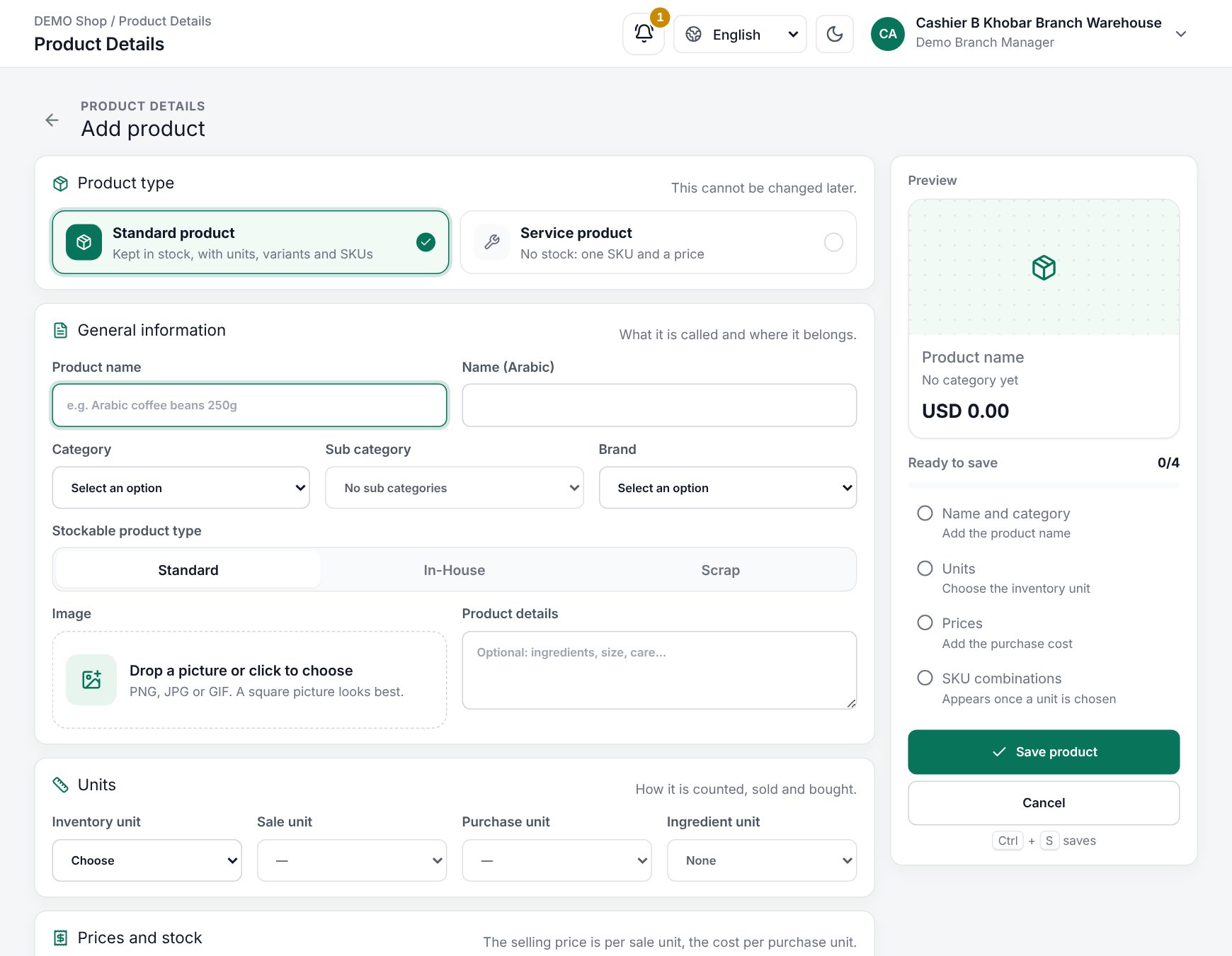 The Add product form with the product type, sections and the Ready to save list
General information
| Field | What it does |
|---|---|
| Product name / Name (Arabic) | The name on the till and the receipt |
| Category / Sub category | Where the product is listed. The category is required |
| Brand | Required |
| Stockable product type | Only when production is on for your shop: Standard, In-House or Scrap |
| Image and Product details | A picture for the till tile and a description (up to 1,000 characters) |
Units (standard products)
| Field | What it does |
|---|---|
| Inventory unit | The base unit stock is counted in, for example Piece |
| Sale unit | The unit the Selling price is for |
| Purchase unit | The unit the Purchase cost is for |
| Ingredient unit | Restaurant shops only, optional: the unit used in recipes |
| Permitted units | Tick every unit you sell or buy the product in. Units used above are always ticked |
Prices and stock
| Field | What it does |
|---|---|
| Price includes tax | Shown when your shop charges VAT. Yes: the prices you type include the default tax. See Taxes |
| Purchase cost | Required. Per purchase unit |
| Selling price | Per sale unit. Not needed when the product has variants |
| Alert quantity | Stock level that counts as low stock (reorder suggestions use it). See Stock on hand |
| Barcode symbology | The barcode type (Code 128 by default) |
| Return days | How many days after the sale the item can be returned. Empty: no limit |
Service products have SKU and Barcode here instead; the wand button (Generate) makes codes unique in your shop.
Where it appears
- Saleable: can be sold at the till. Turn it off for things you only use, such as cleaning supplies.
- Purchaseable: can be bought from suppliers. See Purchases.
- Featured: the product is listed under Favourites on the till.
- This product has variants: opens the variant editor. See Variants.
SKU combinations
Standard products get one row per permitted unit (times every variant combination). Each row has an SKU (required), a Barcode (optional), a Selling price and a Purchase cost. SKUs and barcodes must be unique across all products and menu items.
- Generate SKU & barcode fills every empty code. The Clear button next to it empties them.
- Fill prices fills empty prices from the Selling price and Purchase cost above, converted to each row's unit. Its Clear button empties all prices.
Rows you already filled are kept.
Example: cola by the can and by the box
Units: Piece (base) and Box (1 Box = 12 Piece). Price includes tax: Yes.
- Inventory unit Piece, Sale unit Piece, Purchase unit Box. Tick Box under Permitted units.
- Purchase cost 18.00 (per box), Selling price 2.50 (per piece).
- Choose Generate SKU & barcode, then Fill prices.
| Unit | Selling price | Purchase cost |
|---|---|---|
| Piece | 2.50 | 1.50 |
| Box | 30.00 | 18.00 |
Change the box price to 27.00 for a multi-buy price, and save.
What happens at the till
- The tile. The product shows with its picture and its price with VAT. A product with several SKUs shows from and its lowest price, and a sliders icon (Options).
- Tap the tile. A product with one SKU goes straight into the order. A product with several units opens a dialog with a Unit step: tap the unit, for example Piece or Box of 12 (each shows its price), then Add to order. The footer shows the quantity and the line total.
- Scan a barcode. The scanned unit goes straight into the order: the box barcode sells a box, the can barcode one piece.
- The order line shows the name and the unit (Cola Box). Tap it to change Quantity, add a Note, a discount or Change options.
- Stock is taken in the base unit when the sale is paid: a box takes 12 pieces. If the order needs more than the warehouse has, the till warns, for example "Cola: in stock 4, needed 12".
- Receipt: one line per unit, for example
1 × Cola (Box).
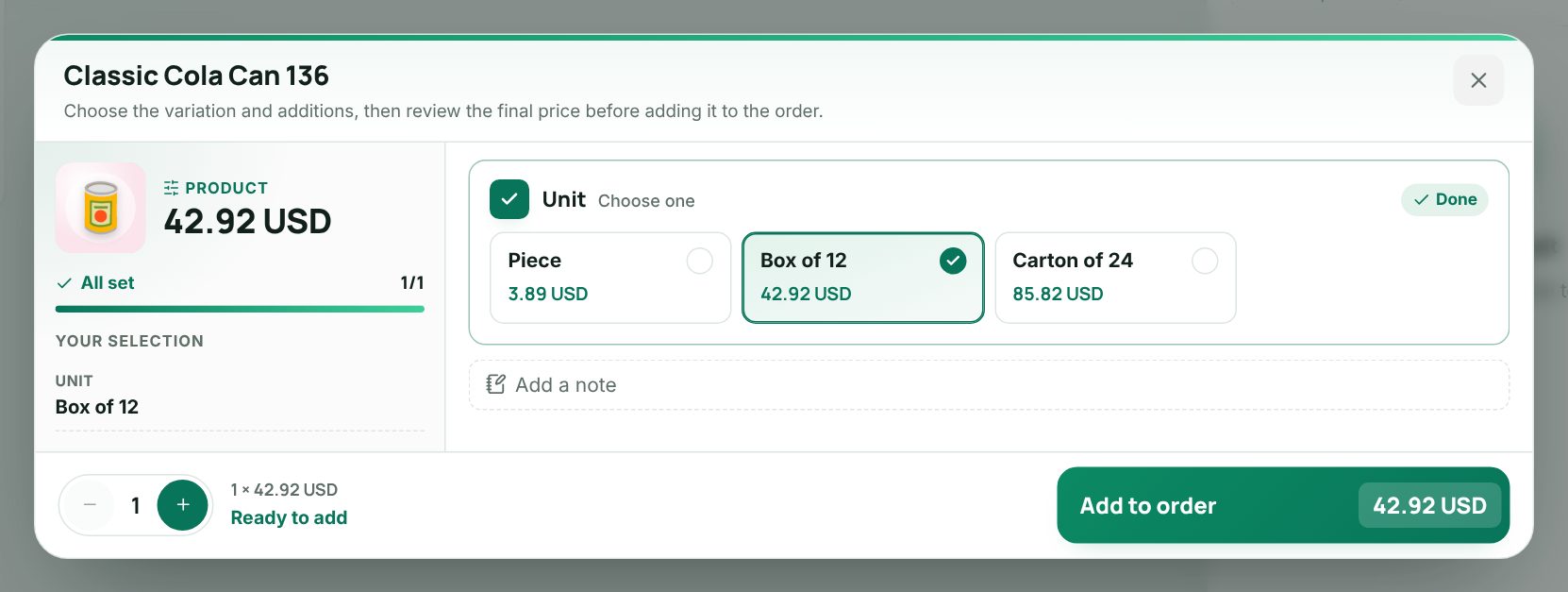 The unit choice in the till for a product sold by the piece and by the box
Worked example
A customer buys one box and three cans (VAT 15%, prices include tax):
| Line | With VAT | Before VAT | VAT |
|---|---|---|---|
| 1 × Cola (Box) | 27.00 | 23.48 | 3.52 |
| 3 × Cola (Piece) | 7.50 | 6.52 | 0.98 |
| Order | 34.50 | 30.00 (Subtotal) | 4.50 |
The till totals show Subtotal 30.00, VAT 15% 4.50 and Pay 34.50. Stock goes down by 15 pieces. Had Price includes tax been No, the 2.50 would be the price before VAT and the tile would show 2.88.
Selling a product by the box at the till
After a product is sold
The form shows: "This product is already in use. Its units and variants are locked; names, prices, barcodes and unused SKUs can still be changed." A sold row keeps its SKU code. New prices apply to the next sale; past sales keep theirs.
Related pages
Last updated 17 Oct 2026