Weighing scale labels
A weighing scale at the deli, butcher or vegetable counter prints a barcode label with the item and its weight (or its price) inside. When the cashier scans that label, the till reads the item and the weight from the barcode and adds the right quantity at once. Nobody types a weight at the till.
The till reads these labels itself, so it works offline too.
How a scale label is built
Scale labels are 13-digit EAN-13 barcodes:
| Part | Digits | Example 2100123012503 |
|---|---|---|
| Prefix | 2 | 21 marks it as a scale label |
| Item code | 4, 5 or 6 | 00123 |
| Weight or Price | The rest (10 minus the item code digits) | 01250 = 1.250 kg with 3 decimals |
| Check | 1 | 3, worked out from the other digits |
Your scale's manual or its supplier tells you which prefixes, how many item code digits, and whether it prints weight or price. Most scales use prefixes from 20 to 29, 5 item code digits and the weight in grams (3 decimals).
Set it up
- Open Settings › General settings and go to the Sales and invoices tab, section Scale labels.
- Turn on Tills read weighing scale labels.
- Fill in the fields below.
- Check a real label with Try a label (see below).
- Choose Save scale settings. These settings are saved on their own, separately from the rest of the page.
While the switch is off, the fields are greyed out; Try a label works either way, so you can check a label before you switch reading on.
| Field | What it does |
|---|---|
| Prefixes | The 2-digit starts your scale uses, separated by commas, for example 20,21,22. Codes with other prefixes are read as normal barcodes |
| Item code digits | 4, 5 or 6. The list shows how many digits are left for the value, for example "5 digits · 5 for the value" |
| The label holds | Weight (kg) or Price |
| Decimals | How many of the value digits are after the decimal point: 0 to 3. Choosing weight sets 3, price sets 2 |
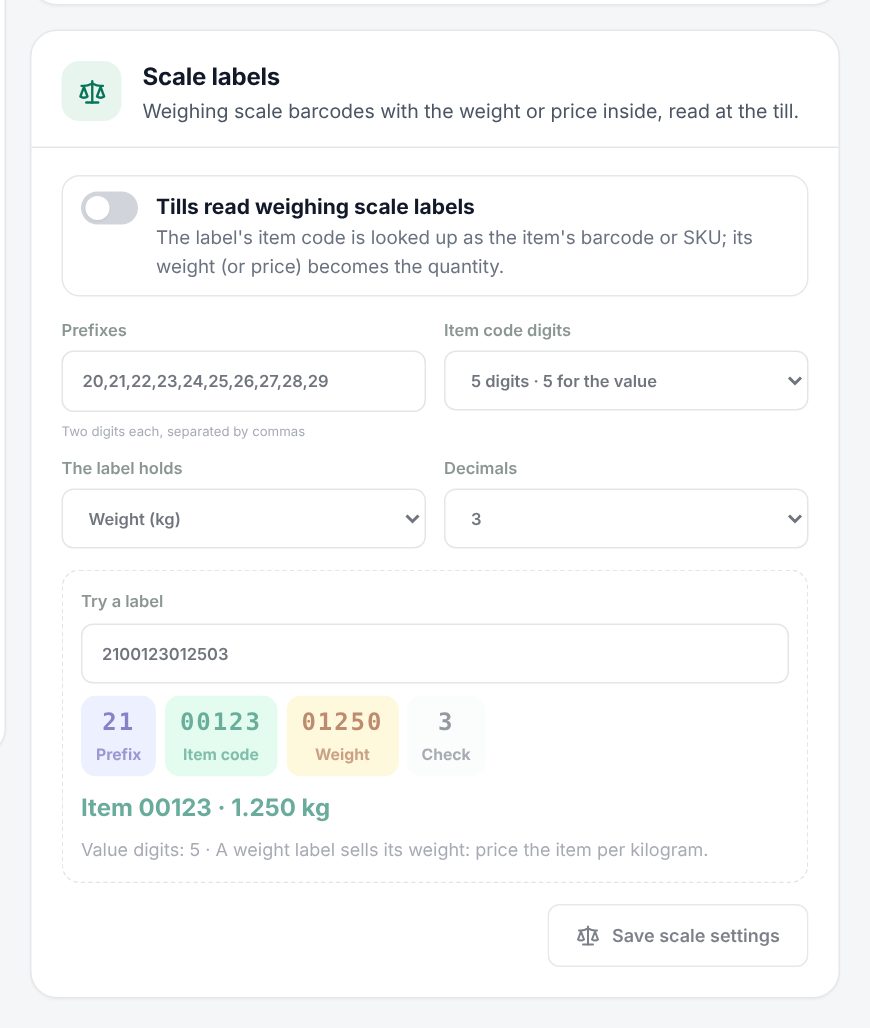 The Scale labels settings with a sample label broken into its parts
Try a label
Type the 13 digits of a printed label into Try a label. The digits are split into coloured boxes (Prefix, Item code, Weight or Price, Check) and the line below shows what the till will read, for example "Item 00123 · 1.250 kg". If something is wrong you see "Not a valid EAN-13 (13 digits with the right check digit)." or "The prefix is not one of the scale prefixes."
Checking a scale label with Try a label
Set up the items
On the scale, each item has a PLU or item number. In Infotech POS, save that number as the item's barcode or SKU (see Products). The till accepts it both with and without leading zeros: a label with item code 00123 finds an item saved as 00123 or as 123.
- For weight labels, price the item per kilogram. The weight on the label becomes the quantity.
- For price labels, the till works out the quantity as the label's price divided by the item's price.
At the till
Scan the label like any barcode. The item goes into the order with the quantity from the label. If the item has options to choose, the item window opens on it as usual. A sold-out item shows Sold out and is not added.
Good to know:
- Only labels that match your prefixes and have a valid check digit are read as scale labels.
- A normal product barcode that happens to start with the same digits still wins: the till first looks for the full 13-digit code.
- A label with a zero weight or price is not added.
- Scale labels are read by the till itself, so they work offline.
Examples
Cheese by weight. Prefix 21, 5 item code digits, Weight (kg), 3 decimals. Halloumi is saved with SKU 123 at 48.00 per kg. The scale prints 2100123012503. The cashier scans it and the order shows Halloumi × 1.250, 60.00.
Pre-packed salads by price. The deli's scale prints price labels: prefix 22, 5 item code digits, Price, 2 decimals. A salad tub priced 20.00 per kg gets a label for 7.50. The till adds 0.375 of the item, for 7.50.
Related: Products, Print barcode labels, Using the POS till, General settings.
Last updated 17 Oct 2026