Kitchen display
The kitchen display (KDS) is a screen at each kitchen station that shows what to cook, oldest first. Cooks tap dishes as they start and finish them, and the tills hear at once when food is ready to serve. Nothing needs refreshing: every change appears on the screen as it happens. Counters at the top show how many tickets are new, cooking, ready or late, and double as filters.
Before you start
- The shop needs the Kitchen display add-on feature (KDS). Your plan sets how many warehouses can have it.
- Switch the kitchen display on for the warehouse: open Warehouses and turn on the KDS switch on the warehouse's row. Kitchen setup then shows Kitchen display on that branch.
- Set up the stations in Restaurant Management › Kitchen setup (see Kitchen stations and printers). The same stations route dishes to printers and to screens, so a bar can print tickets while the grill uses a screen.
- Staff who use the screen need the kitchen display permission in their role (see Users and permissions).
If you assign people to a station (Who works here), their screen shows only their stations. With nobody assigned, everyone in the warehouse who may use the kitchen display can watch it.
Open the screen
On a tablet or monitor in the kitchen, sign in and open Restaurant Management › Kitchen display (/shop/kds). The screen fills the window, with large text that can be read from across the kitchen.
The bar at the top holds, from left to right:
| Control | What it does |
|---|---|
| Kitchen | When you can see several branches with a kitchen display, pick the kitchen here (buttons with the store name, or a list when there are more than four). The choice is remembered on this screen |
| Station chips | Choose which stations this screen shows. Each chip shows how many tickets that station has. Remembered on this screen |
| Status counters | open, new, cooking, ready and, when any ticket is late, late. Each shows a count; tap one to filter (see below) |
| All day | Shows or hides the list of what is still to cook |
| Sold out | Mark dishes the kitchen cannot make |
| Recall | Tickets bumped in the last 15 minutes |
| Sound on / Sound off | The chime for new tickets |
| Light mode / Dark mode | Switches the screen's colours |
| Connection | Live, or Connecting… while it reconnects |
Tap the sound button once when you set up the screen: browsers block sound until someone taps the page.
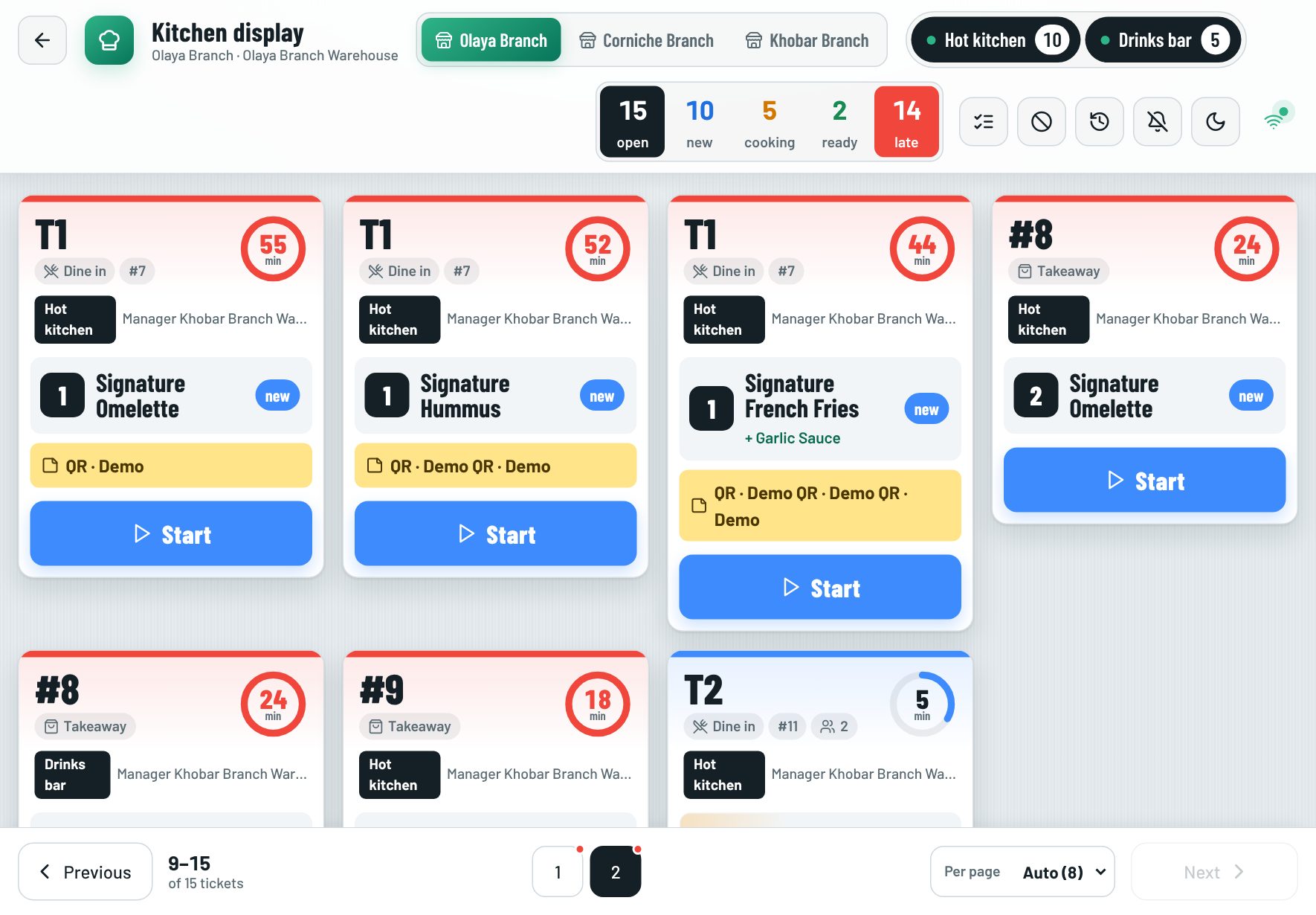 The kitchen display with station chips, status counters and tickets
Filter by status
The counters are also filters:
| Counter | Shows |
|---|---|
| open | Every open ticket (no filter) |
| new | Tickets with dishes nobody has started |
| cooking | Tickets with dishes being prepared |
| ready | Tickets with dishes ready to go out |
| late | Tickets sent 15 minutes ago or more. Shown only while there are late tickets |
Tap a counter to show only those tickets; tap it again (or open) to show all. The filter is remembered on the screen. If no ticket matches, the screen says No tickets with this status right now. with Show all.
The counts always cover every open ticket, whatever page or filter you are on.
Light and dark mode
Kitchens differ: a dark screen is easier on the eyes in a dim kitchen, a light one is easier to read in daylight. Tap the sun or moon button to switch. The choice is kept on that device, and the rest of the back office on the same browser follows it.
Read a ticket
A ticket is one round (what a waiter sent at once) for one station. It shows the table or order number, the order type (Dine in, Takeaway or Delivery), the order number, the number of guests, the station (when the screen shows several) and who sent it.
The timer ring in the corner shows the minutes since it was sent and fills up as it ages. The ticket's colour also changes:
| Colour | Age |
|---|---|
| Blue | Under 8 minutes |
| Amber | From 8 minutes |
| Red | From 15 minutes (late) |
The minutes are always written on the ticket, so the colour is never the only signal. A ticket that just arrived pulses for a moment.
Each dish line shows its quantity, name, size and options, its note, and for dine-in its course and Seat. The ticket's note shows at the bottom, with a progress bar such as 2/3 ready.
Move dishes through the kitchen
Each dish goes through these states: new → cooking → ready → done.
- Tap a dish to move it to the next state. Tapping a ready dish puts it back to cooking, so a mistake is easy to undo.
- Use the ticket button to move the whole ticket: Start, then Ready, then Bump (done).
- Recall lists Bumped in the last 15 minutes; Recall brings a ticket back as ready.
- All day totals what is still to cook, per dish, Across all open tickets. For example, Cappuccino 7 tells the barista how many to prepare in one go.
A cancelled dish arrives as a VOID line on its own red ticket marked CANCELLED. The cook presses Got it to clear it. A cancelled dish always goes to the station that made it, even if the routing changed since.
Splitting or merging checks on the till never creates kitchen tickets.
Many tickets: pages
When there are more tickets than fit, the screen shows them a page at a time. Use Previous / Next, swipe across the tickets, or press Page Up / Page Down (or [ and ] on a kitchen keyboard). The Next button warns when later pages hold late or new tickets. Per page sets how many tickets show: Auto (two rows that fit the screen), 6, 8, 12, 16 or 24.
Mark a dish sold out
Choose Sold out in the bar. Under Dishes on the screen, tap Sold out next to a dish the kitchen has run out of; the tills stop selling it in this branch. Dishes already marked are listed at the top with Back on sale.
What happens at the till
The kitchen display never changes prices, totals or the receipt. It changes what the waiters and cashiers see on the till's Tables window:
When dishes become ready, the till's floor plan shows how many dishes are ready to serve, the table shows a ready badge, and the check has a Served button that marks its ready dishes as done (see Tables and floor plan).
Worked example
At 19:00 a waiter sends T5: 2 burgers to the Grill and 2 fries to the Fryer. The grill screen's new counter goes from 0 to 1. The cook taps Start (cooking 1), then Ready: the till's Tables window now shows 2 ready to serve and T5 carries a ready badge with 2. The fryer marks its fries ready: the badge shows 4. The waiter taps Served on the check, the badge disappears and both tickets leave the screens. At 19:16 a ticket nobody bumped turns red and the late counter shows 1.
Example
A burger restaurant has a Grill screen and a Fryer screen. The grill cook keeps the grill chip on and taps new to see only tickets nobody has started. A waiter sends T5: two burgers and two fries. The grill cook taps Start, then Ready; the fryer does the same. The waiter sees T5 ready on the floor plan, serves the food and taps Served, and both tickets leave the screens. In the evening the cook switches to Dark mode.
start, ready and bump a ticket on the kitchen display
When the connection drops
Changes show on the screen at once. If the server refuses a change, or another screen moved the same dish first, the screen puts it back. If the connection drops, the screen says "Not connected: the change will not reach the kitchen. Wait for the connection." and undoes changes it could not send; once it reconnects, it reloads its tickets.
Kitchen display without printers, printers without screens
- A station can use only a screen, only printers, or both.
- In warehouses that use printers only, sent dishes get no cooking state, so nothing waits on a screen for a cook to bump it.
Related pages
Last updated 17 Oct 2026