Print station
The print station is a browser page that prints kitchen tickets. Use it for a kitchen or bar printer that the print agent cannot reach on the network, such as a USB receipt printer plugged into a computer. You keep the page open on that computer, and every ticket for its printers prints there as soon as a till or waiter sends it.
Before you start
- The print station needs the printer feature on your subscription. Staff need the global printer receiver permission (
global_printer_receiver) to open Restaurant Management › Print station. - Add the printer in Restaurant Management › Kitchen setup with the connection This browser ("A print station page prints it (USB printers)"), and route stations to it. See Kitchen stations and printers.
- Install the printer on the computer as a normal printer, and make it the default printer in the browser.
Set up the station
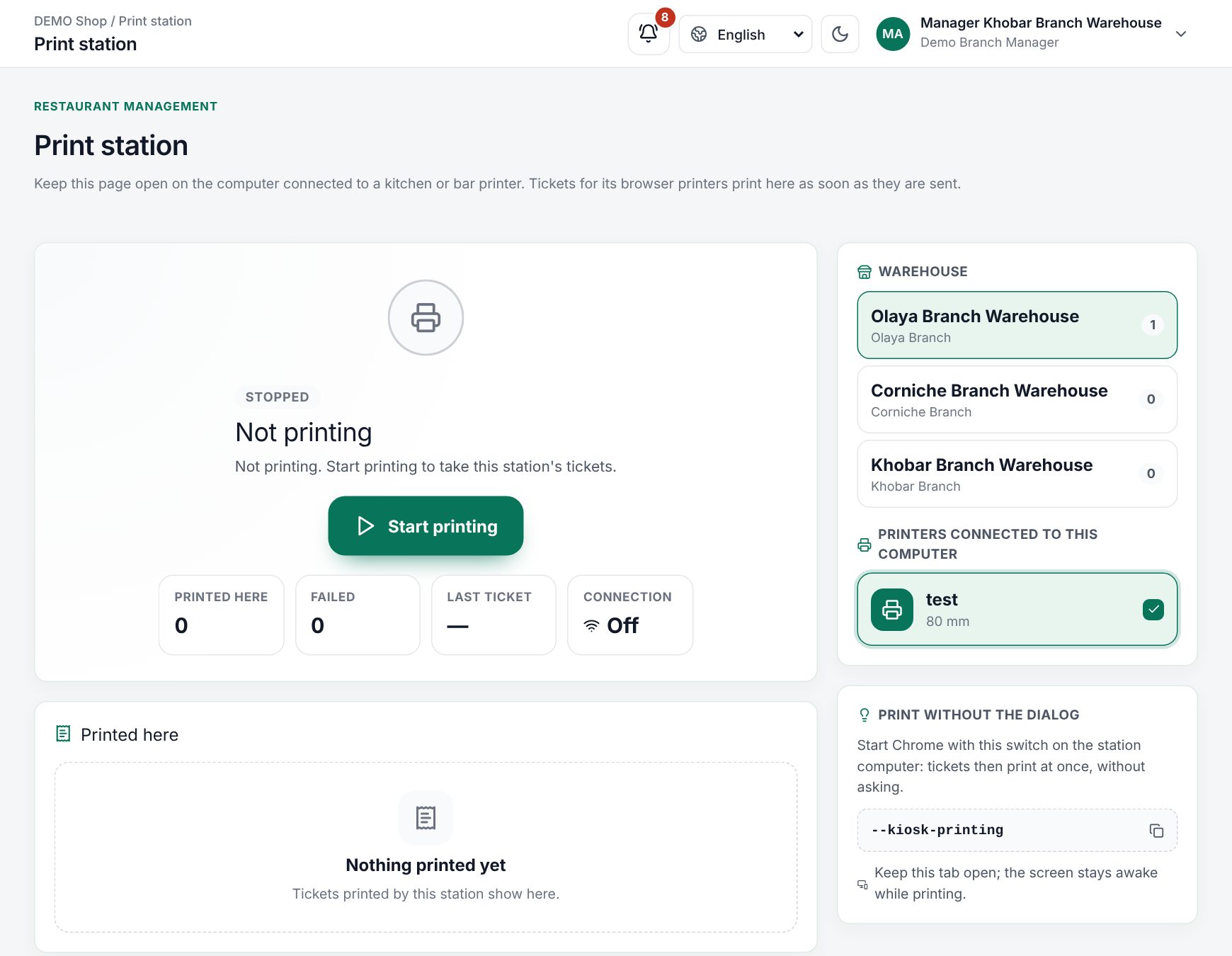 The Print station page before printing starts, with the warehouse and a browser printer ticked
- On the computer next to the printer, sign in and open Restaurant Management › Print station.
- If you have several warehouses, pick one under Warehouse. Each warehouse shows how many browser printers it has.
- Under Printers connected to this computer, tick the printers attached here. Each shows its paper width and number of copies. A station in the bar should not tick the kitchen's printers, or the bar would print the kitchen's tickets.
- Choose Start printing.
The page remembers the warehouse and printers for next time. To change the printers, choose Stop printing first.
Tip: To print without the browser's print dialog, start Chrome on the station computer with the
--kiosk-printingswitch. The Print without the dialog card has a button that copies it. Tickets then print at once, without asking.
While it runs
The big status shows what the station is doing:
| Status | Meaning |
|---|---|
| Stopped ("Not printing") | Not printing. Choose Start printing |
| Connecting… | Waiting for the connection. Tickets waiting on the server print as soon as it is back |
| Ready | Waiting for tickets |
| Printing now | A ticket is printing |
Next to it you see Printed here, Failed, Last ticket and Connection (Live, Reconnecting or Off).
The Printed here list shows each ticket, for example "Table 5 · Round 2" or an order number, with the printer and the time. Switch between All and Failed to find problems. Clear the list empties the list on this screen only.
Good to know
- The page never checks for tickets on a timer. The server sends each ticket to the station the moment it is ready. After a lost connection, the station takes everything that waited.
- A ticket that fails to print goes back to the server and is tried again.
- Leaving the page stops the station. A ticket that was printing goes back to the queue.
- Keep the tab open and visible. While printing is on, the page keeps the screen awake where the browser allows it.
- If you see "This account cannot print for this warehouse.", the signed-in user has no access to that warehouse. See Users and permissions.
- If the shop has no browser printers, the page says "This warehouse has no browser printers. Add one in Kitchen printers with the connection “This browser”."
Example
A bar with a USB printer. The bar's receipt printer is plugged into an old laptop. The manager adds a printer "Bar" with the connection This browser and routes the Drinks station to it. On the laptop, she opens Chrome with --kiosk-printing, opens Print station, ticks Bar and chooses Start printing. When a waiter sends two mojitos, the ticket prints at the bar straight away, and the line "Table 3 · Round 1" appears under Printed here.
Last updated 17 Oct 2026