Customer display
The customer display is a second screen turned towards the customer. It shows the order line by line as the cashier builds it, what the offers save, loyalty points, and the total to pay. When the sale is paid it thanks the customer and shows the change; between customers it shows your logo and today's offers.
Customers can check prices and quantities themselves, which means fewer mistakes and fewer questions at the counter.
What you need
- A computer running the till with a second screen (a small monitor or a pole display that works as a normal screen), set to extend the desktop.
- The display runs in a second browser window on the same computer as the till. The till sends it everything directly, so it needs no extra setup on the server, no add-on and keeps working when the internet is down.
Open the customer display
- Open the till (POS).
- Choose the More menu (the three dots in the till header), then Customer display.
- A new window opens. Drag it to the second screen and make it full screen (on most browsers, press F11 in that window).
If the window is already open, Customer display brings it to the front. If your browser blocks pop-ups, allow them for your POS address and try again.
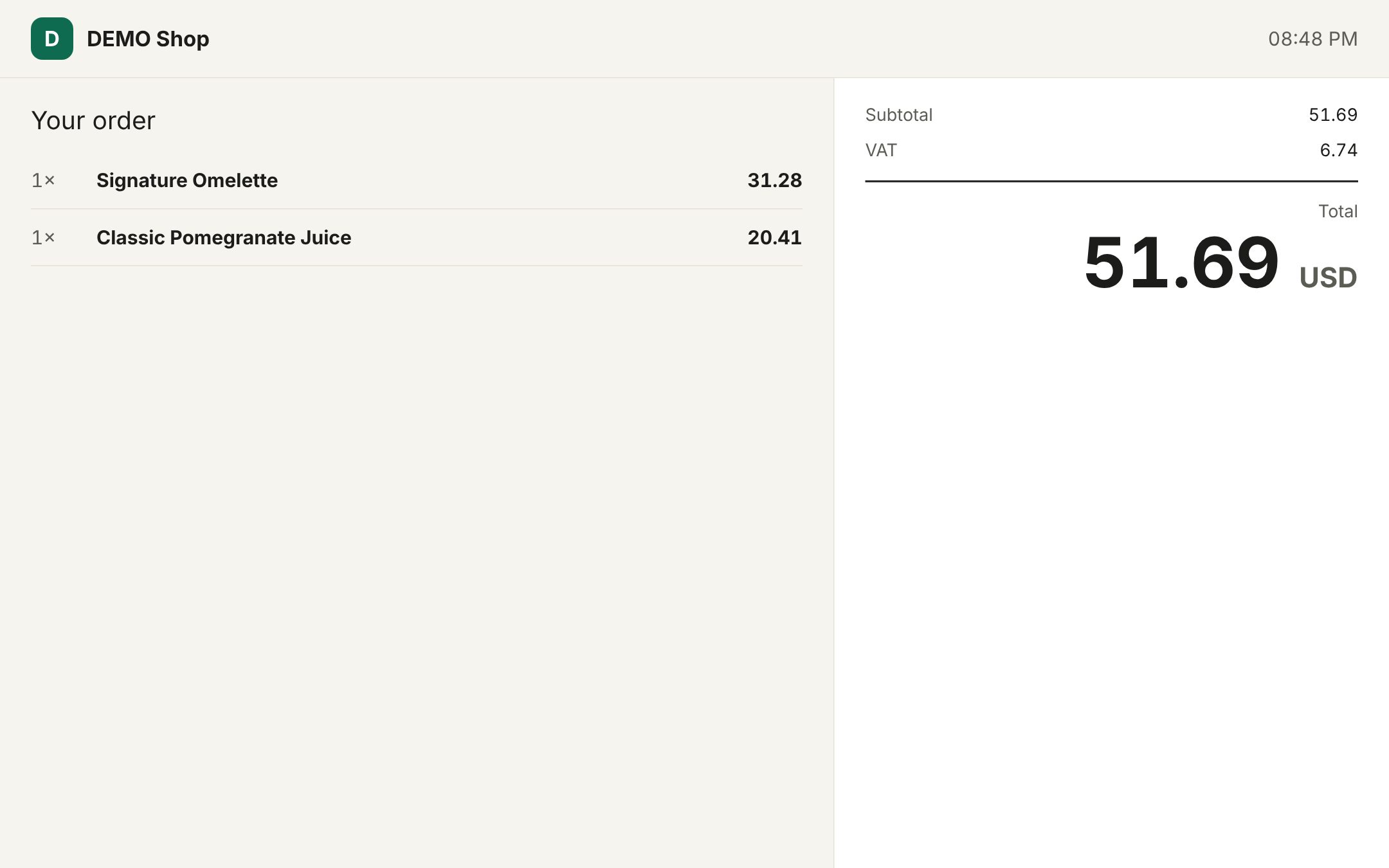 The customer display showing the order and the total
Opening the customer display (right) and adding items at the till (left)
What the customer sees
The top bar always shows your shop logo (or its first letter), your shop name and the time.
While the cashier adds items the screen shows Your order:
| Part | Shows |
|---|---|
| Each line | Quantity, item name, its size and options, and the line total |
| Offer on a line | The offer's name, with the old price crossed out |
| Offer hints | Tips such as an offer waiting for one more item, so the customer can add it |
| Welcome, name | When a customer is chosen, with their points balance |
| Subtotal | Before discounts |
| Offers | What promotions take off |
| Discount | Other discounts on the order |
| Points | Loyalty points used and what they take off |
| VAT | When your shop charges VAT |
| Total | What to pay, in your currency |
| You save / You earn | The total saving from offers, and the points this sale earns |
When the sale is paid it shows Thank you, the total, the Change to give back, You saved when offers applied, and the points earned with the new balance. This stays for a few seconds, then the next order (or the welcome screen) appears.
When the till is idle it shows Welcome, your shop name and Offers today: up to six promotions running today, each with the day it ends.
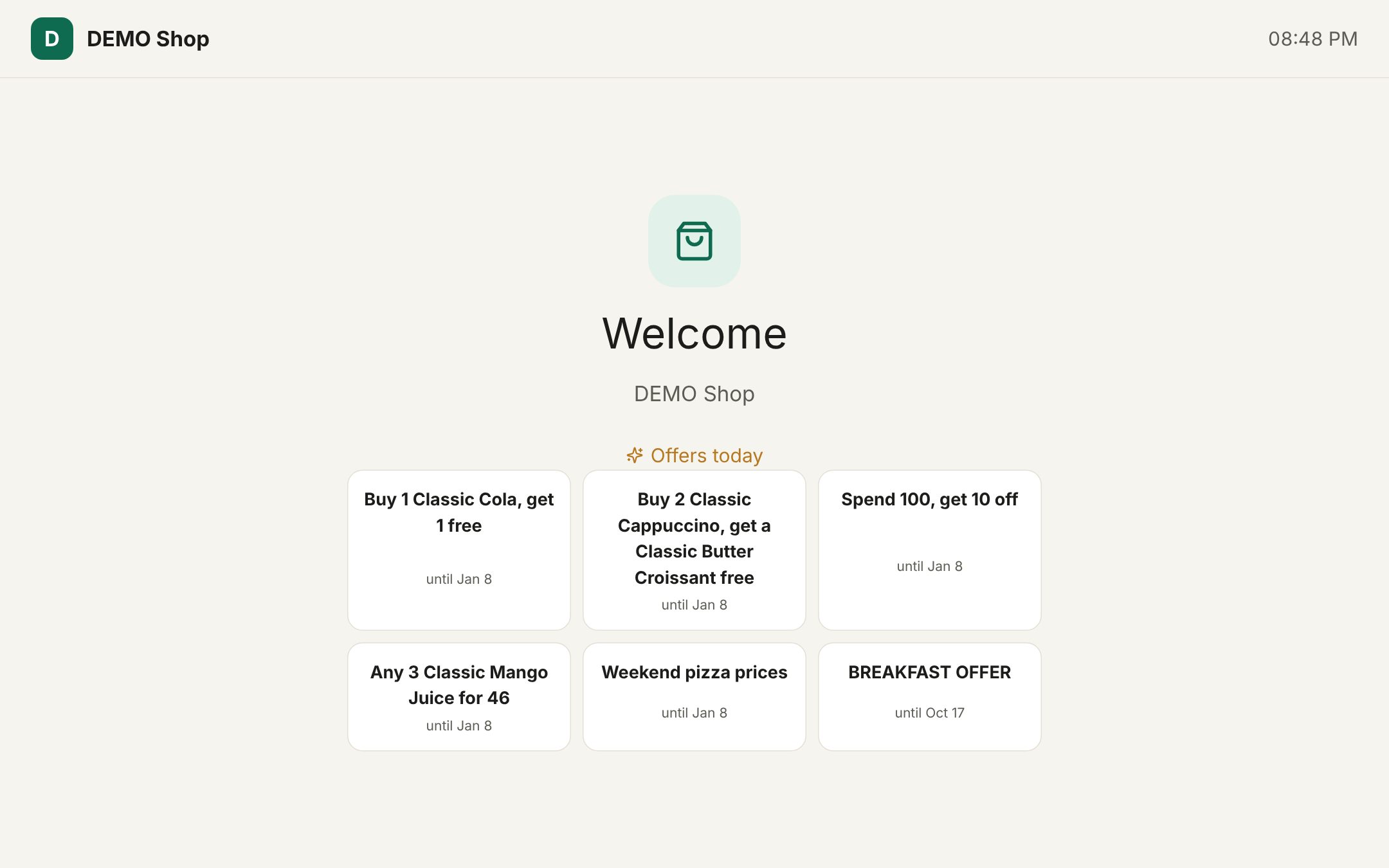 The idle screen with today's offers
Day to day
- Open the display once at the start of the day. It follows whatever happens on the till in that browser.
- Switching to another order (for example a held order or another table) shows that order on the display.
- The display shows the same language direction as the till: Arabic shows right to left.
Tip: Add short, clear names to your offers in Promotions. They are what customers read on the idle screen and next to the lines.
Good to know:
- The display only works with a till in the same browser on the same computer. It cannot be opened on a separate tablet or phone.
- Of the customer, the display shows only their name and points balance.
- Closing the display window does not affect the till. Open it again from More › Customer display.
- If the display is opened before the till, it shows the welcome screen until the till starts.
Examples
A supermarket checkout. The cashier scans three items. One of them is on "Buy 2, save 10%", so the display shows the offer name next to it, the old price crossed out, and a hint that one more item completes the offer. The customer grabs a second one; the line updates and You save 4.50 SAR appears.
A loyalty customer at a café. The cashier picks the customer. The display shows Welcome, Sara with her 320 points. She pays with points, so a Points line takes off 10.00. After payment the display shows Thank you, the change and +12 points · balance 252.
Related: Using the POS till, Taking payment, Promotions.
Last updated 17 Oct 2026