Modifier groups
A modifier group is a set of choices the cashier picks with a menu item: the milk for a coffee, the sauce for a burger, "No onions". Groups are reusable: build "Milk" once and offer it with every coffee. The chosen options print on the receipt and the kitchen ticket, add their price to the line, and additions take their own ingredients from stock.
Modifiers are for restaurants and work with menu items only. They never create SKUs. If a choice needs its own SKU, barcode and stock (Small / Large), use a variant.
Additions and instructions
| Kind | What it is | Example |
|---|---|---|
| Addition | An item with its own SKU, price and stock. It takes its recipe from stock and shows in item sales reports | Oat milk, Extra cheese, Extra shot |
| Instruction | Free text, free unless you give it a price | No onions, Well done, Less ice |
Create additions first: in Menu Items, choose Add menu item and pick Addition (see Menu items and recipes).
Create a group
-
Open Restaurant Management › Menu Management › Modifier Groups and choose Add modifier group.
-
General information: Name / Name (Arabic) (what the cashier sees, such as Milk), Display order (lower shows first) and Active (shown on the POS with its menus).
-
Selection rule: tap a preset, or set Minimum choices and Maximum choices yourself. Turn on An option can be chosen more than once for repeats such as a double extra shot.
Preset Minimum Maximum Example Exactly one 1 1 Milk: Whole / Skimmed / Oat Optional, one 0 1 Add a syrup Optional, any 0 empty Extra toppings At least one 1 empty Choose your sauces -
Options: choose Add addition (then pick it under Addition) or Add instruction (then type its Name). For each option set:
- Name / Name (Arabic): for an addition, empty uses the addition's own name.
- Price: for an addition, empty uses its own price; for an instruction, empty is Free.
- Default: preselected on the till. Active: untick to hide just this option.
- Move up / Move down to change the order.
In VAT shops, Prices include tax (above the options) says whether the prices you type include the default tax.
-
Where it appears: All standard menus (every menu, new menus included) or Chosen categories and menus, then tick Categories and/or Menus. A main category includes its sub categories, and menus added to it later get the group automatically.
-
Choose Save group.
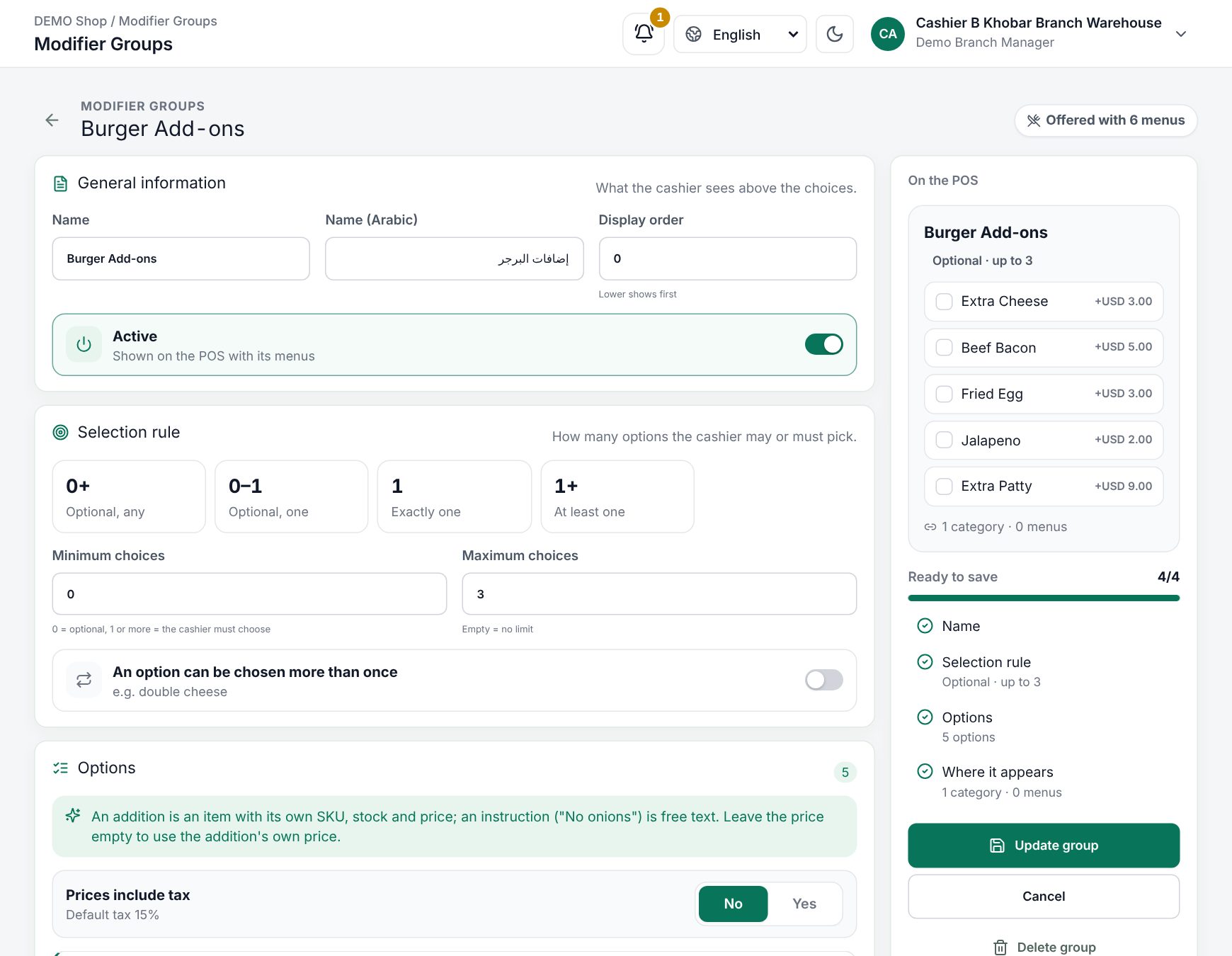 The modifier group editor with the selection rule and the On the POS preview
To link several groups to many menu items in one go, choose Assign to menus on the group list (or Assign modifier groups on the menu item list): tick the menus, pick the groups and Save. Existing links are kept. Tobacco items never get modifiers.
Different prices per menu or per size
An option can cost more on some items or sizes. Open its price rules with the tag button (Prices per menu or size) and choose Add price: pick a menu (Any menu or one) and a variant (Any variant or a value such as Size: Large), and type the price. The most specific rule wins:
- This menu and this size
- This menu
- This size
- The option's Price
- The addition's own price
What happens at the till
- Tapping a menu item that has modifier groups always opens its dialog, even when every group is optional. Sizes come first, then one step per group with its rule (for example Required · 1 or Optional · up to 3).
- Defaults are already ticked. Each option tile shows its price with VAT (+2.00), or nothing when free.
- Tapping options: in a one-choice group, a tap swaps the choice (tap again to clear an optional one). In a full group, a new tap replaces the oldest pick. Groups that allow repeats show a −/+ stepper.
- What is missing: a group below its minimum says Choose an option (or Choose 2); the footer says Almost there and 1 choice left, and Add to order stays disabled until every required group is done. Add a note adds a free-text request.
- Scanning a barcode adds the item with its defaults at once. The dialog opens only when a required group has no default.
- The order line lists each option under the item as
+ Oat milk(+ 2 × Extra shotfor repeats). Tap the line and Change options to edit. - Price: the options' prices are added to the item's unit price. Discounts, coupons and VAT then apply to the whole line.
- Kitchen ticket and receipt: the options print under the dish (
+ Oat milk). Stock: each addition takes its own recipe; instructions take nothing.
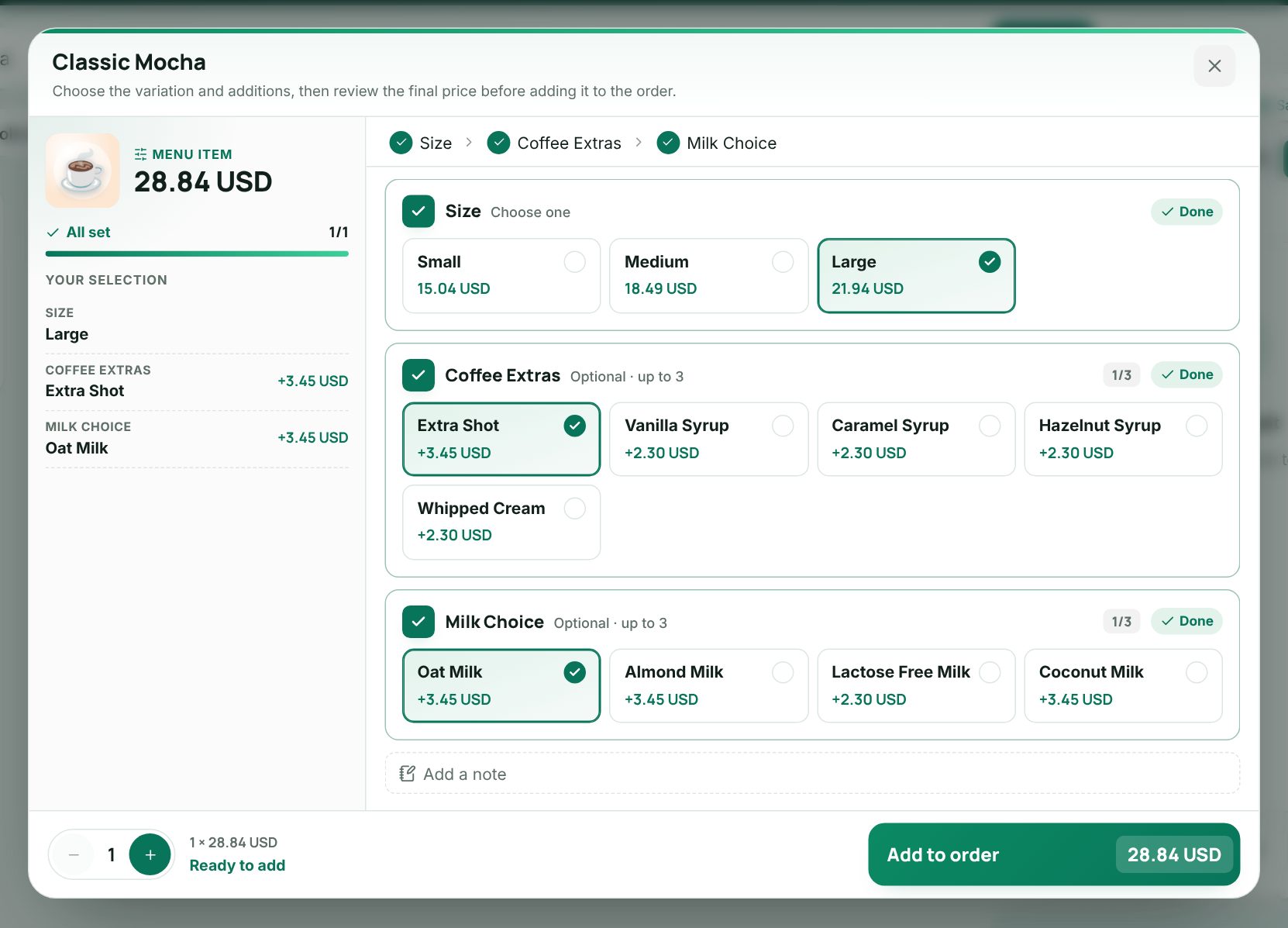 The options dialog at the till with a size and two optional groups
Worked example: a large latte
A café sells Latte in Small 12.00 / Medium 14.00 / Large 16.00 (prices include tax, VAT 15%) in the sub category Hot drinks.
Set up:
- Additions in Menu Items: Oat milk 2.00, Extra shot 3.00 (recipe: 9 g of beans).
- Group Milk, Exactly one: instruction Whole milk (free, Default), instruction Skimmed milk, addition Oat milk with a price rule Any menu + Size: Large = 2.50.
- Group Extras, Optional, any, An option can be chosen more than once on: addition Extra shot.
- Both groups: Chosen categories and menus, category Hot drinks.
At the till: the cashier taps Latte, picks Large (16.00), taps Oat milk (now +2.50, replacing Whole milk) and adds Extra shot twice (+6.00). The footer reads Add to order 24.50.
| Amount | |
|---|---|
| Line: Latte Large, + Oat milk, + 2 × Extra shot | 24.50 |
| Subtotal (before VAT) | 21.30 |
| VAT 15% | 3.20 |
| Pay | 24.50 |
The barista's ticket reads Latte Large · + Oat milk · + 2 × Extra shot. Stock loses the latte's recipe, the oat milk's recipe and 18 g of beans for the two shots.
Adding a coffee with a size and options at the till
Related pages
Last updated 17 Oct 2026