Devices, pairing and staff PINs
Shop devices are the tills, waiter phones and screens that stay in the shop. You pair each one once with a 6-digit code, so nobody ever types the owner's password on a shared device. After that, staff open a till or waiter phone with their own 4 to 6 digit PIN, and kitchen screens, the order center and the pickup screen open by themselves.
PINs also work on a till opened in a normal browser: the till locks after a while, and the next cashier unlocks it with their PIN.
What you need
- Settings › Devices needs the permission to manage devices (
device_manage) and the POS add-on. - Each kind of device uses a place in your plan. The page shows how many you have.
- Waiter phones need the waiter app (WAITER_APP). Kitchen screens, the order center and the pickup screen need the kitchen display add-on (KDS).
Give staff a till PIN
A PIN lets a person take over a shared till without signing in. Each PIN is unique in your shop.
- Open Users & Permissions › Employees and open the employee.
- In the Till PIN card, type 4 to 6 digits and choose Set PIN (or Change PIN).
- Or choose Make one for me: a free PIN is made and shown once as New PIN. Tell it to the employee straight away; it is not shown again.
- Remove deletes the PIN.
Easy PINs such as 1111 or 1234 are refused. Only the owner can set the owner's PIN. Anyone can set their own PIN in My profile under My till PIN, confirmed with their password.
The devices page
Open Settings › Devices. At the top, one tile per kind shows the places used, for example Tills 2 / 3, with No limit, All places in use or how many are left. Choose a tile, or the All, Tills, Waiter phones and Screens chips, to filter. Search by device or branch.
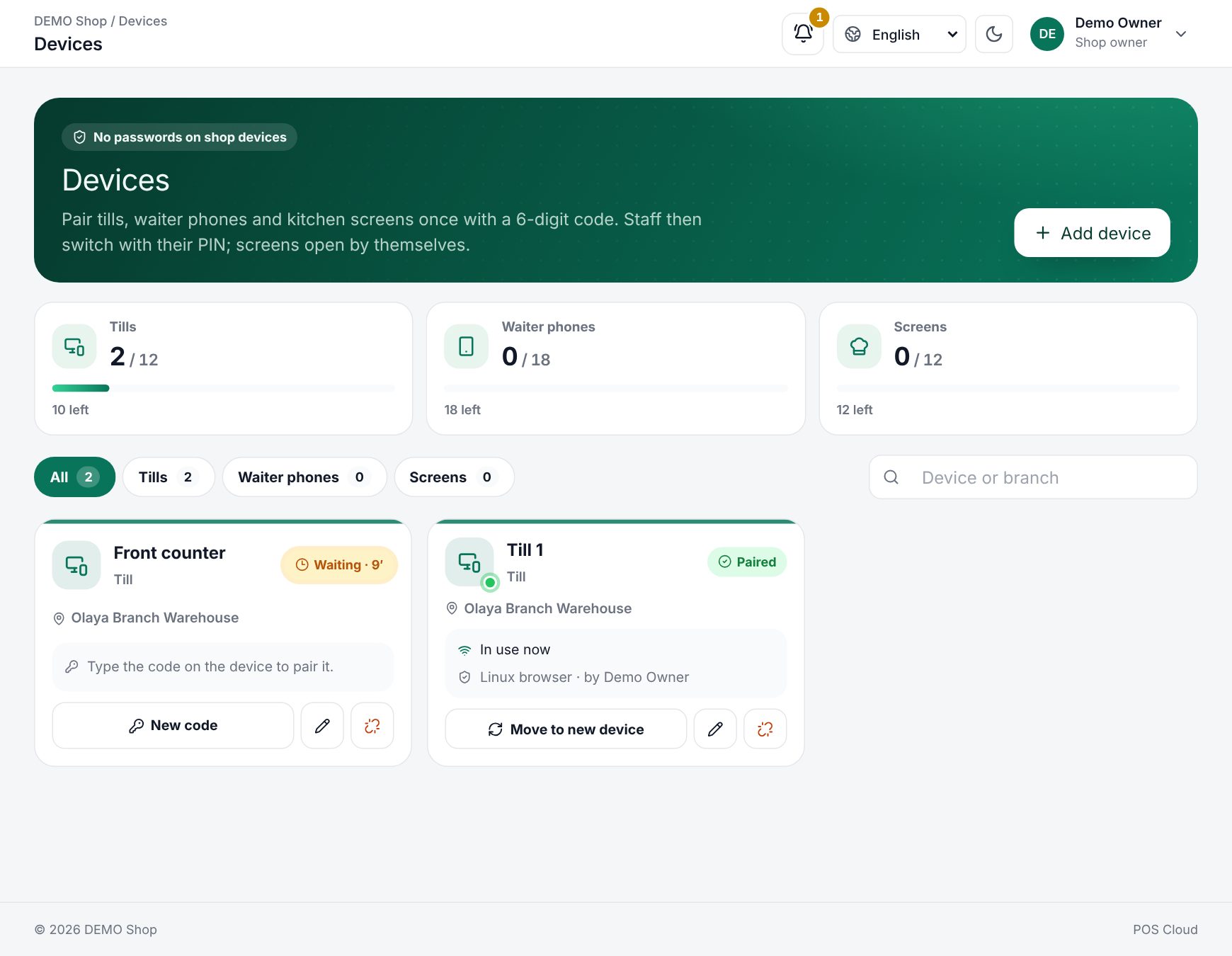 The Devices page with tiles for tills, waiter phones and screens
Each card shows the device name and kind, its branch (and kitchen station), and a status:
| Status | Meaning |
|---|---|
| Paired | In use. Shows In use now or Last seen, who is Signed in, the device and who paired it |
| Waiting | A code was made and is still valid, with the minutes left (for example Waiting · 9′) |
| Not paired | The code ran out. Choose New code |
Pair a device
- Choose Add device.
- Under What is it?, pick the kind (see below). Kinds not in your plan show Not in your plan.
- Give it a Name and pick the Branch. For a kitchen screen, pick the Station or Every station.
- Choose Get pairing code. A 6-digit code appears with a countdown.
- On the device, open the sign-in page and choose Pair this device, then type the code and choose Pair.
- The code card on your screen turns to Paired by itself. Choose Done.
| Kind | What it does |
|---|---|
| Till | Staff open it with their PIN to sell |
| Waiter phone | Waiters open it with their PIN to take orders at the table |
| Kitchen screen | Shows the kitchen's tickets by itself, no PIN |
| Order center | Every open order of the branch, by itself |
| Pickup screen | Order numbers for customers to watch |
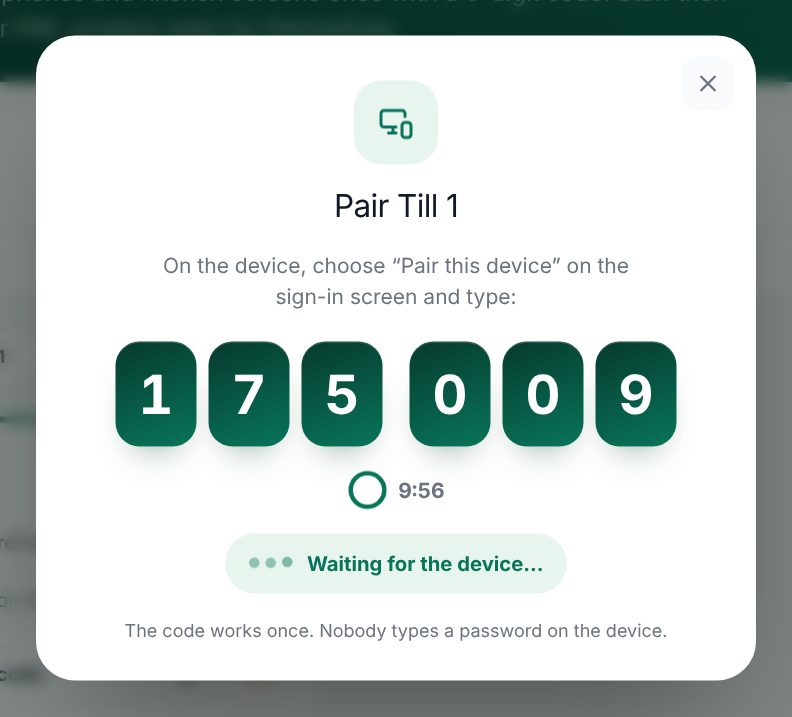 The 6-digit pairing code with its countdown
Adding a till on the Devices page
Note: A code works once and for 10 minutes. After 10 wrong codes from one place in 15 minutes, pairing from there stops for a while.
Start work on a paired till
A paired till or waiter phone shows Who's working? ("Enter your PIN to start") with your shop, branch, the clock, the device name and Online or Offline. Type your PIN and choose Open the till (on a waiter phone, Start taking orders).
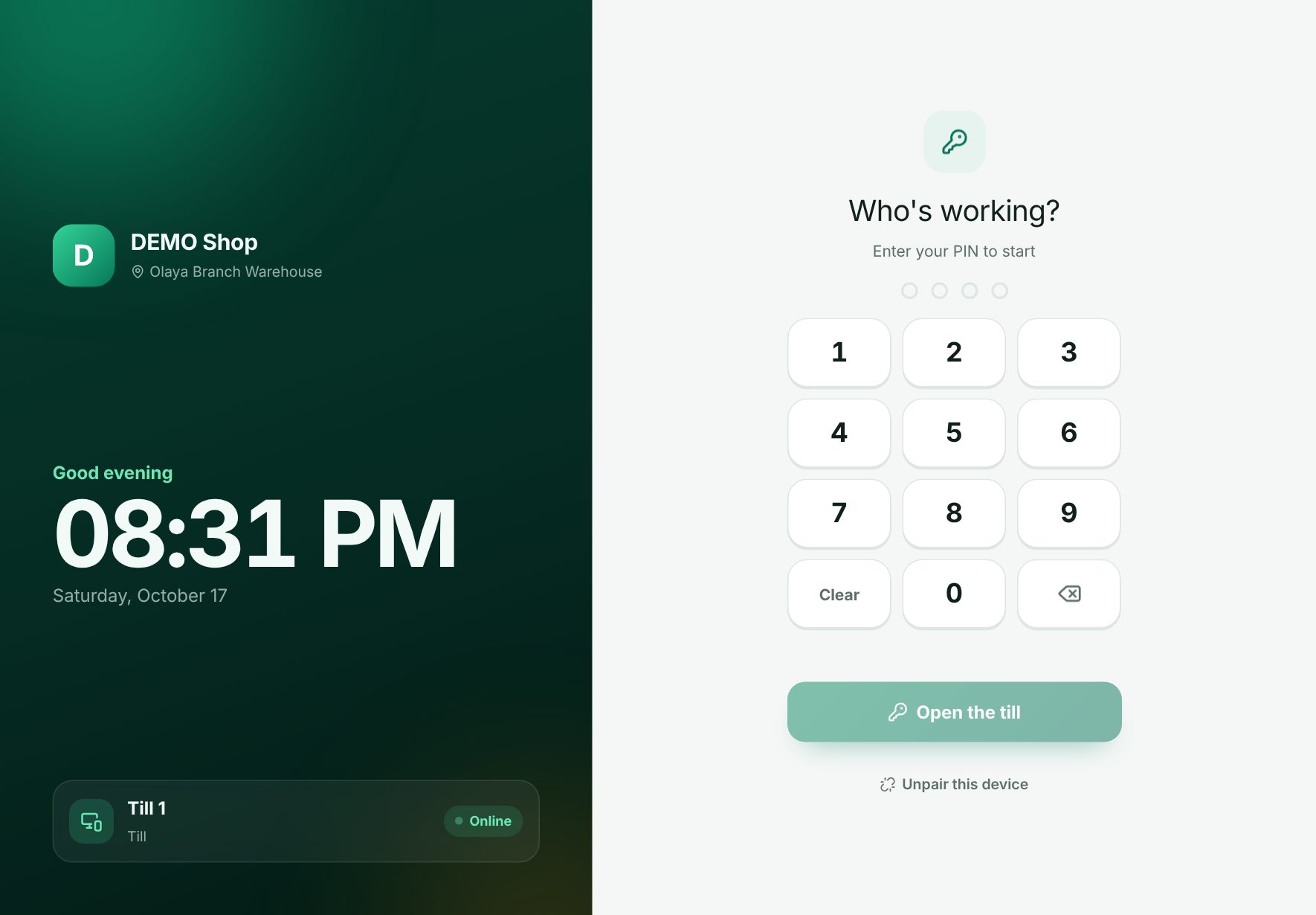 The PIN screen of a paired till
The PIN is refused when:
- Wrong PIN. Try again.
- This person may not use the till. They need the owner role or the POS permission.
- This person does not work in this branch. Add the branch on their employee page.
- This person does not have the waiter app. Give it under App access on their employee page.
- Too many wrong PINs. Try again in 15 minutes. After 10 wrong PINs.
A PIN needs a connection.
Lock the till
At the till, the key button (Lock the till (staff PIN)) covers the till with Till locked. The next person types their PIN and chooses Open the till; the till switches to them, with their own orders and drawer.
To lock it by itself, set Lock the till after in Settings › General settings › Sales and invoices (minutes without a touch; 0 = never).
Change, move or unpair
- The pencil opens Edit device: change the name, branch or station.
- Move to new device makes a new code for a paired device. When it is typed on the new hardware, the old one is signed out.
- The unpair button asks Unpair ...?. The device is signed out at once, anyone on it too, and its place is free again.
- On the device itself, Unpair this device asks for the PIN of the owner or a manager who may manage devices.
Examples
Two tills in a bakery. The manager adds Till 1 and Till 2 for the main branch and reads each code to the cashier at the counter. Each cashier has a PIN. At shift change the morning cashier presses the key button, and the evening cashier types her PIN.
A replacement tablet. A till tablet breaks. The manager chooses Move to new device on its card and types the code on the new tablet. The place in the plan stays the same, and the broken tablet can no longer sign in.
Related: Users and permissions, Kitchen display, Cash sessions and X/Z reports, Setup guide.
Last updated 17 Oct 2026