Promotions
Promotions are offers the tills apply by themselves: buy one get one, buy X get Y, spend an amount, multi-buy prices, bundles and promotional prices. You build an offer in the back office, check it, approve it, and every till uses it at once. The cashier does nothing special: the till finds the matching items, discounts them, tells the cashier what the customer is close to, and lets them add the missing item in one tap.
Open Sales › Promotions (promotions permission). The bar at the top has two views and two ways to start:
- Offers: every offer with its status. Search by code or name, filter by Kind (All, Offer cards, Promotional prices) and by status.
- Performance: how often each offer applied and what it cost.
- Promotional prices and New offer start a new promotion.
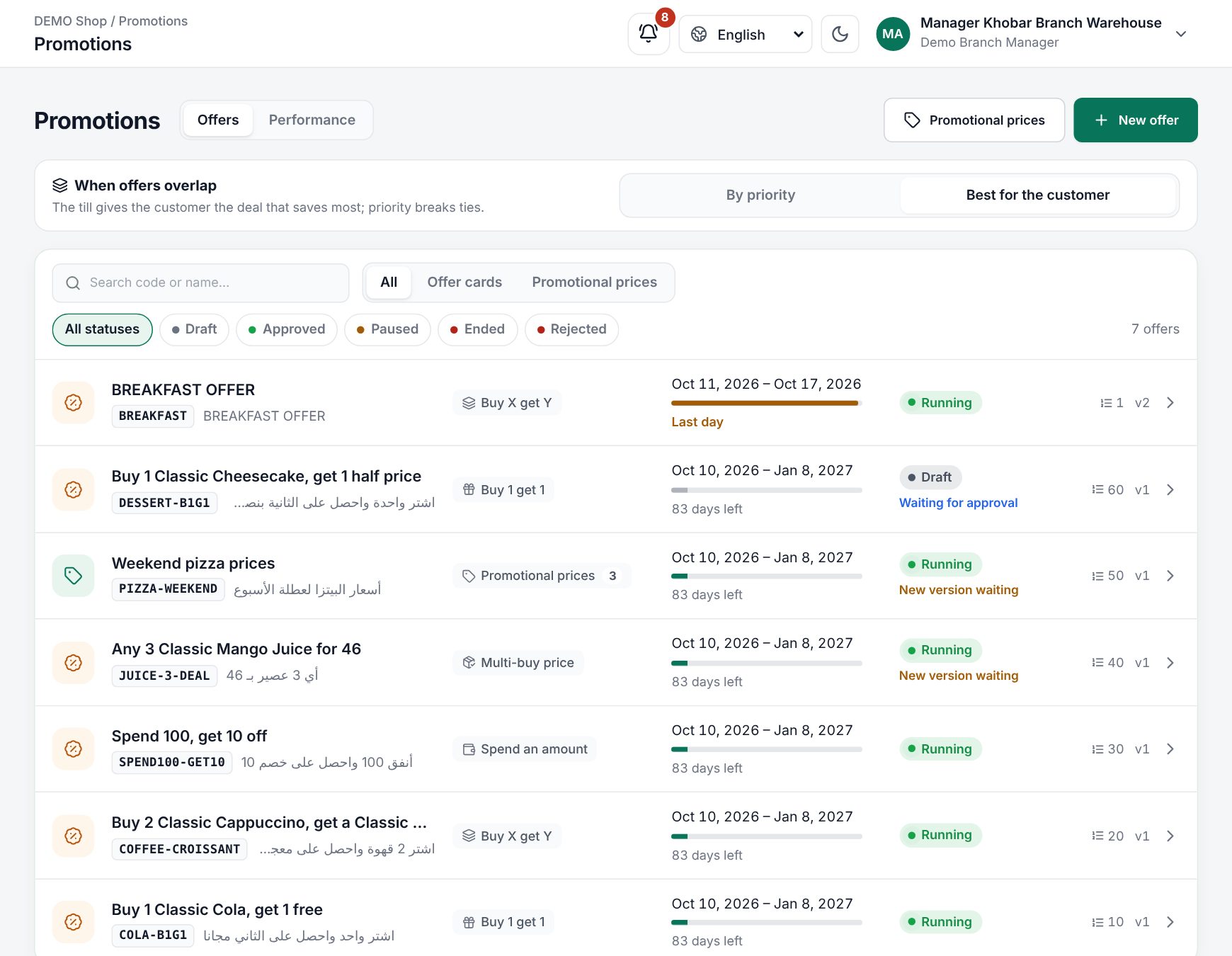 The Promotions page with the offer list and the When offers overlap setting
When offers overlap: priority or best deal
Above the offer list, When offers overlap sets the shop's rule for offers that could apply to the same items:
| Choice | What the till does |
|---|---|
| By priority | Applies offers in priority order: System priority 1 first, then the priority among offers of the same type, then the oldest |
| Best for the customer | Takes the offer that saves the customer most first, then the next best on what is left, and so on. Priority only breaks ties |
Only users who may approve promotions can change it. A change reprices every open cart on every till.
Two kinds of promotion
| Kind | Start it with | Use it for |
|---|---|---|
| Offer cards | New offer | Rules such as "buy 1 get 1 free", "buy 3 get 1", "spend 100 get a gift", "3 for 10", "burger, drink and side for 25" |
| Promotional prices | Promotional prices | A lower price on chosen items while the offer runs |
Both kinds share the same rules: dates, stores, customers, days, hours, priority, combining and limits.
The card types
An offer is made of up to 10 Cards. Each card is one rule: what the customer buys and what they get.
| Card type | What the customer gets | Main fields |
|---|---|---|
| Buy 1 get 1 | Each item bought gives one gift item at the gift discount | Customer buys, Customer gets, Gift discount |
| Buy X get Y | X items bought give Y gift items | Pieces bought, Gift pieces, Customer buys, Customer gets, Gift discount |
| Spend an amount | Spending the amount on some items gives gift items, or money off those items | Spend at least, Spent on, Reward (Gift items or Money off these items) |
| Multi-buy price | A number of items together for one price ("3 for 10") | Pieces, Price of the pieces together, Which items |
| Bundle | Different items together for one price (burger, drink and side) | Bundle item 1, 2, 3…, Price of the bundle |
Create an offer
- Choose New offer (or Promotional prices).
- For a new offer, you can Start from a template: Buy 1 get 1 free, Buy 2 get 1 free, Second at half price, 3 for a price, Meal deal, 10% off over 200 or Free item over 100. A template fills a card; you then point it at your items.
- Fill in Offer, then the Cards (or Items and their promotional price), then the Rules. Leave the rules as they are and the offer runs in every store, for every customer, all day, with no limit.
- Watch the At the till panel on the side: it lists, as plain sentences, what the till will do, and how many steps are ready.
- Look at Checks and try a cart in Try it at the till (below).
- Choose Save draft (Ctrl + S). A draft does nothing at the tills yet.
- Choose Approve (or Submit for approval if your shop uses the Approval center). If the checks found something, you are asked Approve with warnings? (Approve anyway or Not now). Approved: the tills apply it now confirms it is live.
If the save finds problems, you see Please check the highlighted fields. with the number of fields to fix.
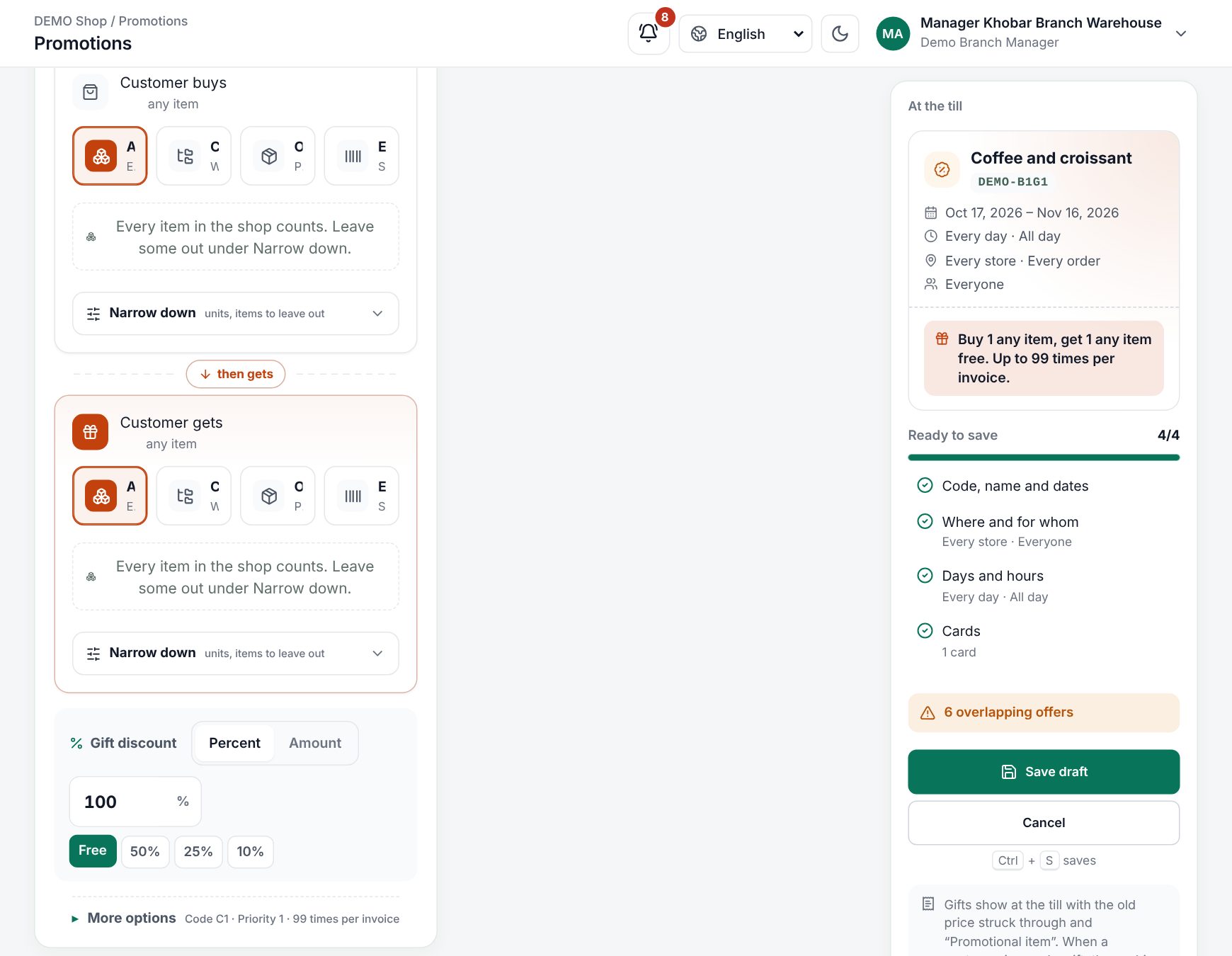 The offer editor with a Buy 1 get 1 card and the At the till panel with Ready to save
Offer
| Field | What to enter |
|---|---|
| Code | Letters and digits, unique, for example RAMADAN-26. Spaces become dashes. It is kept by every version and cannot change after the first approval |
| Name in English, Name in Arabic | Both required. The name shows on the till and the receipt |
| Starts, Ends | The start cannot be before today. The quick buttons 1 day, 7 days, 14 days and 30 days set the end from the start |
| Note | Optional, for your team, not shown at the till |
Cards
Under Add a card, pick a card type. In each card:
- Customer buys (or Spent on / Which items), then Customer gets for the gift. Each side can name Categories, Sub-categories, one item (optionally only some Variants, such as size Large), exact sizes, Units, and Except these items. Left empty, it means any item. The most specific filter wins: exact sizes, then the item, then sub-categories, then categories.
- Gift discount (or Discount): Percent with Percent off (quick buttons Free, 50%, 25%, 10%) or Amount with Amount off each gift / Amount off. The incl. VAT / + VAT button says whether the amount includes VAT. A gift's amount is Never more than the gift's price.
- A Bundle has one Bundle item per part ("a burger", "any drink", "any side"); use Add an item to the bundle for more. It needs at least two.
More options in each card:
| Field | Meaning |
|---|---|
| Card code | Unique within the offer |
| Priority (1 to 10) | The order the cards of this offer apply in. Unique in the offer. A more specific card needs a smaller number |
| Times per invoice | How many times the card can apply on one sale (1 to 999) |
| The amount to spend includes VAT / The price includes VAT | For spend and price cards |
| Same unit as the item bought | For items sold in several units: a carton bought gives a carton |
| The till adds the gift by itself | When the gift is one item, the till adds it to the order; the cashier can still remove it |
A gift is never worth more than what was bought for it is always on: the gifts of one application are never discounted by more than the items that earned them are worth.
Where and for whom
| Field | What it does |
|---|---|
| Stores, Branches | Nothing ticked: every store, every branch of the chosen stores |
| Order types | Dine in, takeaway or delivery. Every order when none is chosen |
| Customers | Everyone, or Only some customers: pick Customer groups and/or Walk-in customers (not registered) |
| Group discount on top | The customer group discount also applies to promotional items. Off: promotional items get no group discount |
Days and hours
- Only on some days of the week: pick the days, or use Weekend / Weekdays.
- Only at some hours: add up to three time windows with Add a time window, each with a Code, From and To. Windows cannot overlap. A window that ends before it starts crosses midnight, for example 22:00 to 02:00, and "Ends after midnight (counts for the start day)".
Times are the shop's local time.
Priority and combining
| Field | Meaning |
|---|---|
| System priority | Among all offers running at the same time and place; 1 applies first. It must be unique among offers whose dates, days, hours and branches overlap |
| Priority among offers of the same type | Breaks ties among overlapping offers of the same type. Also unique among them |
| Coupons also apply | A coupon may also take money off this offer's items. Off: the coupon leaves them out |
| Cashier discounts also apply | Line and invoice discounts may also reach these items. Off: a line the cashier discounts keeps that discount instead of the offer |
| Exclusive | No other offer on the same invoice |
A new offer starts with all three switches off.
Limits
| Switch | Meaning |
|---|---|
| Limit uses per customer | Invoices per customer (1 to 1000). Counted on the customer chosen at the till; walk-in customers do not get it |
| Limit the total uses | Invoices in total: the first so many invoices, across every branch |
| First order only | For a customer who has not bought anything yet |
| Birthday week | Three days before to three days after the customer's birthday |
Note: Only the server can count uses, so a limited offer applies only while the till is online. Offline, the till sells without it and says why.
Checks and Try it at the till
Checks updates as you edit:
- Other offers on the same items: each live offer that shares items, with how many, and which goes first (This offer goes first, That offer goes first or Best deal decides).
- Below cost: any card that sells items for less than their cost (excl. VAT). Items without a cost are not checked.
Try it at the till prices a test cart with the same engine as the till. Search and add items, set quantities, and switch With the other live offers on or off. It shows each line's role (Free gift, Promo price, Discounted, Buys), what is still owed, Without offers, Customer saves and Pays.
Worked examples
The examples assume prices include VAT.
Buy 1 get 1: a café
"Buy a cappuccino, get a croissant free", up to 5 times per invoice. Buy 1 get 1, Customer buys the item Cappuccino, Customer gets Butter croissant, Percent off Free, Times per invoice 5, The till adds the gift by itself on.
A customer orders 2 cappuccinos (15.00 each) and 3 croissants (9.00 each). Two croissants are free; the third is full price: 39.00, a saving of 18.00. With one cappuccino and no croissant, the till adds the croissant by itself. If the cashier removes it, the hint stays: "Add 1 × Butter croissant: the customer gets it free".
With shampoos at 20.00, 18.00, 12.00 and 10.00 and a card "buy a shampoo, get another at 50% off" on the sub-category Shampoo, the till pairs the dearest bought item with the cheapest gift: 20.00 with 10.00 (5.00 off), then 18.00 with 12.00 (6.00 off).
Buy X get Y: a supermarket
"Buy 3 juices, get 1 free": Pieces bought 3, Gift pieces 1, both sides the sub-category Juices, Free. With 4 juices at 6.00 the customer pays 18.00. With 7, the till offers "Add 1 × an item from Juices: the customer gets it free" with Choose.
Spend an amount: a snack shop and a toy store
"Spend 100 on snacks, get a cola free": Spend at least 100, Spent on the category Snacks, Reward Gift items, Customer gets Cola 330 ml. With 85.00 of snacks, the till shows "Add 15.00 more of an item from Snacks to get the offer".
"20 off for every 100 spent on toys": Reward Money off these items, Amount off 20. A basket with 250.00 of toys gets 40.00 off, spread over the toys by price.
Multi-buy price: a convenience store
"3 chocolate bars for 10": Pieces 3, Price of the pieces together 10, Which items the sub-category Chocolate bars. With 4 bars at 4.00, three sell for 10.00 and the fourth is 4.00: total 14.00. The dearest bars go into the bundle.
Bundle: a burger restaurant
"Burger, drink and side for 25": start from Meal deal, set Bundle item 1 to the category Burgers, 2 to Drinks and 3 to Sides, Price of the bundle 25. A classic burger (18.00), a cola (6.00) and fries (8.00) sell for 25.00 together. With only a burger and fries, the till says "Add 1 more item to make an item from Burgers + an item from Drinks + an item from Sides for 25.00".
Promotional price: a coffee roaster
"Espresso beans 1 kg at 49.00 instead of 65.00": choose Promotional prices, search the size in Items and their promotional price, enter 49.00 in Promotional price and keep incl. VAT. The row shows Price now 65.00 and Customer saves 16.00 (−25%). Promotional prices also apply to weighed items, and only when lower than the normal price.
How offers combine
- One role per item. Each item unit is used by at most one card: once it has earned a gift, been a gift or been discounted, no other card can use it.
- Order. By priority, or best deal, as the shop's When offers overlap setting says. Within an offer, cards apply by their priority.
- Exclusive offers never share an invoice. With best deal on, an exclusive offer wins only when it alone saves more than all the others together.
- Overlap rules at save time. Two overlapping offers cannot use the same condition: "Condition already defined (شرط سبق تعريفه) in card X of offer Y".
- Whole units only. Weighed fractions never take part in cards; promotional prices do apply to them.
- Tobacco never takes part. Options are always charged: offers discount the item's own price.
- Coupons apply after promotions; when an offer does not allow coupons, the till notes "items on offer are left out of it".
What happens at the till
The cashier never types an offer: the till applies every running offer as items go into the cart, and the totals, the pay slab and the receipt include the discount at once.
- Tiles show the offer badge, or the promotional price with the old one struck through. The Offers chip lists today's offers and filters the tiles by offer.
- A promotional line shows "Promotional item · offer name (gift)", "(promotional price)" or "(offer price)".
- The offers box above the totals shows what the customer is owed and what the order is close to, with what it saves: up to three hints, biggest saving first. Hints also say when an offer needs a customer (Customer button) or another order type.
- Add puts a single item in the cart. When the rule takes several items ("any drink"), Choose opens a picker of the items it takes, each with its price and saving (free or the amount off). Tap items to add them; the dialog counts "1 / 2 added" and closes by itself with Added to the order.
- A limited offer the customer cannot get shows why, for example that it needs a connection.
- The receipt marks "Promotional item" lines and prints "You saved with offers".
- Approved, paused and ended offers reach the tills at once. Offline, the till keeps using the offers it had. See Selling offline.
Worked example: what the cashier sees
The café's offer "Buy a cappuccino, get a croissant free" (above) is running. The cashier adds 2 cappuccinos at 15.00:
- The offers box shows "Add 2 × Butter croissant: the customer gets it free" and "You save 18.00" (or the till adds them by itself when The till adds the gift by itself is on).
- The cashier taps Add. The croissant line (quantity 2) appears with Promotional item · offer name (gift) and 18.00 struck through; its total is 0.00.
- The pay slab shows 30.00 instead of 48.00, and the Discount row −18.00.
- The receipt prints the croissants as "Promotional item" and ends with "You saved with offers" 18.00.
the till suggests a Buy 1 get 1 offer and the cashier adds the free item in one tap
Statuses and actions
| Status | Meaning |
|---|---|
| Draft | Saved, not selling |
| Scheduled | Approved, starts later |
| Running | Approved and inside its dates |
| Paused | Stopped for now; can be resumed |
| Expired | Its end date has passed |
| Ended | Stopped for good |
| Replaced | An older version, replaced by a newer one |
| Rejected | Rejected in the Approval center |
The list also shows New version waiting, Waiting for approval and Changes requested.
An approved offer is read-only. Its page shows Runs, When, Where, Order types, Customers, Priority, Combining, Limits, its cards and its Versions, with Edit (new version), Pause / Resume, Duplicate, End (asks End this offer?, then End for good) and Shelf labels (prints labels for its items). The current version keeps selling until you approve the new one. Sales keep the version they were sold with, so receipts and returns never change.
Approval
Without the Approval center add-on, a user allowed to approve promotions chooses Approve. With it, the draft shows Submit for approval; the approvers decide in the Approval center. Sent back shows Changes requested with the note; Rejected closes the offer for good (use Duplicate).
Returns of promotional items
A free gift can be returned on its own. An item that earned a gift comes back with its gift, and a return that breaks a spend, multi-buy or bundle offer takes back the discount the kept items no longer earn. See Returns and credit notes.
Performance and Did it work?
The Performance tab shows, for a period, each offer and card with Invoices, Times applied, Promotional pieces, Sales of promotional pieces and Discount given, net of returns, with Given away, Invoices and Offers used at the top.
On an offer's page, Did it work? compares its items while it ran with the same number of days before it: Sales of these items, Pieces sold, Rest of the shop, Extra beyond the shop's trend and Given away by the offer.
Related: Coupons, Discounts and manager approval, Reports.
Last updated 17 Oct 2026