Menu availability
Menu availability controls what each branch can sell right now. When the kitchen runs out of something, you mark it sold out (in kitchens this is often called "86'ing" an item), and it stops being offered on every till, kitchen screen and QR menu of that branch. Menu schedules offer items only at certain times or in certain places, such as breakfast until 11:00. You can also give an item a different price for dine-in, takeaway or delivery.
Open Restaurant Management › Menu Management › Menu availability. You need the Menu availability permission for this page. Owners have it.
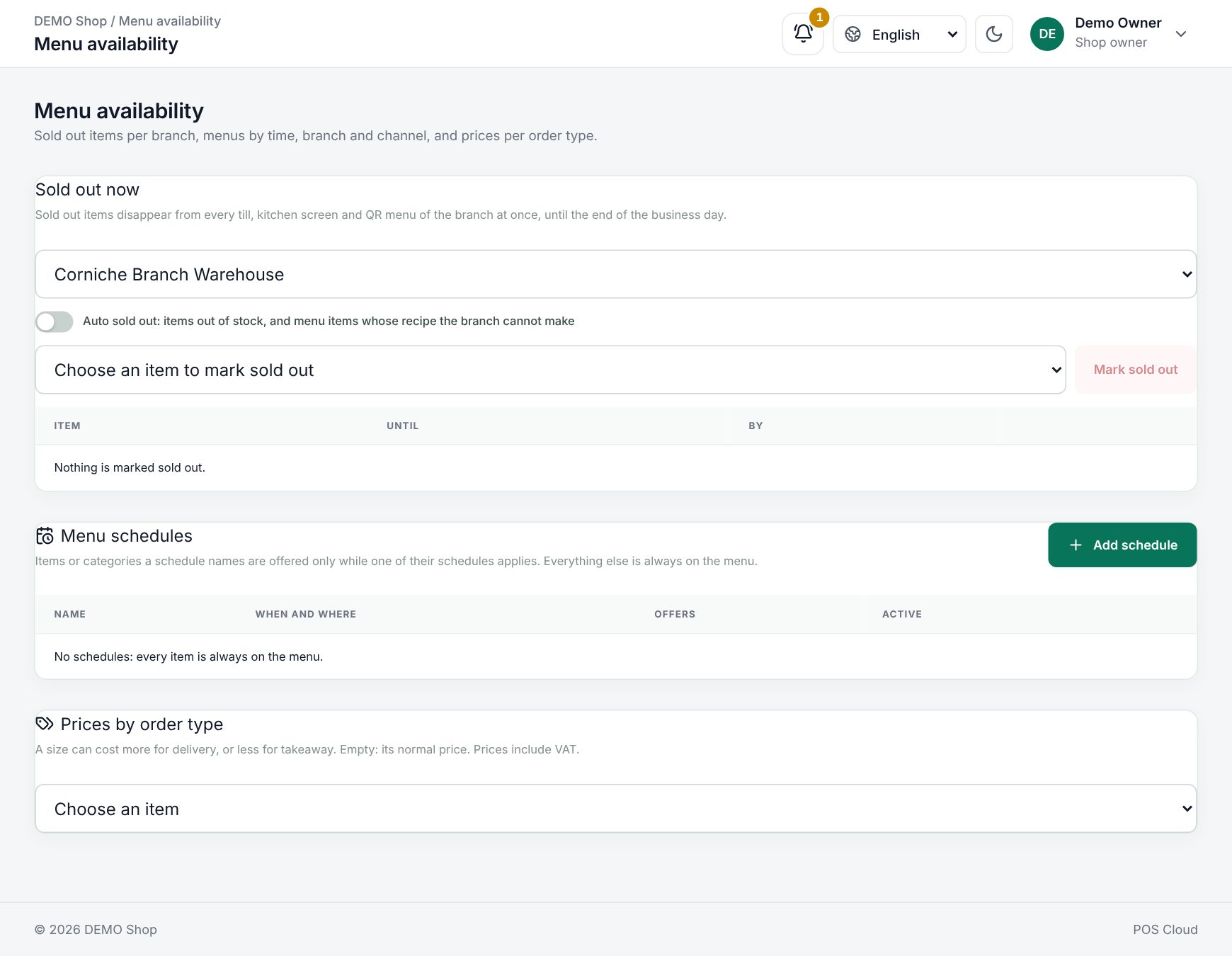 The Menu availability page with sold out items, schedules and prices
Sold out now
Pick the branch in the list at the top of Sold out now.
- Choose an item in Choose an item to mark sold out.
- Choose Mark sold out.
The table lists what is sold out, with Until and By (who marked it). A mark lasts until the end of the business day, so tomorrow the item is back by itself. To bring it back earlier, choose Back on sale.
Auto sold out
Turn on Auto sold out: items out of stock, and menu items whose recipe the branch cannot make. Then products with no stock, and menu items whose recipe needs more of an ingredient than the branch has, are sold out on their own. A note under the table shows how many sizes are sold out for this reason. They come back when stock arrives. See Menu items and recipes and Stock on hand and the stock ledger.
Sold out from the till and the kitchen
Staff do not need this page during service:
- At the till: choose Sold out next to the categories, tap items to mark them sold out or back on sale, then choose Done marking. Sold-out items stay on the screen, greyed out.
- On a kitchen screen: choose the Sold out button to mark dishes sold out or bring them Back on sale.
Staff with the POS operation or kitchen display permissions can do this.
Menu schedules
A schedule offers its items and categories only at the times, branches, channels and order types it names. Items that no schedule names are always on the menu.
Choose Add schedule and fill in:
| Field | What it does |
|---|---|
| Name, Arabic name | For example "Breakfast". Must be unique |
| Days | The days it applies. None chosen: Every day |
| All day | Turn off to set From and To. A To time before From ends the next morning |
| Branches | None chosen: Every branch |
| Channels | Till and/or QR menu. None chosen: Every channel |
| Order types | Dine-in, Takeaway, Delivery. None chosen: Every order type |
| Categories, Items | What the schedule offers. Choose at least one |
Choose Save. The list shows each schedule's When and where and what it Offers. Use the Active switch to pause a schedule, or the edit and delete buttons.
If an item is in several schedules, it is offered while any one of them applies.
Prices by order type
A size can cost more for delivery or less for takeaway.
- Under Prices by order type, choose an item in Choose an item.
- For each size, the table shows the Normal price. Type a price under Dine-in, Takeaway or Delivery, or leave it empty to use the normal price.
- Choose Save prices.
Prices include VAT. The till uses the price of the order type the cashier picks.
Good to know
- The server checks every new item when a sale is made, when a check is saved and when a guest sends a QR order. A sold-out or unscheduled item is refused.
- Items already on a check stay sellable, so you can still merge, split and pay that check.
- A sale the till made while offline is never refused for this reason (see Selling offline).
- Guests on the QR ordering menu do not see sold-out items at all.
Examples
Out of salmon. At 8 pm the chef taps Sold out on the kitchen screen and marks Grilled Salmon. Every till and the QR menu stop offering it straight away. The next morning it is back on sale.
A breakfast menu. A café adds a schedule called "Breakfast" for Every day, from 06:00 to 11:00, for the Breakfast category. After 11:00, the breakfast items disappear from the till and the QR menu until the next morning.
Delivery prices. A pizza costs 40.00 normally. The owner enters 44.00 under Delivery to cover packaging. Dine-in and takeaway stay at 40.00.
Last updated 17 Oct 2026