Courses
Courses let a dine-in table eat in stages. The waiter takes the whole order at once, but only the first course goes to the kitchen. Mains and desserts wait until the waiter fires them, or until a timer fires them by itself. Kitchen tickets and kitchen screens show each dish's course, so the cooks know what to start now.
Out of the box, your shop has three courses: Starter, Main and Dessert. You can rename them, add more (up to 9), reorder them and choose which dishes belong to each.
Open the courses screen
Open Restaurant Management › Courses. You need the Courses permission to change anything. With only permission to see the menu, the screen is read-only.
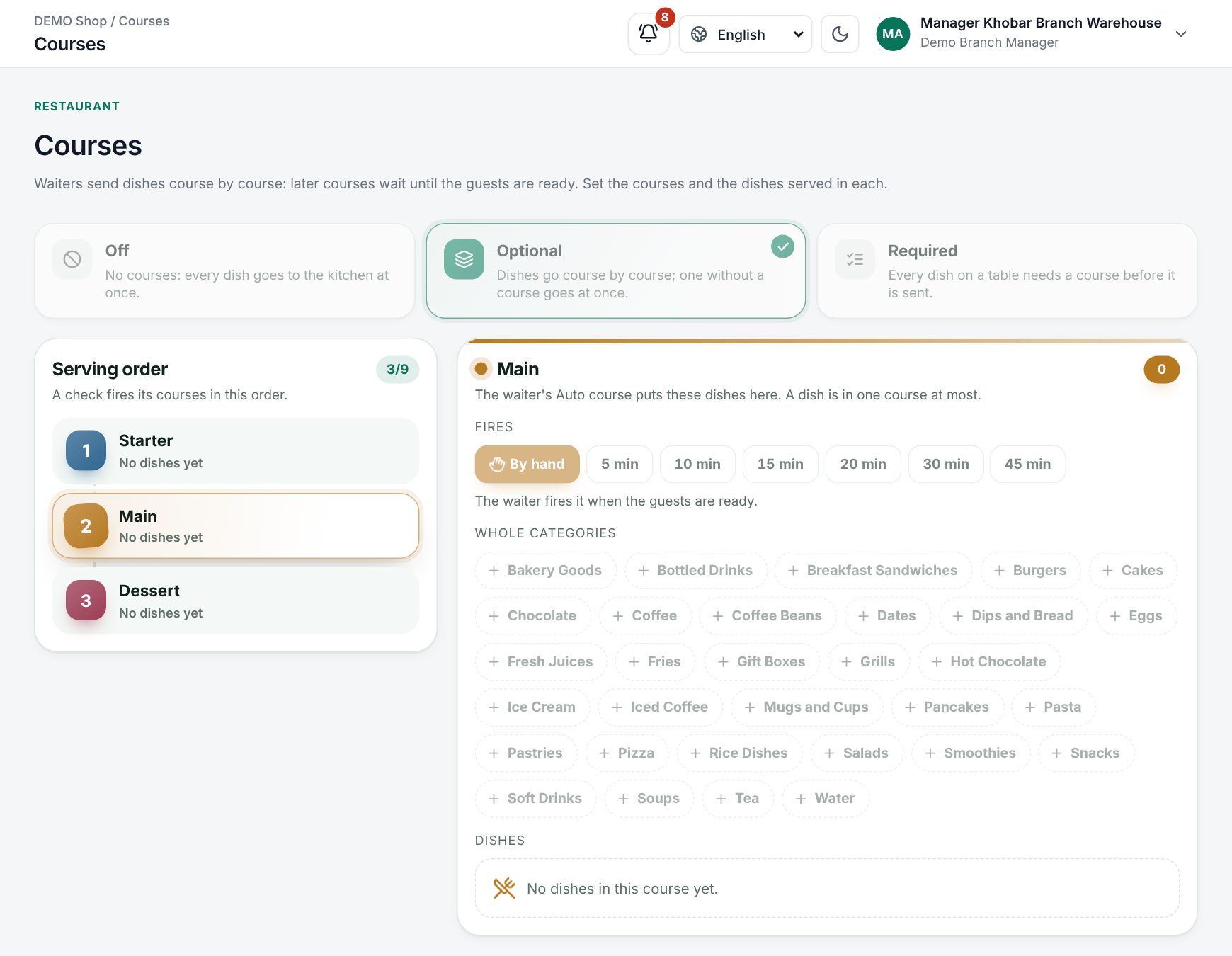 The Courses screen with the coursing modes, the serving order and a course's dishes
Choose how strict coursing is
At the top, pick one mode for all your tables:
| Mode | What it means |
|---|---|
| Off | No courses: every dish goes to the kitchen at once |
| Optional | Dishes go course by course. A dish without a course goes at once |
| Required | Every dish on a table needs a course before it is sent |
With Required, a dish the waiter did not put in a course takes the course you set for it below. If it has none, the waiter must choose one before sending.
Set the serving order
Serving order lists your courses in the order a check fires them. Each shows how many dishes it has.
- Add course: type a name (and an Arabic name), then choose Add course.
- Rename: change the name and choose Save. Open checks keep their dishes in the course.
- Move up and Move down: change the order.
- Delete: confirm at "Delete this course? Its dishes will have no course." with Delete (or Keep). Later courses move up one place.
Note: While open checks have dishes in a course, you cannot delete or move that course or any later one. Pay or move those checks first.
Choose the dishes in a course
Pick a course to see its panel. The waiter's Auto course uses this list to place dishes. A dish is in one course at most.
- Whole categories: put a whole category in the course, for example Soups in Starter. Its sub-categories come too, unless a dish has its own course.
- Dishes: the dishes placed in the course one by one. Remove one with the remove button.
- Add dishes: search the menu and choose Add. If a dish is already in another course, the button says Move here.
A dish's own course comes before its category's course.
Set a course timer
Under Fires, choose when a course goes to the kitchen:
- By hand: the waiter fires it when the guests are ready.
- 5, 10, 15, 20, 30 or 45 min: the course fires by itself that long after the course before it.
The first course always goes with the first round. A waiter can change the timer on one check, or hold the course (see Waiter handheld).
How courses work at the table
- The waiter takes the order on the Waiter handheld. Each dish gets a seat and a course (Auto, Now or a named course).
- Send order sends the first course and anything marked Now. The other courses show Waiting on the check.
- The waiter taps Fire Main (or the next course), or its timer fires it. A course fired by the timer prints "by Auto fire" on the ticket.
- The kitchen gets a ticket headed with the course name, and Kitchen display screens show the course on each dish.
Good to know
- A course name can have up to 60 characters and must be unique.
- Changing a timer applies to open checks at once.
- Courses apply to dine-in checks on tables. Takeaway and delivery orders go to the kitchen at once.
Examples
A three-course dinner. The restaurant keeps Starter, Main and Dessert, sets Optional, and puts the Soups and Salads categories in Starter. Main is By hand, and Dessert fires 30 minutes after Main. A waiter sends a table's full order; soup goes at once, the steaks wait for Fire Main, and desserts follow by themselves.
A tasting menu. A fine-dining shop adds Amuse-bouche as the first course and sets Required, so no dish reaches the kitchen without a course.
Last updated 17 Oct 2026