Quotations
A quotation is a priced offer you give a customer before they buy. You build it in the till like any order, save it with a date, and send the customer a link, a PDF or an email. Nothing is charged and no stock leaves the shelf. When the customer comes back, you sell it in the till at the quoted prices, as long as the date has not passed.
Quotations need the POS add-on. To see them you need estimate_read or estimate_create; to make, change, cancel and sell them you need estimate_create.
Make a quotation in the till
- Open the till and add the items, as for a sale.
- At the top of the order, switch Sale to Quotation. The till shows "Nothing is charged. Save it, then send the customer the link." Coupons and points are taken off, because a quotation does not keep them.
- The big button now reads Add customer: a quotation is always for someone. Choose the customer.
- Press Save quotation (or F9). The Save as quotation dialog opens.
- Set Valid until, or tap 7 days, 14 days or 30 days.
- Check the items. The Items box shows whether the branch has them (In stock, or how much is available and reserved by other quotations). On each line, the note icon opens a Description for the customer (size, specs, delivery), and Optional marks an extra the customer may leave out. Optional lines are not in the total: the customer picks them on their link.
- Add a Note and Terms (pick a saved template, or type them).
- Press Save quotation.
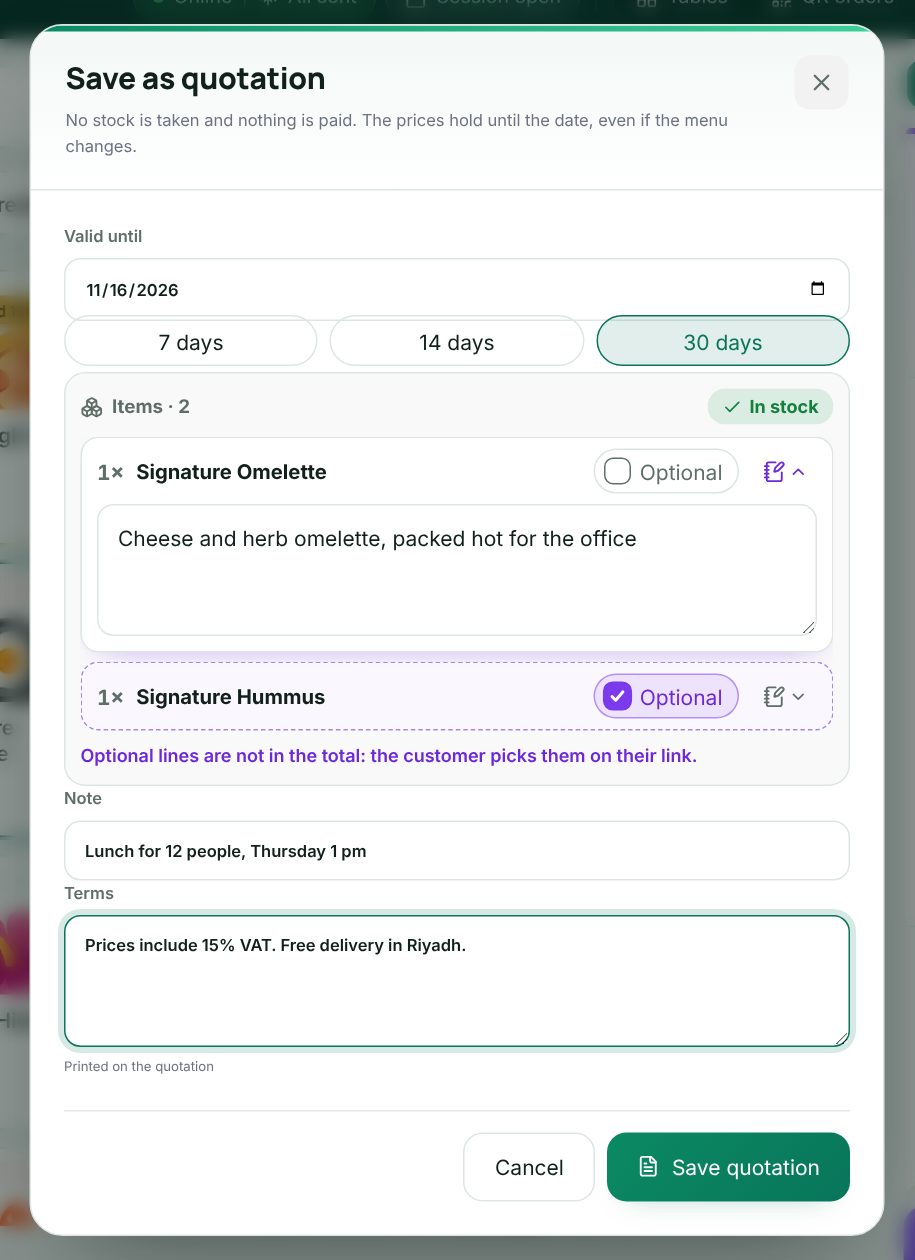 The Save as quotation dialog in the till, with valid until, line descriptions and terms
The Quotation saved dialog then lets you send it at once: WhatsApp, Email, PDF, or Print. Choose Keep in cart to stay on it, or New order to start fresh.
saving the order in the till as a quotation and sending it
Note: Quotations need a connection. The prices are fixed as the cart shows them, including line and order discounts. Choose a salesperson on the order and they are saved on the quotation too (see Salespeople and commission).
The quotation list
Open Sales › Quotations. Each card shows the number (QT-00012), customer, branch, salesperson, total and days left. Filter by status, Customer answer and dates, or search. New quotation in POS opens the till. Expiring this week at the top lists open quotations whose date is close.
| Status | Meaning |
|---|---|
| Open | Valid; can be sold at its prices |
| Expired | Past its date; selling it now charges today's prices |
| Sold | Turned into a sale (Partly sold when only some lines were sold) |
| Cancelled | Lost, with the reason |
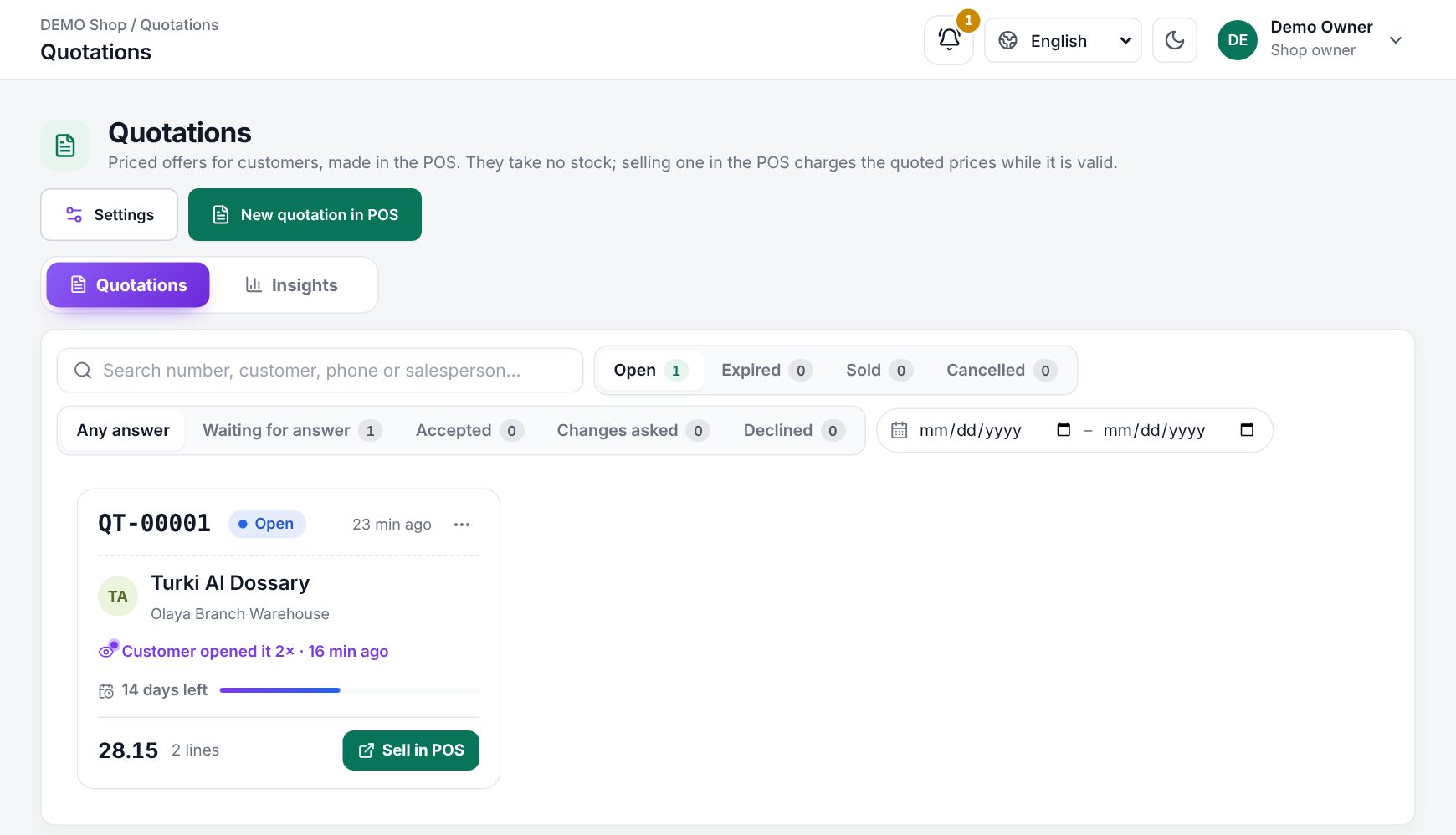 Sales › Quotations with the status and customer-answer filters and a quotation card
Click a card to open it: the customer's answer, stock per line, totals, deposits, versions, and Send to the customer (WhatsApp, Email, Download PDF, Copy link). Once sent, it shows whether the customer opened it ("Customer opened it 2×").
What the customer sees
The link shows your logo, items, totals, terms and bank details. The customer can Download PDF, Print, tick optional extras, and answer with Accept, Request changes or Decline (with their name and a note). Their answer shows on the quotation as Accepted, Changes asked or Declined.
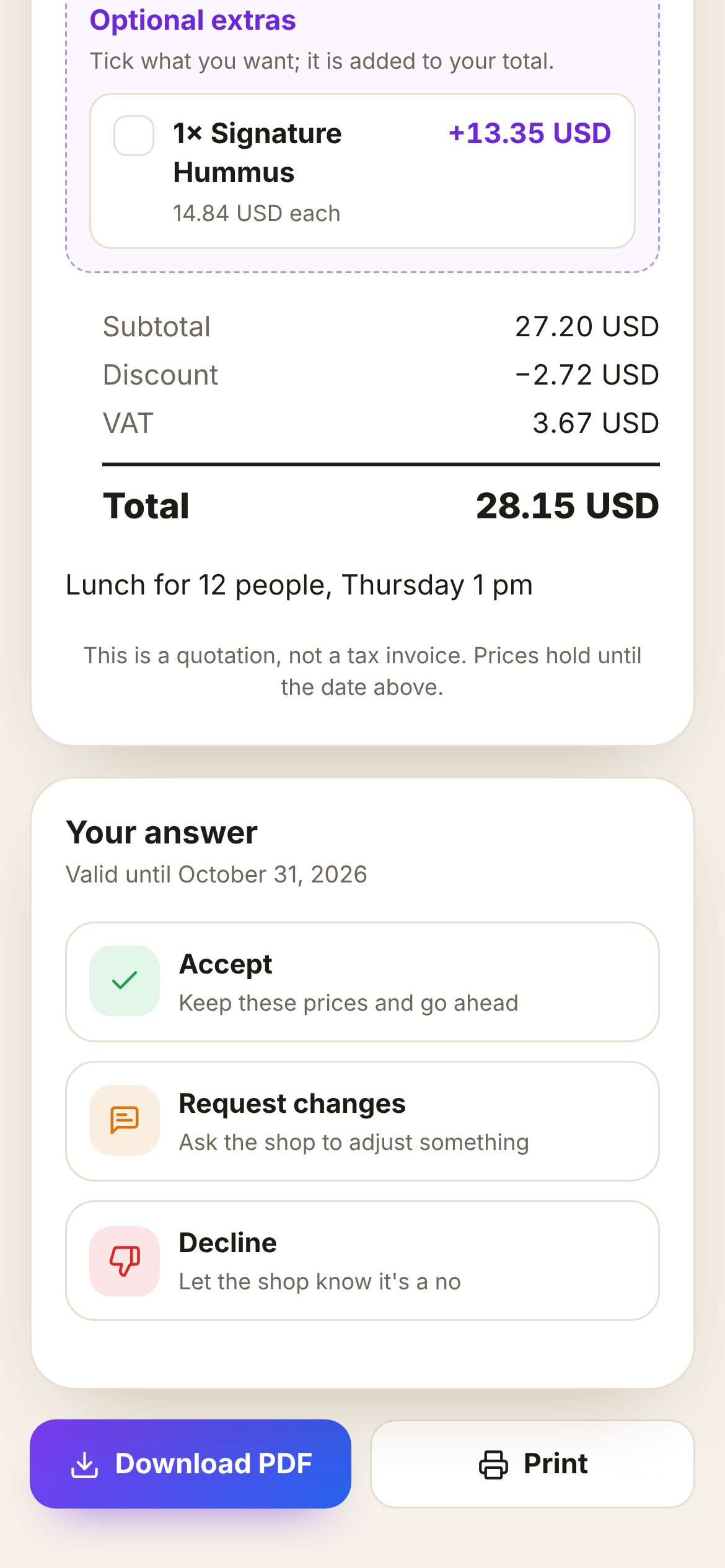 The customer's quotation page on a phone, with Accept, Request changes and Decline
If they ask for changes, open it in the POS, change it and save: the customer can answer again. If the customer had already seen it, saving keeps the old version and makes a revision (QT-00012-R1). Use Compare under Versions to see what changed.
Sell a quotation
- Sell in POS opens the till with the quotation loaded. A banner shows "Prices hold until …". Take payment as usual; the sale closes the quotation.
- Sell part lets you choose what the customer takes now. It becomes an open order at the quoted prices; the rest stays on the quotation, and the button becomes Sell the rest.
- Open order turns the whole quotation into an open order (see Drafts and held orders), to finish in the till later.
Deposits
When the customer has accepted, Take deposit takes an amount, or a percent of the total, paid with cash, a card or another method. The money goes to the customer's store credit; when you sell the quotation, pay with Store credit at the till (see Gift cards and store credit). It is not a tax invoice. Taking a deposit needs the store_credit permission.
Cancel a quotation
Cancel quotation asks Why was it lost? (Price, Went to a competitor, No response, Out of stock, Other). If a deposit was paid, choose Keep it as store credit or Give the money back. A cancelled number is not given again.
Settings
The Settings button on the list opens Quotation settings (changing them needs setting_create):
| Setting | What it does |
|---|---|
| Stock | On: accepted quotations hold their items until their date. Off: quotations take no stock until they are sold |
| Email reminder | Email the customer 1, 3, 7 or 14 days before the quotation expires, or Off |
| Bank details on the PDF | Printed at the bottom of every quotation |
| Terms templates | Saved terms; the Default one fills new quotations |
Good to know:
- Valid until is at most one year ahead; the default is 14 days.
- Reserved stock is released when the quotation is sold, cancelled, changed or past its date. A check every half hour sends due reminders and releases expired reservations.
- Emails need Email (SMTP) set up on the server.
- Duplicate makes a new quotation at today's prices.
- On a customer's page (Customers, edit) the Quotations card lists theirs.
Insights
The Insights tab shows, for This month, Last 30 days, This year or your dates: Quotations made, Sold, Conversion rate, Average days to sell, Open value and Lost, the funnel From quotation to sale (Made, Sent, Opened, Accepted, Sold), Why quotations were lost and Per salesperson.
Example
A furniture shop quotes an office: 6 desks, 6 chairs, and 2 cabinets marked Optional, valid 30 days. The customer opens the link, ticks one cabinet and presses Accept. The shop takes a 30% deposit by bank transfer. Two weeks later the desks arrive: Sell part takes the desks and chairs now, and the cabinet is sold the next week with Sell the rest. At the till the deposit is used as Store credit on the first sale.
Last updated 17 Oct 2026