Staff transfer and branch roles
Staff transfer moves an employee to other stores and warehouses, for example when a cashier starts working at another branch, and keeps every move in a history. On the employee's page you can also give them a different role in one of their branches, such as manager in one store and cashier in the others.
Open Users & Permissions › Staff transfer. Viewing the history needs the staff transfer read permission; making transfers needs staff transfer update. Employees themselves are set up as described in Users and permissions.
The transfer history
The page lists every transfer, newest first. Each card shows the employee, when it takes effect and who made it, the Stores and Warehouses before and after (added ones with a plus, removed ones struck through, moves with an arrow) and the reason. The tiles show the number of Transfers, Staff moved (this page) and transfers This month. Search by employee or reason.
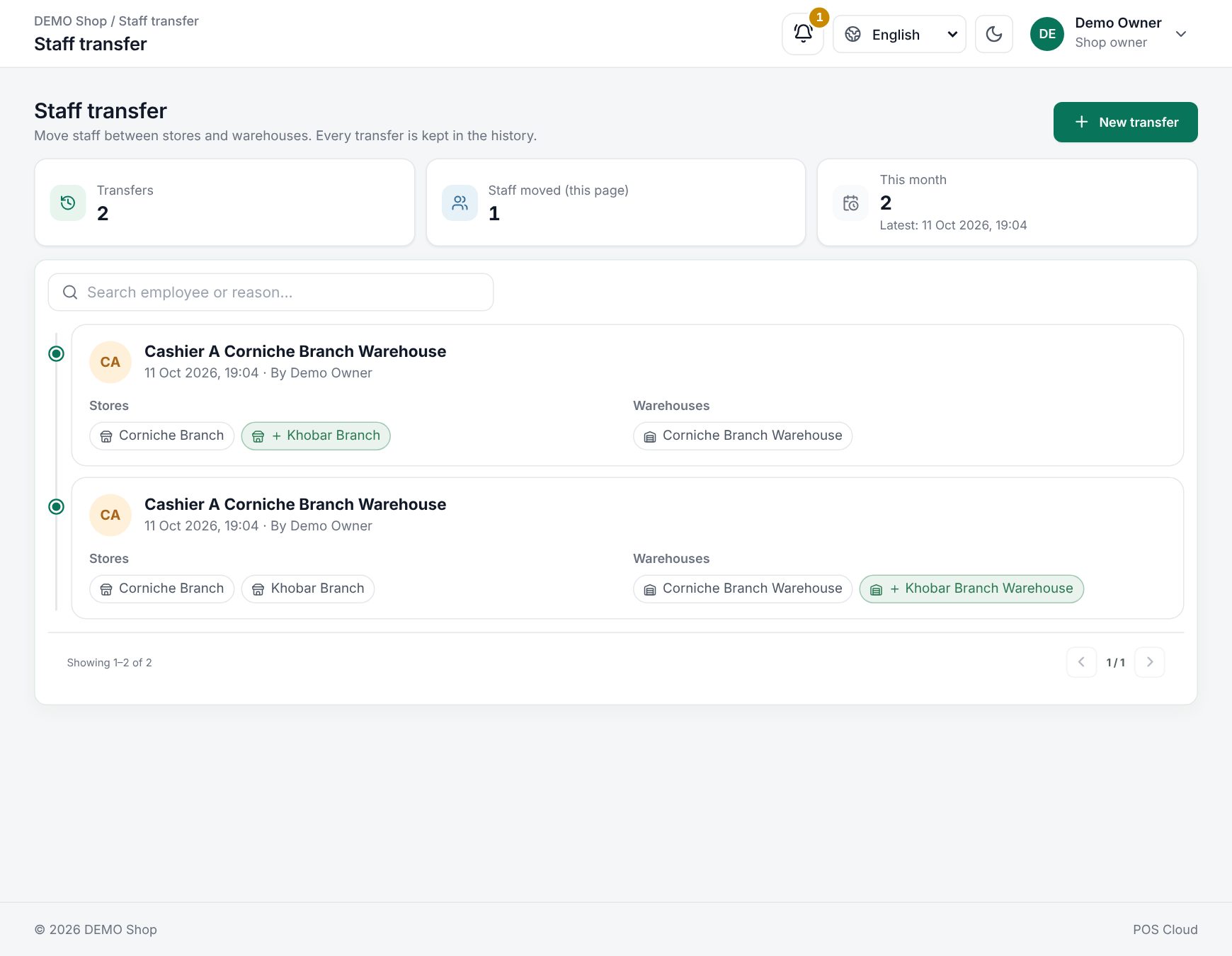 The staff transfer history
Move an employee
- Click New transfer.
- Under Who do you want to move?, search and click the employee. Their current stores and warehouses are shown; the shop owner is not listed.
- Under Where they work from now on, tick and untick Stores, then the Warehouses of those stores. Green is added, red is removed.
- Under When and why, add an Effective date (leave it empty for now) and a Reason, for example "Covering the Jeddah store this month". Both are optional and kept in the history.
- Check What changes on the right and click Save transfer. Cancel with unsaved changes asks Leave without saving?; click Stay to keep working or Leave to drop them.
Moving an employee to another branch
The new stores and warehouses apply as soon as you save; the effective date is only recorded in the history. At least one store and one warehouse must stay ticked.
To change someone again, click their card in the history. Remove all assignments takes away every store and warehouse: they keep their account but can no longer work anywhere. This is not added to the transfer history.
A different role in one branch
By default an employee has the same role in every store they work in. To change that:
- Open Users & Permissions › Employees and open the employee.
- In the Role in each branch card, each of their stores is listed with Usual role (their normal role in brackets). Choose another role for a store.
- Click Save branch roles.
The till works in one branch, and the employee's permissions follow the role of that branch. A store set back to Usual role uses their normal role again. You can only set roles for stores the employee is assigned to, so assign the store first. The card is not shown for the shop owner, who has every permission everywhere. Changing branch roles needs the employee update permission.
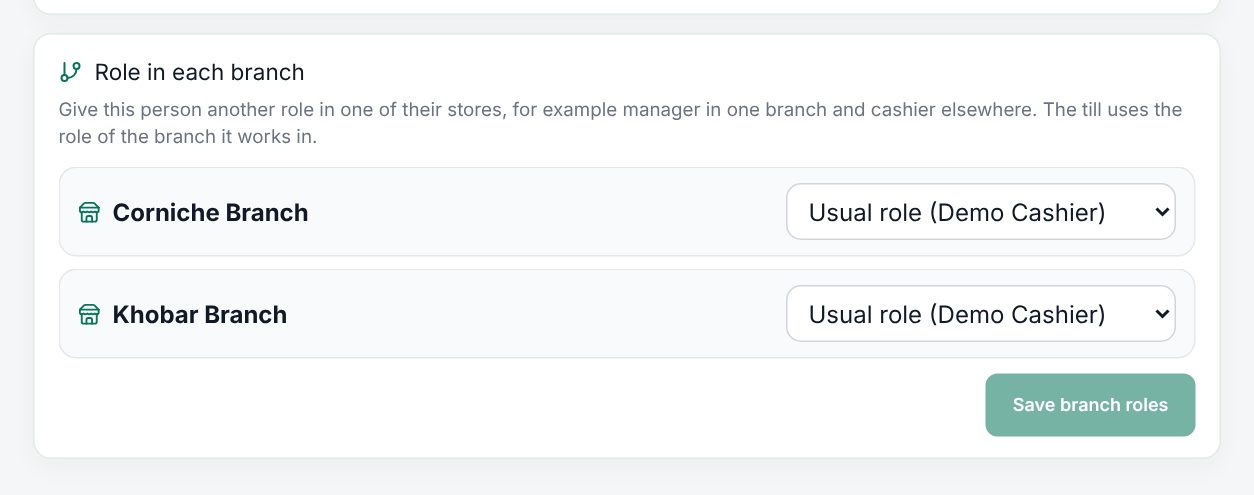 The Role in each branch card on an employee
Examples
Covering another branch. Sara works at the Riyadh store. For a month she covers the Jeddah store. The manager makes a transfer: Riyadh store and warehouse removed, Jeddah store and warehouse added, reason "Covering Jeddah for Ramadan". When she returns, a second transfer moves her back, and both moves stay in the history.
Manager in one branch. Omar is a cashier in two stores but runs the smaller one. In Role in each branch the manager sets the smaller store to the Manager role. At that store's till Omar works with the Manager role's permissions; at the other store he keeps his cashier role.
Last updated 17 Oct 2026