Drafts and held orders
A draft is an order you park to finish later: a customer who went back for their wallet, a phone order to be collected, or a table that is still eating. Saving a draft frees the till for the next customer. When you come back to it, you open it, change it if needed and take payment.
How drafts work
- A draft takes no stock and records no payment. It never appears in sales reports, totals or invoice numbers.
- It gets an order number when first saved, from the same counter as sales. When it is paid, the sale keeps that number, so the kitchen ticket and the receipt match.
- When you open a draft again, the till prices it again with today's prices and offers. A draft never charges an old price by mistake.
- Loyalty points are not saved with a draft: they are spent when the order is paid.
- Drafts need a connection. Offline, the button shows Drafts need a connection.
There is nothing to set up: every cashier who can use the till can save drafts.
Sales › Drafts in the back office
Managers find every draft in Sales › Drafts (permission draft_read): "Orders saved in the POS to finish later."
- Filter by Status (open, paid, deleted), Warehouse, Cashier and dates (From, To). Search by order number, customer, phone or cashier.
- Open a draft to see its items, options and totals (Subtotal, Discount, VAT, Total when saved).
- Open in POS opens the till in a new tab with that draft in the cart.
- Delete draft deletes it (permission draft_delete for other people's drafts).
Who sees what:
- Cashiers save drafts and see, open and delete their own.
- Users with draft_read see everyone's; users with draft_delete can delete anyone's.
- Staff only see drafts of the warehouses they are assigned to.
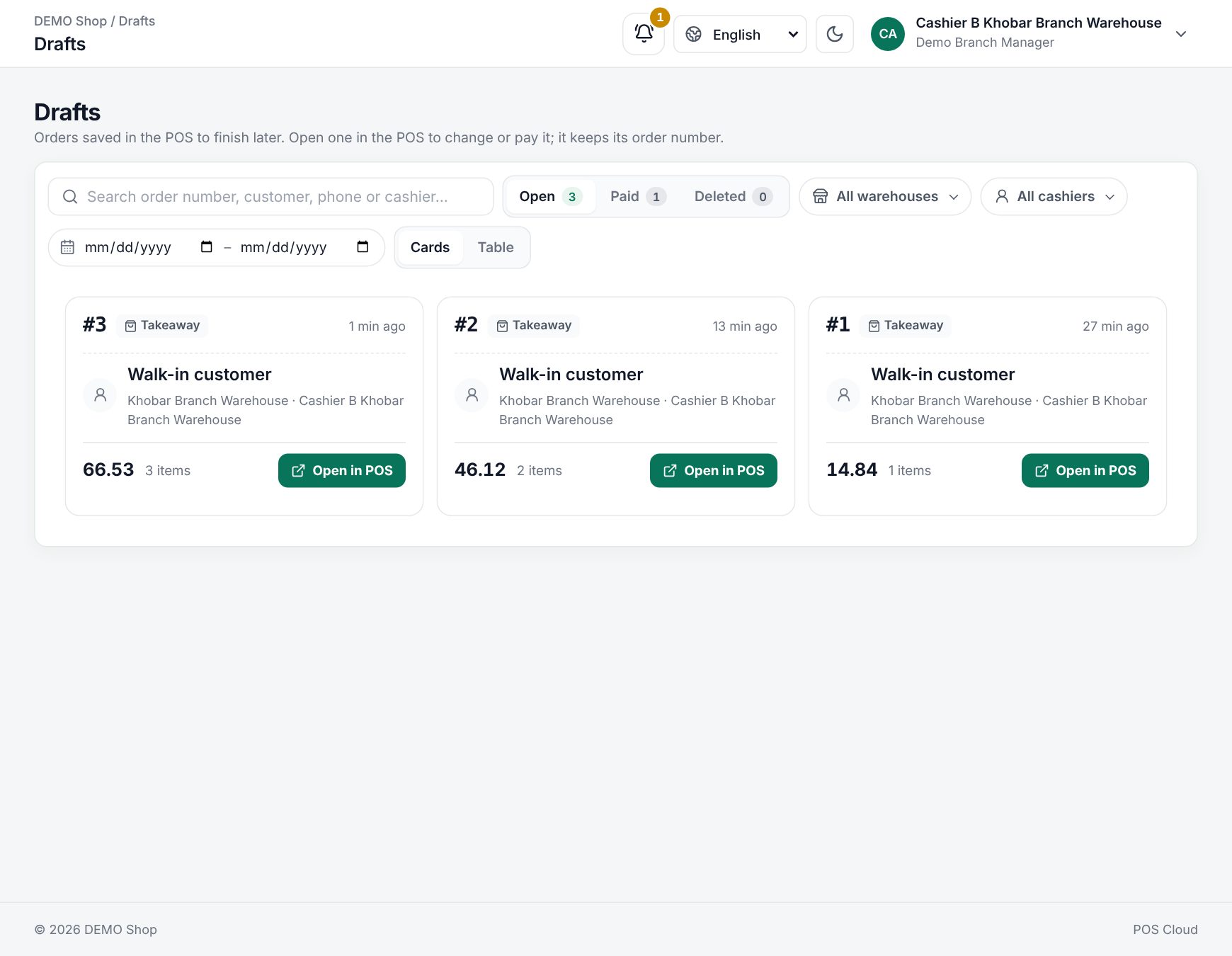 Sales › Drafts with the status filters and the open drafts
What happens at the till
Save a draft
- Build the order as usual: items, customer, order type, coupon, note.
- Choose Save draft in the cart actions.
- The till shows Draft saved · Order #14 and clears the cart for the next order.
In a restaurant with kitchen printers or a kitchen display, saving also sends the new items to the kitchen: the message reads Sent to the kitchen · Order #14. Each later save sends only what changed (a removed item prints as a cancel), so nothing is cooked twice. Items no station takes are named in the message (No printer takes).
Open a draft
- Choose Drafts in the header. The panel lists the open drafts of your warehouse with their order number, customer (or Walk-in customer), items and total. Search by "Order number, customer or cashier".
- Choose the draft. If the cart already holds another order, the till asks Replace the current order with this draft?
- A cart that is itself an open draft stays in Drafts as it was last saved.
- A new order's items are not saved and are cleared. Choose Replace order or Keep current order.
- The till says Draft opened #14, and the cart shows Draft #14 ("Opened from a draft").
When it opens:
- items no longer sold are left out, and the till says how many ("items are no longer sold and were left out"),
- a coupon saved with the draft is checked again; if it is no longer valid the till says why and drops it,
- prices, offers and the customer group discount are worked out again.
Change, pay or delete
- Change it: add or remove items, then choose Update draft. It keeps its order number (a new one only if you change the warehouse).
- Pay it: choose Pay as for any order. The draft becomes a sale with the same order number; stock is taken and the receipt printed now. The same draft can never be paid twice, even from two tills at once.
- Delete it: in the Drafts panel choose Delete draft, then Delete (or Keep). Deleted and paid drafts are kept for history.
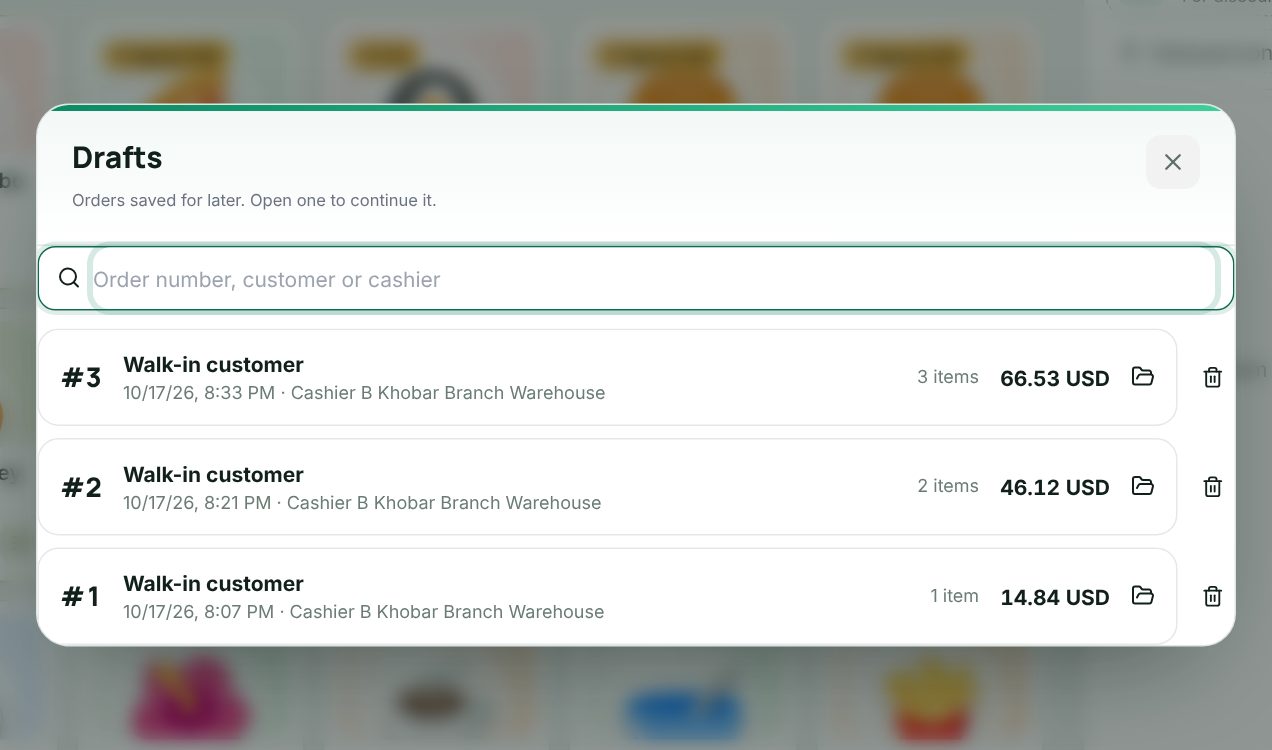 The Drafts panel at the till
Several tills at once
Drafts update live on every till and on Sales › Drafts. If someone else acts on the draft open in your cart, the till tells you:
| Message | What to do |
|---|---|
| This draft was paid on another screen. The cart is now a new order. | The items stay as a new order. Clear it unless the customer really wants a second sale |
| This draft was deleted on another screen. The cart is now a new order. | The same |
| This draft was changed on another screen. Open it again from Drafts to see the changes. | Open it again before you add anything |
If you save a draft that someone else changed in the meantime, the save is refused and you are asked to open it again, so no changes are lost.
Worked example: a phone order at a pizza shop
At 3 pm a customer phones for two pizzas at 45.00 each (VAT 15%, prices include tax), to collect at 7 pm. The cashier adds the customer, sets Takeaway and chooses Save draft: Sent to the kitchen · Order #23.
| When saved | When paid at 7 pm | |
|---|---|---|
| 2 × Pizza | 90.00 | 90.00 |
| 1 × Cola (added at 7 pm) | 6.00 | |
| Subtotal (before VAT) | 78.26 | 83.48 |
| VAT 15% | 11.74 | 12.52 |
| Total | 90.00 | 96.00 |
At 7 pm another cashier opens Drafts, picks order #23, adds a cola and chooses Pay. Only the cola goes to the kitchen; stock for the pizzas and the cola is taken now, and the receipt shows order #23. Sales › Drafts shows the draft as paid, with Total when saved 90.00. Had the pizza price changed to 48.00 in the afternoon, the till would have charged 48.00 each.
Saving a draft and opening it again
Drafts on tables
In restaurants, an order on a table is a draft too (a "check"). Every cashier of the warehouse can see and add to it, and the cart button reads Send instead of Save draft. See Tables and floor plan and Kitchen stations and printers.
Last updated 17 Oct 2026