Reorder suggestions
Reorder shows the items that are running low in a warehouse, with how much to order and from whom, and turns your choice into draft purchase orders in one click, one per supplier. It also holds each item's reorder settings.
Open Purchases › Reorder, or click Reorder on the purchase order list. It is part of the Purchasing add-on and needs the purchase read permission; making orders and changing settings need purchase create.
Set it up: reorder settings
Open the Reorder settings tab. It lists your stocked, purchasable items (search by item, SKU or barcode).
| Column | What it does |
|---|---|
| On hand | Stock in all warehouses together |
| Reorder point | When stock in a warehouse is at or below this, the item shows as running low. This is the same value as the product's Alert quantity. Empty or 0: never suggested |
| Order quantity | How much to order then. Leave it empty (Auto) to order enough to reach twice the reorder point |
| Preferred supplier | Who to order from. Last one bought from uses the supplier of the item's last posted purchase |
Change a row and click its Save button. A tick shows it was saved.
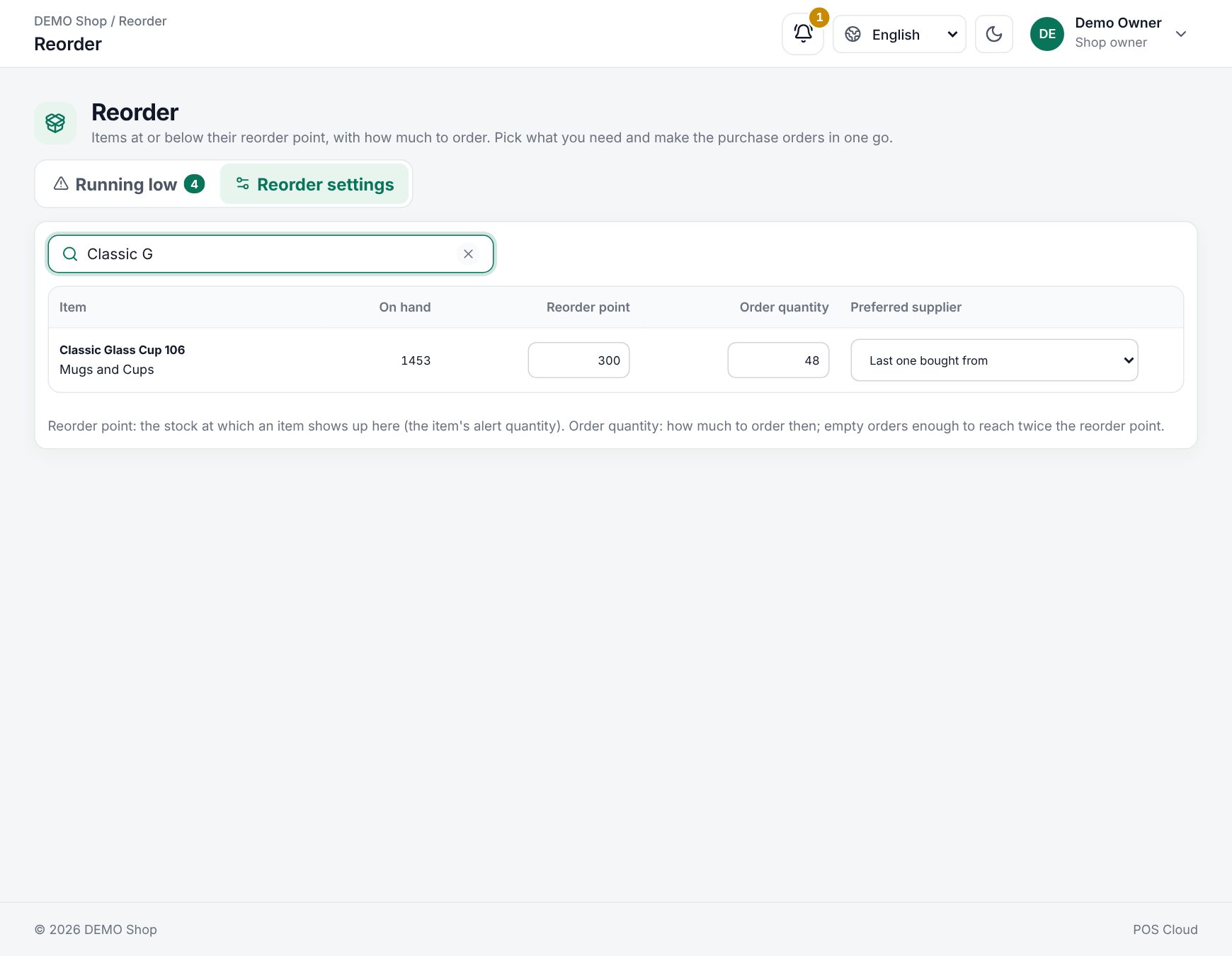 The reorder settings tab
Use it: running low
- Open the Running low tab and choose the Warehouse. Click Refresh to load it again.
- The tiles show how many items are Running low, how many are Out of stock, how many are Chosen to order and the Order value at the last purchase prices.
- Items are grouped by supplier, each group with its value ("one purchase order"). Items without a supplier come first under No supplier yet.
- For each item you see the stock on hand against its reorder point, how much is already on order, the suggested quantity × the last purchase price, and the supplier. Change the quantity or the supplier as you like; untick items you do not want. The box in a group's header ticks or unticks the whole group.
- Click Make the purchase order (or Make the purchase orders) in the bar at the bottom. It stays disabled while a chosen item has no supplier.
- A box (Purchase order ready) lists the new orders, one per supplier. They are drafts: open each one, check it, then send it to its supplier.
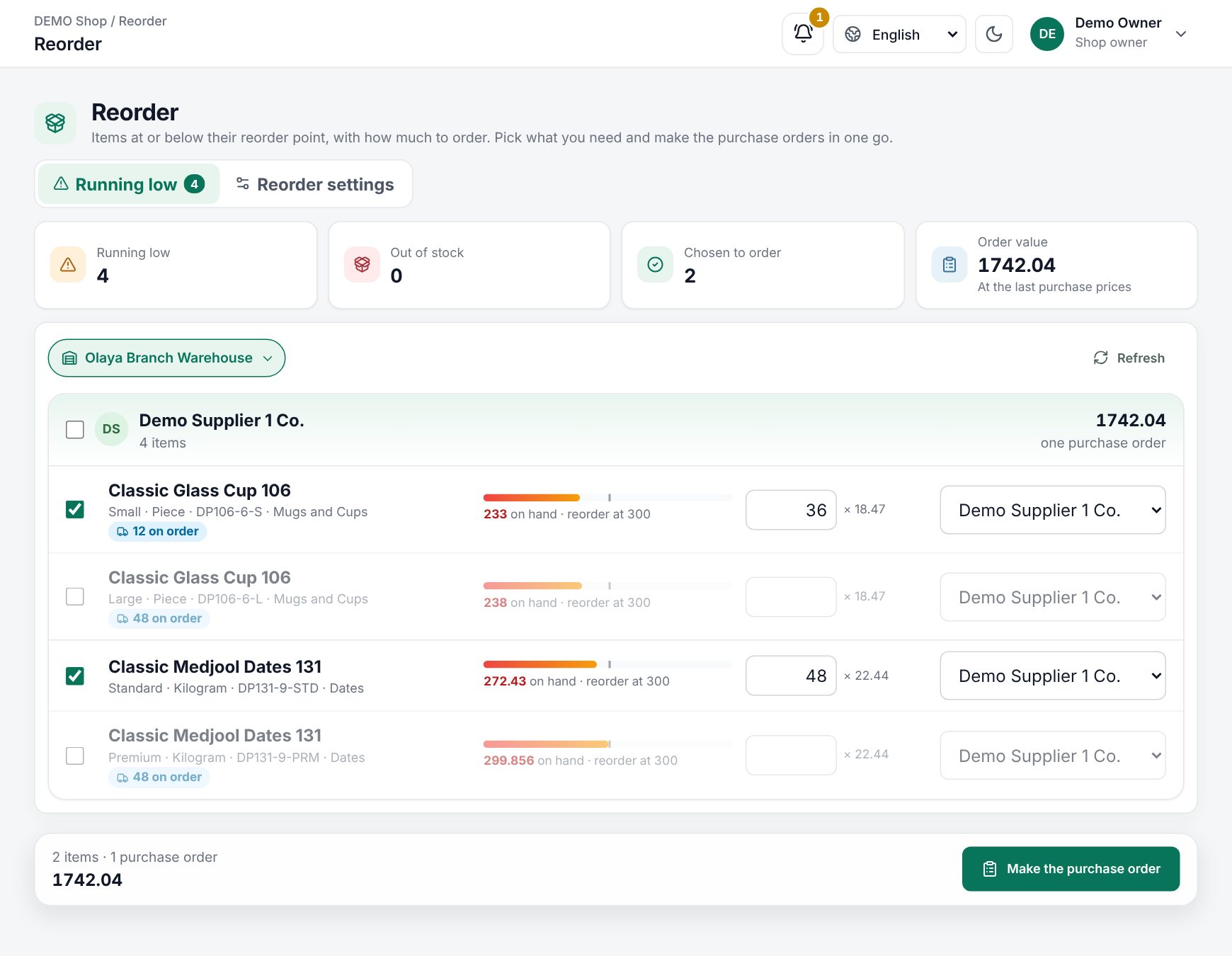 Items running low, grouped by supplier
Turning low stock into a draft purchase order
How the suggestion is worked out
An item is listed when its stock in the warehouse is at or below its reorder point (and the reorder point is above 0). The suggested quantity is:
- the Order quantity, if you set one; otherwise twice the reorder point minus what is on hand;
- minus what is already on order for that warehouse (drafts, sent and partly received orders, not yet received);
- rounded up to a whole number, and never below 0.
Items that are out of stock are listed first, then those furthest below their reorder point. The price on the new orders is each item's last purchase price; you can change it on the order before sending.
Good to know:
- Only stocked products that can be purchased and are active are listed.
- The orders are made for the warehouse you chose, with the note "Made from the reorder suggestions".
- Nothing is sent to the supplier until you send each order.
Example
A pharmacy sets a reorder point of 20 for a pain reliever and leaves Order quantity on Auto. The branch has 6 packs left and 10 are already on a sent order. The suggestion is 2 × 20 − 6 − 10 = 24 packs. The manager keeps it, ticks two other items from the same distributor and clicks Make the purchase order: one draft order for the distributor is ready to send.
Last updated 17 Oct 2026