Kitchen stations and printers
When an order is sent or paid, its items go to the right place: coffee to the bar, food to the kitchen. When the order changes, only the change goes: new items, and cancelled items marked VOID. A ticket that cannot be printed is retried, then shown as failed on every till; it is never lost silently.
Everything is set up on one page: Restaurant Management › Kitchen setup. It has three tabs:
| Tab | What it holds |
|---|---|
| Stations | The parts of the kitchen and what each one makes, per branch |
| Printers & agents | The kitchen printers, and the print agents that reach network printers. A dot warns No print agent running when a network printer has no agent |
| Tickets | The latest kitchen tickets, live. A red count shows failed tickets |
The page opens on the tab you used last. Users with the stations permission but not the printers permission see only Stations. Kitchen printing is part of the printer add-on feature; ask your platform operator if the printer tabs are missing.
Stations decide where each dish is made
A station is a part of the kitchen of one warehouse: Grill, Bar, Pastry. Stations, not printers, decide where each dish goes. A station can have printers, a kitchen display screen, or both, and they always agree because they read the same routing.
The Stations tab groups the stations by branch. Each branch shows how many stations it has and whether it has a Kitchen display (or No kitchen display). At the top, a summary counts the stations, the warehouses and how many stations are with a printer.
Each station is a card with its own icon and colour, picked from its name (a cup for Bar or Coffee, a flame for Grill, a cake for Pastry…). The card shows:
- the station name, with a Default star for the default station;
- the categories it makes (up to six, then "+n"), Everything no other station makes for a default station without categories, or Nothing yet;
- its printers, or No printer;
- who works there (their initials), or Everyone.
If a branch has no default station and some main categories are made nowhere, the tab warns No station makes: followed by those categories, with Add them to a station, or make one station the default.
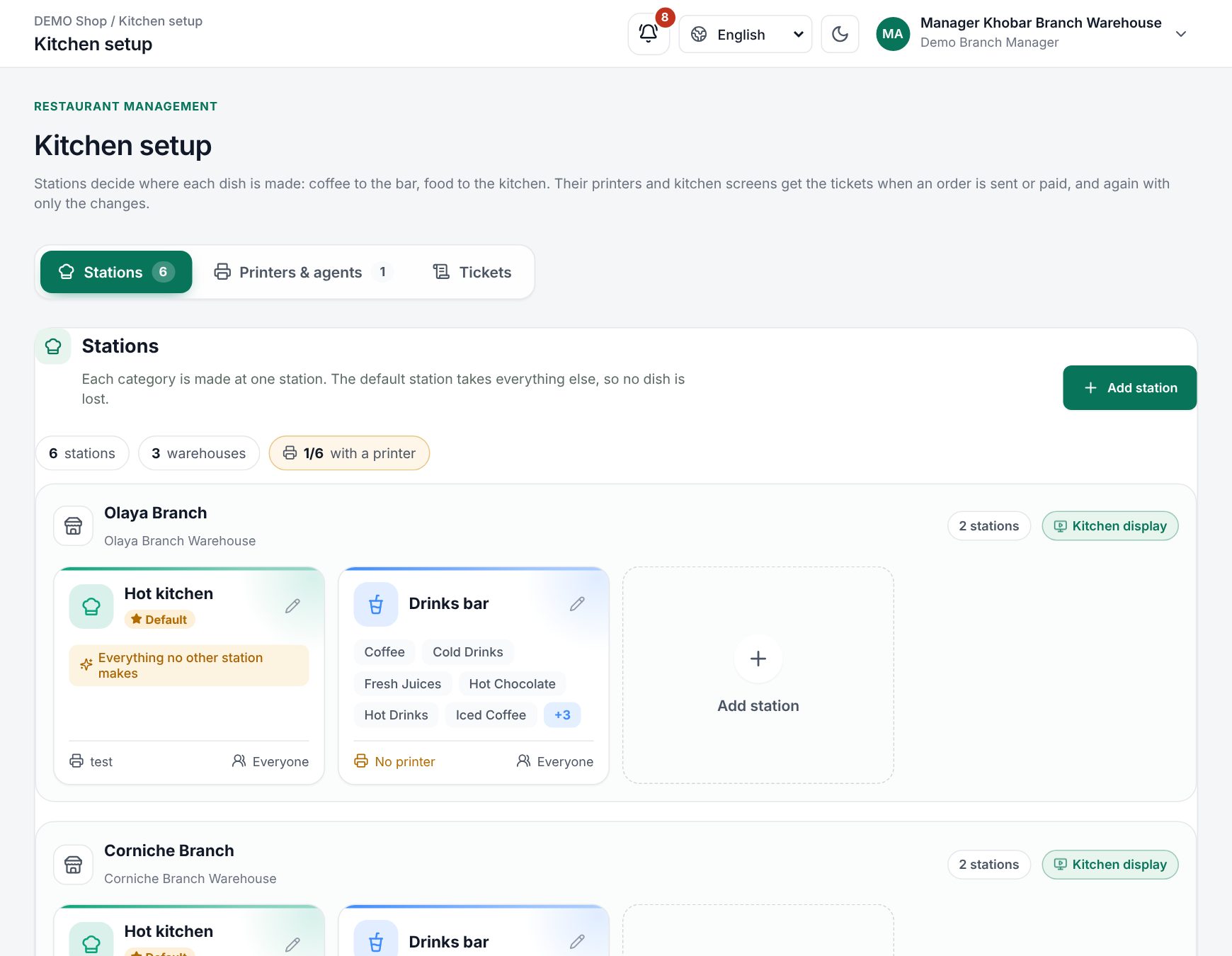 The Stations tab of Kitchen setup with station cards grouped by branch
Add or edit a station
- Choose Add station at the top, or the Add station tile inside a branch (that branch is then chosen for you). To change a station, click its card or its pencil.
- Fill in the form:
| Field | What to enter |
|---|---|
| Name | For example Grill. Tap a suggestion to fill it: Hot kitchen, Grill, Bar, Pastry, Cold kitchen, Pizza |
| Warehouse | The branch the station is in |
| Default station | Makes every dish no other station makes, so nothing is lost. One per warehouse: making a station the default takes over from the old one |
| What it makes | The categories, shown as main categories with their sub-categories. Use Search categories to find one; the count shows how many are selected, and Clear empties the choice |
| Who works here | Optional. Their kitchen display shows only this station. Leave empty for Everyone. Use Search staff to find people |
- Save. A station that is not the default needs at least one category ("Choose what this station prepares, or make it the default station."). To remove a station, choose Delete and confirm.
How categories are routed:
- Ticking a main category covers all its sub-categories (the count shows, for example, 4/4).
- You can tick only some sub-categories instead. A sub-category given to another station goes there (the nearest category wins).
- A category can be at only one station per warehouse. A category another station makes is shown locked, with that station's name.
If a dish belongs to no station and there is no default, the till warns the cashier so they can tell the kitchen in person.
A station with printers cannot be deleted ("Move this station's printers to another station first."). A station with history is switched off instead.
Example
A restaurant has a Bar station with the categories Hot drinks and Juices, and a Hot kitchen station set as the default. A table orders two lattes and a burger: the lattes print at the bar, the burger in the kitchen, as two tickets from one send. Once the stations are ready and there is no printer yet, the tab offers Next: add a printer.
Add a printer
You need at least one station first (Add printer says Add a station first. until then).
- On Printers & agents, click Add printer.
- Fill in the form. The Ticket preview on the side shows the paper width, the number of copies and the station's colour.
| Field | What to enter |
|---|---|
| Name | Shown on the ticket, e.g. Bar or Hot kitchen |
| Warehouse | The branch the printer is in |
| Prints for station | The station whose dishes it prints. The station decides which dishes it prints |
| Connection | Network (IP address, through the print agent) for a thermal printer on the network, or This browser (a print station page prints it, for USB printers) |
| IP address | Network printers only. Printed on the printer's self-test page |
| Port | Network printers only. Usually 9100 |
| Paper width | 80 mm or 58 mm |
| Copies | 1 to 5, with Fewer and More |
| Cut the paper after each ticket | Switch on if the printer has a cutter |
| Printing on | Switch off to stop the printer without deleting it |
- Save, then click Test on the printer card. A test page should print within a second or two.
Each printer card shows Prints for and the station, the connection, paper width, copies, Cut when on, Off when switched off, and how many tickets failed (or Never printed). A station can have several printers. A printer with printed tickets is switched off instead of deleted.
Network printers: the print agent
Network printers are reached by the print agent, a small program on a computer that stays on in the restaurant, on the same network as the printers.
- Under Print agents, click New agent key.
- Enter a Name for the computer that runs it (e.g. Kitchen PC) and its Warehouse.
- Click Copy key. The key is shown only once.
- Install and start the agent on that computer with the key (it needs Node 22 or later). See Set up the print agent.
The list shows each key's warehouse and whether its agent is Online, when it was Last seen, Never connected or Revoked. A key only receives the tickets of its own warehouse. If a computer is lost or replaced, click Revoke and confirm Revoke key: the agent using that key stops printing at once.
Browser printers: the print station
Use a browser printer when the agent cannot reach the printer, for example a USB printer on the kitchen computer.
- Add the printer with the connection This browser.
- On the computer connected to that printer, sign in and open Restaurant Management › Print station.
- Choose the warehouse if you have several, and tick the printers under Printers connected to this computer.
- Click Start printing. Keep the page open.
A print station only prints for the printers ticked on it, so bar tickets never print in the kitchen. Click Stop printing to pause.
Tip: to print without the browser's print dialog, start Chrome on that computer with the
--kiosk-printingoption.
Watch and fix tickets
The Tickets tab lists recent tickets, Live: time, printer, order and Round, and status (Waiting, Printing, Printed, Failed, Cancelled). Counters at the top total each status. Under Show, choose All or Only failed; with nothing failed you see No failed tickets. Everything printed. Show all lists more than the latest twelve.
- A ticket that cannot be printed is tried several times, with a growing pause. Then it shows as failed here and on every till of the warehouse.
- Retry sends a failed ticket again once the printer is back.
- Reprint prints a ticket that already printed again, marked REPRINT.
- Cancel removes a ticket you no longer need.
If an agent or print station was offline, it receives every waiting ticket as soon as it connects again.
What happens at the till
The routing has no effect on prices, totals or the receipt. It changes what the cashier is told when a round is sent:
- After Send (or a paid order), the till confirms Sent to the kitchen with the table or order number.
- If a dish belongs to no station and the branch has no default station, the message adds No printer takes: and the dish names, so the cashier tells the kitchen in person.
- If a ticket cannot be printed, every till of the branch shows "A kitchen ticket could not be printed. Check the printer, then retry it in Kitchen printers."
Worked example
Bar makes Hot drinks; Hot kitchen is the default. A waiter sends T2: 2 lattes and 1 burger. The till says Sent to the kitchen · T2: the bar prints 1 ticket with 2 lattes, the kitchen 1 ticket with 1 burger. The guests add 1 latte: only the bar prints, with 1 latte. They cancel the burger: the kitchen prints a VOID ticket with −1 burger. The bill on the till goes from the first round's total to the new one as usual; nothing on the receipt mentions stations.
What prints and when
- Sending the same order again prints nothing; adding one coffee prints only the coffee.
- Cancelled items print as VOID, with the name as it was sent, even if the menu item was renamed since.
- Deleting an open check sends a VOID for everything the kitchen has.
- Splitting and merging checks print nothing, so no dish is cooked twice.
- Sales made offline are not sent to the kitchen: they reach the server after the food was made.
Related pages
Last updated 17 Oct 2026