Customer balances and payments
Selling on credit (on account) lets a known customer take the goods now and pay later. The unpaid part of the sale stays on the customer's account until they pay. You can give each customer a credit limit, put them on hold, see how old their debt is, print a statement, and record their payments, which pay several invoices at once.
The page is Sales › Customer Management › Customer balances, with two tabs: Balances and Payments. Seeing balances and statements needs customer_read; taking and voiding payments needs credit_pay; changing a limit or hold needs customer_update. Selling beyond a limit without approval needs pos_credit_override.
Set a credit limit
A customer with no limit can owe any amount. To set one:
- Open the customer (Customers, edit; see Customers and customer groups). The Credit account card shows what they owe and a bar of the limit used.
- Choose Limit. The Credit limit dialog opens.
- Choose Set a limit and type Most they may owe, or tap a common amount. No limit removes the cap.
- Switch on On hold to stop all new credit sales for this customer, whatever the limit. Paying still works.
- Add a Note for cashiers, for example "Pays on the 1st of the month".
- Choose Save.
The bar is green, amber from 75% and red beyond the limit; striped when on hold.
Sell on credit at the till
- Add the customer to the order (F4). If they owe something, the customer chip shows it.
- Choose Pay.
- To put the whole bill on the account, choose Credit ("On account", or what is still available under their limit). The screen says "The whole amount goes on the customer's account."
- To take part now, enter that payment (cash, card…). The status shows Sold on credit and "The rest goes on the customer's account."
- Complete the sale.
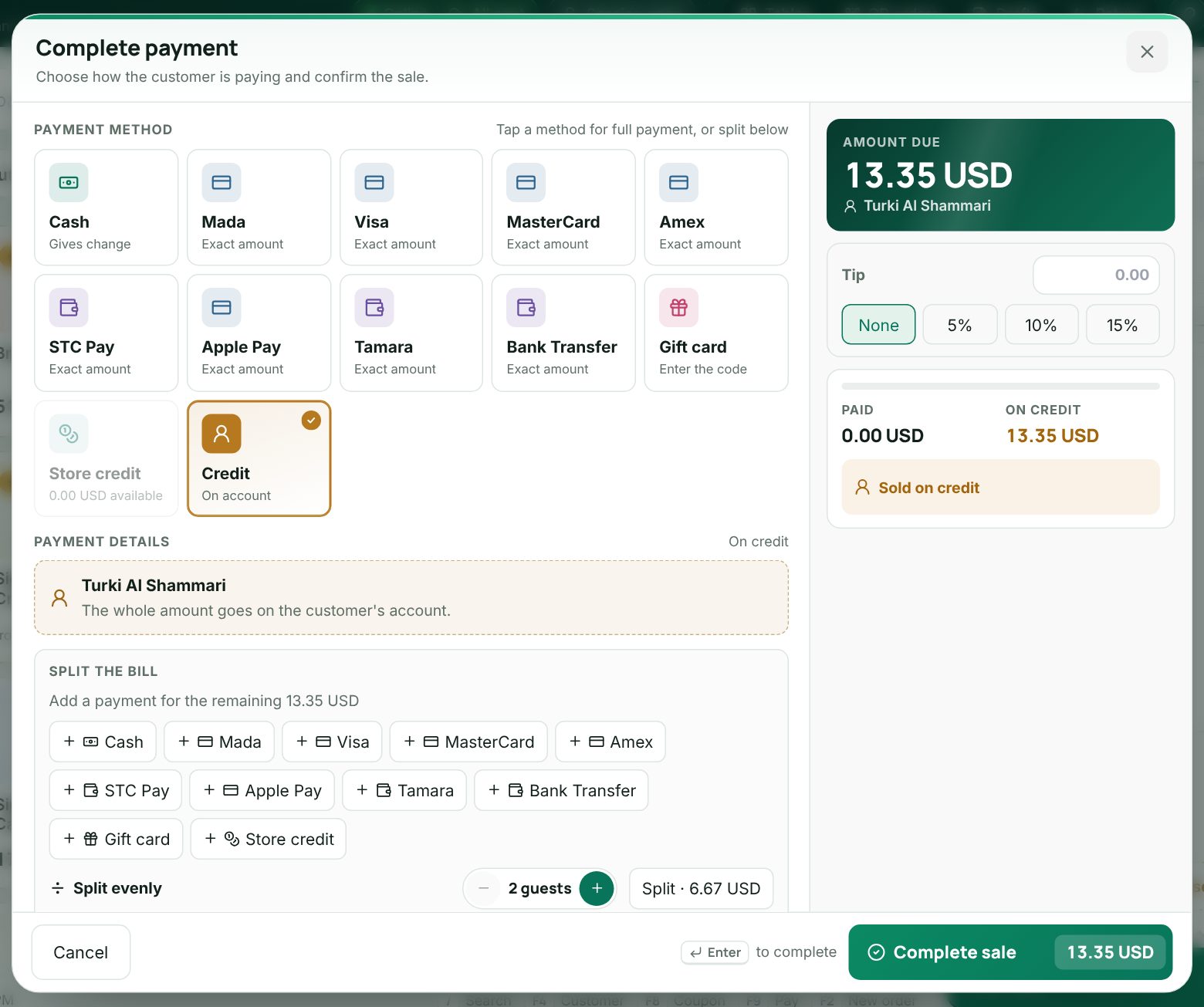 The payment screen with the Credit tile and a customer chosen
Credit needs a customer ("Choose a customer to sell on credit."). A tip cannot go on credit. The waiter app and QR ordering never sell on credit.
Beyond the limit or on hold
If the sale takes the customer over their limit, or they are on hold, the till opens Credit approval ("Beyond the credit limit" or "This customer is on hold") with Owes now, This sale on credit and Owes after. A manager types their Manager email or phone and Password and chooses Approve. The approval is for this customer and amount only, used once, and lasts 10 minutes. Staff with pos_credit_override are not asked.
Note: The approval needs a connection. Offline the till uses the customer's last known balance; a sale over the limit cannot be approved until you are back online (see Selling offline).
Customer balances
Customer balances shows Owed by customers, Over their limit, On hold and Over 90 days, then one row per customer who owes:
| Column | Shows |
|---|---|
| Customer | Name and how many open invoices |
| Credit used | The limit bar |
| Age of what is owed | A bar of 0–30, 31–60, 61–90 and 90+ days |
| 0–30, 31–90, 90+ | The amounts by age |
| Balance | What they owe, with the phone number |
Filter with Show (All, Over limit, On hold) or search a customer or phone. Receive takes a payment; the gauge icon opens the Credit limit.
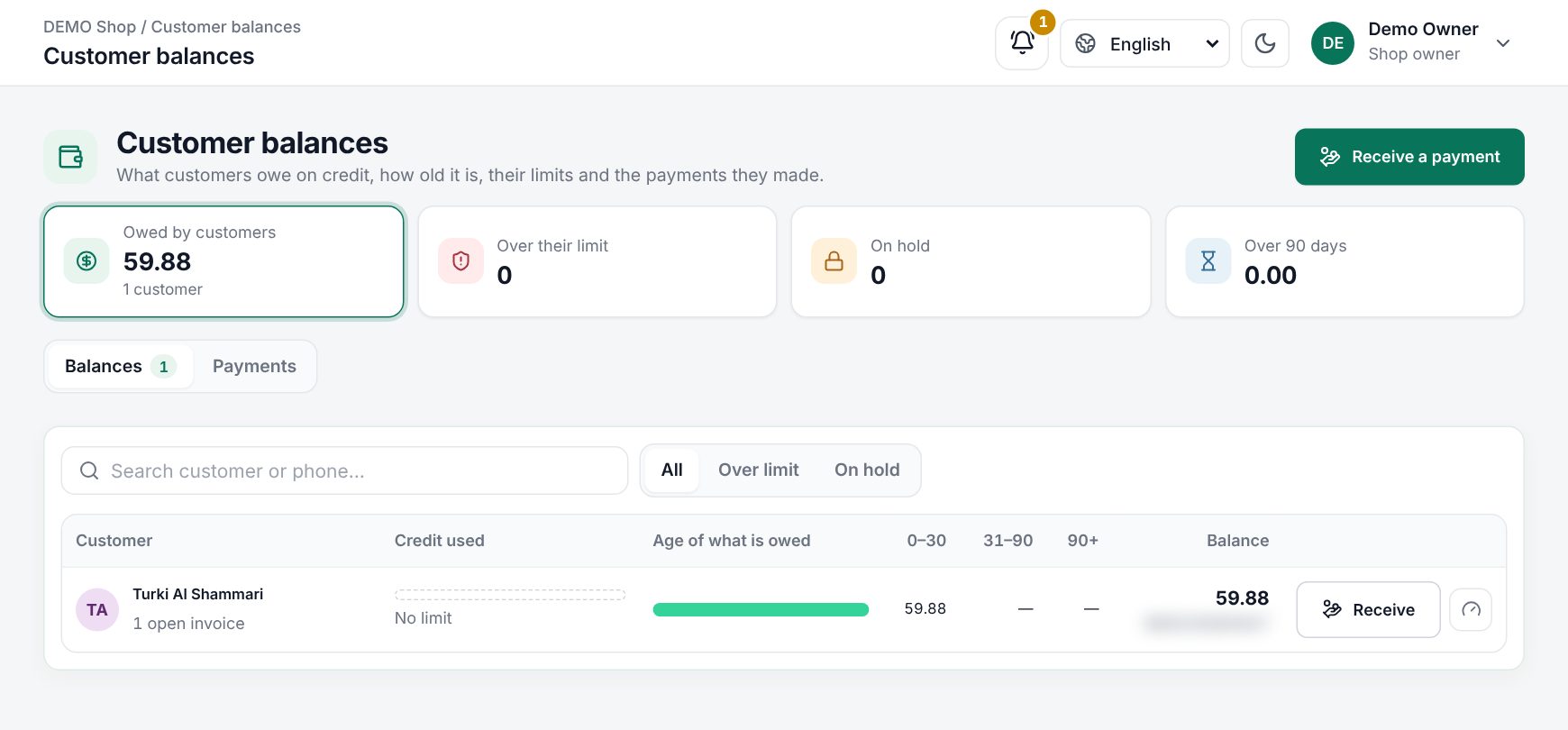 Sales › Customer Management › Customer balances with aging bars
Receive a payment
- Choose Receive a payment (or Receive on a customer's row).
- Who pays: pick the customer.
- How much and how: type the amount, or tap All or Half. Choose the method and add a Reference (transfer, cheque or receipt number) and Note.
- Invoices it pays: with Oldest first, automatically on, the payment pays the oldest invoices first. Switch it off to type an amount per invoice; the invoices must add up to the payment.
- Check the summary (Owed now, Still owed after) and choose Record payment.
receiving a customer payment that pays their oldest invoices
At the till, tap the wallet icon next to the customer (Customer account) to see what they owe and their open invoices, and take a payment there the same way. It needs a connection.
Good to know:
- A payment cannot pay more than the customer owes. Gift cards and store credit cannot pay an account.
- Cash goes into your open cash session; with cash closing on, you need an open session (see Cash sessions and X/Z reports).
- A payment cannot be edited. Open it on the Payments tab and choose Void payment with a reason (Entered by mistake, Wrong amount, Cheque bounced, Wrong customer). The invoices it paid are owed again. Print receipt prints a receipt for the customer.
- Returns lower what the customer owes (see Returns and credit notes).
Statements
Statement (on the customer's card or row) lists every sale, return and payment between two dates, with Opening balance, Sales, Paid and returned and Closing balance. Pick a language (EN, Arabic, Bangla) and choose PDF to send it.
Example
A building contractor has a limit of 10,000.00 and owes 8,500.00. He buys 2,500.00 of cement on credit: the till asks for approval because he would owe 11,000.00. The manager approves. At month end he transfers 6,000.00: you record it with the transfer number, and it pays his three oldest invoices. His balance drops to 5,000.00, all in the 0–30 column.
Last updated 17 Oct 2026