Purchases
A purchase is a supplier invoice. Posting it adds the goods to the warehouse at their cost, so stock, average cost and profit stay right. Purchases are part of the Purchasing add-on. Open them from Purchases › Purchases. Viewing needs the purchase read permission; creating, posting and voiding need purchase create.
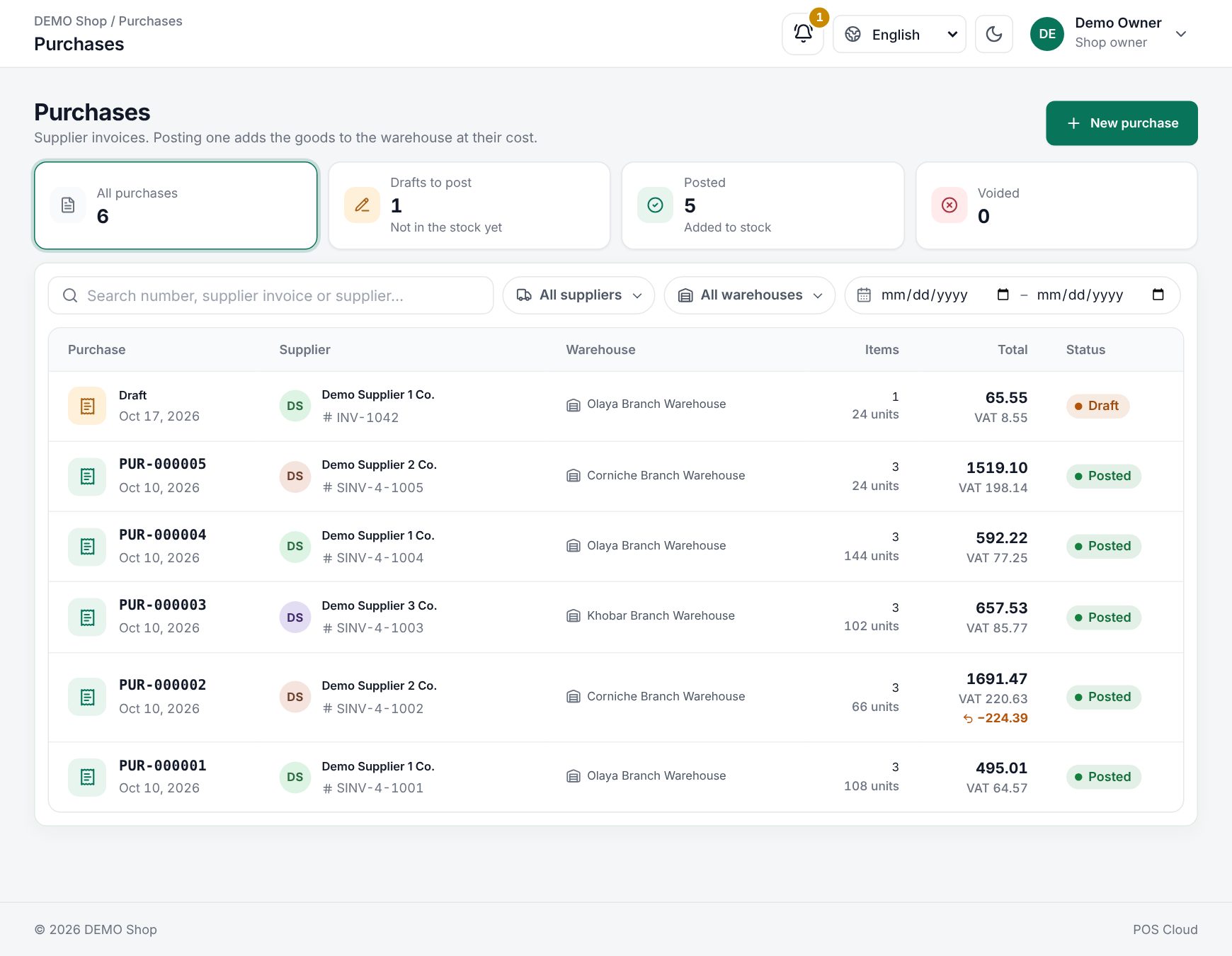 The purchase list with its status tiles
How a purchase works
| Status | What it means |
|---|---|
| Draft | You can still change, save and delete it. It has no number and does not touch stock. |
| Posted | The goods were added to stock. The purchase gets a number (PUR-000001 …) and can no longer be edited. |
| Voided | The goods were taken out of stock again. The purchase stays for history. |
The purchase list
The tiles at the top count All purchases, Drafts to post (not in the stock yet), Posted and Voided; click one to show only those. Filter by Supplier, Warehouse and dates, or search by number, supplier invoice or supplier. Each row shows the purchase number (or Draft) and date, the supplier with their invoice number, the warehouse, the number of items and units, the total with its VAT and any amount returned, and the status.
Enter a purchase
- Click New purchase.
- Under Supplier and invoice, fill in:
- Supplier: choose from your suppliers. Their contact, phone and VAT number (or No VAT number) are shown below.
- Supplier invoice no.: as printed on the invoice. Optional, but the same invoice number cannot be entered twice for one supplier (voided purchases excepted), which stops a delivery being booked twice.
- Invoice date: cannot be in the future.
- Under Receive into, choose the warehouse where the goods arrive.
- If your shop uses VAT, switch on Unit prices include VAT when the supplier's prices include VAT. Otherwise you type prices without VAT and the VAT is added on top.
- Click Add a note if you like (for example "two boxes damaged").
- Add items: scan a barcode or search. Scanning an item again adds one more. The item's last purchase price is filled in; change it to the invoice price. Items that cannot be purchased are not offered. With 8 or more lines you also get Find in this list and Remove all.
- For each line, set:
| Column | What to enter |
|---|---|
| Quantity | How many arrived. Must be more than 0 |
| Unit price | Including or excluding VAT, as the column says. A line without a price is marked No price and comes in at zero cost |
| Discount | A number, then choose % or the currency |
| VAT % | Only with VAT. Filled with the shop's rate; change it if the line's rate differs |
| Total | Worked out for you, with the discount shown under it |
- Enter an Invoice discount if the supplier gave one on the whole invoice, as % or an amount.
- Check the Invoice total on the right: Subtotal, Discount, Taxable amount, VAT. The figures move as you type. The checklist below shows what is still missing.
- Click Save draft (or press Ctrl+S) to finish later (Draft saved), or Post and add stock. The Post this purchase? box shows the total, or warns how many items have no price. Confirm with Post.
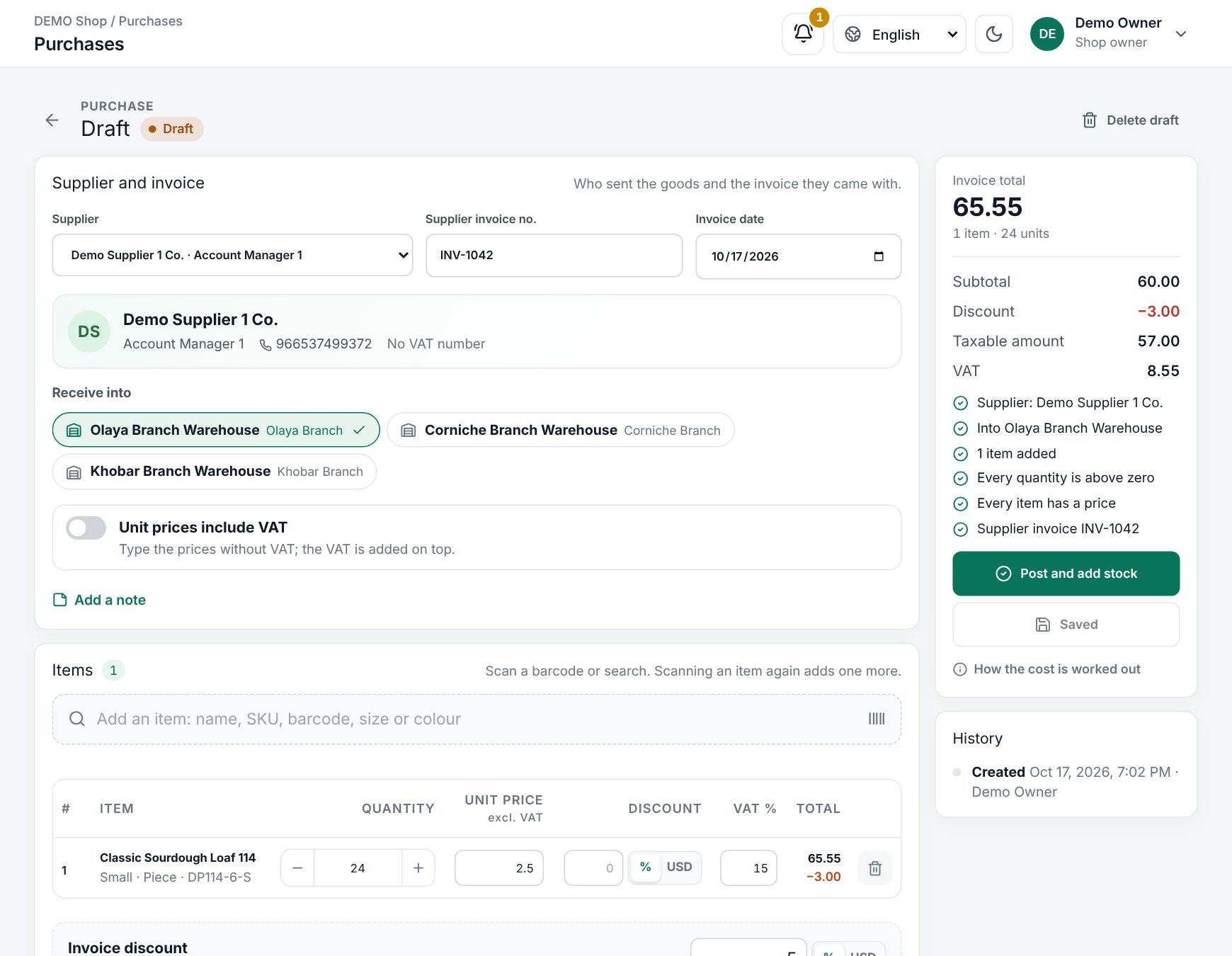 A draft purchase with the totals and checklist
Entering a supplier invoice as a draft purchase
When you post, the goods are added to stock at their cost and the invoice can no longer be edited (Posted: the goods were added to stock). To throw away a draft, click Delete draft.
Items with batches and expiry dates
For a product that tracks batches, each line shows Batch and Expires under the item name, with the days left (or Already expired). If one delivery holds two batches, click Another batch to split the line. A purchase cannot be posted until each such line has a batch number or an expiry date. See Expiry dates and batches.
How the cost is worked out
Infotech POS calculates each line in this order:
- quantity × unit price (prices including VAT are converted to excluding VAT first);
- minus the line discount (an amount is in the same basis as the price);
- minus the line's share of the invoice discount, spread over the lines by their amount (an invoice discount amount is always before VAT);
- plus VAT at the line's rate.
The cost of the goods is the line's amount after both discounts, without VAT, because VAT is recoverable. That cost per stock unit goes into the stock ledger and updates the item's average cost. Posting also saves the price as the item's last purchase price. A posted purchase shows the Cost / unit of each line.
Note: if you buy a box SKU (for example a case of 24), the cost is per box and is converted to the stock unit automatically.
Receiving a purchase order
When you click Receive goods on a purchase order, a draft purchase is made for you with what is still to come, at the order's prices. It shows Receives purchase order with a link to the order. Check the quantities and prices against the supplier's invoice, add the invoice number, then post. Only then does the order count the goods as received.
After posting
A posted purchase shows each line's batch and cost, any Returns made against it, and its History. On the right, Paid and Still owed (or Settled) show how much of it you have paid. The buttons at the top:
- Pay: when something is still owed, opens Supplier payments with this invoice chosen.
- Print labels: print barcode labels for the goods that came in (see Print barcode labels).
- Return goods: send some of the goods back to the supplier. See Purchase returns.
- Void: if the whole purchase was a mistake, give a reason (for example Entered twice). The goods are taken out of stock again.
Voiding is refused while the purchase has posted returns (void the returns first), when it was paid (void its payments first), or when the goods are no longer in stock.
Staff see only the warehouses they are assigned to. Posted purchases count in the purchase summary on the Dashboard and in what you owe each supplier; drafts and voided purchases do not.
Example
A grocery buys 100 bottles of water at 1.15 including 15% VAT, with an invoice discount of 5.00. The unit price excluding VAT is 1.00, so the subtotal is 100.00; after the discount the taxable amount is 95.00, VAT is 14.25 and the total 109.25. The water enters stock at 0.95 per bottle, and 109.25 is owed to the supplier until it is paid.
Last updated 17 Oct 2026