Reports
Reports gives you the figures behind the business: daily takings, VAT for your return, what sold and who sold it, payments, customers' dues, stock, purchases, kitchen times, profit and customer feedback. Every report reads the same sales the tills save, so the numbers match the receipts and the cash sessions. Each report can be filtered, sorted and exported to Excel or PDF.
Open a report
Reports are in the sidebar under Reports, in groups: for example Reports › Sales › Daily sales. Each one opens at /shop/reports?tab=<report>. On the page, the first row shows the groups and the second row the reports of the chosen group; choosing a group opens its first report. The page title and its description say what the report shows.
You see only the reports your role allows (each report opens with any of its report permissions; owners see all) and only those of the add-ons your shop has.
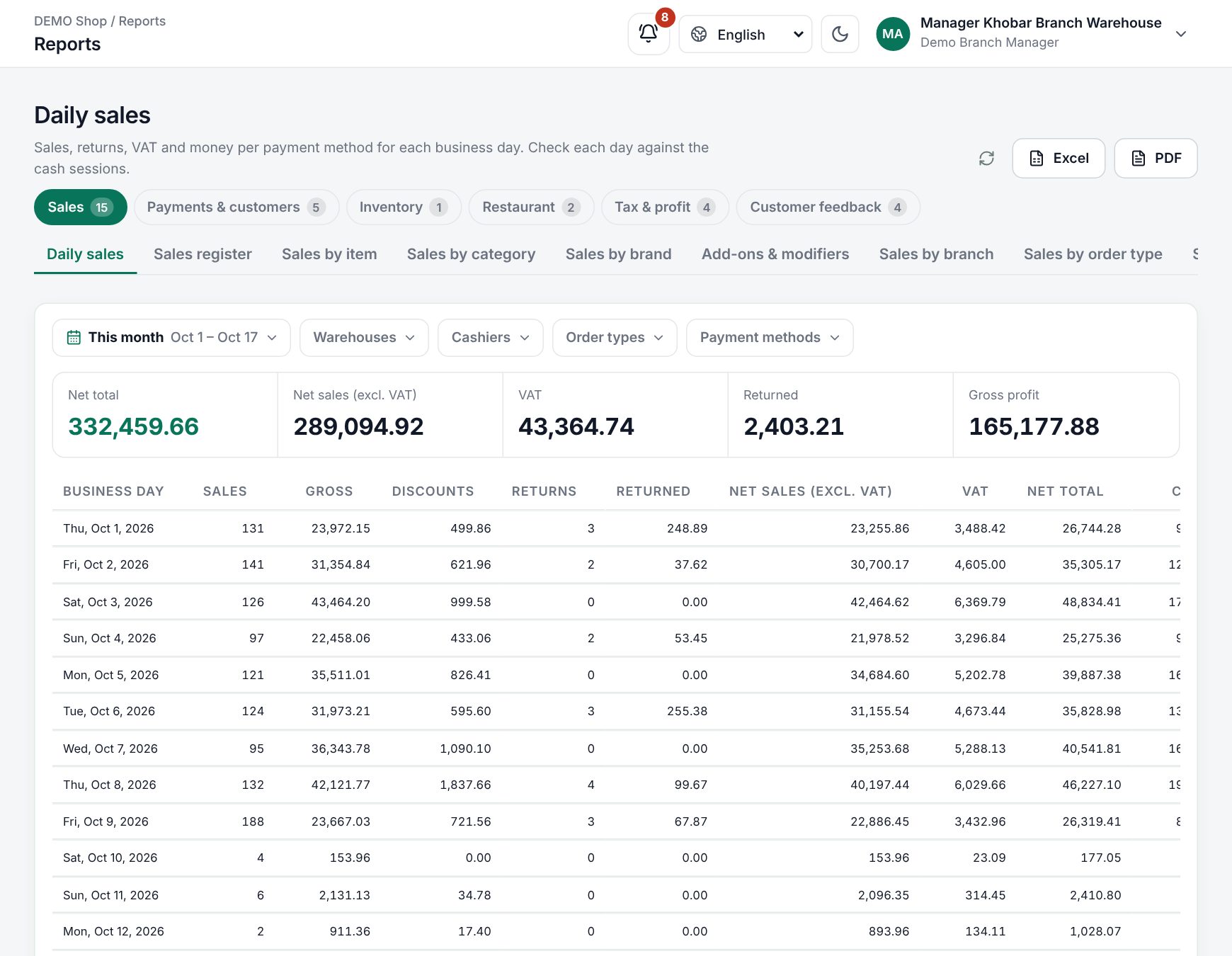 The Reports page with the report groups, filters, headline figures and the table
Every report, by group
Sales (POS add-on)
| Report | What it shows |
|---|---|
| Daily sales | Sales, returns, VAT and money per payment method for each business day. Check each day against the cash sessions |
| Sales register | Every invoice and credit note of the period with its customer, cashier, amounts and what is still owed |
| Sales by item | What sold, what came back and what it earned, per item and option |
| Sales by category | Net sales and profit per category, and each category's share |
| Sales by brand | Net sales and profit per brand, and each brand's share |
| Add-ons & modifiers | Add-ons and modifiers chosen at the till: how many and for how much. Restaurant shops only |
| Sales by branch | Sales, average sale and profit per branch, and each branch's share |
| Sales by order type | Dine-in, takeaway and delivery side by side |
| Sales by hour | Sales per hour of the day, to plan staff and opening hours |
| Sales by weekday | Sales per weekday, with the average per day |
| Sales by cashier | Sales, discounts given, manager approvals, returns and refunds per cashier |
| Sales returns | Every credit note: the invoice it returns, the reason and what was paid back |
| Discounts | Discounts per day by kind: customer groups, cashiers, invoice discounts, promotions and coupons |
| Promotion sales | What each promotion sold and the discount it gave |
| Coupon usage | Coupon codes used: how often, the discount they gave and the sales they brought |
Payments & customers (POS add-on)
| Report | What it shows |
|---|---|
| Payment methods | Money per payment method on the day it was received: taken, paid back and the net |
| Cash sessions | Opened and closed cash drawers. Open one for its day-end (Z) report |
| Tips | Tips per employee (the waiter of the check, else the cashier): cash apart from card and other methods. Tips are not sales |
| Till exceptions | Per cashier, what to check for leaks: money paid back, cashier discounts, items cancelled after sending, pay ins and outs, cash drops and cash short or over |
| Sales by customer | What each customer bought, their average sale, last visit and what they owe |
| Customer dues | Credit sales not fully paid yet: what is owed and for how many days |
Inventory (Inventory add-on)
| Report | What it shows |
|---|---|
| Stock on hand | Stock per item and warehouse at the end of the period's last day, at cost and at selling price |
| Low stock | Items at or below their alert quantity, or out of stock, with what sold in the period |
| Stock movement | Per item: opening stock, purchases, sales, returns, transfers, adjustments and closing stock |
| Not selling | Items in stock that did not sell in the period, and the money tied up in them |
| Stock losses | Stock lost per item: waste, staff meals, corrections, count differences and goods lost in transit, at the cost they left at |
| Stock transfers | Stock sent between warehouses: status and the value sent, received and lost |
| Stock counts | Stock counts posted in the period and the shortage and surplus they found |
Purchasing (Purchasing add-on)
| Report | What it shows |
|---|---|
| Purchases by supplier | What was bought from each supplier, returns to them and the net |
| Purchases by item | Quantities bought and returned per item, and the average unit cost |
| Purchases by category | Net purchases per category and each one's share |
| Purchase register | Every posted purchase invoice and return to a supplier |
Restaurant (restaurant shops)
| Report | What it shows |
|---|---|
| Sales by table | Dine-in sales per table: orders, guests, average per order and per guest |
| Kitchen times | How long dishes waited and took to prepare, per station and dish. Needs the Kitchen display add-on |
Tax & profit (POS add-on)
| Report | What it shows |
|---|---|
| VAT report | Sales and credit notes per VAT rate, and the VAT to declare for the period, with the seller name and VAT number |
| VAT return | VAT on sales minus VAT on purchases per rate: the VAT to pay for the period |
| Tobacco fee | The tobacco fee charged per item, with VAT and totals |
| Profit & loss | Net sales, cost of goods sold, gross profit and stock losses per month |
Customer feedback (POS add-on)
| Report | What it shows |
|---|---|
| Feedback by branch | Ratings from the receipt's QR code per branch: how many sales were rated, the average, the stars and the food, service and speed scores |
| Feedback by cashier & waiter | Ratings per employee: as the cashier who took the payment and as the waiter of the table |
| Feedback by day | Ratings per business day, to follow the trend |
| Feedback responses | Every rating with its comment, invoice, cashier and waiter, newest first |
Cost, profit and margin are shown only to members allowed to see sales analysis; owners see everything. Profit & loss shows cost to whoever may open it. Cost is what the stock ledger recorded when the goods left (see Stock on hand and the stock ledger), and a return puts back the same cost.
Filter a report
Every report has the Period: Today, Yesterday, Last 7 days, This month, Last month or a Custom period with From and To and Apply. Next to it, each report offers only the filters that make sense for it, each as its own list:
| Filter | Used by |
|---|---|
| Warehouses | Almost every report |
| Categories | Item, category, brand and stock reports, purchases by item and category, kitchen times, tobacco fee |
| Cashiers | Sales reports, payments, tips, till exceptions, customers, dues, tables, feedback by cashier and responses |
| Order types | Sales reports (not by order type), payments, add-ons & modifiers |
| Payment methods | Daily sales, sales register, item, category, brand, branch, order type, hour, weekday, cashier, discounts and customers |
| Status (Open / Closed) | Cash sessions |
- Choose one or several values in each filter. Leaving a filter empty means all.
- Click Apply to load the report once with all your choices. Clear removes them.
Applied filters show as chips you can remove one by one. They stay when you switch to another report and are kept in the page address, so you can bookmark or share a filtered report. A main category includes its sub-categories. For Stock on hand the stock is taken at the end of the period's last day; Low stock uses the stock as it is now.
Read, sort and export
- Headline figures above the table (for example net total, net sales, VAT, returns and profit on Daily sales) always cover every row, not only the page.
- Rows show a page at a time (the page size is remembered). A report stops at 100,000 rows and says so; narrow the period or filters.
- Click a column header to sort by it; click again to reverse.
- Refresh recalculates with the latest sales.
- Excel exports every row in the order shown. PDF makes an A4 landscape document with your shop name and VAT number, the period and filters, totals, page numbers and who printed it; English, Arabic and Bangla are supported, up to 20,000 rows.
Rules every report follows
- Business days. The period follows your shop's business day (day start and time zone from General settings). If your day starts at 06:00, a sale at 01:30 counts for the day before.
- Returns count as minus on the day they were made.
- Money per payment method counts on the day it was received. A credit sale paid a week later counts on the day of the payment, as the drawer does.
- Imported sales from a previous system have totals but no lines. They appear in Daily sales and the VAT report only.
- Staff see only the warehouses they are assigned to. A period can be up to 366 days.
What happens at the till
Reports have no buttons on the till, but everything the cashier does lands in them at once:
- Each paid sale adds to Daily sales, Sales register, the item, category, branch, hour and cashier reports and Payment methods. Its discounts are split by kind in Discounts; offers show in Promotion sales, coupons in Coupon usage, the tobacco fee in Tobacco fee, a tip in Tips (never in sales).
- A return made at the till is a credit note: it shows in Sales returns and counts as minus on the day of the return, not the day of the sale.
- Pay ins, pay outs, cash drops and No sale in the till's cash drawer, refunds and discounts show per cashier in Till exceptions; the session itself in Cash sessions.
- Items cancelled after they were sent to the kitchen show in Till exceptions; dish times from the kitchen display in Kitchen times.
Example: one day at a café
VAT is 15%. On Monday the café sells two orders: 115.00 paid in cash and 230.00 paid by card, one of them with a 23.00 coupon already taken off. On Tuesday a customer returns an item of Monday's card sale worth 46.00, refunded to the card.
- Daily sales for Monday: net total 345.00, net sales 300.00, VAT 45.00; cash 115.00, card 230.00. Tuesday shows returns −46.00 (VAT −6.00) and card −46.00.
- Coupon usage: the code used once, discount 23.00.
- Sales returns: one credit note on Tuesday naming Monday's invoice, paid back 46.00.
- VAT report for Monday to Tuesday: sales VAT 45.00, credit notes VAT 6.00, VAT due 39.00.
Day-end (Z) report
In Cash sessions, open a session to see its report: per payment method what sales took, what returns paid back, what was expected in the drawer and, once closed, what was counted and the difference, with the session's sales, discounts, returns, VAT and sales on credit. An open session shows the figures so far (X report). It prints on an 80 mm receipt printer. See Cash sessions and X/Z reports.
Related pages
Last updated 17 Oct 2026