Returns and credit notes
A return undoes all or part of a sale. The customer brings items back, the stock goes back on the shelf (unless you mark it as waste), and the money goes back the way it was paid. Each return is saved as a credit note that names the original invoice, as ZATCA requires. At the till, a return can also become an exchange: what the returned items are worth pays for new ones.
Where you can start a return
| From | How |
|---|---|
| The till | Return in the header. Type or scan the invoice number from the receipt. Only here can you make an exchange |
| Sales › Sales list | Open the sale and choose Return items (shown while something is left to return) |
| Sales › Sale returns | Return items |
Returns need a connection and the permission to create sale returns. With cash closing on, you also need an open cash session of today's business day (see Cash sessions and X/Z reports). A business day that was already closed takes no more returns.
Make a return
- Choose Return in the till's header (or Return items in the back office).
- Find the sale: type or scan the Invoice number and choose Find sale. A barcode scanner types the number and presses Enter for you. If no sale matches, you see No sale with this invoice number.
- Choose items: the dialog shows the invoice, date, customer and Sale total, then What comes back: each line with what was Sold and Returned before. Use the stepper, or All to return what is left of a line.
- Tap Waste on a line that cannot be sold again (for example food). It is not put back in stock, and its cost stays in the cost of sales.
- Pick a Reason with one tap (your shop's reasons from Settings › Reasons, or Damaged, Wrong item, Changed their mind, Expired, Quality issue, Customer cancelled), or type one. It is printed on the credit note.
- Pay back: check the refund (see below).
- Choose Return and pay back with the amount (or Return items when nothing is paid back).
The credit note prints like a receipt and appears in Sales › Sale returns.
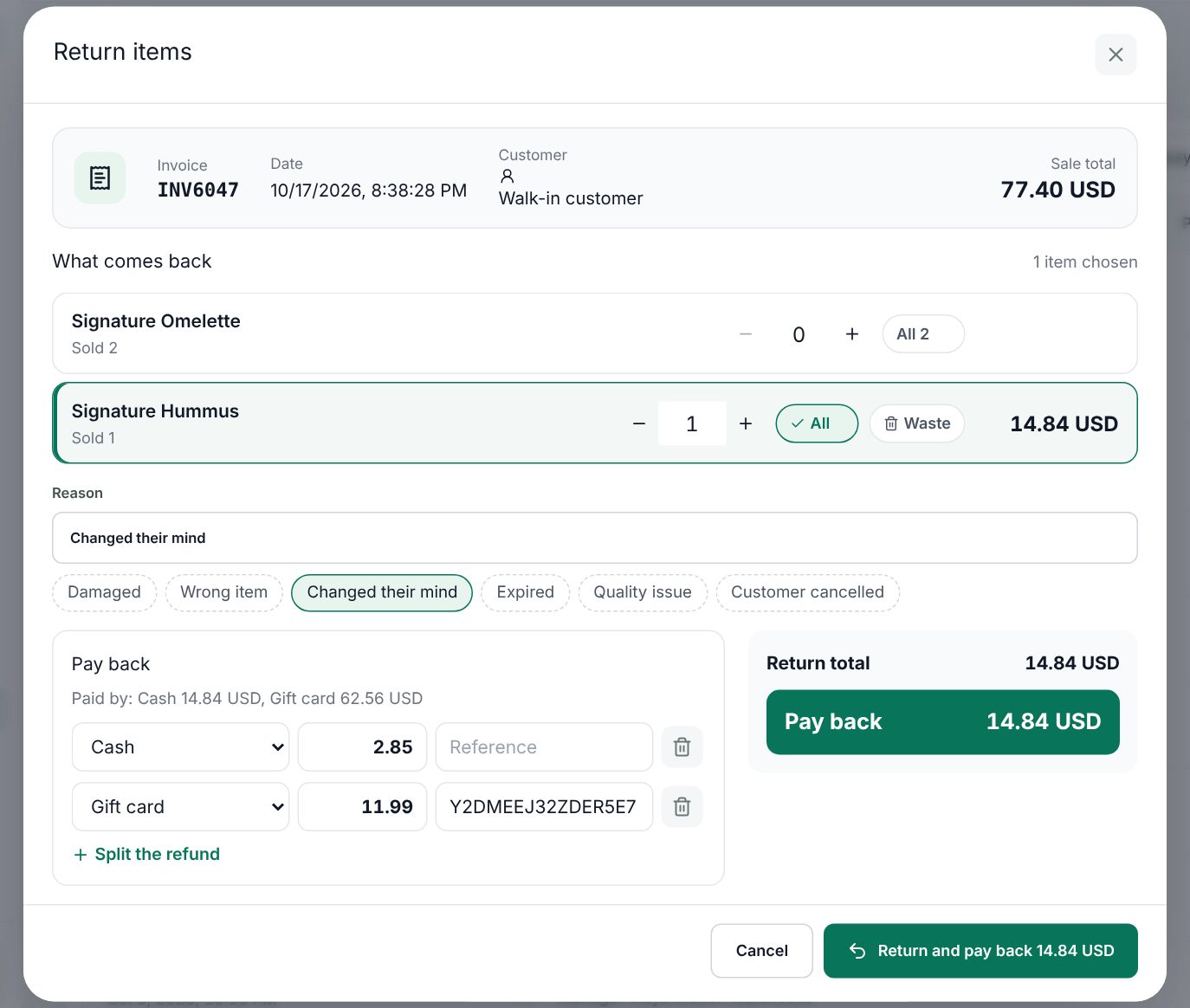 The return dialog with the items coming back, the reason and the Pay back section
What can be returned
- Never more than was sold. Two tills returning the same sale at once cannot both succeed: the second gets "At most N can be returned." or "This item was already returned."
- Products with Return days set can only be returned within that many days. Past it, the line shows The return period of this item is over.; before it, Returnable until with the date. A line with nothing left shows All returned.
- When nothing is left, the dialog says Nothing on this sale can be returned any more.
- Sales imported from the previous system are read-only. Staff only see sales of their warehouses.
How the amounts are worked out
Each returned quantity gets its exact share of the sold line: the price, every discount (customer group, line, invoice, coupon, points), the tobacco fee, the service charge and the VAT. The return that takes the last units of a line gets exactly what is left, so the returns of a sale always add up to the sale.
Returns and promotions
Promotional lines show Promotional item with the offer code; lines that earned an offer show Earns offer with its code.
Gifts go back with what earned them. A free gift can be returned on its own; it refunds what was paid for it, which is nothing for a free gift. When you choose an item that earned a gift, the dialog adds the gift by itself and says Free items were added: they go back with the items that earned them. If the gift is not returned, the return is refused with a message such as "Return the free item of offer CODE too: 1 × Item."
Broken offers are repriced. Spend-an-amount, multi-buy and bundle offers discount the items themselves. When a return leaves the customer with items that no longer qualify, the till prices what they keep again with the offer version of the sale. The discount the kept items no longer earn is taken off this refund, and the dialog says The items kept no longer qualify for the offer, so its discount on them is taken off the refund. The totals show Offer no longer met with the offer code. If a later return brings back the rest, that discount is given back (Offer discount given back), so the returns of a sale always add up to what was paid. A returned line never gets back less than zero or more than its own price.
Example: a broken "3 for 10"
A customer bought 3 chocolate bars at 4.00 under "3 for 10" and paid 10.00. She returns one bar. Its share of the sale is 3.33, but the 2 bars she keeps would cost 8.00 without the offer, not 6.67. So 1.33 comes off as Offer no longer met: she gets 2.00 back, and has paid 8.00 for the 2 bars she keeps.
Paying back
The dialog shows how the sale was paid (Paid by) and the totals: Still owed (for a credit sale), Return total, Taken off what is owed and Pay back.
- A return first lowers what the customer still owes on a credit sale. If nothing was overpaid, the dialog says Nothing is paid back: the return only lowers what the customer owes.
- The refund is suggested the way the sale was paid. You can change the method, add a Reference, or choose Split the refund to pay it back over several methods. The amounts must add up to the refund ("The refund must be …").
- A refund to a gift card goes to the sale's card or, with Card code (empty: a new card) left empty, to a new card. A refund to store credit goes on the customer's account.
- For a method linked to a card reader, the money is Given back on the card reader first.
A cash refund lowers the expected cash of your open session.
Exchanges at the till
An exchange is a return and a new sale made in one step. Use it when a customer swaps an item for another.
- At the till, choose Return, find the sale and choose the items coming back, as above.
- Choose Exchange with the amount instead of paying back. The till says Exchange: add the new items, then pay.
- The ticket shows an Exchange banner with the invoice number, the credit, and either to pay, left over or Nothing to pay.
- Add the new items and choose Pay. The credit pays first; the customer pays only the difference.
- When the new items cost less than the credit, choose where the rest goes in the banner: A gift card, Store credit (only when the sale had a customer) or Cash back. A gift card's code and balance print on the receipt.
To stop, use Cancel the exchange (the ×) on the banner.
Good to know:
- An exchange needs a connection and the Gift card payment method switched on, because the credit moves through a gift card made for the exchange. Store credit needs that method on too.
- The credit note and the new invoice point at each other, so reports, ZATCA and the drawer see two ordinary documents.
- If the credit covers the whole new order, the exchange is saved as soon as you choose Pay.
- Free items of an offer must come back with the items that earned them, as in any return.
exchange a returned item for a new one at the till
Example: a shoe shop exchange
A customer returns trainers bought for 300.00 and wants boots at 350.00. The cashier chooses Return, finds the invoice, sets the trainers to 1 and chooses Exchange 300.00 SAR. She scans the boots: the banner shows to pay 50.00. The customer pays 50.00 by card. Had the boots cost 250.00, the banner would show left over 50.00, and the cashier could put it on A gift card.
What happens at the till
- The return dialog opens over the till; the cart stays as it was.
- When you save, the credit note prints like a receipt, titled as a credit note with its own number and the original invoice number.
- Cash paid back lowers the Cash in the drawer now of your session at once; card, gift card and store credit refunds do not touch the drawer.
- In an exchange, the ticket shows the Exchange banner with the invoice number and the credit. In the payment dialog, Amount due is only what is left to pay, with a note such as "Exchange INV6045: 28.68 USD of returned items pays first"; the new invoice and the credit note print together.
Worked example: a cash refund
The drawer should hold 500.00. A customer returns 2 yogurts at 3.00 from a sale paid in cash. The dialog shows Return total 6.00 and Pay back 6.00, suggested in cash. The cashier chooses Return and pay back 6.00 SAR: the credit note prints with −6.00 (VAT 0.78 included), and the cash drawer now shows 494.00. In reports, −6.00 counts on today's business day.
Stock and numbers
- Returned stock goes back to the warehouse it was sold from, at the same cost. Lines marked Waste do not go back. Menu items and services without stock have no stock movement.
- Credit notes have their own number sequence, set in General settings with Sale return invoice prefix and Sale return invoice start with. A credit note keeps the order number of its sale.
- With VAT, the printed credit note is titled "Simplified tax credit note", carries its own QR code and shows the original invoice number.
- Loyalty points earned on the returned items are taken back, and points spent on them come back.
Sales › Sale returns
This page lists every credit note with its Credit note number, Original invoice, Customer, Reason, Items, Paid back (and what came Off the balance) and Total. Search by credit note, invoice, order, customer or reason, and filter by Warehouse, Cashier and dates. Print a credit note from its row, or start a new return with Return items. Returns count as minus in reports on the day they were made (see Reports).
Related: Promotions, Sales list, Using the POS till.
Last updated 17 Oct 2026