Price lists
A price list gives some sales other prices than the normal ones: wholesale prices for trade customers, a VIP list, a branch's own prices, or 10% more on delivery. You say who the list is for (customer groups, branches, order types) and the till picks the right price by itself, online and offline.
Price lists need the POS add-on and the group_prices_read permission to see them (creating, changing and deleting need the matching create, update and delete permissions).
How the till picks a price
- It looks at the order's customer group, branch and order type.
- Of the lists that match and are live today, the highest Priority wins (on a tie, the older list).
- That list gives its own price for the item, or its % change for everything else.
- No list matches: the normal price.
Promotions, coupons and discounts then work on the list price (see Promotions and Coupons).
The price list page
Open Sales › Price lists. The top shows Price lists, Pricing now, Scheduled and Sales at list prices. Each list shows its priority, who it is for, its prices, and a switch to turn it on or off. Filter by Live, Scheduled or Off or ended.
| State | Meaning |
|---|---|
| Live | On and inside its dates: the tills use it now |
| Scheduled | On, but its first day is still to come |
| Ended | Its last day has passed |
| Off | Switched off |
Who gets which price? lets you test: choose a customer group (or Walk-in customer), a branch and an order type, and the page shows which list the till would use, or Normal prices.
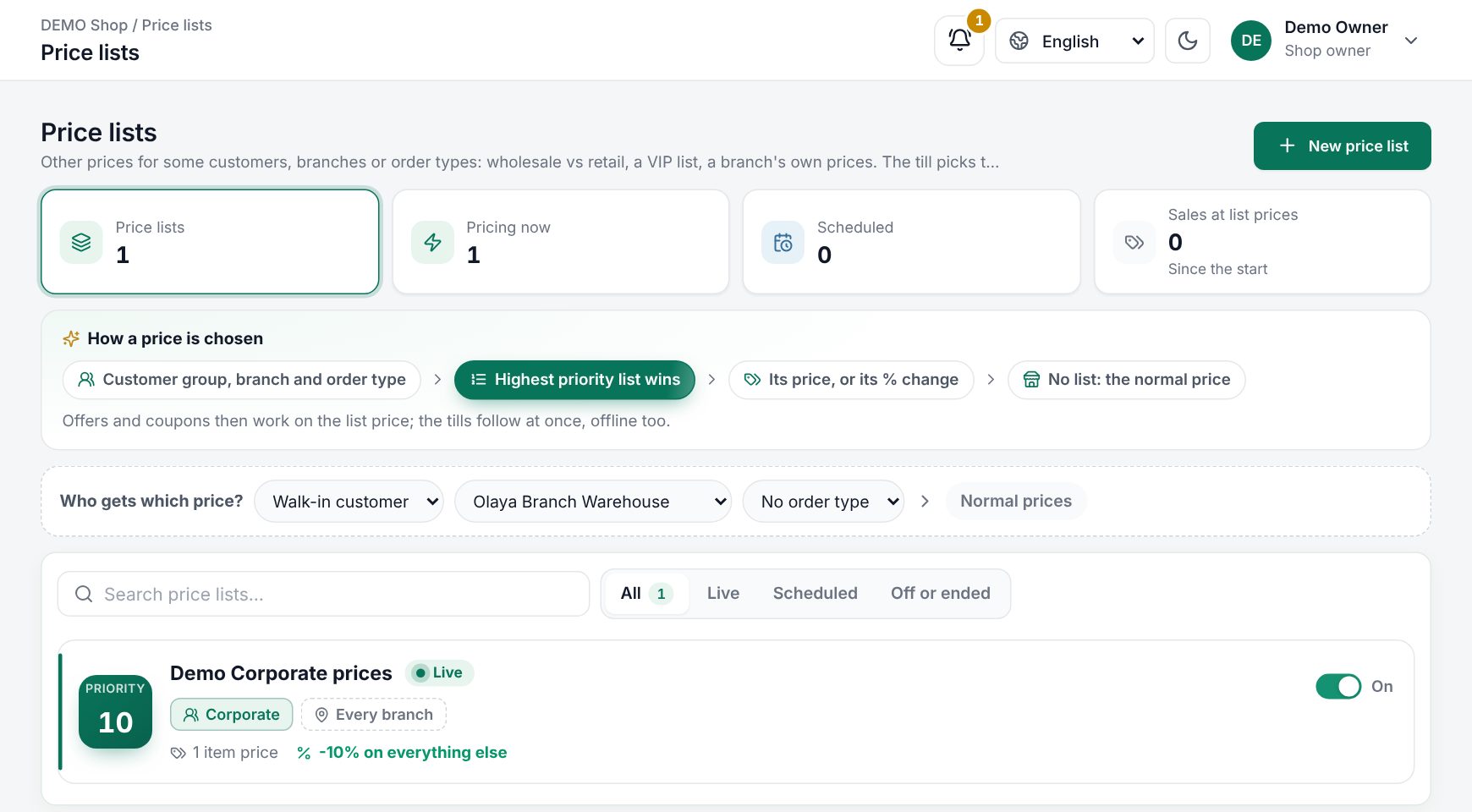 Sales › Price lists with the list cards and the Who gets which price? tester
Create a price list
- Choose New price list.
- Under The list, fill in:
| Field | What it does |
|---|---|
| Name, Arabic name | For example "Wholesale" |
| Priority | 0 to 1000. When several lists apply, the higher number wins |
| From, Until | Optional dates. Empty: always |
| On | Switch the list off without deleting it |
- Under Who it is for, choose Customer groups, Branches and Order types (Dine-in, Takeaway, Delivery). Nothing chosen means everyone. A list for customer groups never prices a walk-in sale.
- Also give the customer group discount: on, the group's % comes off the list price too; off, the list price is the deal.
- Under Prices, set Everything else in the list: a percent change for items you do not list (tap -5, -10, -15, -20, +5 or +10), or leave it empty so they keep their normal price.
- Add items with their own price: search by name, SKU or scan a barcode in Add an item. Each row shows Normal, List price and Change. Set all from normal fills every listed item from its normal price with a percent you type.
- Add a Note if you like, then choose Create price list.
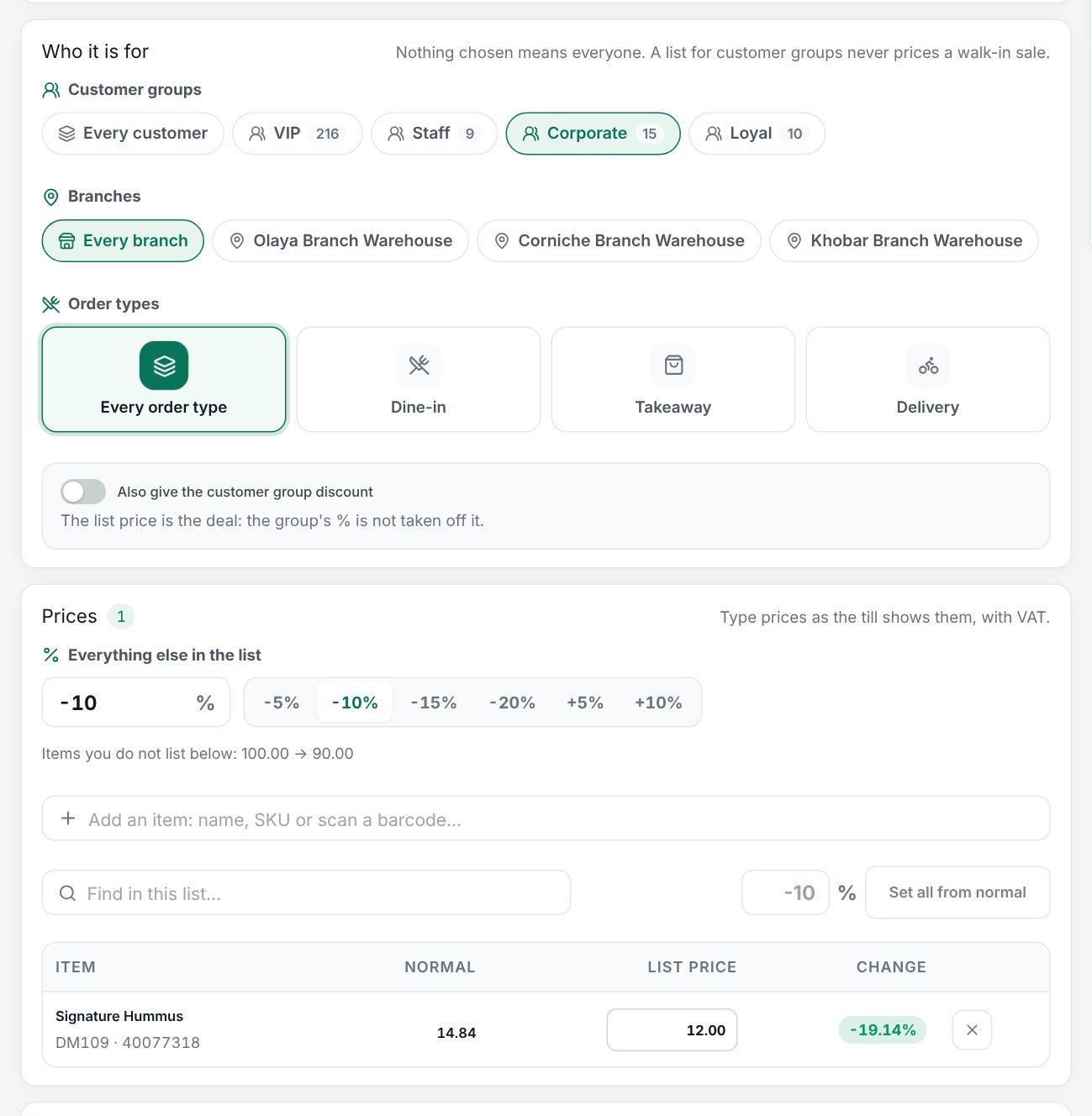 The price list editor with who it is for and item prices
testing which price list a customer group gets
Type prices as the till shows them, with VAT when your shop charges VAT. A list needs at least item prices or a percent change.
To change a list, open it, edit, and choose Save changes. Duplicate copies a list as a start for a new one.
At the till
Nothing to do. When the cashier adds a customer, the order takes that customer's group, and the prices follow the branch and order type (see Using the POS till). Change the customer or the order type and the prices change with it. The tills get changes at once and keep them for offline selling.
Good to know:
- Customer groups are set in Sales › Customer Management › Customer Groups (see Customers and customer groups).
- A list that has priced sales cannot be deleted; it is kept for the reports. Switch it off instead.
- The same item cannot be in a list twice.
- Lists and their dates follow the shop's business day.
Examples
Wholesale for trade customers. A hardware shop makes a customer group "Trade" and a list "Wholesale", priority 10, for that group, with Everything else in the list at -10% and its own price of 18.00 for cement bags (normal 22.00). A trade customer pays 18.00 for cement and 10% less on everything else. A walk-in customer pays normal prices.
A dearer delivery menu. A restaurant makes "Delivery prices", for the order type Delivery only, with +10% on everything. A 50.00 dish costs 55.00 on delivery orders and 50.00 for dine-in and takeaway.
A branch list over wholesale. "Mall prices" (priority 20, branch Mall) and "Wholesale" (priority 10, group Trade) both match a trade customer at the Mall. Mall prices wins because its priority is higher. For items Mall prices does not price and has no % for, Wholesale's price is used.
Last updated 17 Oct 2026