Customer feedback
Customer feedback lets your customers rate their visit from their phone. Every receipt prints a small QR code with "How was your visit? Scan to rate us". The customer scans it, gives 1 to 5 stars (and, if you like, separate stars for food, service and speed), adds a comment and sends it. No app and no sign-in are needed.
Each rating is tied to the sale, so you can see the scores by branch, by cashier and waiter, and by day.
What you need
- The POS add-on.
- Settings › Customer feedback is shown to people who can see settings (
setting_read). Changing it needs the permission to change settings. - To read the results: a sales report permission (see Reports).
Set it up
Open Settings › Customer feedback. At the top you see the last 30 days: Responses, last 30 days, Average rating and 1–2 star ratings.
In the Rating page card:
| Field | What it does |
|---|---|
| Print the feedback QR code on receipts | Turns feedback on. Off: receipts print no code and old links stop working |
| Question | The big question on the rating page. Leave it empty to use "How was your visit?" At most 200 characters |
| Also ask about food, service and speed | Adds three small star rows under the main rating |
| Receipts can be rated for (days) | How long after the sale the receipt can be rated, from 1 to 90 days (7 by default) |
Choose Save. The phone on the right (What customers see) previews your question and star rows as you type.
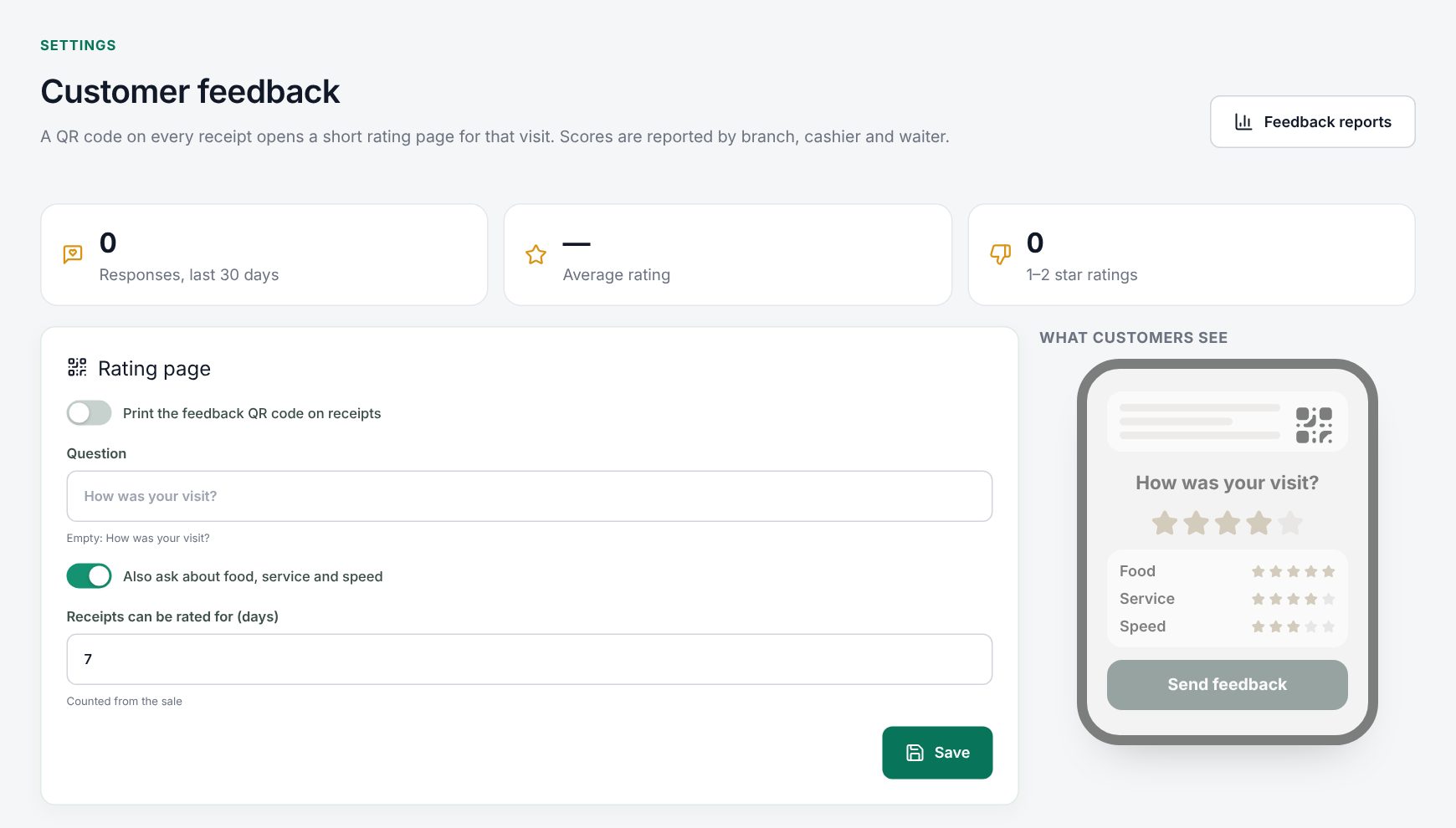 The customer feedback settings with the phone preview
Note: If the page says "The QR code links to the address the till is opened from…", ask the person who runs your server to set
WEB_URL. Otherwise a till opened on a local address may print a link that customers' phones cannot open.
What the customer does
- Scans the QR code at the bottom of the receipt.
- The rating page opens on their phone with your shop name, logo, branch and the invoice number.
- Taps a star. The page shows what it means: Very bad, Bad, Okay, Good or Excellent.
- If you ask about them, rates Food, Service and Speed too.
- Writes a comment if they want. After a low rating the box asks What could we do better?
- Chooses Send feedback and sees Thank you for your feedback!
The customer can switch the page between languages. The page tells them "Your feedback goes to the shop only."
A receipt can be rated once. If the customer scans it again, the page shows their rating. After the rating window it shows This receipt can no longer be rated.
Read the results
Choose Feedback reports on the settings page, or open Reports › Customer feedback:
| Report | Shows |
|---|---|
| Feedback by branch | The ratings of each branch |
| Feedback by cashier & waiter | The ratings of each cashier and waiter who served the sale |
| Feedback by day | The ratings day by day |
| Feedback responses | Each response with its stars and comment |
Good to know:
- Credit notes (returns) never print the code.
- Offline sales print the code too; the customer can rate once the sale has reached the server. If they scan too early, the page asks them to try again in a few minutes.
- The printed text on the receipt is always "How was your visit? Scan to rate us"; your own Question shows on the rating page.
Examples
A burger restaurant. The owner turns feedback on, sets the question to "How was your meal today?" and keeps Also ask about food, service and speed on. After a month, Feedback by cashier & waiter shows one waiter with a much lower Service score. The manager reads that waiter's comments in Feedback responses and arranges training.
A pharmacy. The owner wants only one simple question, so she switches the food, service and speed rows off and sets Receipts can be rated for (days) to 3. Customers scan the receipt at home that evening and give a quick star rating.
Related: Reports, Taking payment, Selling offline.
Last updated 17 Oct 2026