Reasons
Reasons are the short explanations a cashier picks at the till: why cash was put into or taken out of the drawer, and why items came back. They make your cash reports and returns easy to read ("Petty cash 50.00", "Damaged") instead of a pile of free-text notes.
There are two kinds:
| Kind | Used for | At the till |
|---|---|---|
| Cash drawer reasons | Pay in, Pay out and Cash drop | A reason is required for every pay out and optional for the others |
| Return reasons | Items that come back | The cashier taps one; it is printed on the credit note |
Note: Cashiers cannot pay money out of the drawer without a reason. Add at least one cash drawer reason before your first shift.
What you need
- The POS add-on.
- Settings › Reasons is shown to people who can see settings (
setting_read). Adding and changing reasons needs the permission to change settings.
The reasons page
Open Settings › Reasons. The tiles show the number of Reasons, how many are Shown at the till, how many are Switched off, and Times chosen since the start.
Switch between the two kinds with the tabs Cash drawer (Pay in, pay out and cash drop) and Returns (Printed on the credit note). A small At the till strip shows where these reasons appear.
Search with Search reasons…, filter with All, On and Off, and switch between Cards and Table. Each reason shows its name, its Arabic name (or No Arabic name), how often it was chosen (or Not used yet) and an On/Off switch.
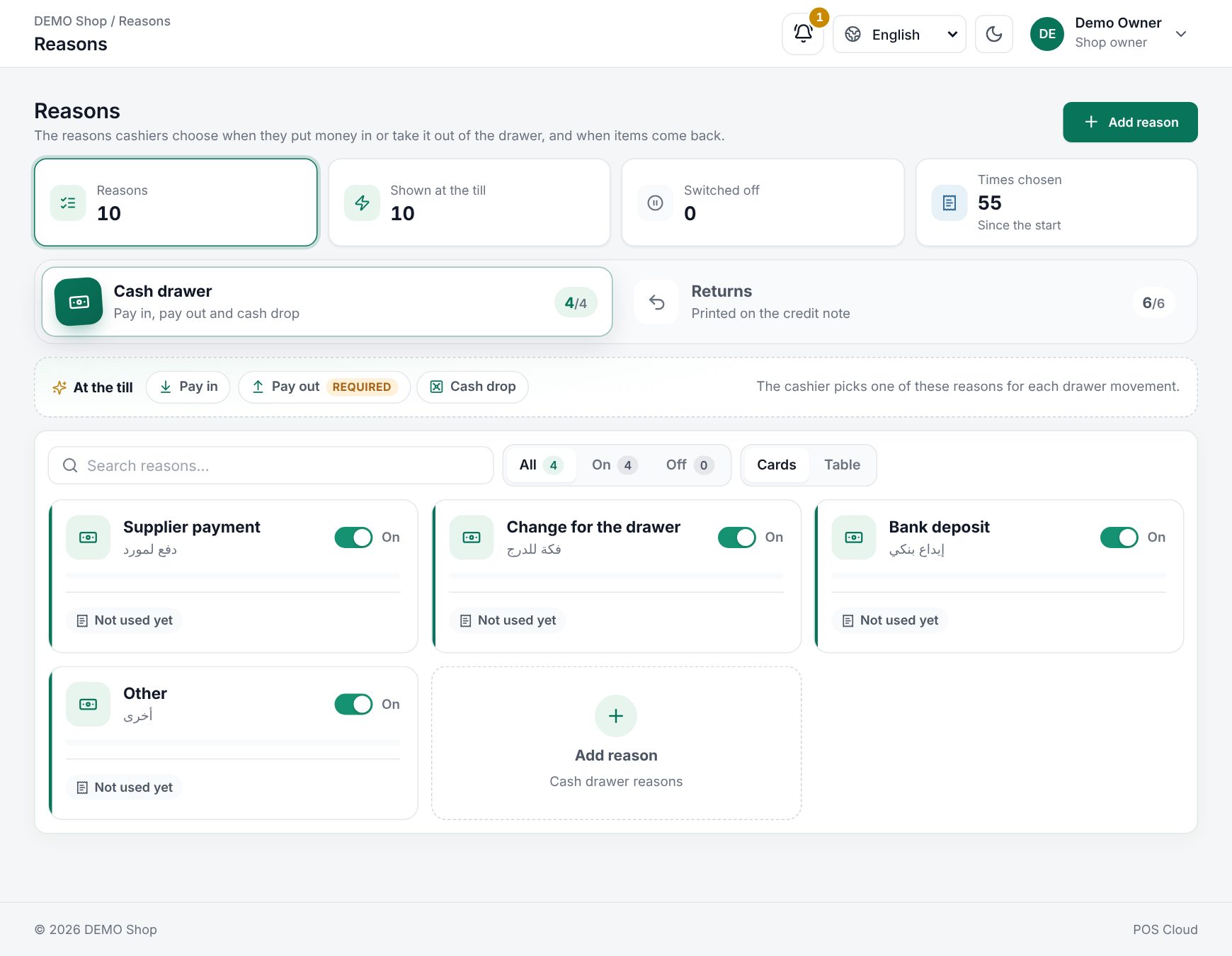 The Reasons page with cash drawer reasons as cards
Add a reason
- Choose Add reason.
- Pick the kind of reason: Cash drawer or Return.
- Type the Name, and the Arabic name for Arabic receipts and tills. Or tap one of the Quick picks, which fills in both names.
- The preview shows the reason as the till (or the credit note) will show it.
- Choose Add reason.
Quick picks for the drawer include Petty cash, Change float, Supplier payment, Bank deposit, Staff advance and Cleaning supplies. For returns: Damaged, Wrong item, Changed mind, Expired, Not as described and Quality issue. A quick pick you already have is not offered again. Cancel closes the window without adding anything.
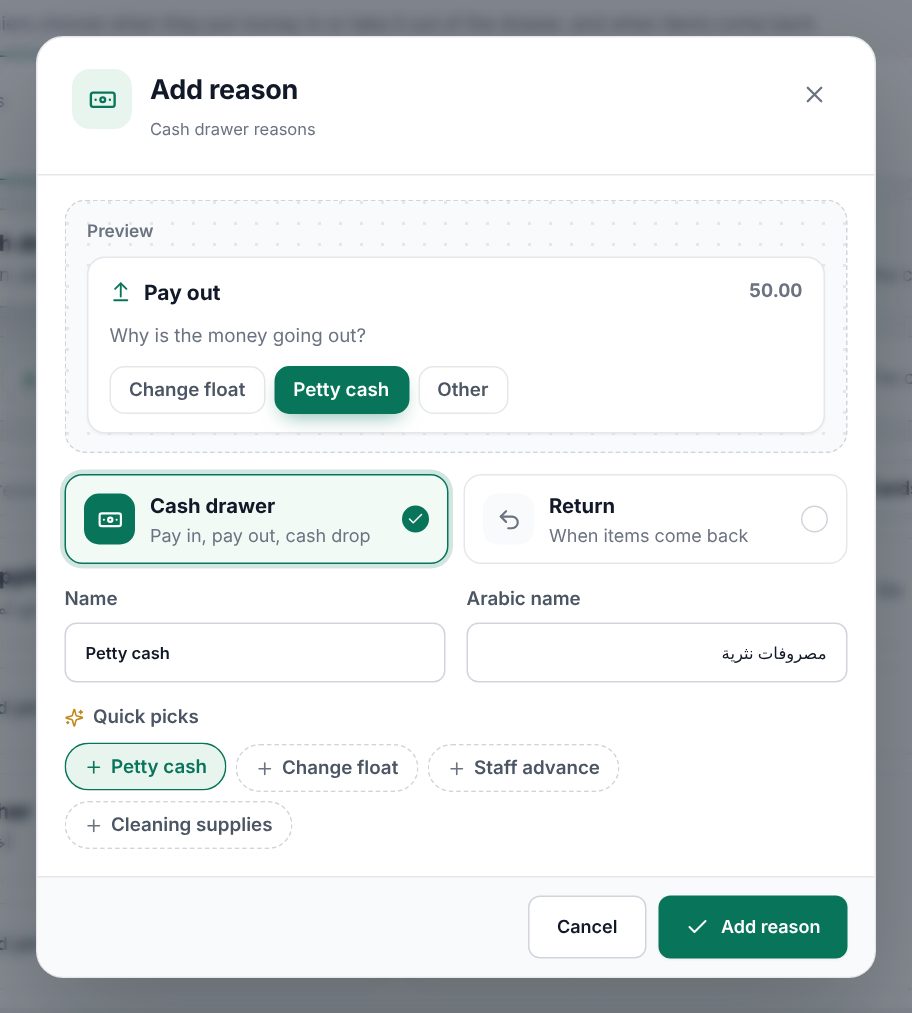 The reason editor with quick picks and the till preview
Change, switch off or delete
- Open a reason to rename it, then choose Save changes.
- Use the On/Off switch to hide a reason from the till without losing it.
- Delete (then Delete this reason?) removes it from every till. A reason that was already used cannot be deleted ("Used on sales, so it can't be deleted. Switch it off instead."), so your history keeps its reasons.
Use reasons at the till
Drawer movements. With a cash session open, choose Session open in the till header to open Cash drawer. Pick Pay in, Pay out or Cash drop, type the Amount, choose the Reason (for pay out) or Reason (optional), add a Note if useful, and choose Save. The movement shows under Drawer operations, on the X/Z report and in the till exceptions report.
Returns. In the return window, the Reason field ("Optional, printed on the credit note") has your return reasons as buttons. Tap one to fill it in, tap again to clear it, or type your own text. If the shop has no return reasons yet, the till offers a few built-in ones.
Choosing a pay-out reason in the cash drawer
Good to know:
- Only reasons that are On appear at the till.
- Reasons show in the cashier's language: the Arabic name on an Arabic till when there is one.
- Times chosen counts drawer movements and returns that used the reason.
Examples
A small grocery. The owner adds the drawer reasons Supplier payment and Petty cash. When the bread delivery is paid from the drawer, the cashier chooses Pay out, 85.00, Supplier payment, note "Al Noor bakery". At closing the Z report shows the 85.00 pay-out with its reason, and the expected cash is 85.00 lower.
Clothing returns. The shop adds Wrong size and Faulty seam as return reasons. A customer brings back a shirt; the cashier taps Wrong size, which is printed on the credit note. Later the owner sees in Times chosen that most returns are size problems and adds a size guide to the shelves.
Related: Cash sessions and X/Z reports, Returns and credit notes, Business days.
Last updated 17 Oct 2026