Supplier payments
Supplier payments shows what you owe each supplier, how old it is, and the payments you made. When you pay a supplier, you choose which invoices the money pays; what is left stays on account. It is part of the Purchasing add-on.
Open Purchases › Supplier payments. Viewing needs the purchase read permission; recording and voiding payments need purchase create.
What you owe
What you owe a supplier is their posted purchases entered in the app, less posted purchase returns, less your payments. Payments not used for an invoice (on account) lower the balance too. A negative balance means the supplier owes you.
Balances
The Balances view lists every supplier with something open. The tiles show the total Owed to suppliers and how much of it is 0–30 days, 31–90 days and Over 90 days old (pay these first).
| Column | Shows |
|---|---|
| Supplier | With the number of open invoices and the age of the oldest |
| Age of what is owed | A bar split by age |
| 0–30, 31–60, 61–90, 90+ | What is owed by age. Age counts from the supplier's invoice date (or the posting date when there is none) |
| Balance | What you owe now, with any amount on account |
Click Pay on a row to pay that supplier, or click the row to open their statement.
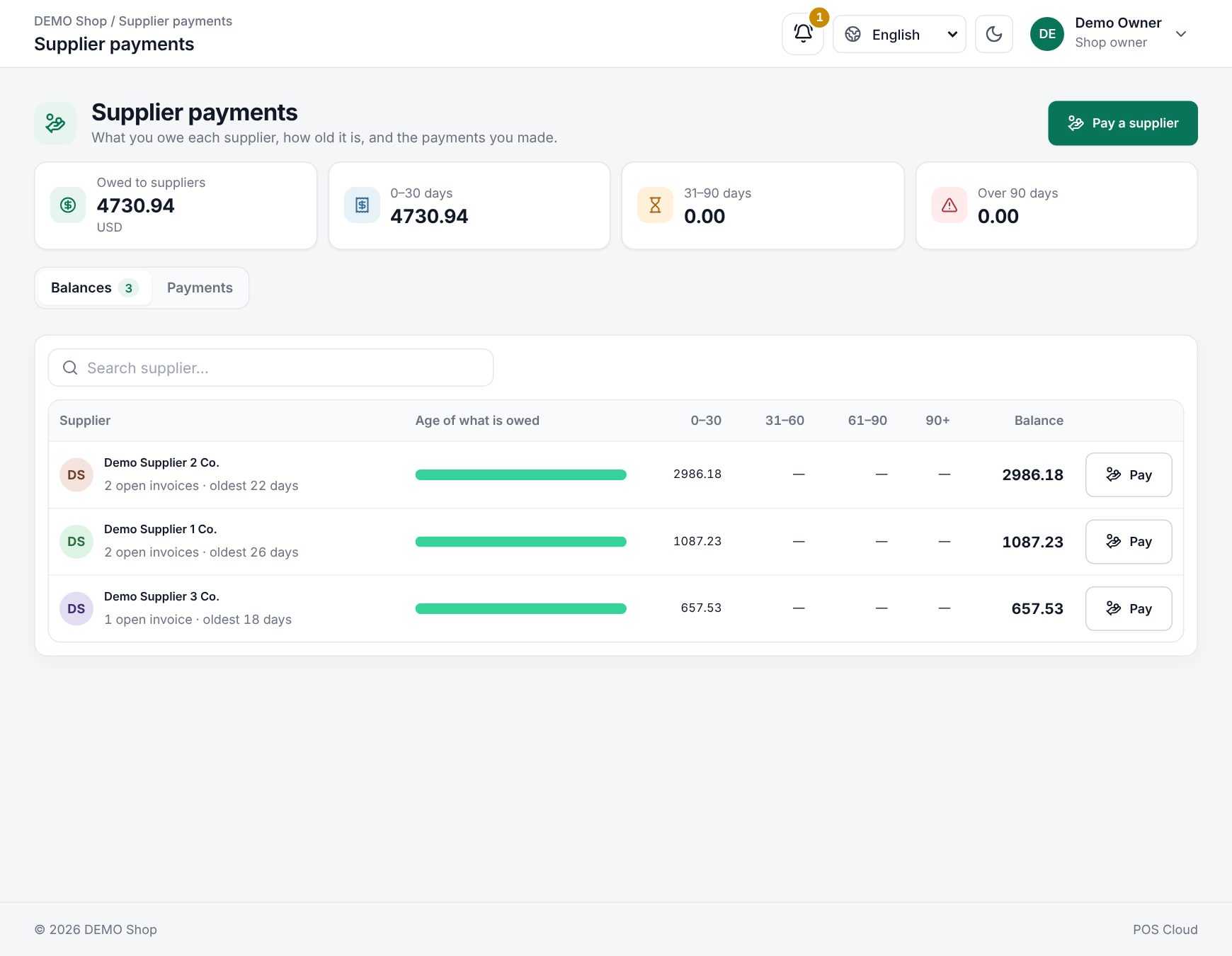 Supplier balances by age
Pay a supplier
- Click Pay a supplier (or Pay on a balance row, a statement or a posted purchase).
- Choose the Supplier. Their open invoices appear, oldest first, each with its age and what is Owed.
- Enter the Amount paid. It starts at everything owed; the All button (with the amount owed) fills it again.
- Set the Date (not in the future) and how you paid: Bank transfer, Cash, Cheque, Card or Other.
- Add a Reference (for a cheque, the Cheque number) and a Note if you like.
- Under Invoices it pays, leave Oldest first, automatically on to spread the amount over the oldest invoices first. Or tick invoices and type what each one gets; that switches the automatic split off.
- Check the summary on the right: Pays invoices, Still owed after, and Stays on account when part of the money is not used for an invoice. If the invoices add up to more than the payment, the summary says so and you cannot save.
- Click Record payment. It gets a number (SP-000001 …).
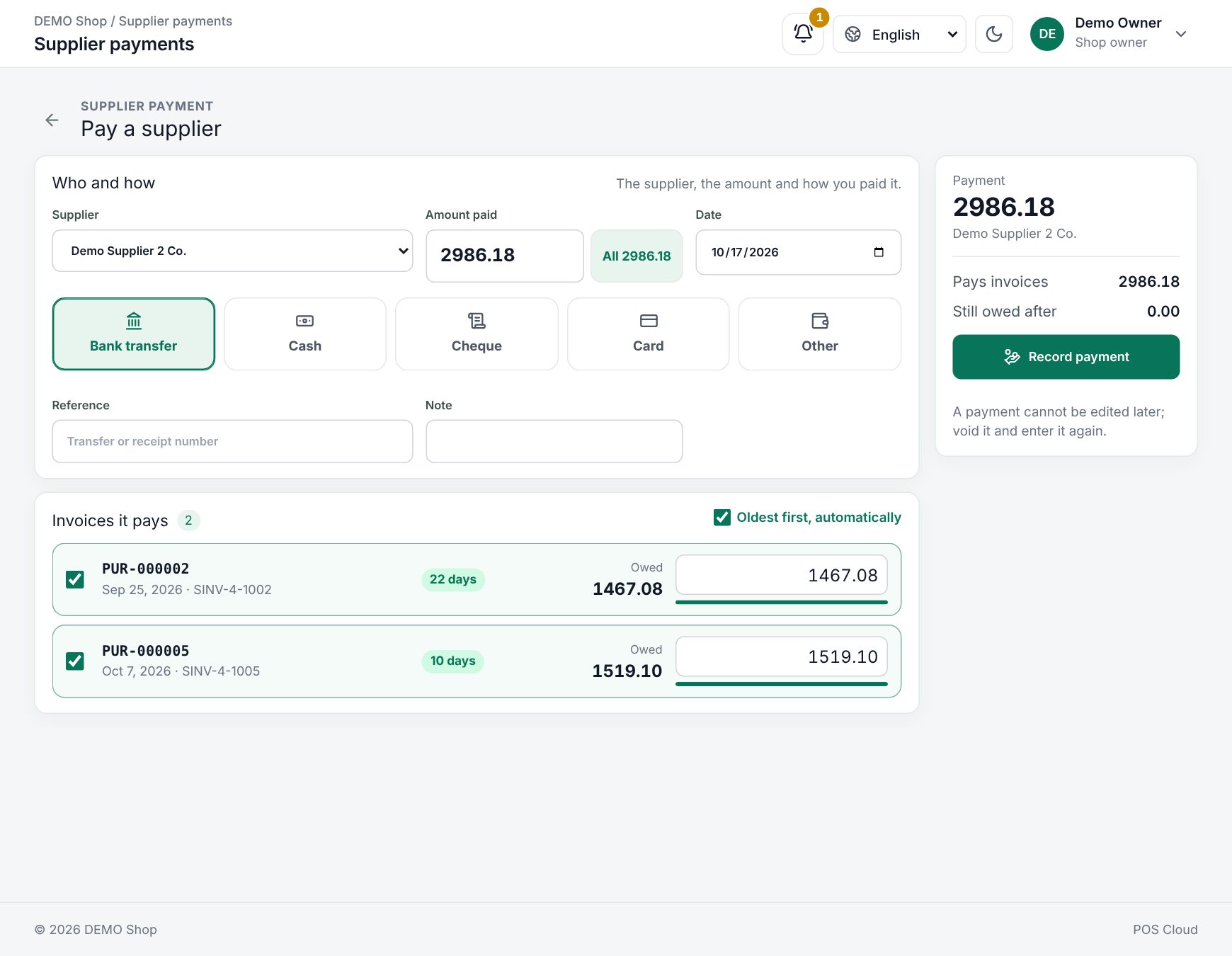 Paying a supplier, oldest invoices first
Rules: an invoice can never get more than it still owes, and only the supplier's own posted purchases can be paid. A payment cannot be edited later.
Payments and voiding
The Payments view lists every payment with its method, how many invoices it pays (and any amount on account), the amount and its status (Paid or Voided). Filter by Supplier and status, or search by payment, reference or supplier. Click a payment to see the Invoices paid and its history.
To undo a payment, open it and click Void payment, then give a reason (for example Cheque bounced). The invoices it paid are owed again; the payment stays in the list, marked as voided. To correct a payment, void it and enter it again.
Note: a purchase that has been paid cannot be voided. Void its payments first.
Supplier statement
Click a supplier on the Balances view to open their statement. Choose the dates (the last 90 days to start with). It shows the Opening balance, the Invoices, the Payments and returns, the Closing balance and the age of what is owed now, then every invoice, return and payment with the running balance. Click an invoice or return to open it. PDF downloads the statement to send to the supplier; Pay opens a payment.
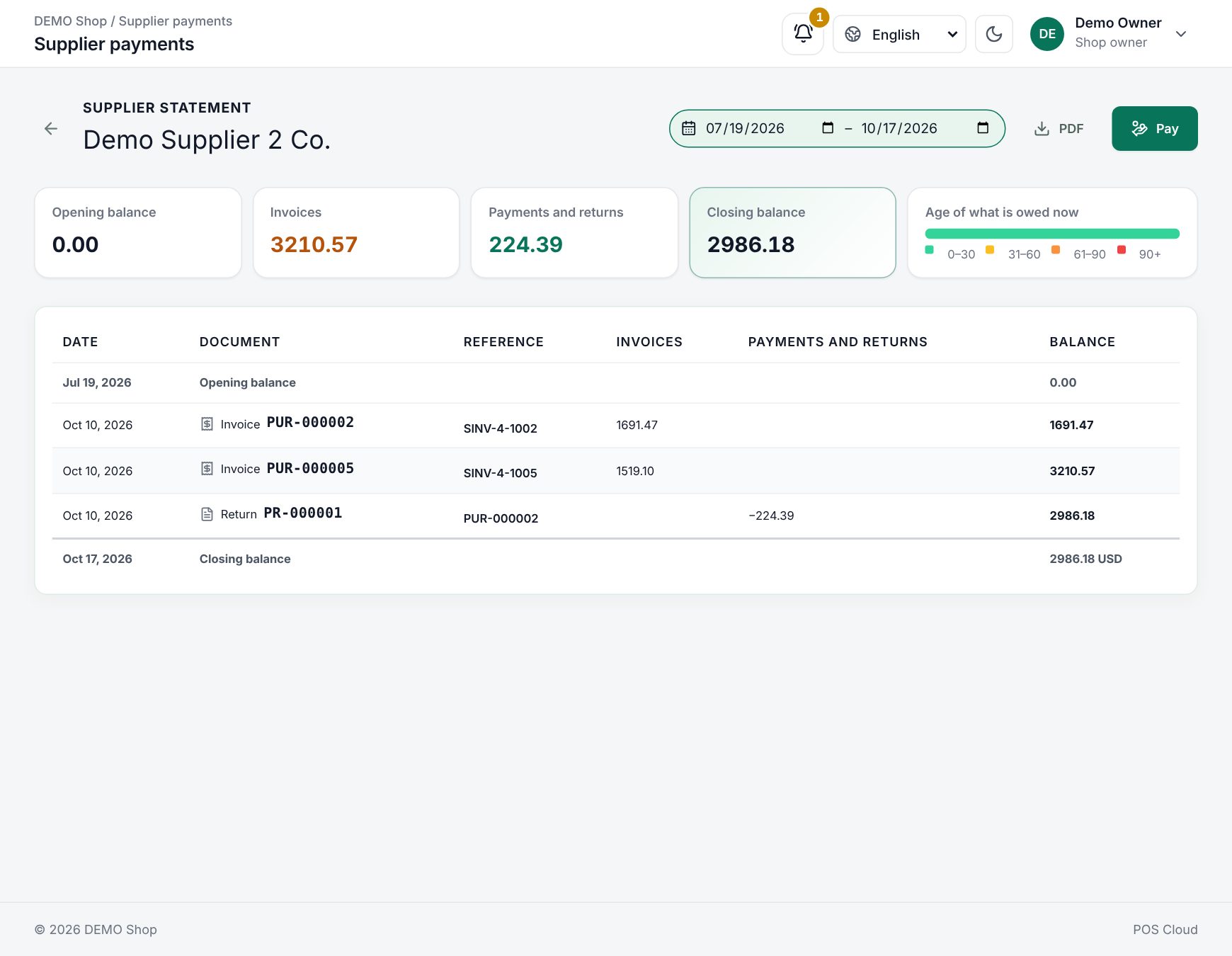 A supplier statement
Examples
Paying the oldest first. A bakery owes its flour mill three invoices: 1,200.00 (75 days), 800.00 (40 days) and 500.00 (10 days). It transfers 1,500.00. With Oldest first, automatically, the first invoice is paid in full and 300.00 goes to the second, which still owes 500.00.
Paying one invoice. On a posted purchase that still owes 460.00, the manager clicks Pay. The payment opens with that invoice already chosen for 460.00. She picks Cash and clicks Record payment; the purchase now shows Settled.
Last updated 17 Oct 2026