QR table ordering
With QR ordering, each table has its own QR code. Guests scan it with their phone camera, choose from your menu and send the order themselves. A waiter accepts it on the till, and it goes onto the table's check and to the kitchen. If you allow it, guests can also follow their table's bill and pay it from their phone. A cashier confirms the payment at the till.
QR ordering is the QR table ordering add-on, and it needs the POS. It works only in a restaurant shop, with tables on the floor plan (see Tables and floor plan).
Switch it on
- Open Settings › General settings and choose the Table ordering tab.
- In QR table ordering, set the switches below.
- Choose Update & save.
| Setting | What it does |
|---|---|
| Guests can order from their table | The main switch. When it is off, a scanned code shows a page that says ordering is switched off |
| Send to the kitchen without a waiter | On: orders go onto the check and to the kitchen at once. Off: each order waits on the till (QR orders) until a waiter accepts it |
| Guests see their table's bill | Guests see what is on the table's check and the total, and can pay it from their phone |
| Welcome message | Optional text at the top of the guest menu (up to 300 characters) |
You need permission to change settings to save these switches.
Print the table codes
Open Restaurant Management › QR ordering. At the top you see Waiting for a waiter, Guest orders today, Accepted today and Tables taking orders. If you have several warehouses, choose one in the list next to the buttons.
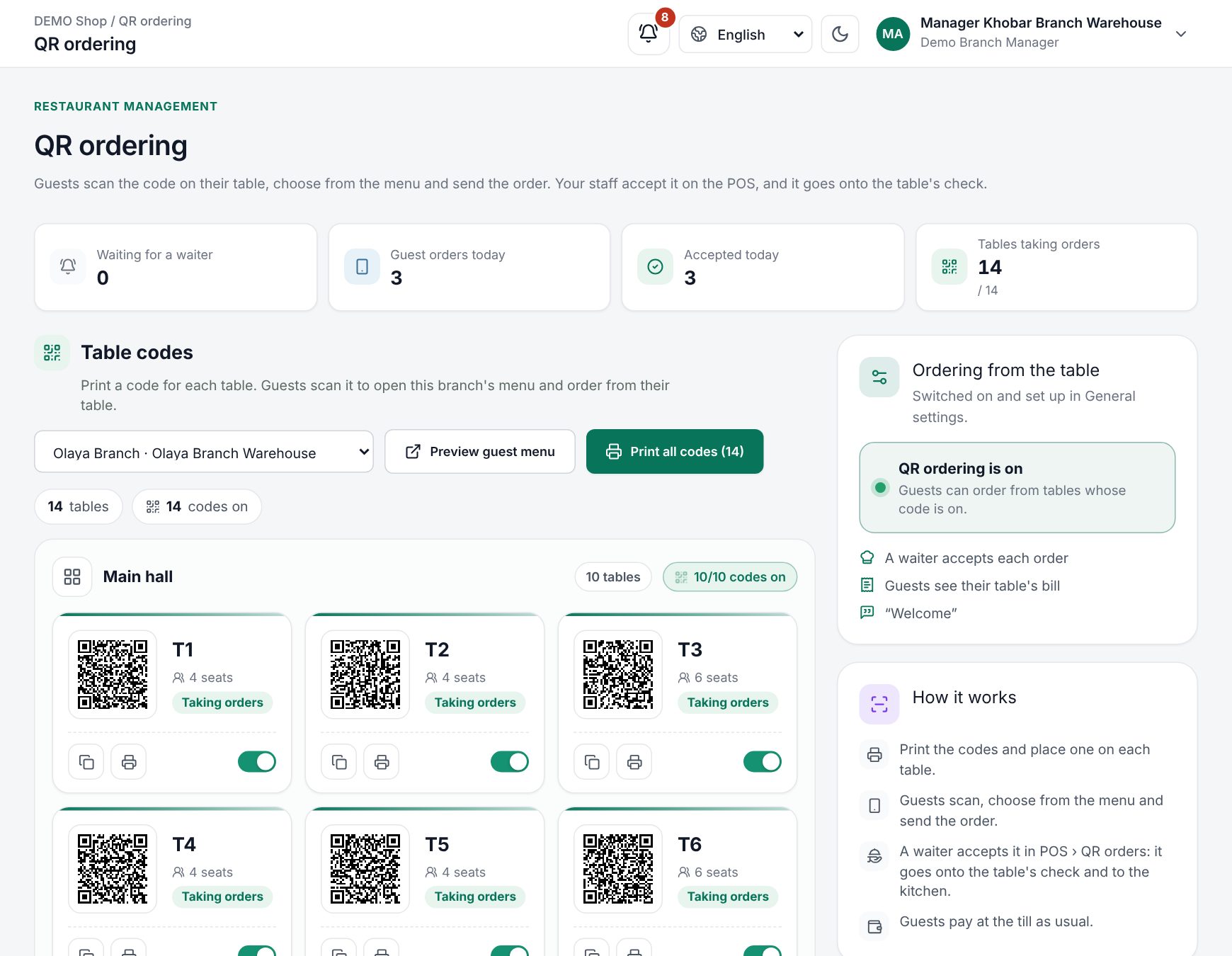 The QR ordering page with table codes grouped by area
Under Table codes, every table has a card, grouped by area. Each card shows Taking orders, Ready (the code is on but ordering is off for the shop) or Switched off. On each card you can copy the link, print the code, or switch it on and off.
- Print all codes prints a card for every table whose code is on: two per row on A4, to cut along the dashed line. Each card says "Scan to order" with the table name.
- Preview guest menu opens the guest menu, as a guest sees it.
- If nothing prints, allow pop-ups for the site in your browser.
Choose a card to open the table's code. There you can switch Guests can order from this table on or off, open the guest menu, or choose Print. New code, then Make a new code, replaces the code. The old printed code stops working, so print the new one for that table. Switching a table's code needs permission to change tables.
What the guest sees
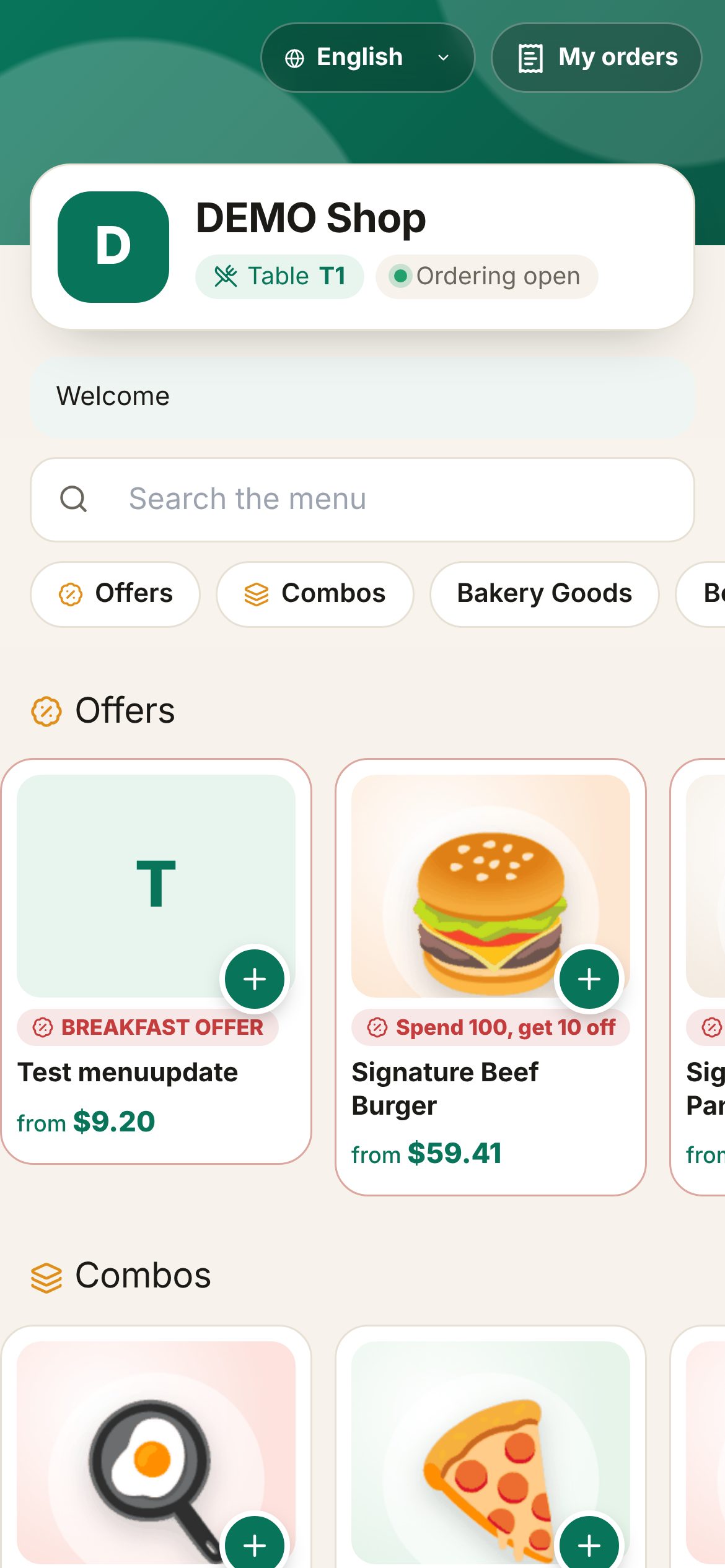 The guest menu on a phone
The guest menu shows your shop, the table name and Ordering open. Guests can search the menu, browse Offers, Combos, Popular and your categories, and switch the language. They choose sizes, options and combo items the same way a cashier does. Prices include VAT. If a service charge applies, it is added to the order total. Items that are sold out, or that a menu schedule does not offer right now, are not shown (see Menu availability).
In Your order, guests can add Your name (optional) and Note for the staff (optional), then choose Send order (or Send to the kitchen with automatic acceptance). My orders then shows each order's progress: Sent, Confirmed, Preparing, Ready (only with kitchen screens) and Served. While an order is Waiting for a waiter, the guest can still use Cancel order. Add more items goes back to the menu.
Accept orders at the till
When QR ordering is on, the till shows a QR orders button with a count, and a note pops up for each new order. Tables with waiting orders get a badge on the floor plan.
A guest orders from table T1 on a phone, then the cashier accepts it in QR orders and opens the check
- Choose QR orders. The Waiting tab lists orders by table, oldest first.
- Each table shows Adds to check with the check number, or Opens a new check. If the table has several checks, pick one in the list.
- Choose Accept, or Accept all for every order of that table. The items go onto the check, and only the new items go to the kitchen, marked with "QR" and the guest's name and note.
- To refuse, choose Decline. Pick Sold out, Wrong table or Kitchen is closed, or type a Reason for the guest (optional), then Decline order. The guest sees the reason.
Handled today lists what was accepted, declined or cancelled. Choose Served when the food reaches the table, so the guest's page shows it served, or Open check. Accepting and declining needs the POS operation permission. Waiters can also see QR orders on the Waiter handheld.
Paying from the table
When Guests see their table's bill is on, guests see Table bill and a Pay the bill button. They choose your payment methods on the till's own payment screen and choose Send payment. Nothing is charged online.
The payment appears in QR orders › Payments:
- For cash, collect it (the screen shows Change to give). For a card, check that it went through on the terminal.
- Choose Verify & complete sale. The check and the payment screen open with what the guest chose, and you complete the sale as usual (see Taking payment).
- Or choose Decline with No cash received, Card payment failed or Please pay at the counter, then Decline payment.
After that, the guest sees Paid. Thank you! and can choose View invoice. If the check changed after the guest paid, the till warns you and you complete the sale with the new total.
Good to know
- One phone can have at most 3 orders waiting for a waiter, and one table at most 12.
- Guests cannot use discounts, coupons or customer accounts. Only one payment can wait on a check at a time, and it must cover the whole bill.
- To stop abuse, sending orders and payments is limited per phone connection (10 every 10 minutes) and per table (30 orders every 10 minutes). Guests then see "Too many requests. Please wait a moment and try again."
- Ordering closes by itself if the add-on ends, your subscription becomes read-only or the branch is switched off.
Examples
A café with ten tables. The owner turns on Guests can order from their table and leaves Send to the kitchen without a waiter off. A guest at table 4 orders two lattes. The cashier sees 1 on QR orders, chooses Accept, and the drinks print at the bar.
A busy pizzeria. Send to the kitchen without a waiter is on, so orders go straight to the kitchen. A guest pays 120.00 by card from the table; the cashier checks the terminal and chooses Verify & complete sale.
Last updated 17 Oct 2026