Transport and school bus
The transport pages run the school bus service: vehicles and their papers, routes with stops and times, which students ride from which stop, and the trips themselves. The driver or bus attendant runs each trip from a phone: the bus's position is shared and each child is marked on and off the bus. Guardians are told and can see the bus on a map.
Who can use it:
- Operations › Transport needs the permission to run transport. The Owner, Principal and Office admin have it.
- Operations › My trips is for the Driver / bus attendant role.
- School bus is the guardians' and students' page.
All of them need the Transport module in the school's plan (see Subscription and store).
Vehicles and their papers
Open Operations › Transport, the Vehicles tab, and choose Add vehicle.
| Field | What it does |
|---|---|
| Registration no. | For example DHAKA METRO JA 11-2233. Must be unique |
| Kind | Bus, Minibus, Van, Car or Other |
| Seats | Riders on a route cannot be more than this |
| Driver, Driver's mobile, Driving licence no. | Guardians see the driver's name and mobile |
| Helper, Helper's mobile | The bus attendant. Guardians see the helper's mobile |
| Licence expires, Fitness expires, Insurance expires, Tax token expires | The vehicle's papers |
| Driver's sign-in | The user (with the Driver role) who runs this vehicle's trips from the phone |
| Active | Untick for a vehicle that is off the road |
The Papers column shows Up to date, or a red badge (Licence, Fitness, Insurance, Tax token) for each paper that has expired or expires within 30 days.
Note: To set Driver's sign-in, first create a user for the driver with the Driver / bus attendant role in Users and roles.
Routes and stops
On the Routes tab choose Add route. Fill in the Route name, the Vehicle and the Monthly fee, then the Stops in order: for each stop, its name, Pick-up and Drop times, and optionally Latitude and Longitude. Use the arrows to reorder stops and Add stop for more. The morning trip goes from the first stop to school; the afternoon trip comes back in reverse.
Each route card shows the vehicle, fee, stops and riders against seats (for example 18/28, red when full).
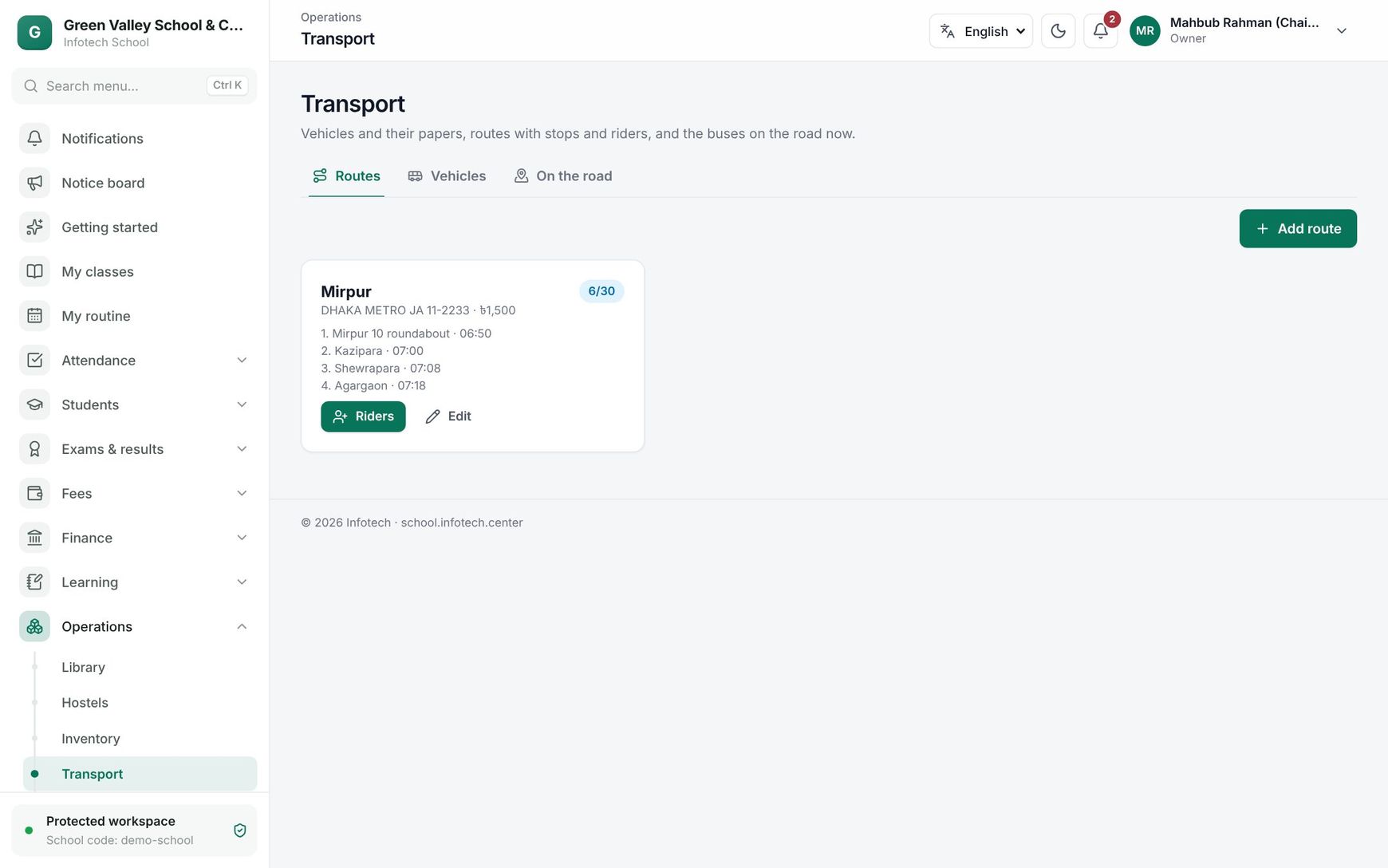 Route cards on the Transport page
Riders
On a route card choose Riders. Search for the student, choose the Stop and Rides (Both ways, Morning or Afternoon), and choose Add rider. Adding a student who rides another route moves them to this one. Stop using transport removes a rider.
Running a trip (driver)
The driver signs in on the phone, in the web app or the mobile app, and opens My trips.
- Each route of their vehicle shows Morning and Afternoon. Tap the trip to start it. Guardians of the riders are told the bus has started.
- Allow location when the phone asks. The badge shows Sharing location while the position is being sent (about every 10 seconds). Keep the page open during the trip.
- As each child gets on, tap On board; if a child does not come, tap Absent. When they get off, tap Dropped. Guardians get "Arif got on the school bus at 07:12" and "... got off the school bus at 13:40".
- At the end, tap End trip. If some children are still Waiting, you are asked to confirm.
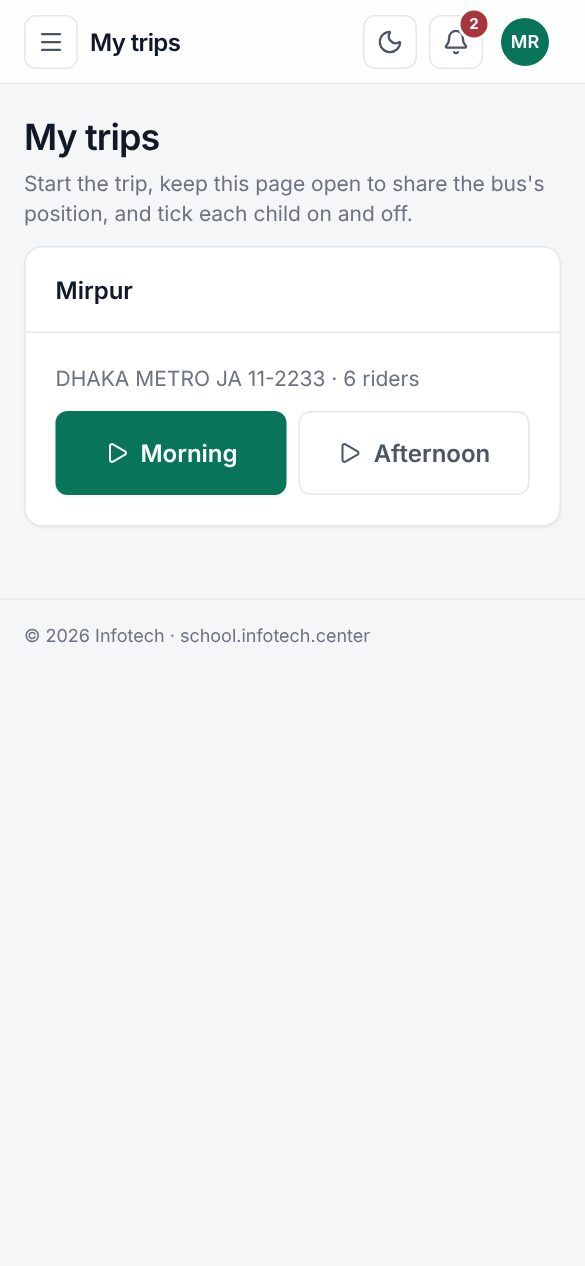 The driver's My trips page
The office follows all trips on the On the road tab: each running or finished trip today with On the road or Ended, how many are on board and dropped, the last position time and speed, and Show on map.
School bus (guardians and students)
Guardians open School bus (the same in the mobile app). It shows the route, the child's stop and pick-up and drop times, the vehicle, the driver and helper with call links, and the list of stops. During a trip, The bus now shows the bus on an OpenStreetMap map, with Open in OpenStreetMap. Today lists when the child got on and off. A child without transport shows "Your child does not use school transport."
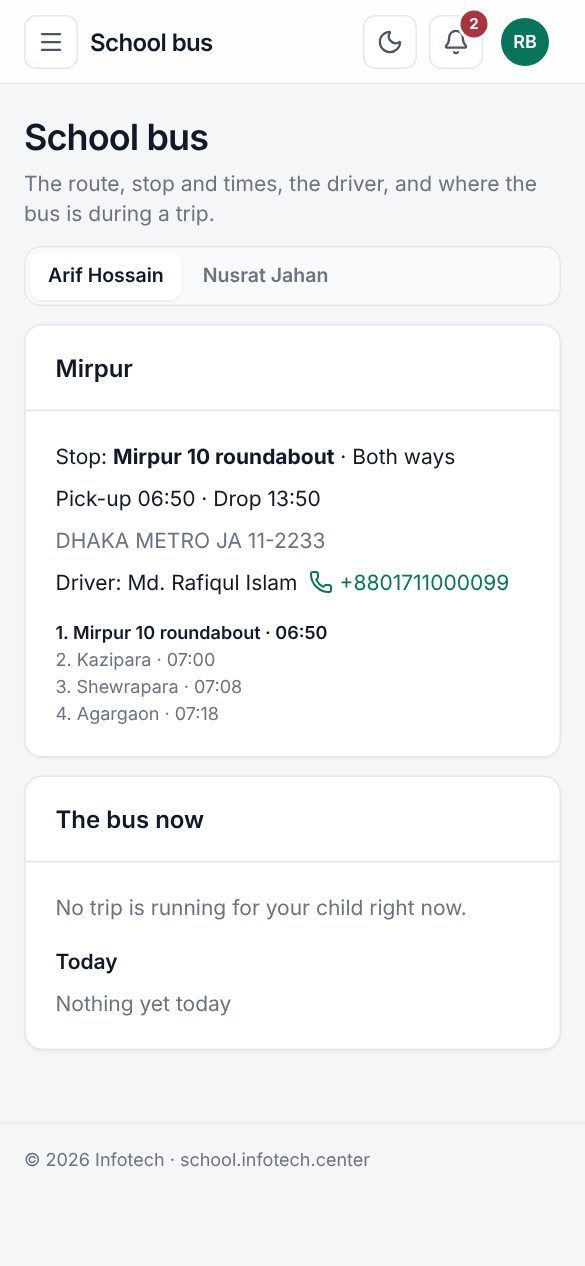 A guardian's School bus page during a trip
Good to know
- One morning and one afternoon trip per route can run at a time.
- A child must be marked On board before Dropped. Absent does not send a message.
- A stop that still has riders cannot be removed from a route; move the riders first.
- The route's Monthly fee is for reference; charge transport fees through Fee setup.
Example
The Mirpur route uses minibus DHAKA METRO JA 11-2233 (28 seats) with stops Mirpur 10 roundabout (7:00), Kazipara (7:10), Shewrapara (7:20) and Agargaon (7:30). Driver Abdul Hamid starts the morning trip at 6:55. At Kazipara he taps On board for Arif of Class Six A, and Arif's mother sees "Arif is on the bus" and the bus on the map. In the office, the Vehicles tab shows a red Fitness badge because the fitness certificate expires in 20 days.
Last updated 30 Oct 2026