Finance books and budget
The finance books are the school's simple cash book: money in and out of the cash box, the bank account and the bKash and Nagad merchant accounts. Fee payments and refunds are posted here by themselves; the accountant adds everything else, such as salaries, electricity bills or a donation. The Budget page plans each category for the year and shows how much is already used.
Open Finance › Books or Finance › Budget. Seeing the books needs finance:read; recording, voiding, editing accounts and categories and saving the budget need finance:write. The Owner, Principal and Accountant roles have both.
Note: If the school uses the Infotech Accounting product, fee collections and refunds are also sent there (see Integrations). The books here keep working either way.
Accounts and categories
The first time the books are opened, the usual setup is made for you:
- Accounts: Cash in hand (Cash), Bank account (Bank), bKash merchant and Nagad merchant (Mobile banking).
- Income categories: Student fees, Donations, Government grant (MPO etc.), Other income.
- Expense categories: Salaries and allowances; Electricity, water, gas, internet; Rent; Stationery and printing; Repairs and maintenance; Events and programmes; Transport; Fee refunds; Other expenses.
Change them on the Accounts & categories tab.
| Account field | What it does |
|---|---|
| Code | Short and unique. Cannot change later |
| Type | Cash, Bank or Mobile banking. Cannot change later |
| Name | For example "Sonali Bank, Mirpur branch" |
| Account number | Optional |
| Opening balance, Opening date | What the account held when you started using the books |
| Active | Switch off an account you no longer use |
| Category field | What it does |
|---|---|
| Kind | Income or Expense |
| Code | Short and unique |
| Name (English), Name (Bangla) | What the books and budget show |
| Active | Switch off a category you no longer use |
The books
The top of Finance › Books shows the balance of each account. On the Books tab, choose the Account and the period (From, To; this month by default). You see Opening, Total in, Total out and Closing, then every entry:
| Column | Shows |
|---|---|
| Date | The day of the entry |
| Voucher | RV-2026-000123 for money in, PV-2026-000045 for money out |
| Description | What it was, for example "Fee receipt RCT-2026-000310" |
| In, Out | The amount |
| Balance | The running balance |
Entries posted by fees carry the badge Fees or Refund. Voided entries show Voided.
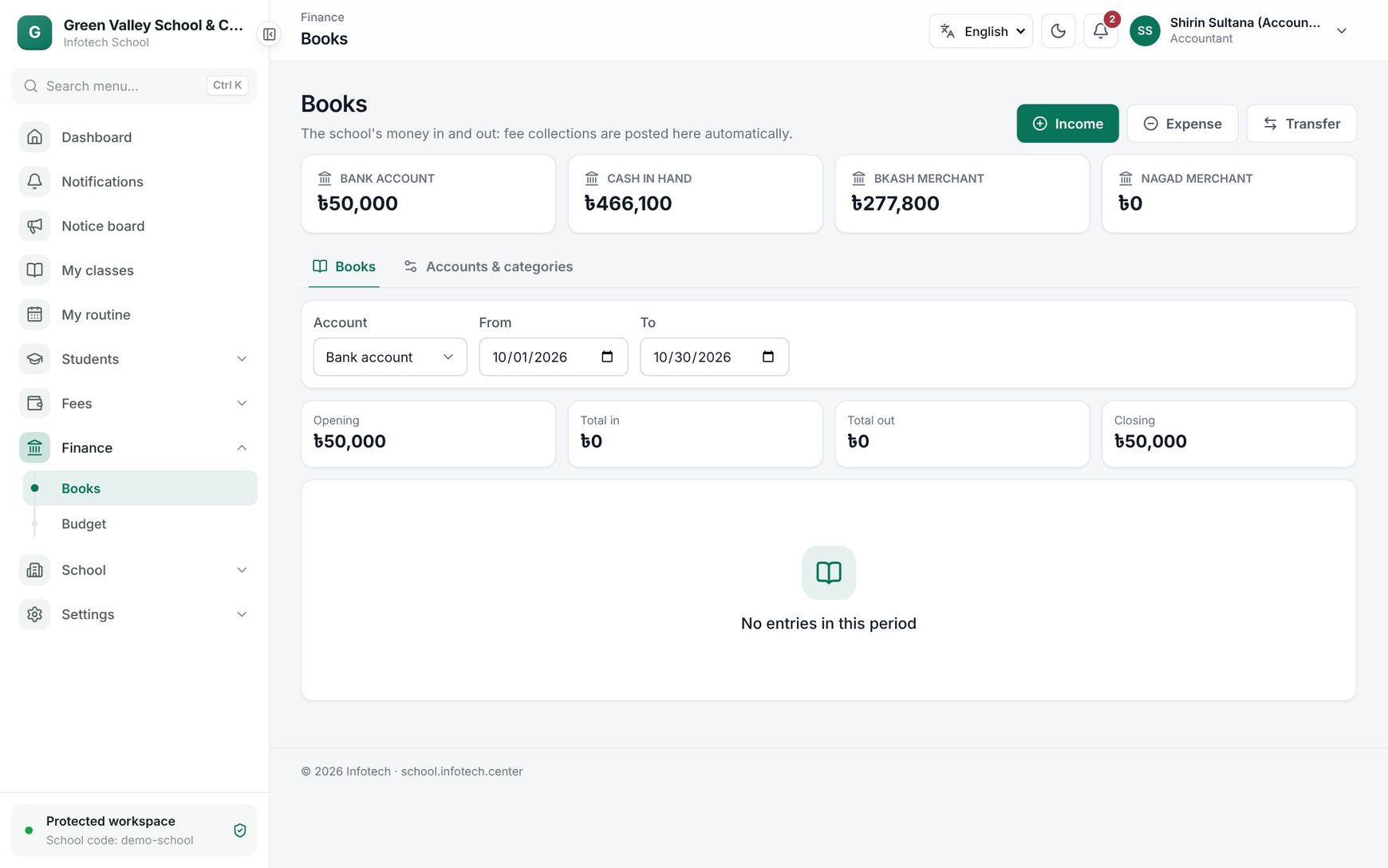 The cash book of Cash in hand for one month
How fee money is posted
| Fee payment method | Account |
|---|---|
| Cash | Cash in hand |
| bKash, Nagad, Rocket, Upay | That merchant account (Rocket and Upay accounts are added the first time they are used) |
| Anything else (bank, card, cheque, SSLCommerz) | Bank account |
Payments go to the Student fees category; approved refunds go out of the same account under Fee refunds. See Fee invoices and collection.
Record income or expense
- Choose Income or Expense at the top of the page.
- Fill in Date (not in the future), Amount, Account, Category (an income category for income, an expense one for expense) and Description.
- Optionally fill From (for income) or Paid to / received from (for expense), and a Reference such as the bill or cheque number.
- Choose Record. The voucher number is shown: "Recorded · voucher PV-2026-000046".
Transfer between accounts
When cash is deposited in the bank, or money is withdrawn from the bKash merchant account, choose Transfer: pick the From account and To account, the Amount, Date and Description, and choose Transfer. Two entries are made, one out and one in; a transfer is neither income nor expense.
Void an entry
Entries are never deleted. To undo a wrong one, choose Void on its row, write the Reason and confirm. Entries posted by fees cannot be voided here: "This entry came from fee collection; refund the payment instead." (see Waivers and refunds).
Budget
Open Finance › Budget and choose the year. Each income and expense category shows what came in or went out this year, and, once it has a budget, a bar with the percent used (red when over).
- Type the planned amount for each category in the Budget box.
- Choose Save budget.
The top shows Total income, Total expense and Net for the year. The budget runs on the calendar year, January to December.
Examples
Paying the electricity bill. On 8 December the accountant pays the DESCO bill of Tk 18,450 from the bank. She chooses Expense, Account Bank account, Category Electricity, water, gas, internet, Description "DESCO bill, November", Paid to / received from DESCO, Reference the cheque number, and Record.
Depositing the week's cash. The cash box holds Tk 2,15,000 from fee collections. The accountant deposits Tk 2,00,000 at the bank and records a Transfer from Cash in hand to Bank account. Cash in hand now shows Tk 15,000.
Watching the budget. The school budgets Tk 60,000 for Repairs and maintenance in 2026. By October, Tk 52,000 is spent and the bar shows 87%: the principal knows to hold back other repairs until January.
Last updated 30 Oct 2026