Visitors, conduct and clubs
Three pages under Campus cover school life outside the classroom: the Visitors log at the gate, Conduct (merits, incidents and achievements) and Clubs & teams. Guardians and students see the shared part on Conduct.
None of these pages needs a plan module.
Visitors
Who can use it: the Gate security role, and the Owner, Principal and Office admin. Gate staff can also use Visitors in the mobile app.
Open Campus › Visitors.
Check a visitor in
- Type their Mobile. A returning visitor's name and purpose fill in from their last visit.
- Fill in Name and Purpose (both required).
- Optionally choose Meeting (staff), or type Meeting (name), and fill in People, Badge, Vehicle no. and Note.
- Choose Check in.
When you choose a staff member under Meeting (staff), they get a message in the app: "Mrs Akter is at the school gate to see you (Parent meeting with the class teacher)."
Visitors inside lists everyone inside now, with how long they have been in. Choose Check out when they leave.
Expected visitors. Choose Expect a visitor, pick the Expected on date (today or later) and fill in the same fields. On that day the visitor appears under Expected today. When they arrive, choose Arrived (the host is told). Use the cross to cancel a visit.
The day's log lists everyone who came in on the chosen date, with statuses Expected, Inside, Left or Cancelled.
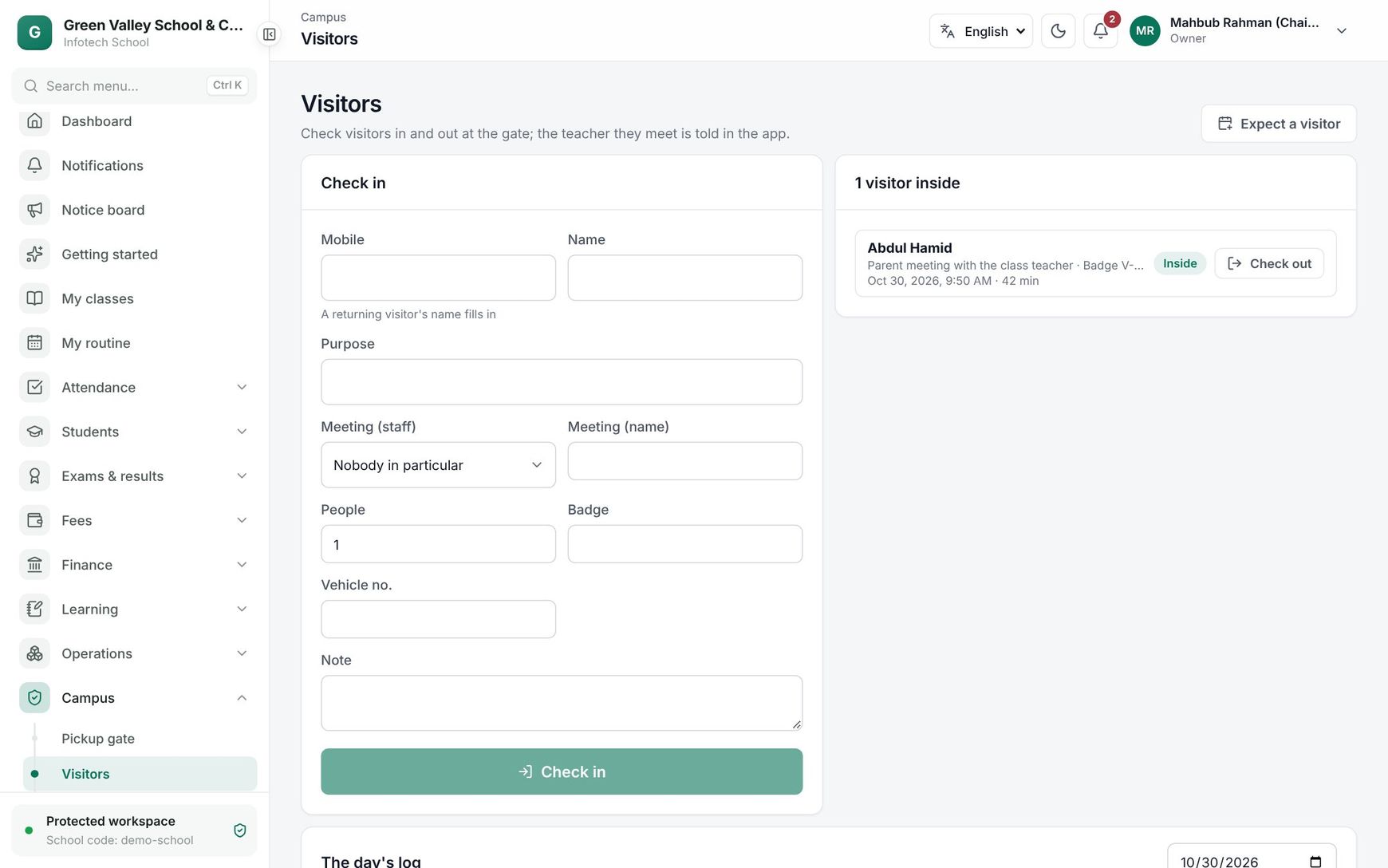 The Visitors page with check-in form and visitors inside
Conduct: merits and incidents
Who can use it: Teachers record for students of the sections they teach. The Owner, Principal and Office admin see and record for everyone.
Open Campus › Conduct and choose Record merit or incident. Search for the student, then:
| Field | What it does |
|---|---|
| Kind | Merit or Incident |
| Category | Behaviour, Bullying, Attendance, Uniform, Property, Academic, Helpfulness, Leadership, Sports or Other |
| Severity | Incidents only: Minor, Major or Severe |
| Points | 0 to 100. Added for a merit, taken away for an incident |
| Date | When it happened (not in the future) |
| What happened | The description guardians read when shared |
| Action taken | Incidents only |
| Share with the guardians | Ticked by default. Guardians are told in the app and see it on their page |
The Merits & incidents tab lists records by Section (or All my students) between From and To (the last 90 days to start with). Columns are Student, What happened, Kind, Points and Status. A merit is closed at once; an incident stays open with a Resolve button. In Resolve, write What was done and choose whether to share it now. Records shared with guardians show Shared.
The Points tab shows a section's Merits, Demerits and Net for each student over the last 90 days, useful for best-behaved lists or house points. Click a student's name for their whole record.
Achievements
Choose Add achievement, pick the student and fill in the Achievement, Level (School, Upazila, District, Division, National or International), Position, Date and Club or team. Guardians are always told. The Achievements tab lists this year's achievements; Remove deletes one after confirming.
Clubs & teams
Open Campus › Clubs & teams. The office (Owner, Principal, Office admin) chooses New club or team and fills in Name, Kind (Club, Sport, Cultural, Scouts, Social or Other), Teacher in charge, Meets (for example "Sunday tiffin break"), Description and Active.
Click a club to manage its members. Type a Role of the next member if needed (e.g. Captain, Secretary), then search for and pick the student. The office and the teacher in charge can add and remove members.
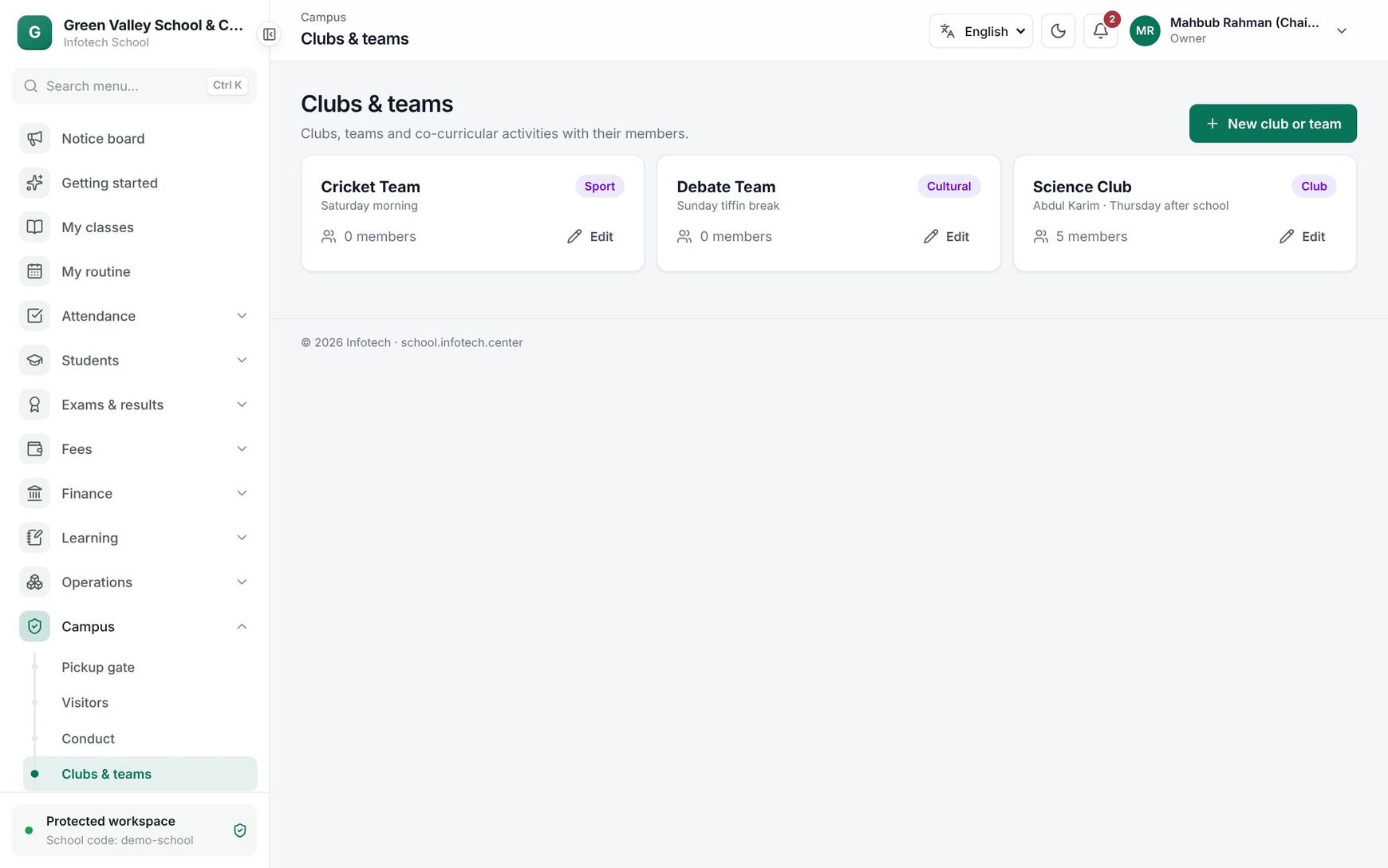 Clubs & teams cards
Conduct for guardians and students
Guardians open Conduct in the web app or the mobile app and pick the child. It shows Merits, Demerits and Net, the merits and incidents the school shared (with what was done), the child's clubs and teams, and achievements. Incidents not shared are never shown to the family.
Good to know
- An incident shared later, when it is resolved, sends the message at that time.
- A teacher cannot record for a student outside their sections.
- Achievements and clubs also appear in each student's record; see Students.
Examples
A parent at the gate. Rahima Begum comes to meet the class teacher of Class Six A. The guard types her mobile, her name fills in from her last visit, picks the teacher under Meeting (staff), writes badge V-07 and chooses Check in. The teacher gets a message. Forty minutes later the guard chooses Check out.
A merit and an incident. The class teacher gives Arif a Merit, Helpfulness, 5 points, "Helped a younger student find the lost tiffin box", shared. The same week Tanvir comes without the school tie: an Incident, Uniform, Minor, 1 point, not shared. Arif's mother sees the merit; Tanvir's family sees nothing until the teacher shares it.
Last updated 30 Oct 2026