Class routine and My routine
The class routine is each section's weekly timetable: which subject, which teacher and which room in every period of every school day. Infotech School keeps one routine per section, checks that no teacher or room is in two places at once, and turns it into each teacher's own week. Teachers see their day on My routine, and guardians and students see the routine in the mobile app.
Before you start
The routine is built on top of your school setup:
- Shifts and weekly holidays come from Settings › School profile (see School profile). A section's days are its campus's days minus its Weekly holidays.
- Sections and subject teachers come from School › Classes & subjects (see Classes and subjects). When you plan a subject, its teacher for that section is used unless you choose another.
Open School › Class routine. The page has these tabs:
| Tab | What it is for |
|---|---|
| Class routine | One section's week, to view, plan and print |
| Teacher routine | One teacher's week across all sections |
| Periods | The periods and breaks of each shift |
| Substitutes | Who takes a class on a given day when its teacher is away |
| Generate | The automatic routine generator (see Routine generator) |
Anyone with academic:read (every staff role, including teachers) can view the routine. Planning needs routine:write, which the Owner, Principal and Office admin roles have.
Step 1: set up the periods of each shift
On Periods, choose the Shift. A shift with no periods shows Quick setup, which makes equal periods with one break:
| Field | What it does |
|---|---|
| First period starts | Start time of period 1, for example 07:30 |
| Minutes per period | 10 to 180 minutes |
| Number of periods | 1 to 12 |
| Break after period | The break comes after this period. 0 = no break |
| Break minutes | Length of the break |
Choose Create periods. You can then change each one with the pencil, or choose Add period. A period has a No. (1–20), Name (English), Name (Bangla), Starts, Ends and a Break switch ("No classes in this period (tiffin, prayer, assembly)").
Note: Periods of one shift may not overlap ("The times overlap another period of this shift"). A period that has classes planned in it cannot be deleted until you clear those classes.
Step 2: plan the classes
On Class routine, choose the Class and Section. The grid shows the days down the side and the periods across, with breaks greyed out. The section's Class teacher is shown above the grid.
Click a cell to plan that class:
| Field | What it does |
|---|---|
| Subject | The section's subjects, each with its teacher |
| Teacher | "Leave empty for the section's teacher of the subject." Choose someone else only for an exception |
| Room | Optional, up to 40 characters |
Choose Save changes. To empty a cell, open it and choose Clear.
The routine refuses a clash, and tells you where the other class is, for example "The teacher already has a class then: Class Seven · B, 3rd period". The check covers other shifts whose periods overlap too. A room clash works the same way.
To plan many sections at once, use the Routine generator and then fine-tune cells by hand.
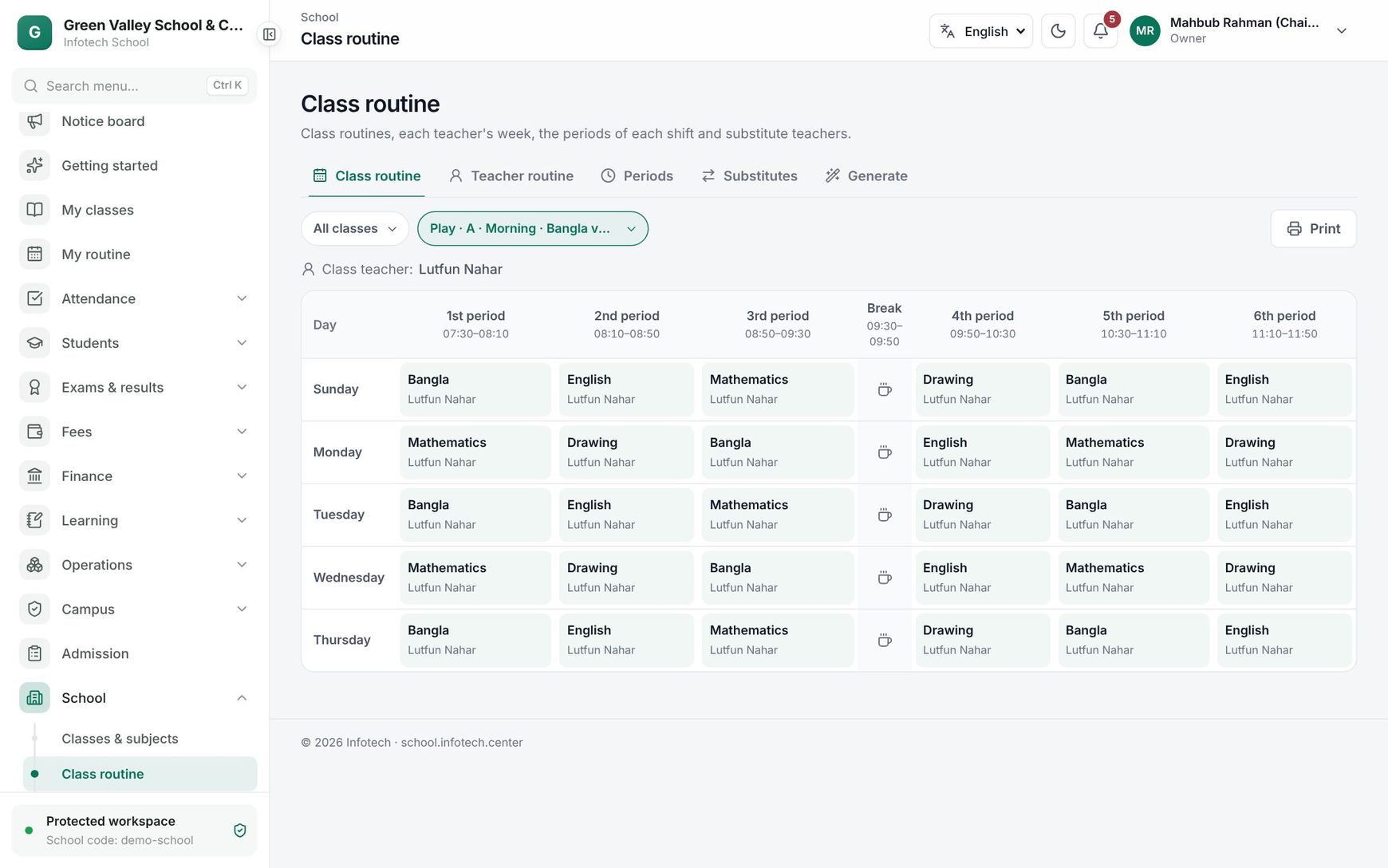 The Class routine tab showing a section's weekly grid
Print and share
- Print on Class routine prints the section's week with the school name and class teacher, ready for the notice board.
- On Teacher routine, choose a teacher to see every class they take in any section, then Print it for the staff room.
- When the school has the Homework and LMS module, clicking a planned cell also lets you add an Online class meeting link (see Study materials and online classes).
Substitutes for a day
When a teacher is away, open Substitutes, pick the Date and choose Add substitute:
- Pick the class and section, then the class under Class (only that day's classes are listed).
- Under Free at that time (least busy first) choose a teacher. Teachers who are away or busy at that time are not listed.
- Add a Note (optional) and choose Save changes.
The substitute is told in the app and sees the class on their My routine with a Substitute badge. Remove one with Cancel substitution. For a whole day of absences at once, Class cover is faster.
My routine (teachers)
Every staff member has My routine in the sidebar. It shows Today (each class with time, section and room, and a Substitute badge on classes they cover) and their full week below. Print prints the week. A day without classes shows No classes today.
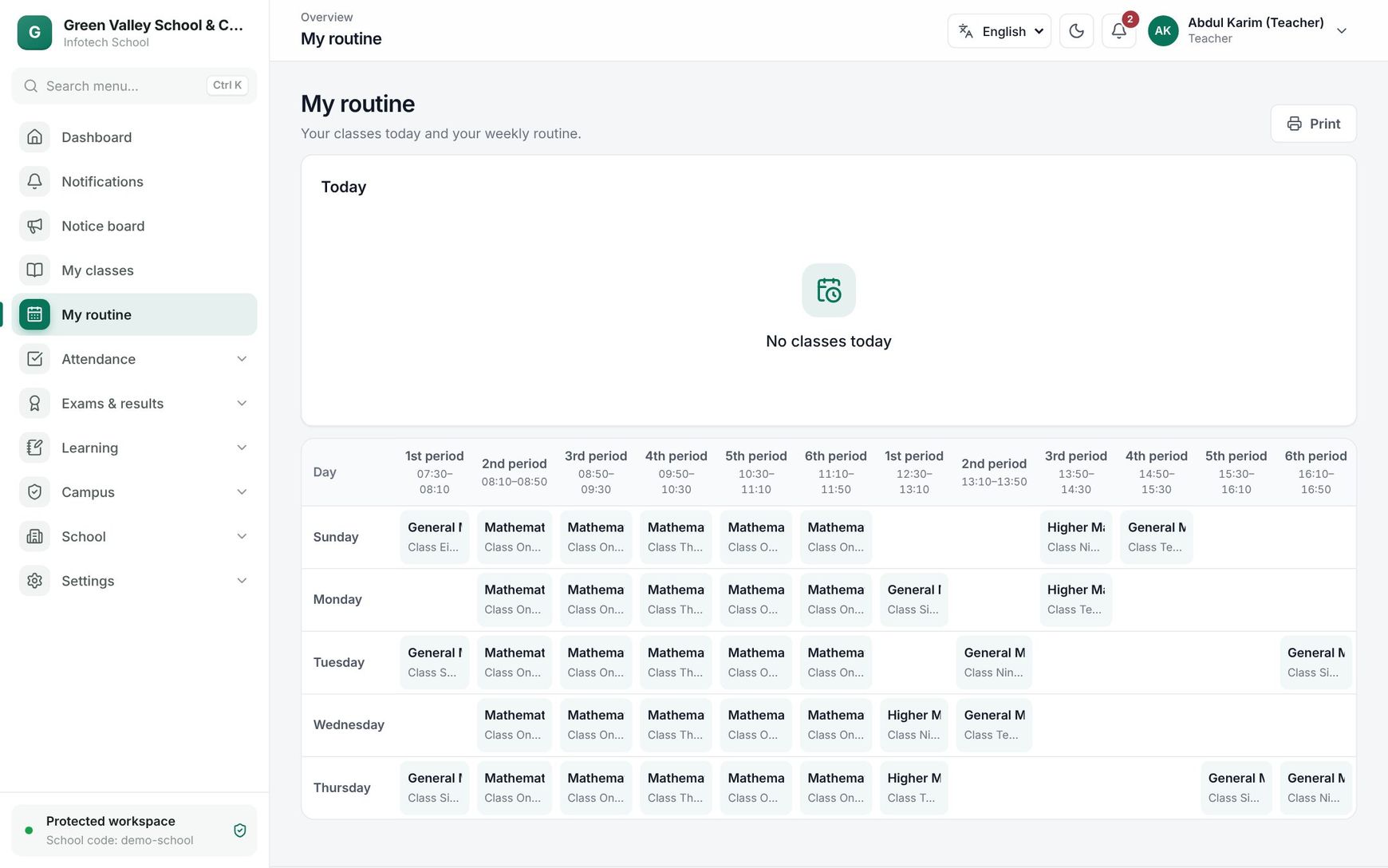 A teacher's My routine page with today's classes and the week
Good to know:
- The week is shown Saturday first, as Bangladeshi routines are printed.
- A teacher marked as having left cannot be planned.
- Classes are never planned in a break period.
Examples
Morning shift, Class Six A. The office uses Quick setup for the Morning shift: first period 07:30, 40 minutes, 6 periods, break after period 3 for 20 minutes. Then it clicks Saturday, 1st period, chooses Bangla (teacher Rahima Begum) and room 101. When it tries to put Rahima Begum in Class Seven B at the same time, the routine refuses and names the clash.
A one-day substitute. Mr. Kamal Hossain is at a board meeting on Monday. On Substitutes the office picks Monday, Class Eight B, 2nd period Mathematics, and chooses Nasrin Akter, who is free and has only 3 classes that day. She sees the class on her My routine with a Substitute badge.
Last updated 30 Oct 2026