Question bank and online tests
Teachers build a Question bank of multiple-choice questions (MCQs) for each class and subject, and set Online tests from it for a section: a timed test that students take on the phone or computer and that is marked the moment it is submitted. Use it for weekly class tests, chapter revision and MCQ practice before the board exams.
Both pages are under Exams & results and need the Exams & results module. They need question:write (Teacher and Principal by default) or exam:manage (Owner, Principal, Office admin). A teacher works only with the classes and subjects they teach; the exam office works with all of them.
The question bank
Open Exams & results › Question bank. Choose the class (Choose class) and the subject (Choose subject). You can narrow the list by Chapter and by difficulty (Any difficulty). The page shows how many questions match, for example "48 questions".
| Column | Shows |
|---|---|
| Question | The question, with "Answer: B. …" under it |
| Chapter | The chapter you gave |
| Difficulty | Easy, Medium or Hard |
| Marks | What the question is worth |
Add a question
- Choose Add question.
- Type the Question.
- Under Options, type 2 to 6 options and tap the letter of the right one. Add option adds one more.
- Optionally fill in the Explanation (shown when the answers are revealed), the Chapter, the Difficulty and the Marks (1 if you leave it).
- Choose Save.
Options may not be empty or repeated. To change a question, use Edit. To take one out, use Retire question: it leaves the bank, but tests that already use it keep it.
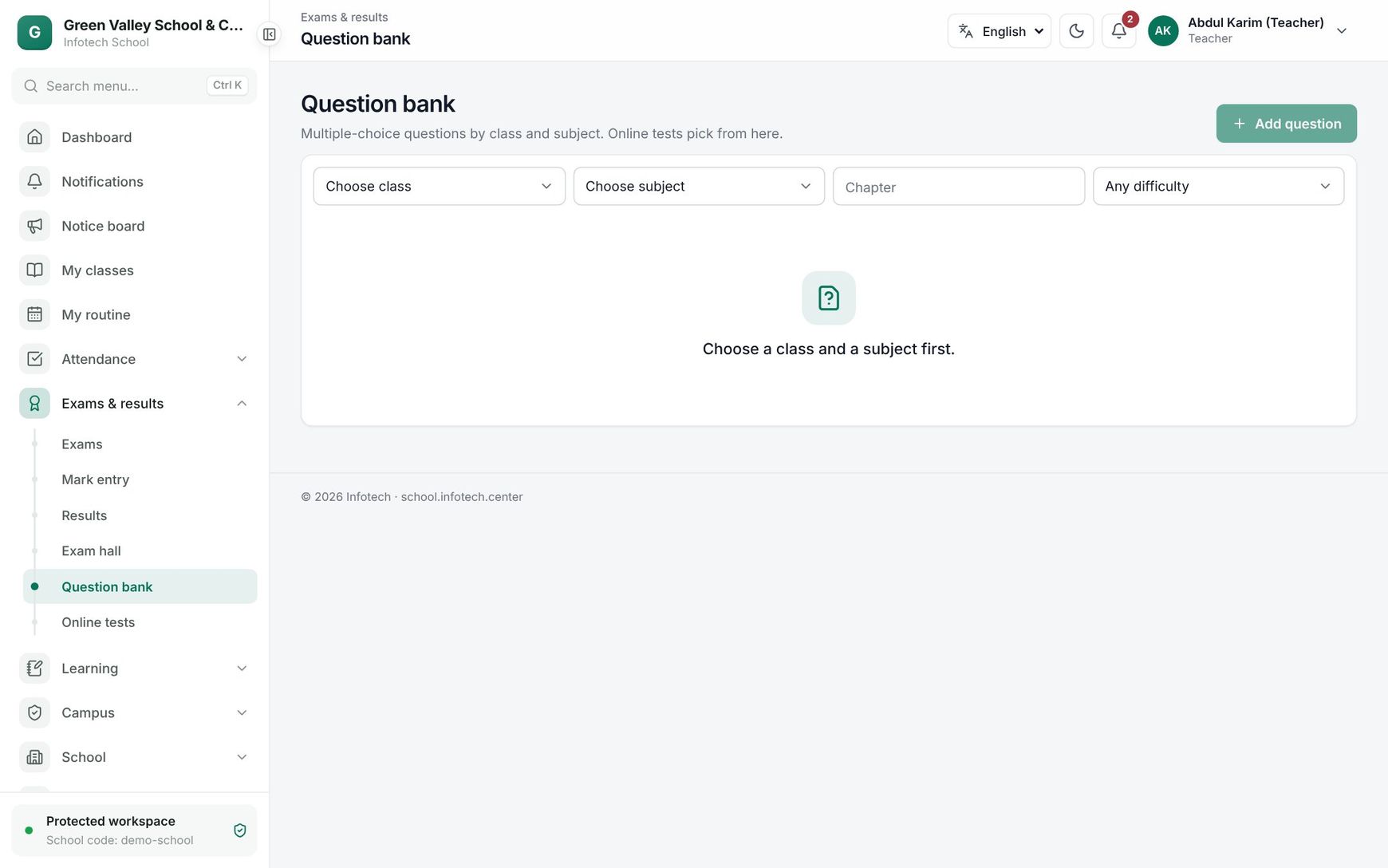 The Class Six Mathematics question bank
Set an online test
Open Exams & results › Online tests. Pick a section, or All sections. Teachers see the tests they set.
- Choose New test. The test is saved as a draft; publish it when it is ready.
- Fill in the fields below.
- Choose Save draft.
| Field | What it does |
|---|---|
| Title | For example "Chapter 3 MCQ test" |
| Section, Subject | Who takes it and the subject the questions come from |
| Opens at, Closes at | The window to start the test. It must close after it opens |
| Time allowed (minutes) | 30 by default. Each student's clock starts when they begin, and stops at closing time anyway |
| Negative mark | Taken off for each wrong answer; 0 for none. A score never goes below 0 |
| Show answers | Right after submitting, After the test closes (the default) or Never |
| Shuffle the questions for each student | On by default: neighbours get a different order |
Under Questions, choose how to pick them:
- Pick at random: give How many questions (20 by default), optionally a Chapter and a Difficulty. The bank must have enough questions for that choice.
- Choose by hand: tick the questions you want.
A test holds at most 200 questions. Its total marks are the sum of its questions' marks.
Publish, follow and cancel
| Status | Meaning |
|---|---|
| Draft | You can still Edit it |
| Published | Students and guardians see it; it can no longer be changed |
| Cancelled | Withdrawn; attempts do not count |
Next to the status, a published test shows Not open yet, Open now or Closed.
- Publish: the students and their guardians get an app message with the test's title and opening time.
- Results: Submitted, Average and Highest; under Students, each one's score, "8 right, 2 wrong" and status (Not started, Taking it, Submitted); and Question by question, the share of students who answered each question correctly.
- Cancel test: the warning tells you how many students already started; their attempts will not count. Use this to fix a published test: cancel it and set a new one.
Taking a test (students and guardians)
Students and guardians open Online tests in the menu (web and mobile app). A guardian with several children picks the child first. Each test shows its questions, minutes and marks (with any negative mark), when it opens or closes, and its state:
| State | Meaning |
|---|---|
| Not open yet | Wait for the opening time |
| Open | Start begins the clock |
| Started | Continue returns to it, with the time still running |
| Submitted | The score shows once the answers are revealed; See answers opens the review |
| Missed | The test closed without being started |
While taking the test, the page shows "12 of 20 answered" and Saved after each answer: answers save as you go, so a lost connection or a closed tab loses nothing. Submit asks for confirmation (and warns about unanswered questions). When the time is up, the saved answers are submitted automatically.
The review shows each question with the right answer, Your answer and the explanation, and the Score with right and wrong counts.
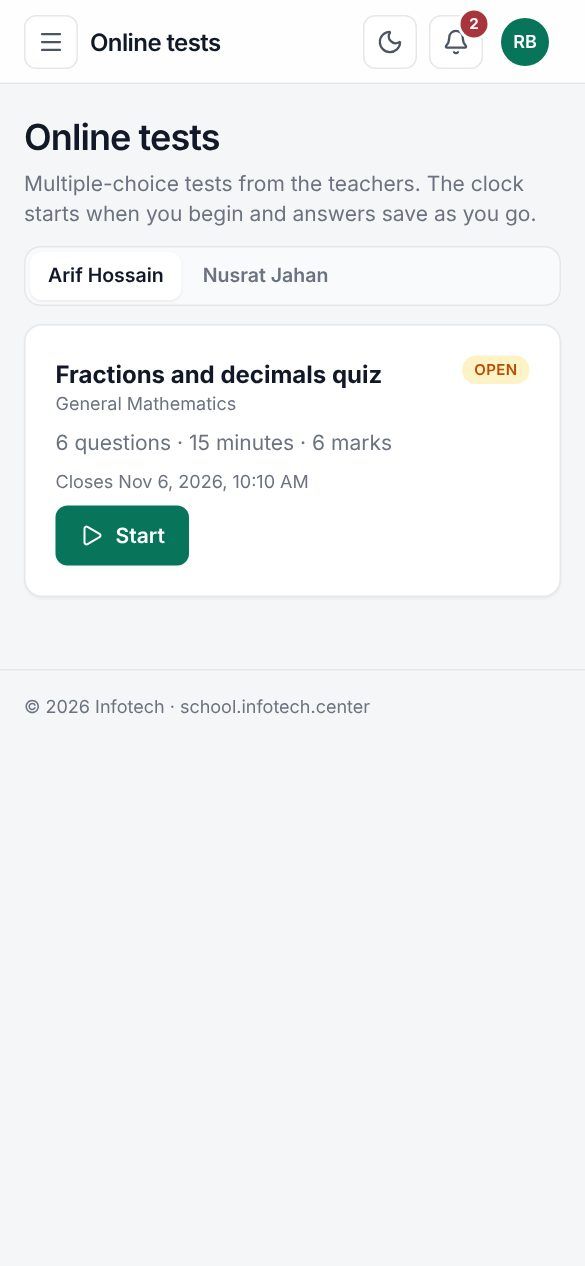 The online tests list on the phone
Examples
Weekly Science test for Class Eight A. Sharmin Akter has 60 Science questions in the bank. On Thursday she sets "Week 6 Science" with Pick at random, 20 questions from "Chapter 4", 20 minutes, Negative mark 0.25, open from 7 pm to 9 pm, answers shown After the test closes. A student starts at 8:50 pm: the test still closes at 9 pm, so she has 10 minutes, not 20.
Scoring. A test of 20 one-mark questions with negative mark 0.25: Arif answers 16 right, 3 wrong and skips one. His score is 16 − 0.75 = 15.25 out of 20.
Last updated 30 Oct 2026