Infotech team, logs and sign-in codes
These console pages are for running and supporting the platform. Infotech team says who can use the console. Audit log and Access log show what happened in the Infotech account or in any one school. Sign-in codes helps a guardian whose SMS code did not arrive. Server status shows whether the app and the database are healthy.
Infotech team
Only super admins see Management › Infotech team: "Who works on the console. Super admins manage everything; viewers can only look."
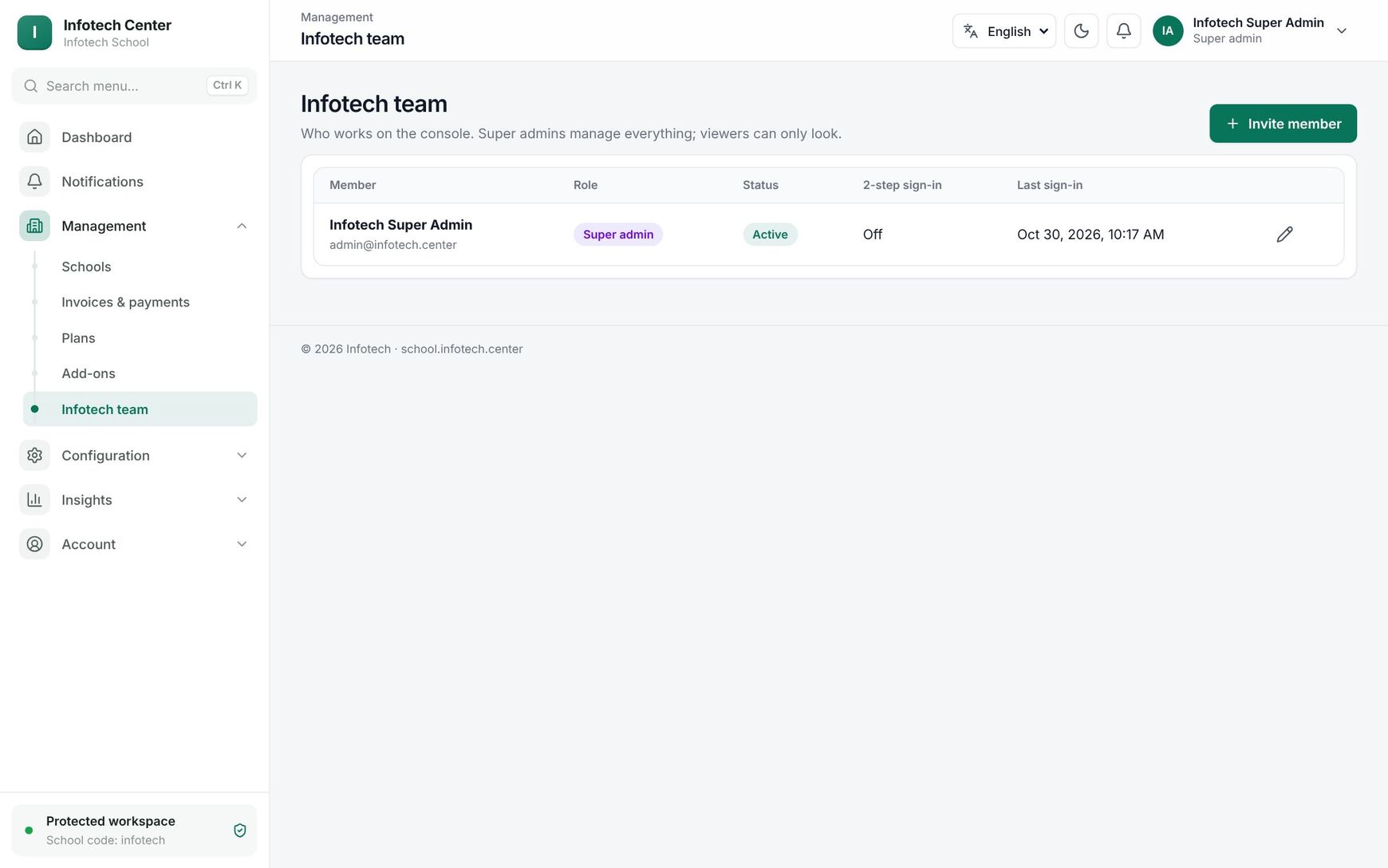 The Infotech team page with members, roles and 2-step status
| Column | Shows |
|---|---|
| Member | Name and email |
| Role | Super admin or Viewer |
| Status | Invited (has not chosen a password yet), Active or Disabled |
| 2-step sign-in | On or Off |
| Last sign-in | Date and time |
Invite a member
- Choose Invite member.
- Enter their Email and Name.
- Choose the Role. The hint explains it: a Super admin "Manages schools, plans, billing, settings and the team."; a Viewer "Sees schools, invoices, logs and server status; changes nothing."
- Choose Invite member.
"They get an email to choose a password." While the member is Invited, the envelope button Send the invitation again sends a new email.
Change a role or disable a member
Choose the pencil on a member. Change the Name, Role, or set Status to Disabled to stop them signing in, then choose Save. Infotech must keep at least one active super admin: "Infotech must keep at least one active super admin."
Reset 2-step sign-in
When a member has lost their phone, choose the key button Reset 2-step sign-in on their row. Their 2-step sign-in is turned off, so they can sign in with their password and set it up again on a new phone. You cannot reset your own; use Security for that.
Audit log
Open Insights › Audit log: "Every change in the Infotech account — or in one school's, picked below."
- The School filter starts at Infotech account: the console's own log (plans, settings, invoices, team changes, schools suspended). Pick a school to read that school's own audit log.
- Type in Filter by action, e.g. auth. or user.created to narrow by action.
Events are grouped by day (Today, Yesterday, then dates), newest first, 50 to a page. Each shows the action, who did it and the details.
Access log
Open Insights › Access log: "Sign-ins and failed sign-ins of the Infotech account or of one school." Pick Infotech account or a school with the School filter. Use it when a school says a user cannot sign in, or to see who signed in to the console.
Sign-in codes
Guardians and students sign in with a code sent by SMS. When a parent's SMS does not arrive, the support desk can look up the code here and, as a super admin, read it out.
Open Insights › Sign-in codes. The figures at the top count Codes sent, Valid now, Used and Locked (wrong guesses) in the period shown.
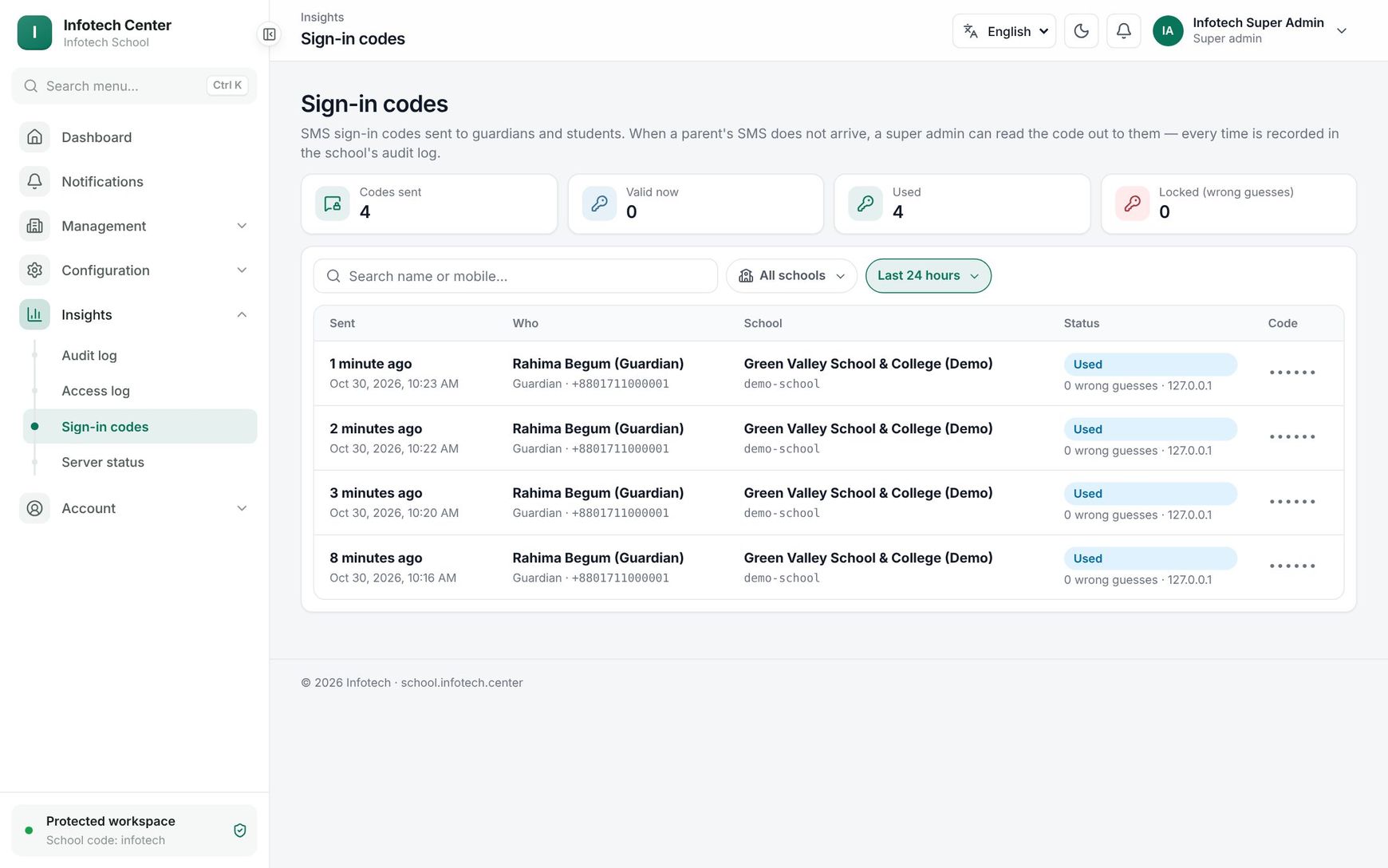 The Sign-in codes page with codes sent to guardians and students
Filter by School (All schools by default) and Period (Last hour, Last 24 hours, Last 7 days), or search with Search name or mobile….
| Column | Shows |
|---|---|
| Sent | How long ago, and the exact time |
| Who | The person's name, Guardian, Student or Staff, and the mobile number |
| School | Name and school code |
| Status | See below, with the number of wrong guesses and the IP address |
| Code | Show code for a code that is valid now; otherwise dots |
| Status | Meaning |
|---|---|
| Valid now | The newest code of this person, not used and not expired |
| Used | They signed in with it |
| Expired | Its time ran out |
| Locked (wrong guesses) | Too many wrong guesses |
| Replaced by a newer code | They asked for another code |
Read a code out to a parent
- Ask the caller for the school and mobile number, and check who they are.
- Find the row with Valid now and choose Show code.
- The box Sign-in code for {name} shows the code and Valid until a time. "Read it out only to the account holder, after checking who they are."
- Choose Close.
Only super admins see Show code. Every time a code is shown, it is written to the school's audit log and to the Infotech account's. A code that was used, expired or replaced cannot be shown: "This code can no longer be used."
Server status
Open Insights › Server status: "The app, memory, disk and database. Refreshes every 30 seconds."
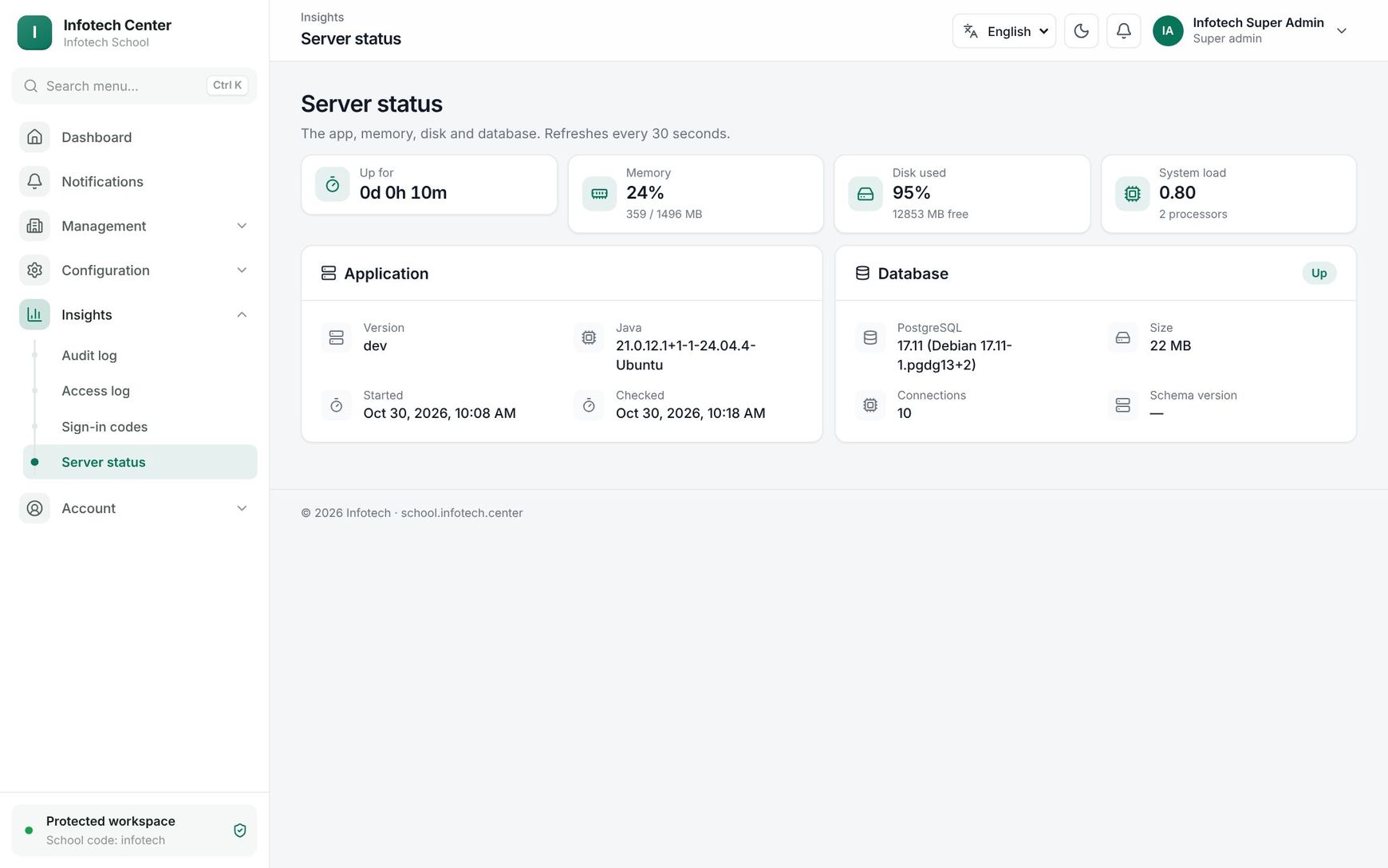 The Server status page with memory, disk and database
| Figure | Shows |
|---|---|
| Up for | Time since the app started (days, hours, minutes) |
| Memory | Memory in use, as a percentage and in MB. Red above 85% |
| Disk used | Percentage, with MB free. Red when under 2 GB is free |
| System load | The server's load, with the number of processors |
The Application card shows Version, Java, Started and Checked. The Database card shows Up or Down, the PostgreSQL version, Size, Connections and Schema version. For running your own server, see Self-hosting.
Examples
An SMS that did not arrive. Rahima Begum calls the Infotech helpline: she is a guardian at Sunrise Model School and her sign-in SMS has not come. Karim opens Sign-in codes, picks Sunrise Model School and searches her number 01711000001. The newest row is Valid now. After checking her child's name and class (Class Six A), he chooses Show code and reads out the code. The reveal appears in the school's audit log.
A new support colleague. Infotech hires Tanvir Ahmed for the helpline. A super admin invites him as Viewer. He can see schools, invoices, logs and sign-in codes, but cannot show a code or change anything until he is made Super admin.
Last updated 30 Oct 2026