Study materials and online classes
Study materials is the class's shared shelf: notes, worksheets, NCTB textbook links and video lessons, sorted by subject and chapter, which guardians and students open from the app. Online classes add a meeting link (Zoom, Google Meet, Jitsi, Teams) to a class in the routine, so on the day students see a Join button at the right time. Use them for revision material all year, and for classes from home on a hartal, flood or heat-wave day.
Both need the Homework & LMS module. Sharing material and setting links needs homework:write (Teacher and Principal by default) or lms:manage (Owner, Principal, Office admin).
Share study material
Open Learning › Study materials. Choose the Class, and optionally a Subject (or All subjects). Material is grouped by subject and chapter; material without a subject is under General.
- Choose Share material.
- Choose the Kind: File, Web link or Video.
- Fill in the fields below.
- Choose Share. The page says Shared with the class.
| Field | What it does |
|---|---|
| Subject | The subject, or General |
| For | The whole class, or one section of it |
| Title | For example "Chapter 2 notes" |
| Chapter | Used to group the material |
| Link | For a web link or video: a web address starting with https:// |
| File | For a file: PDF, a photo, Word or Excel (up to 10 MB with the standard setup) |
Teachers share for the classes and subjects they teach; to share with one section, you must teach that section. The academic office can share with any class.
To take something down, choose Delete next to it and confirm at Remove material. Only the person who shared it, or the office, can remove it.
Note: Links that are not ordinary web addresses (for example ones starting with
javascript:) are refused, so nothing harmful reaches the families' apps.
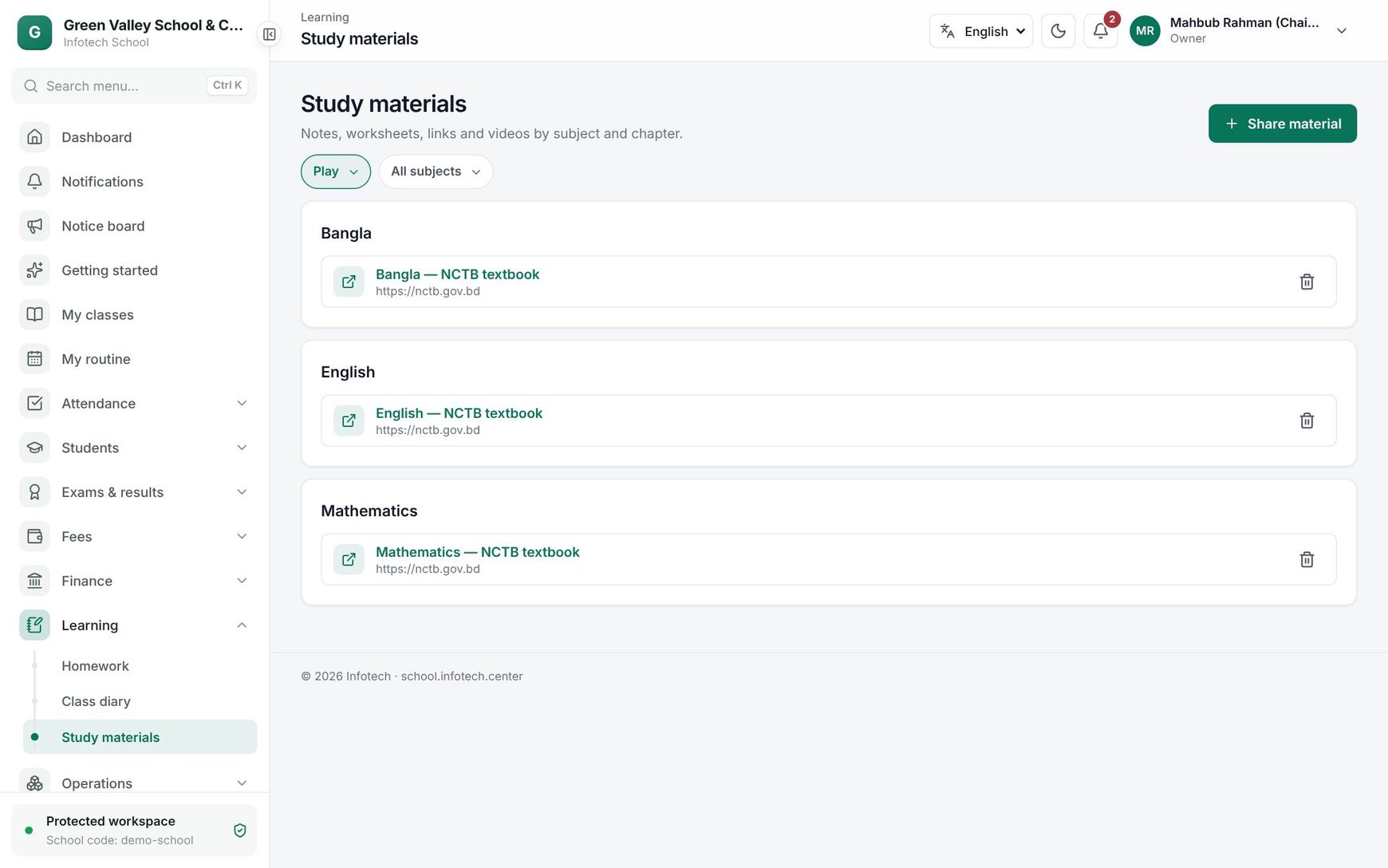 Study materials of Class Six by subject and chapter
What guardians and students see
Guardians and students open Study materials in the menu (web and mobile app). A guardian with several children picks the child, and anyone can filter by Subject. They see the material for the child's whole class and for their own section. Files download with Download; links and videos open in a new tab.
Online classes
Add a meeting link to a class
The link belongs to a class in the routine, for example "Sunday, 2nd period, Mathematics, Class Seven B". The same link is used every week until you change it.
- Open School › Class routine and the Class routine tab, then the section (see Class routine).
- Click the class. Staff who edit the routine see the class editor; choose Online class in it. A teacher goes straight to Online class for their own classes.
- Paste the Meeting link (it must start with
https://). - Choose the Service (Zoom, Google Meet, Jitsi, Microsoft Teams or Other), or leave Find from the link.
- Optionally add a Note, for example the passcode or what to bring.
- Choose Save changes.
Classes with a link show a small screen icon in the routine. Remove link takes it off.
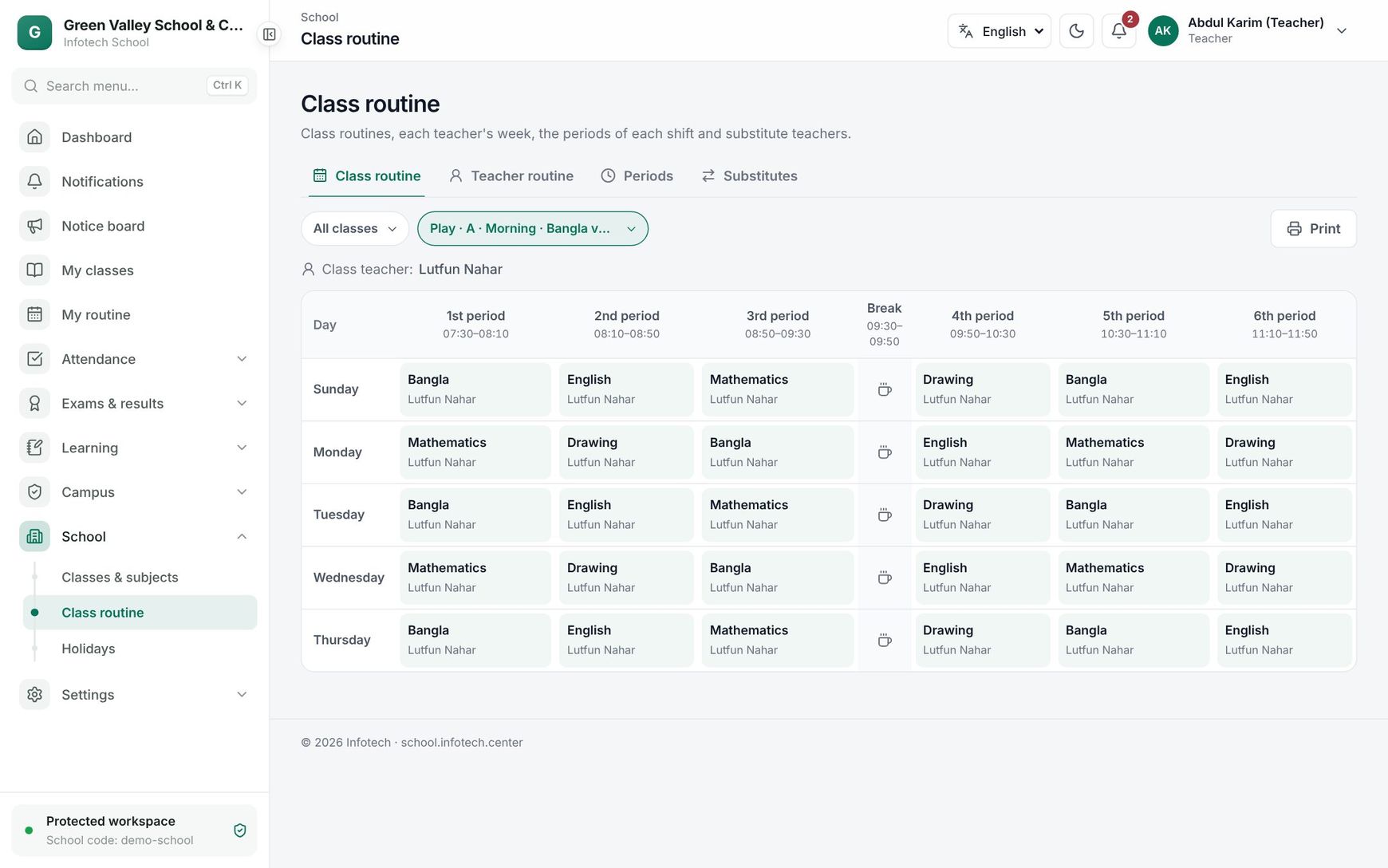 Adding a meeting link to a class in the routine
A teacher can set the link only for classes they teach in the routine; anyone who can edit the routine, or has lms:manage, can set it for any class.
Join a class
On the day, Today's online classes lists the day's classes when at least one has a link:
- on the Dashboard for teachers (their own classes) and for families (the first child's classes);
- at the top of Homework for guardians and students, with the teacher's name.
Each class shows the subject, time and section (and Substitute when a substitute teacher takes it). From 10 minutes before it starts, the class is highlighted with Now; Join opens the meeting. When no class of the day has a link, the card is hidden.
Good to know
- Material and links are only seen by the class (or section) they are for.
- The school does not host the meetings: use your own Zoom, Meet, Jitsi or Teams account.
Examples
NCTB books for Class Six. At the start of the year, the academic office shares the NCTB textbook PDF links for each Class Six subject as Web link, under The whole class. Teachers then add their own chapter notes as File, for example "Bangla Chapter 3 – summary" (a 2 MB PDF), and a YouTube lesson as Video.
A rainy-day online class. Heavy rain closes the school on Monday. The Mathematics teacher of Class Seven B adds a Google Meet link to Monday's 2nd period with the note "Keep your geometry box ready". At 9:20 am, ten minutes before the period, families see Now and Join on the dashboard, and Tanvir joins from his mother's phone.
Last updated 30 Oct 2026