Teachers and staff
Teachers & staff is the list of everyone who works at the school: teachers and office staff, with their job, contact details and whether they can sign in. Class teachers, subject teachers, the routine, class cover and transport all pick people from this list. The Who is away tab records leave and absences, so the routine knows whose classes need cover.
Open School › Teachers & staff. You need staff:read to see the list; by default the Owner, Principal, Office admin and Accountant have it. To add and change staff you need staff:write (Owner, Principal, Office admin).
The staff list
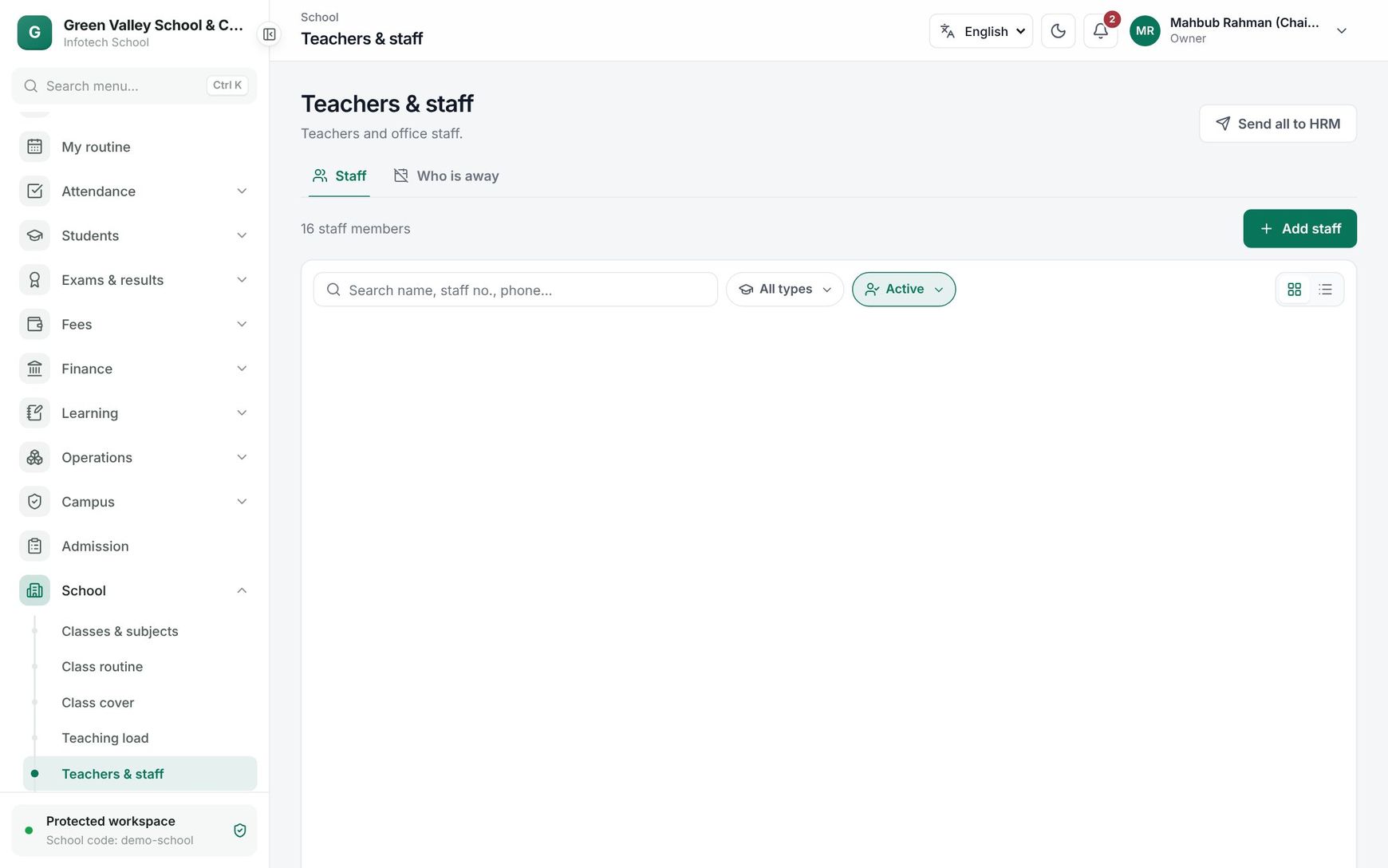 The staff list
Search by name, staff number or phone, and filter by Type (Teacher or Office staff) and Status (Active or Left). Switch between cards and a table:
| Column | Shows |
|---|---|
| Name | Name, photo and staff number |
| Designation | For example Assistant Teacher |
| Type | Teacher or Office staff |
| Mobile number | Their mobile |
| HRM | The HRM employee number, or Linked, when the school uses HRM |
| Status | Active or Left |
Add a staff member
- Choose Add staff.
- Under Person: Type, Name (English), Name (Bangla), Gender and Staff no. (leave empty for the next number: ST-0001, ST-0002…).
- Under Job: Designation, Department, Joined on, Qualification and Subjects taught (comma separated, for example Mathematics, Physics).
- Under Contact: Mobile number and Email. The email is used to sign in.
- Choose Add staff member.
For many people at once, use Import.
A staff member's page
Click the photo to upload one. Change the details and choose Save changes.
Give a sign-in
Choose Give a sign-in. An invitation is emailed to the staff member, and they get the Teacher role. If an account with that email already exists, it is linked instead. The button needs an email address first, and you need the user:write permission too. To give someone another role, such as Accountant, change it in Users and roles.
When someone leaves
Switch off Working here and confirm "Mark Shamima Akter as left?". They are removed from new class and subject assignments; their records stay. Switch it on again if they come back ("Welcome back").
Teacher IDs and HRM
Teacher IDs and HRM holds the NTRCA registration and MPO index, saved on their own with Save IDs. They go to HRM for payroll. The HRM line shows Linked with the employee number, or Not linked.
When the school has connected HRM (see Integrations), new and changed staff are sent there automatically. Send all to HRM at the top of the list sends every current staff member at once, for the first connection or after HRM lost data. Without HRM connected, it says "Connect HRM first (Settings → Integrations)."
Who is away
The Who is away tab lists leave approved in HRM and absences recorded by the office. People with staff:write or routine:write can record and cancel absences.
- Choose Record absence.
- Choose the Staff member, From and To, the Kind (Leave, Absent, Training or Other duty), Half day if they are away for only part of the day, and a Reason.
- Save. The absent teacher's classes then show in Class cover, where you assign a substitute.
Cancel absence removes a recorded absence. Leave approved in HRM is shown with "Approved in HRM: change it there" and can only be cancelled in HRM.
Examples
A new mathematics teacher. Shamima Akter joins on 1 February. The office adds her as Teacher, designation "Assistant Teacher", subjects "Mathematics, Higher Mathematics", with her email, and chooses Give a sign-in. She accepts the invitation, and the principal makes her class teacher of Class Seven B in Classes and subjects.
A teacher at a training. Mr Habibur Rahman attends a three-day NCTB training. The office records an absence of kind Training for the three days. On the routine, his 14 classes appear in Class cover, and the assistant head assigns substitutes.
Last updated 30 Oct 2026