Schools
The Schools page lists every school on the platform. Here you create a school and invite its owner, change a school's plan and add-ons in its drawer, add SMS credits, and suspend or reactivate a school.
Everyone on the Infotech team can open the page. Creating, changing a plan or add-on, adding SMS credits and suspending need the Super admin role.
The school list
Open Management › Schools. The header shows how many schools are on the platform. Above the list, five figures double as filters: click one to show only those schools, click again to show all.
| Figure | Shows |
|---|---|
| Schools | Every school |
| Active | Schools that are not suspended |
| Suspended | Schools you suspended |
| Grace period | Active schools whose plan has ended but still work fully |
| Read-only | Active schools whose plan and grace period have ended |
Use Search name or code… to find a school.
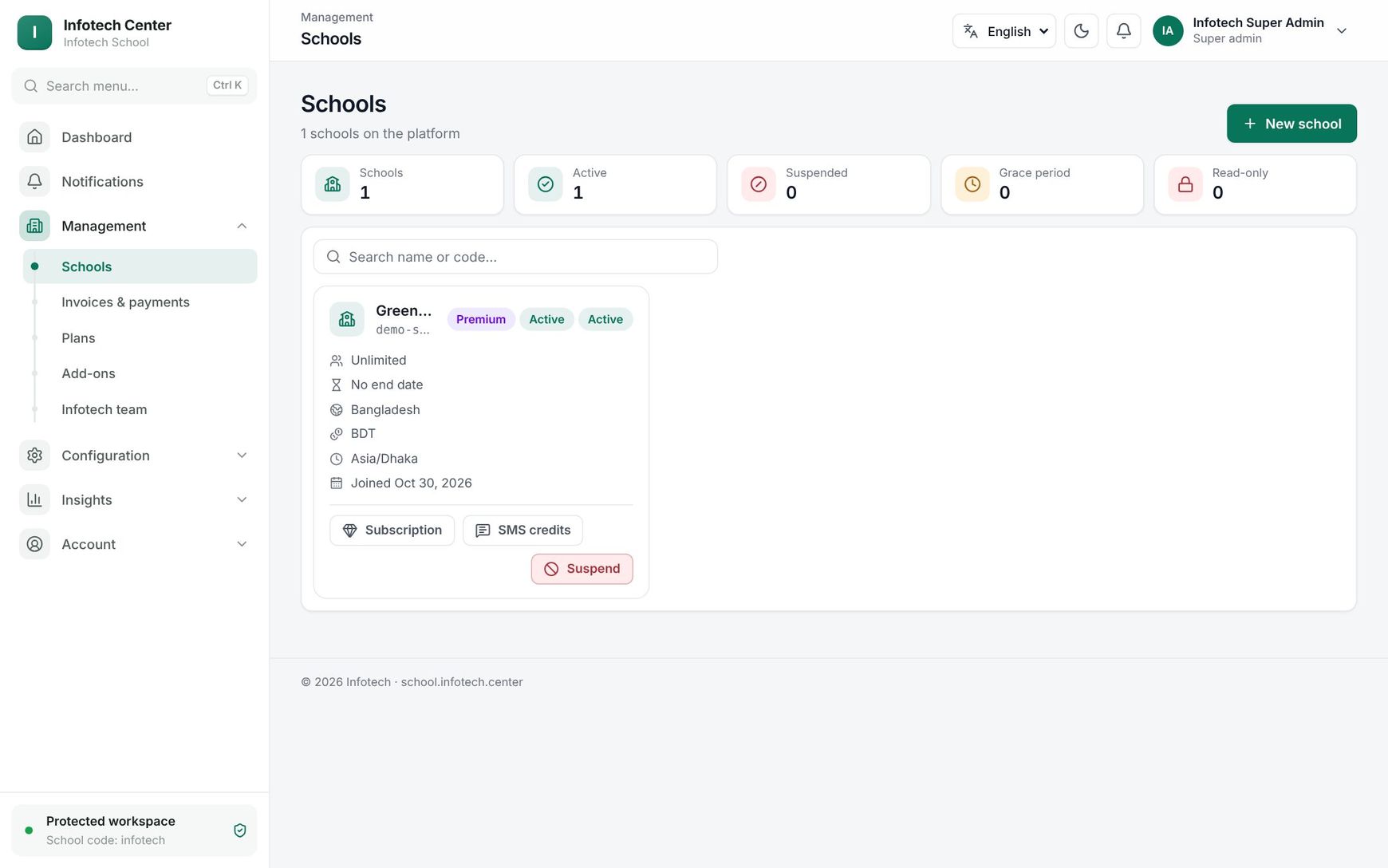 The Schools page with school cards, status filters and search
Each school is a card with its name and school code, and badges for its plan, its access (Active, Grace period or Read-only) and Active or Suspended. The card also shows the student limit (for example "Up to 500 students" or Unlimited), Ends with the plan's end date or No end date, the country, currency, time zone and the date it joined.
At the bottom of each card:
| Button | What it does |
|---|---|
| Subscription | Opens the school's drawer (below) |
| SMS credits | Adds SMS credits the school bought |
| Suspend / Reactivate | Blocks or restores the school's sign-in |
The Infotech account shows Your own account instead of Suspend.
Create a school and invite its owner
- Choose New school.
- Fill in the fields below.
- Choose Create and invite.
| Field | What to enter |
|---|---|
| School name | The school's full name |
| School code | What staff, guardians and students type when signing in. 3–40 lowercase letters, numbers or hyphens. Taken codes and reserved words (such as www, admin, demo, school) are refused |
| Country | Bangladesh by default. The school's currency follows the country |
| Time zone | Asia/Dhaka by default |
| Plan | Any active plan, with its student limit |
| Owner name, Owner email | The school's owner |
The owner gets an email to choose a password, and you see "{school} created — invitation emailed to {email}". If the plan is a trial plan or has free trial days, the plan ends after those days (30 days for the built-in trial). A plan without a trial has no end date until you set one in the drawer.
The school drawer
Click Subscription on a card (or a school in Plans ending in 30 days on the dashboard). The drawer shows the school's name, Active or Suspended, its plan, its access when it is not active, and its school code. Super admins also get three quick buttons for an active school: +1 month, +1 year and Change plan.
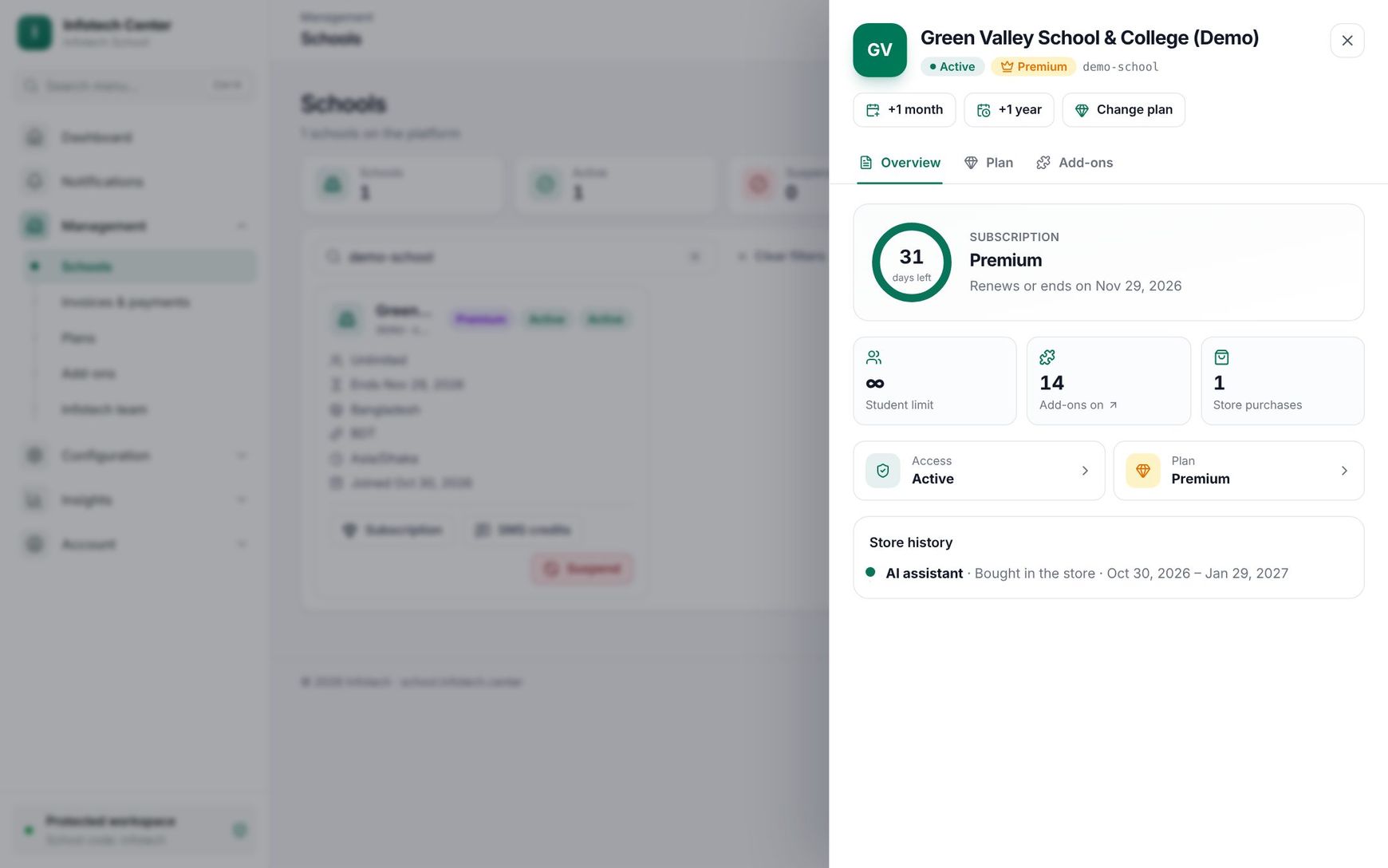 A school's drawer on the Overview tab
Overview
A ring shows the days left (it fills over the last 30 days; a plan with no end shows the infinity sign), with the plan name and a line such as "Renews or ends on 30 Jun 2026", "Ended — full use until 7 Jul 2026", "Ended on 30 Jun 2026" or Never ends.
Below are Student limit, Add-ons on, Store purchases, Access, Plan and the Store history of trials and paid periods from the add-on store.
Plan
- Under Choose a plan, pick a plan. Each shows its price ("৳12 per student, at least ৳3,000" or Free), student limit and number of modules. The school's plan is marked Your plan.
- Under Period, choose For some months (1, 3, 6, 12 or 24 months from today), Until a date, or No end date ("The school keeps this plan until you change it.").
- Turn on Own student limit to give this school a limit instead of the plan's, and type it.
- Choose Save plan.
Extend adds time without changing the plan: +7 days, +15 days, +1 month, +3 months or +12 months. It "Adds time after the current end (or from today if it has ended)."
Note: Saving a plan or extending here does not make an invoice. To bill the school, issue an invoice on Invoices & payments (see Invoices and payments).
Add-ons
The tab shows how many add-ons are on out of all, a bar, and filters All, On, Off with Search add-ons…. Each row shows the add-on, where it comes from (for example From the plan · Bought in the store) and its end date, and On, Off or Suspended.
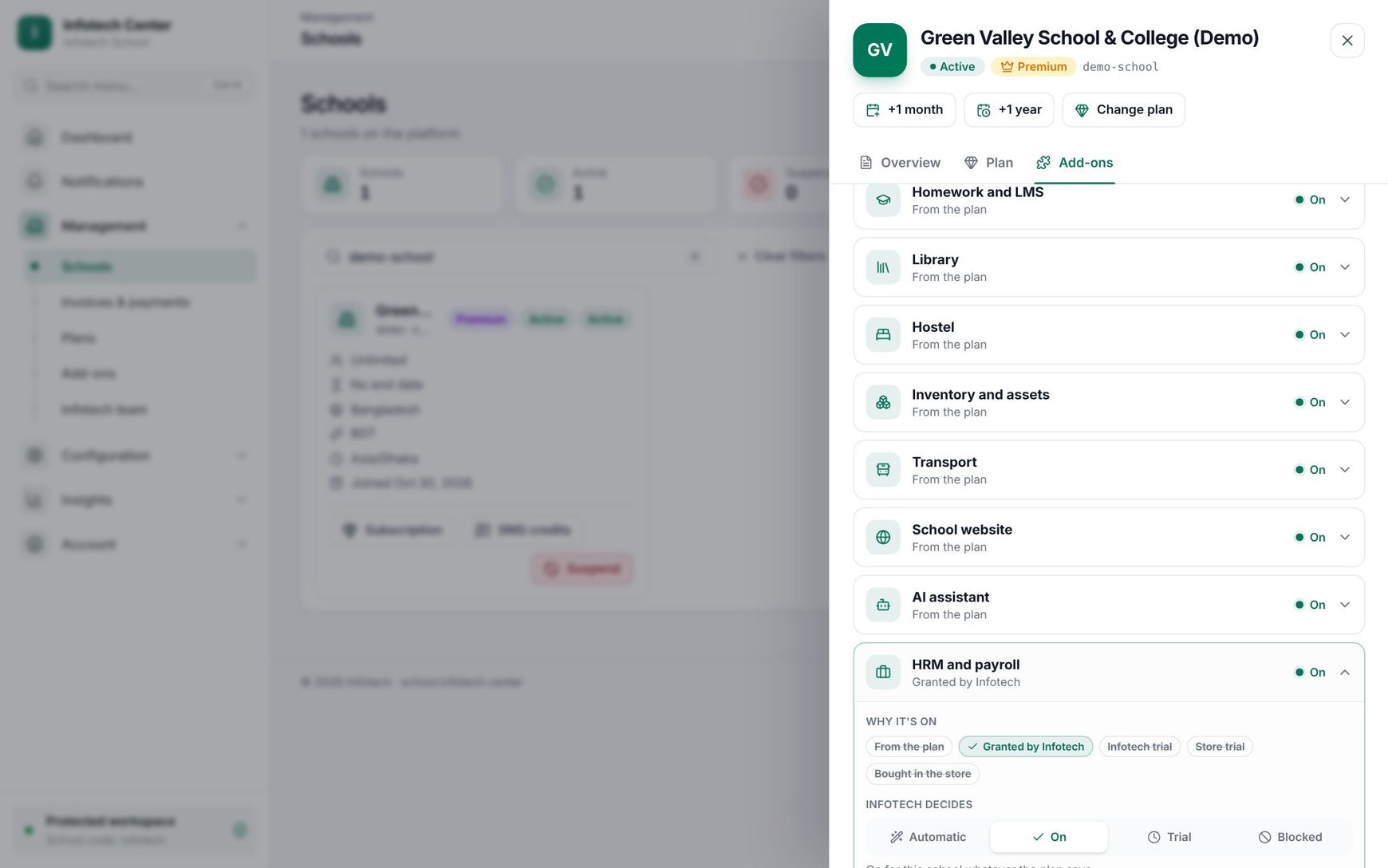 The Add-ons tab with one add-on opened
Click a row to open it:
- Why it's on ticks the sources that apply: From the plan, Granted by Infotech, Infotech trial, Store trial, Bought in the store.
- Infotech decides sets your own choice for this school:
| Choice | Meaning |
|---|---|
| Automatic | Follows the plan and what the school bought or tried in the store. |
| On | On for this school whatever the plan says. |
| Trial | On until the date below, then back to automatic. Pick 7 days, 14 days, 30 days or a date. |
| Blocked | Off for this school, even if the plan or a purchase includes it. |
Add a Note (for example why you granted it) and choose Save. How these sources combine is explained in Plans and add-ons.
SMS credits
When a school buys SMS, choose SMS credits on its card. Enter Credits ("One credit = one SMS part") and a Note, for example "Invoice 2026-114, 10,000 SMS", then choose Add credits. You see the school's new balance. A negative number corrects a mistake. See SMS for how schools use credits.
Suspend and reactivate
Choose Suspend and confirm at Suspend {school}?. Nobody from the school can sign in, and signed-in users are signed out within 15 minutes. Reactivate lets them in again. Both are audited.
For an unpaid plan you do not need to suspend: grace and read-only happen on their own.
Examples
A new customer on a yearly deal. Rahman Ideal School signs a contract for the Standard plan. Create the school with code rahman-ideal, plan Standard, owner Abdur Rahman. In the drawer, choose For some months, 12 months, and Save plan. Then issue a plan invoice for 12 months.
A trial of the routine generator. The principal of Sunrise Model School wants to try the routine generator before buying. Open the drawer, Add-ons, open Routine generator, choose Trial, 14 days, note "Trial asked by principal", and Save. After 14 days it goes back to Automatic.
Last updated 30 Oct 2026