Certificates and testimonials
Certificates issues transfer certificates (TC), testimonials, character certificates and study certificates. The facts are filled in from the student's record and last result, you check and correct them, and the issued certificate gets a serial number and a QR code. Anyone holding the paper can scan the code to see whether it is genuine or was cancelled.
Open Students › Certificates. You need the certificate:issue permission; by default the Owner, Principal and Office admin have it.
Certificate types
| Type | Serial | Extra fields |
|---|---|---|
| Transfer certificate | TC-2026-0001 | Date of leaving, Reason for leaving, Last exam, Last result, Promoted to, Dues paid (YES/NO) |
| Testimonial | TM-2026-0001 | Exam, Board, Exam roll, Registration no., GPA, Year |
| Character certificate | CC-2026-0001 | Purpose |
| Study certificate | SC-2026-0001 | Purpose |
Every type also has Name (English), Name (Bangla), Student ID, Father's name, Mother's name, Date of birth, Class, Section, Group, Roll, Session, Admission date, Conduct, Remarks, Signed by and Title. Serial numbers run per type and per year.
Issue a certificate
- Choose Issue certificate.
- Pick the Type.
- Under Student, search by name, ID or phone and pick the student.
- Check what will be printed. The fields come from the records: names, parents, class and roll, session, the last published result, and the principal's name from the school profile under Signed by. Correct anything that is wrong or missing.
- Choose Issue. You see "Issued TC-2026-0014", and the certificate is ready to print.
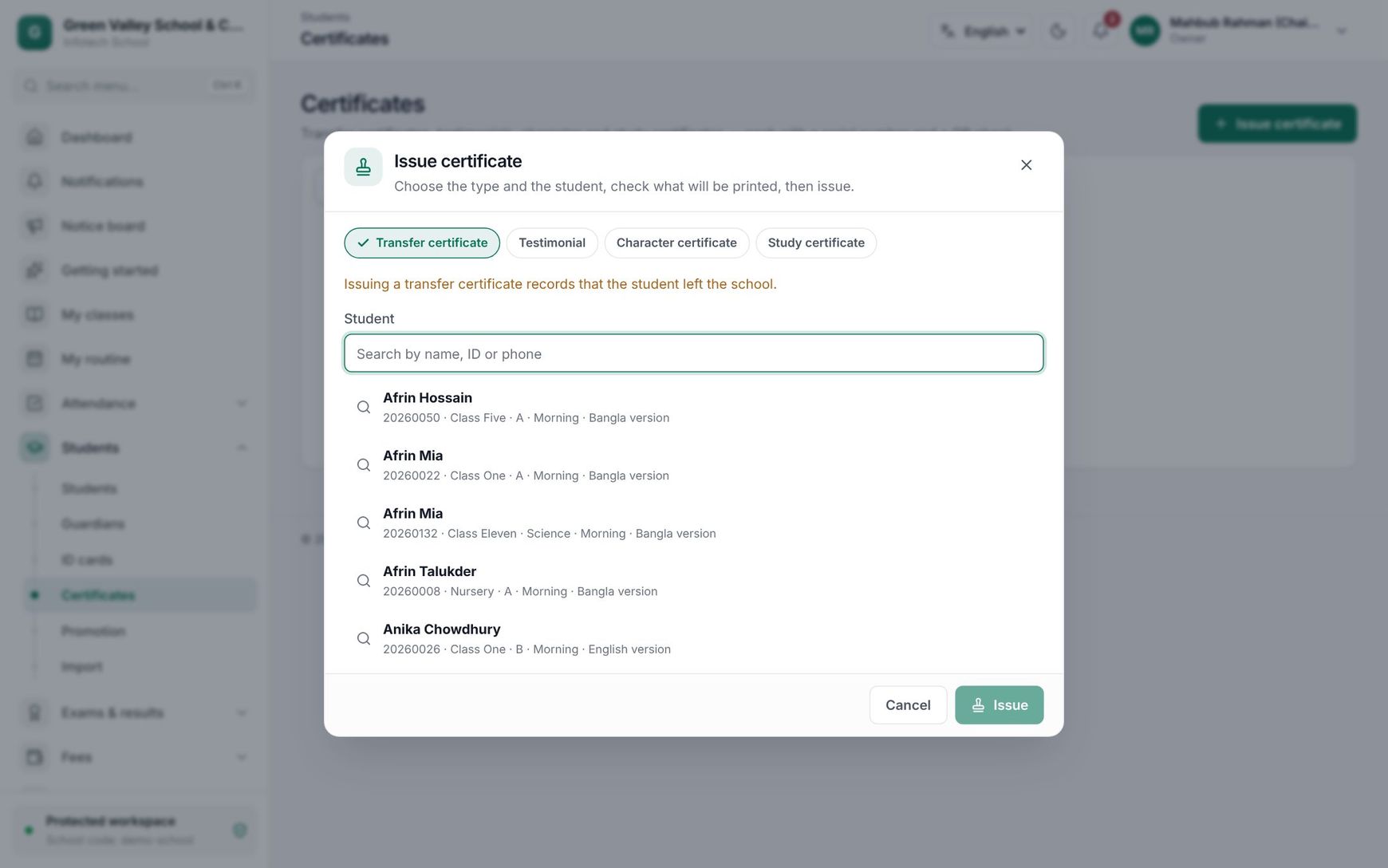 Issuing a certificate
Note: Issuing a transfer certificate records that the student left the school: their status becomes Transferred with the date and reason of leaving. A transfer certificate needs the reason and date of leaving, and can only be issued for a student who is still active. For a student who already left, reprint their earlier certificate.
Once issued, a certificate's contents are frozen. To correct one, cancel it and issue a new one.
The certificate list
Each row shows Serial no., Type, Student, Issued on, Prints and Status (Issued or Cancelled). Filter by type with All and the type names.
Open a certificate to:
- Print it, or Reprint it later. Every print is counted ("Printed 2 times") and logged.
- Cancel certificate: say why it is cancelled under Why is it cancelled? and confirm. A cancelled certificate cannot be printed again.
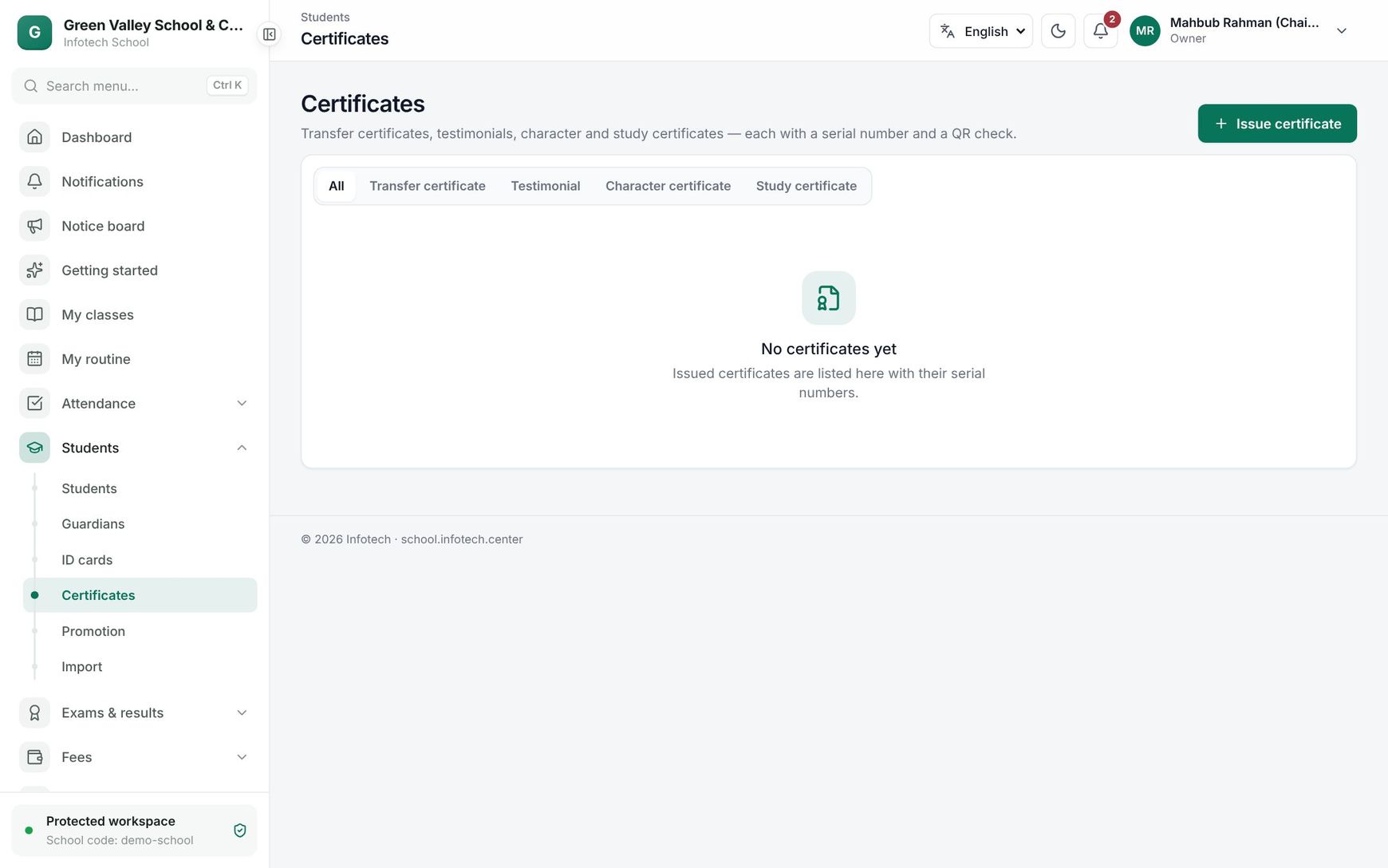 The certificate list
Verification
The QR code on each certificate opens the Certificate check page, with no sign-in. It shows the school, Type, Serial no., student and Issued on, with one of:
| Result | Meaning |
|---|---|
| This certificate is genuine | Issued by the school and not cancelled |
| This certificate was cancelled | It was issued but later cancelled; the reason is shown |
| Not a valid certificate | The code is wrong or the certificate does not exist |
A school receiving your student, an employer or an embassy can check the paper in seconds without calling your office.
Good to know
- Results come from published results only (see Results).
- Dues paid (YES/NO) is filled in as YES; change it if the student still owes fees (see Fee reports).
- Conduct is filled in as GOOD; change it if needed.
- Issuing, printing and cancelling are recorded in the audit log.
Examples
A transfer to another district. Tanvir Ahmed of Class Eight B moves to Rajshahi. The office chooses Transfer certificate, picks Tanvir, writes "Father transferred to Rajshahi" as the reason, checks that the last result reads "Passed, GPA 4.50 (A)", and issues TC-2026-0021. Tanvir's status becomes Transferred. The new school scans the QR code and sees This certificate is genuine.
A typing mistake. A testimonial was issued with the wrong exam roll. The principal cancels it with the reason "Wrong exam roll" and issues a new one. Anyone scanning the old paper now sees This certificate was cancelled.
Last updated 30 Oct 2026