Connecting Infotech HRM and Accounting
Infotech HRM, Infotech Accounting and Infotech POS each run on their own server, with your school set up separately in each. The Integrations page links them to Infotech School so that they keep each other up to date: new teachers reach HRM payroll, approved leave comes back to the routine, and fee collections and expenses reach your Accounting books. Nothing is shared but signed messages over HTTPS.
Open Settings › Integrations. It needs the integration:manage permission (Owner, Principal). A product can be connected only when your plan includes its add-on (Infotech HRM, Infotech Accounting, Canteen wallet (POS)); you can buy add-ons in the Add-on store.
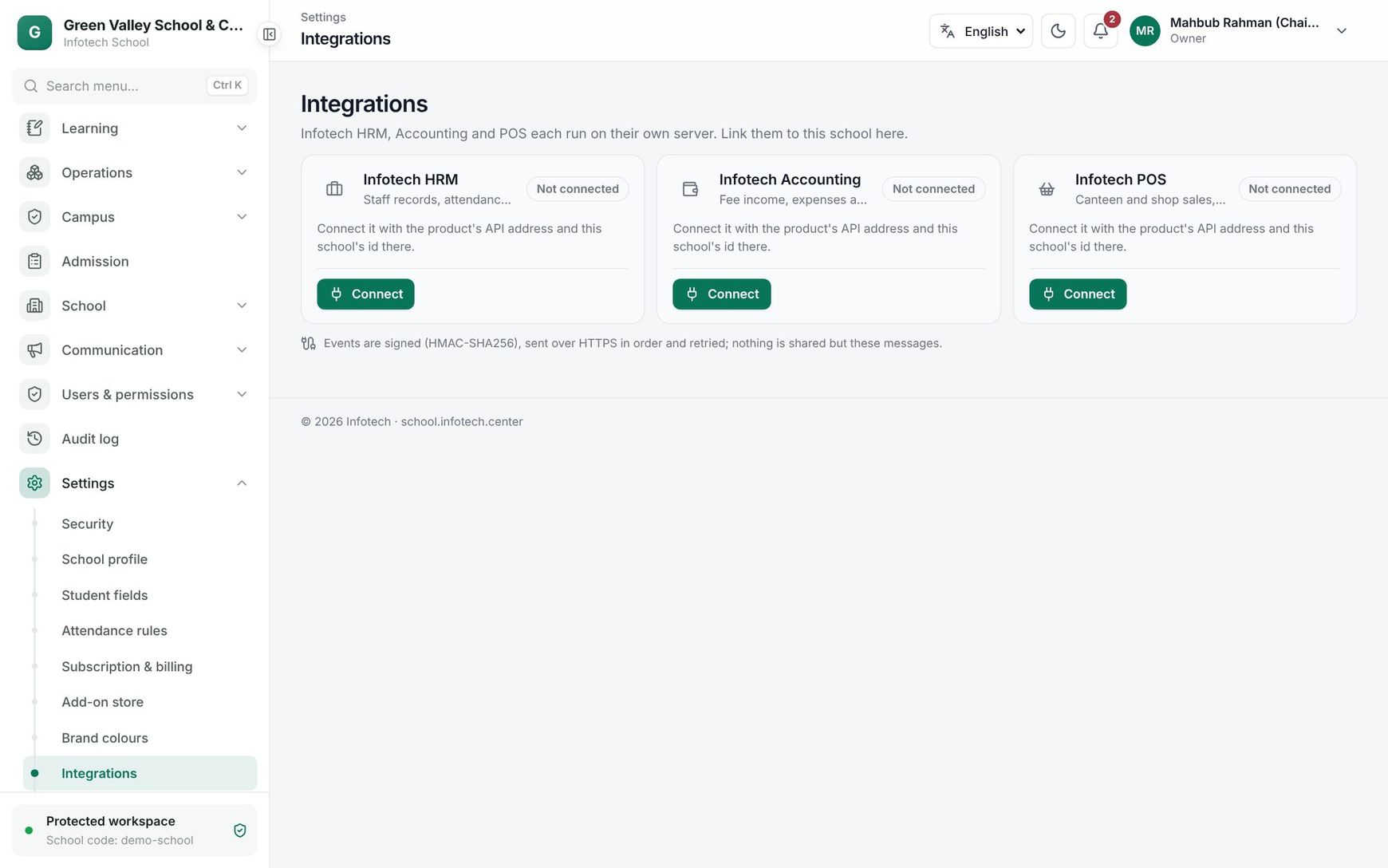 The three products with their connection state and actions
The product cards
| State | Meaning |
|---|---|
| Not in your plan | Add this add-on to your plan to connect it |
| Not connected | Ready to connect |
| Connected | Messages are flowing; the card shows "Last delivery …" or "Nothing sent yet", and "2 events failed" when some did not get through |
| Paused | Nothing is sent or accepted until you resume |
Connect a product
Before you start, set up your school in the other product and copy its id there (a long id like 0192f3c4-…, shown in that product's company settings).
- On the product card, choose Connect.
- API address: the product's address, https only, for example
https://hrmapi.infotech.center. Private or local addresses are refused. - This school's id in the other product: paste the id exactly as shown.
- Choose Connect.
- Copy the shared secrets now: two secrets are shown once.
- Our outbound secret: in the other product, paste it as its INBOUND secret.
- Our inbound secret: in the other product, paste it as its OUTBOUND secret.
- Choose I have copied them, then finish the connection in the other product with School's address, your school's id in School, and the two secrets.
- Choose Test. "Infotech HRM answered: the connection works" means both sides agree.
Note: The secrets are never shown again. If you lose them, use New secrets and enter the new pair in the other product.
What is sent
| With | School sends | School receives |
|---|---|---|
| Infotech HRM | New and changed staff (with NTRCA registration and MPO index), staff who left, substitute classes, the monthly teaching load, staff card and fingerprint punches, exam invigilation duty | Employee updates (name, job title, and the staff record ends when HRM marks someone as left); approved and cancelled leave, which shows in Class cover |
| Infotech Accounting | Fee collections (per fee head, with late fines), refunds, recorded income and expenses, voided vouchers | — |
| Infotech POS | Canteen wallet top-ups and spending (as this add-on arrives) | — |
To send all your teachers to HRM the first time, use Send all to HRM on Teachers & staff.
Day-to-day
The buttons on a connected card:
| Button | What it does |
|---|---|
| Test | Sends a signed test message and shows the answer |
| Events | Opens what was Sent and Received, with Event, Status (Waiting, Delivered, Failed), When and Tries |
| Pause / Resume | Stops and restarts the flow, for example while the other product is being moved |
| New secrets | Creates a new pair. Deliveries fail until you enter them in the other product, so do it right after |
| Disconnect | Nothing more is sent or accepted, and events not yet sent are dropped |
Messages are sent in order and retried for a day if the other product does not answer. After that they are marked Failed and the school's admins get a notification. Open Events, fix the cause (often an expired secret or an address that changed), and choose Send again on the failed event.
Good to know
- Messages are signed (HMAC-SHA256) and sent over HTTPS. A message with a wrong signature, or more than 5 minutes old, is refused.
- Each change is sent once it is saved; a change that fails to save sends nothing.
- Connecting, changing, rotating secrets and disconnecting are recorded in the Audit log.
Example
Shaheen Ideal School uses Infotech HRM for MPO payroll. The principal adds the school in HRM, copies its id, and connects it here with https://hrmapi.infotech.center. After pasting the secrets into HRM and choosing Test, she opens Teachers & staff and chooses Send all to HRM: 42 staff members appear in HRM with their MPO index. When HRM approves Abdul Karim's two-day leave, his classes show up in Class cover for the office to assign substitutes.
Last updated 30 Oct 2026