Taking attendance
Attendance in Infotech School works like the paper register, only faster: the teacher marks the class once a day on the web or in the mobile app, guardians of absent children are told straight away, and the office sees every section on one page. You can also take attendance in each class of the routine to find students who were at school but missed a class.
Attendance is part of every plan. It is under Attendance in the sidebar, and the rules are under Settings › Attendance rules.
Who can do what
| Permission | Who has it | What they can do |
|---|---|---|
| attendance:take | Teacher, Principal, Office admin | Take attendance for sections they are class teacher of or teach a subject in; see their Monthly register |
| attendance:manage | Principal, Office admin, Owner | Any section, Today's attendance, Low attendance, Attendance rules, and correct any past day |
Set the rules first
Open Settings › Attendance rules:
| Setting | What it does |
|---|---|
| SMS guardians when a student is absent | On by default. "Sent once, when the day's attendance marks the student absent (uses SMS credits)." |
| SMS guardians when a student is late | Off by default. Also uses SMS credits |
| How guardians hear about absences | See the table below |
| Attendance in every class | Subject teachers also take attendance in each class of the routine. Off by default |
| Teachers may correct for | "Days after the day (0 = only the same day). The office can always correct." 0 to 30, default 0 |
| Minimum attendance % | Default 75. Used for the low-attendance list |
Choose Save changes.
| Choice | What happens |
|---|---|
| App first, SMS if needed (default) | Families using the app get a push notification; only families without the app get an SMS. Saves SMS credits |
| SMS and app | Every family gets an SMS, and families with the app also get a push notification |
| App only | Only a push notification; no SMS is sent |
The SMS goes to the primary guardian only, one per family. Every guardian with a sign-in gets the message in the app. See SMS for credits.
Take the day's attendance
- Open Attendance › Take attendance. Teachers see the Day roll call tab.
- Choose the Section (teachers see only their own, class-teacher sections first) and the Date (today by default, never a future day).
- Every student starts as Present. Tap a student to switch present → absent → late, or click the P, A, L, V buttons. On a keyboard, press P, A, L or V on a student.
- For anyone not present, you can type a note, for example "sick".
- Choose Save attendance. The message shows the totals, for example "Saved: 38 present, 2 absent, 1 late, 0 on leave", and how many guardians were told.
All present sets everyone back to present (students on approved leave stay on Leave). Students with approved leave are shown with "on approved leave" and start as Leave.
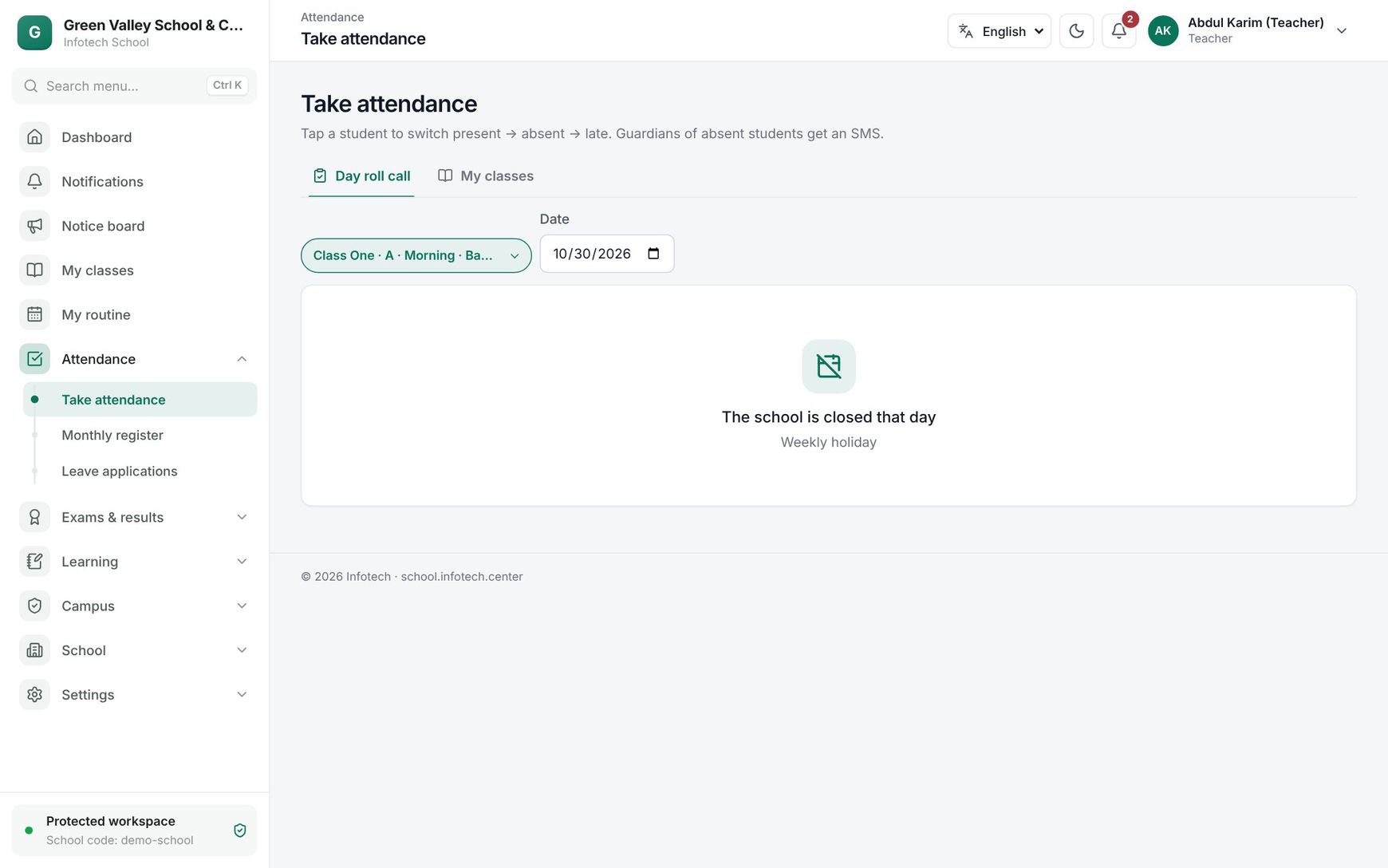 Taking a section's daily attendance
Once saved, the summary shows Taken by with name and time. To change it, edit and choose Save changes. Guardians are told only for today, and only when a student's status changes to absent (or late).
| Status | Letter | Counts as attended |
|---|---|---|
| Present | P | Yes |
| Absent | A | No |
| Late | L | Yes |
| Leave | V | Yes |
Note: A day is locked for teachers after the number of days in Teachers may correct for. They then see "This day is locked. Only the office can change it now." The office can always correct.
On a weekly holiday or a day on the Holidays list, the page shows The school is closed that day.
In the mobile app
Teachers can take attendance in the app too. Without internet the sheet is saved on the phone and sent later, and saving again simply updates the day. See Mobile app.
Attendance in every class
When Attendance in every class is on, teachers get a My classes tab on Take attendance. It lists their classes for the date from the routine, including classes they take as a substitute, each marked Not taken yet or with the number absent. Open one, mark P, A or L, and save. Students absent in the day roll call start as absent and show Absent today. The class teacher and the office can also take it.
Today's attendance
Attendance › Today's attendance (attendance:manage) shows the whole school for a Date: Sections taken, Students, Present, Absent, Late, Leave and the Attendance percentage. The table lists sections not yet taken first, so you can remind those teachers. The Skipped classes tab lists students who were present or late in the roll call but absent in a class.
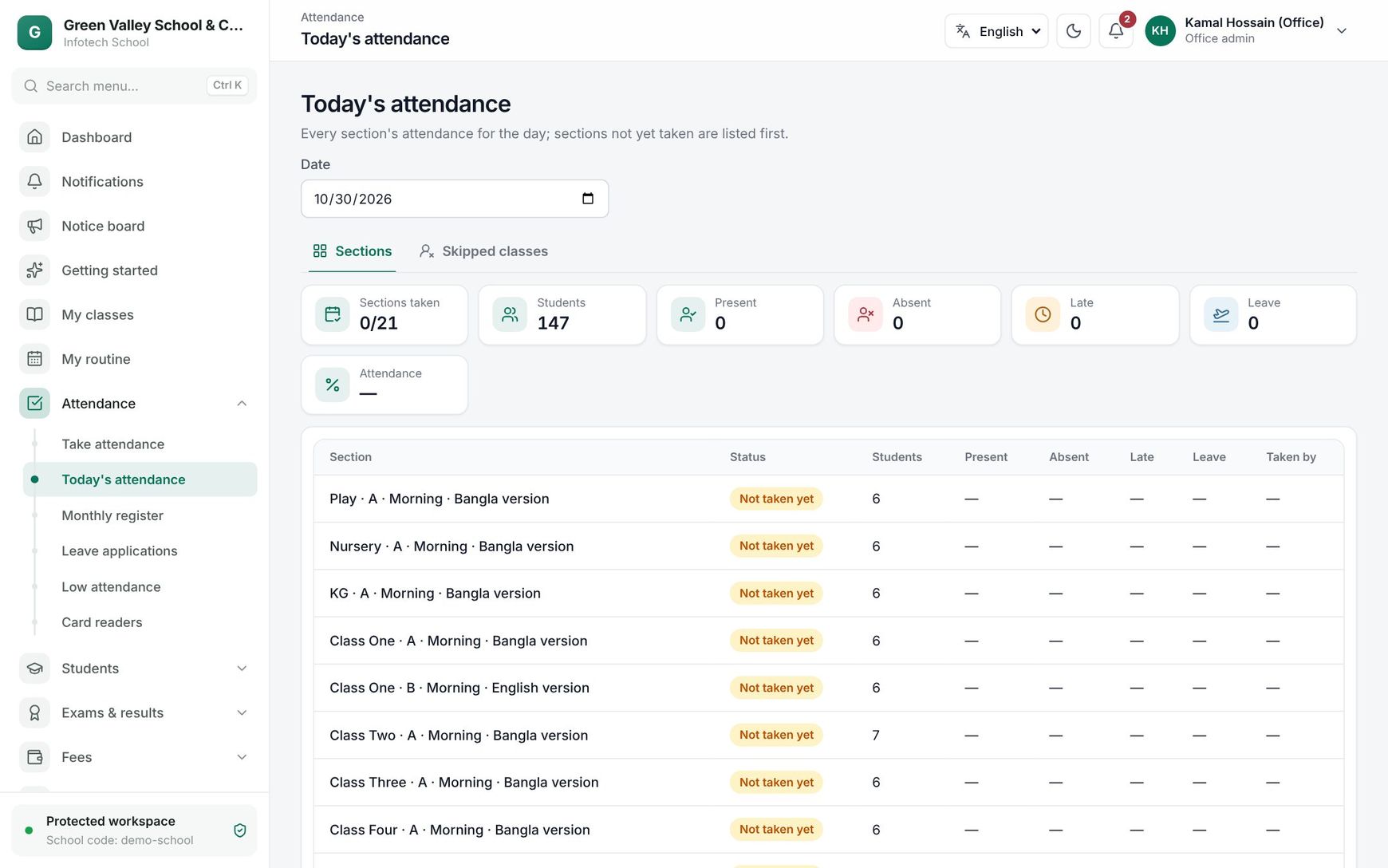 Today's attendance with sections not yet taken at the top
Monthly register
Attendance › Monthly register is the month of one section like the paper khata: one row per student by roll, one column per day, then P, A, L and V totals and the percentage (red below 75%). Closed days show W (weekly holiday) or H (holiday). Use the arrows to change month and Print for A4. The By subject tab shows each student's attendance per subject from class attendance; only the class teacher and the office see it.
Examples
Class Six A, Sunday morning. Class teacher Rahima Begum opens the app at 8:10, taps two students to absent and one to late, and saves. Both families use the app, so with App first, SMS if needed they get a free push notification and no SMS credit is used.
A correction two days later. Nasrin Akter marked Tanvir absent on Thursday, but he came late. With Teachers may correct for set to 0, Thursday is locked for her, so the office opens Class Eight B on Thursday's date, sets Tanvir to Late and chooses Save changes. No message goes to the guardian because the day is in the past.
Last updated 30 Oct 2026