Child pickup
The pickup gate makes sure a child goes home only with someone the family allowed. Guardians decide who may collect their child; the person on duty at the gate looks the child up, compares the photo and hands the child over; the guardians are told at once in the app. For a one-off collector, a guardian gives a one-day pass with a 6-digit code.
Who may collect a child
| Who | How they get on the list |
|---|---|
| Guardians with May pick up | Set by the school on the student's Guardians tab (see Guardians). Always on the list |
| People the guardian adds | A driver, grandparent or neighbour, added by a guardian in the app. Up to 6 besides the guardians |
| A pass holder | Anyone with a valid one-day pass code for that day |
For guardians: the pickup list and passes
Guardians open Pickup in the web app or the mobile app. With more than one child, they choose the Child first.
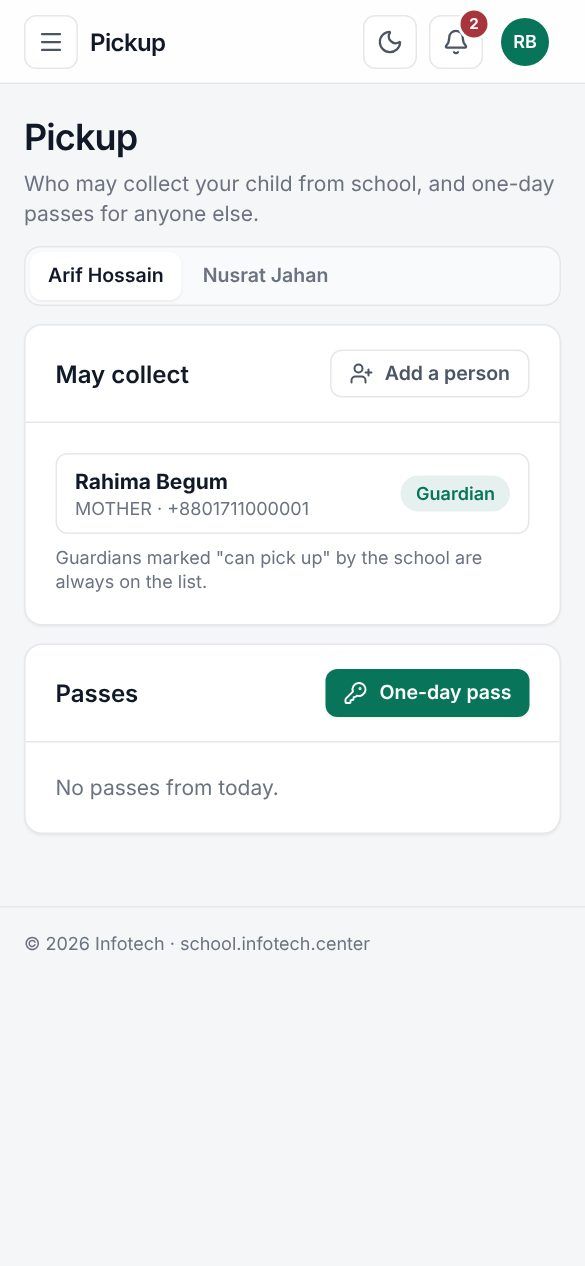 The guardian's pickup page
May collect lists everyone allowed, marked Guardian or Allowed.
To add a regular collector, use Add a person: fill in Name, Mobile and Relation (driver, uncle…), and choose Add. Remove takes someone off the list.
To let someone else collect the child once, use One-day pass:
- Fill in the person's Name and Mobile, and choose the Day (today or a day in the next week).
- Choose Make pass.
- The 6-digit code is shown under Pass ready. Write it down or use Copy code and send it now: it is shown only this once. When a mobile number is given, the code is also sent to that number by SMS.
Passes lists the passes from today on, with Used once the child was collected. An unused pass can be cancelled. A child can have at most 3 passes for the same day.
At the gate
Open Pickup gate (in the Campus menu). You need the pickup:verify permission; by default the Owner, Principal, Office admin, Teacher and Gate security roles have it. Gate staff can also use the gate on the mobile app.
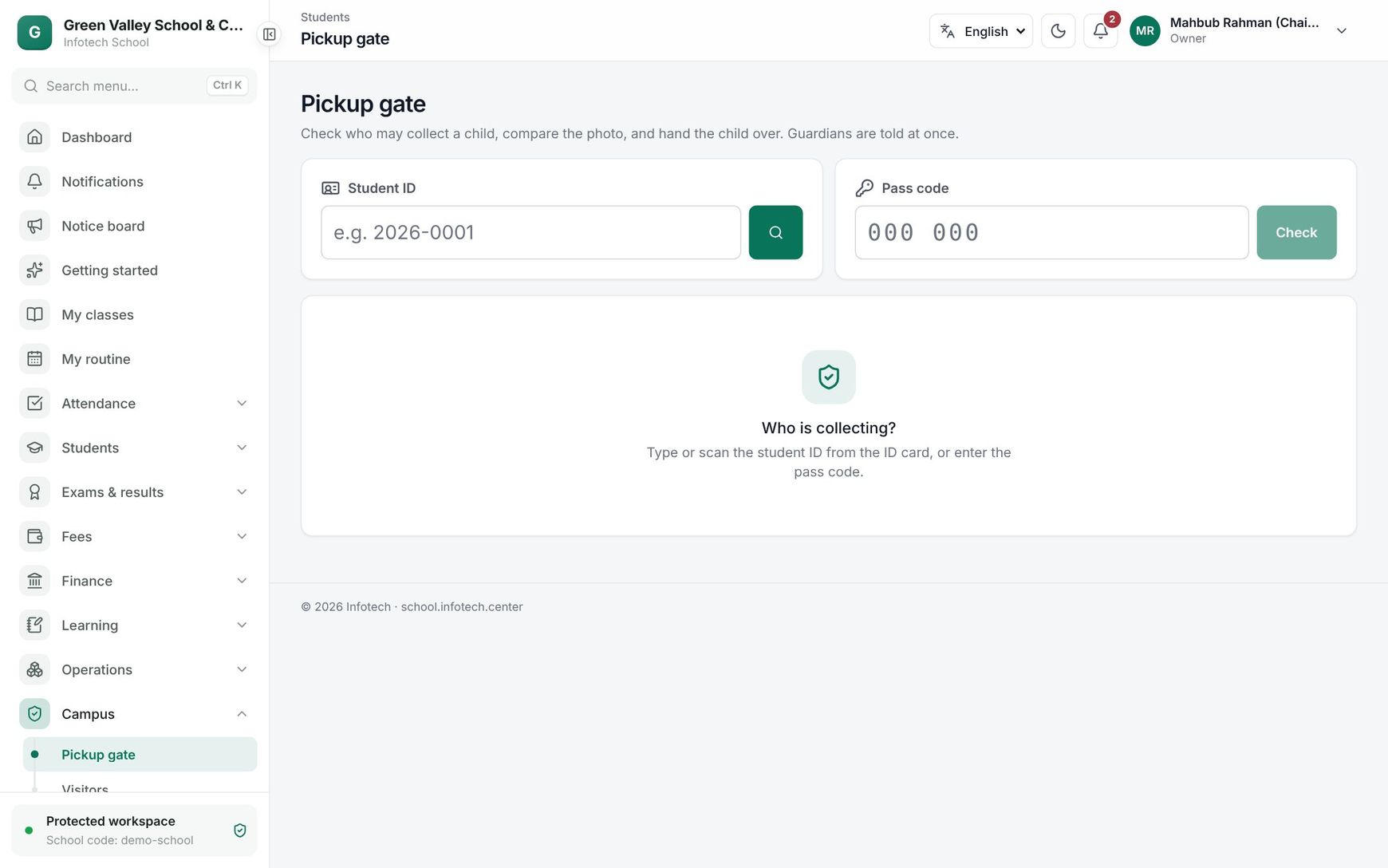 The pickup gate
There are two ways in:
| Field | Use it when |
|---|---|
| Student ID | A listed person comes. Type the student number from the ID card and choose Find |
| Pass code | Someone shows a pass code. Type the 6 digits and choose Check |
The page shows the child's photo, name, class and student number, and the list under May collect. Compare the photo and the person in front of you, then choose Hand over next to that person's name. For a pass, the page shows the Pass holder with a Hand over to button carrying their name, for example Hand over to Shirin Akter. You see "Arif Hossain was handed over to Abdul Karim" and "The guardians were told in the app." Choose Next child for the next family.
If the person is not on the list, do not hand over the child. Ask the person for a pass code, or call the guardian.
Rules
- A pass works only on its day, and only once.
- A wrong or expired code shows "Not found. Check the student ID or code (a pass works only on its day)."
- Pass codes are 6 digits.
- A used pass cannot be cancelled.
- Every hand-over is recorded with who collected the child and when.
Examples
The family driver. Rahima Begum adds her driver, Kamal Mia, with his mobile and relation "Driver". From the next day, the guard types Arif's student number at the gate, sees Kamal Mia under May collect, and hands Arif over. Rahima gets a notice in the app.
An aunt collects the child once. Arif's aunt will collect him on Thursday. Rahima makes a one-day pass for Thursday with the aunt's mobile; the aunt gets the code by SMS. At the gate the guard types the code, chooses Check, compares the photo and hands Arif over. The pass shows Used.
Last updated 30 Oct 2026