Fee invoices and collection
Every month each enrolled student gets one invoice with that month's fees, made from their class's fee structure. At the office counter you find the student, take the money, and a numbered receipt prints at once. At the end of the day each cashier counts the cash drawer and closes the day.
Before you start, set up fee heads and structures in Fee setup. The Fees menu needs the Fees module in the school's plan.
| Who | Can |
|---|---|
| fee:read (Owner, Principal, Office admin, Accountant) | See Fees › Invoices and receipts |
| fee:collect (Owner, Principal, Office admin, Accountant) | Use Fees › Collect fees, make one-off invoices, ask for refunds, close their day |
| fee:setup (Owner, Principal, Accountant) | Make invoices and Cancel invoice |
Monthly invoices
Every morning (6:15 am Bangladesh time) the app makes the current month's invoices for every class that has a fee structure. Running it again never makes a second invoice for the same student and month, so you don't have to do anything. If you add students or structures during the month, open Fees › Invoices and choose Make invoices: only the missing invoices are made.
What goes on a monthly invoice, titled for example "November 2026 fees":
- every Monthly fee charged that month,
- every One time or Yearly fee whose due date falls in that month,
- less any approved waiver (see Waivers and refunds).
The invoice is due on the school's Due day of that month. An invoice that is fully waived is marked paid straight away.
The invoice list
Open Fees › Invoices. Move between months with the month switcher. The strip at the top shows Invoices, Billed, Collected and Total due for the month. Filter by Status (All statuses), and choose a class in Make invoices for (All classes) before Make invoices to bill one class only.
| Column | Shows |
|---|---|
| Invoice | Invoice number, for example INV-2026-000412 |
| Title | "November 2026 fees", or the title of a one-off invoice |
| Due date | When it must be paid |
| Total, Waived, Paid | The amounts |
| Due | What is still owed, with today's fine |
| Status | See below |
| Status | Meaning |
|---|---|
| Unpaid | Nothing paid yet |
| Part paid | Some of it is paid |
| Paid | Fully paid |
| Cancelled | Cancelled by the office |
| Overdue | Still open after the due date |
After Make invoices, a line says how many invoices were made and how many were already there. If a class has students but no structure, you see "No fee structure for:" with the class names.
To cancel an invoice made by mistake, choose Cancel invoice on its row, write the Reason and confirm. Only invoices with no money received can be cancelled; otherwise refund the payment first.
Collect fees at the counter
- Open Fees › Collect fees.
- Type in Student (search by name, student no. or phone) and pick the student.
- The strip shows the student's Total due, Overdue and number of Receipts. Under Open invoices every open invoice is ticked, with its fine and waiver. Untick any the family is not paying today.
- Amount is filled with the total of the ticked invoices. Lower it for a part payment: the oldest invoices are paid first, and a partly paid one shows "This invoice gets …".
- Choose the Method: Cash, Bank, bKash, Nagad, Rocket, Upay, Card, Cheque or Other. For anything but cash, enter the Reference (transaction ID or cheque number).
- Add a Note if needed and choose Take with the amount, for example Take ৳3,000.00.
The receipt opens straight away. Choose Print. It shows the receipt number (RCT-2026-…), student, class and roll, method, each invoice and fee head paid, the Total, what is Still due, and Collected by.
Within each invoice the fine is paid first, then the fees in proportion. The family gets an in-app message, and the primary guardian an SMS receipt when Send an SMS receipt for each payment is on. The payment is also posted to the school's finance books.
To reprint an old receipt, click it in the Receipts list of the student.
Note: The amount can never be more than what is due on the ticked invoices: "The amount is more than what is due."
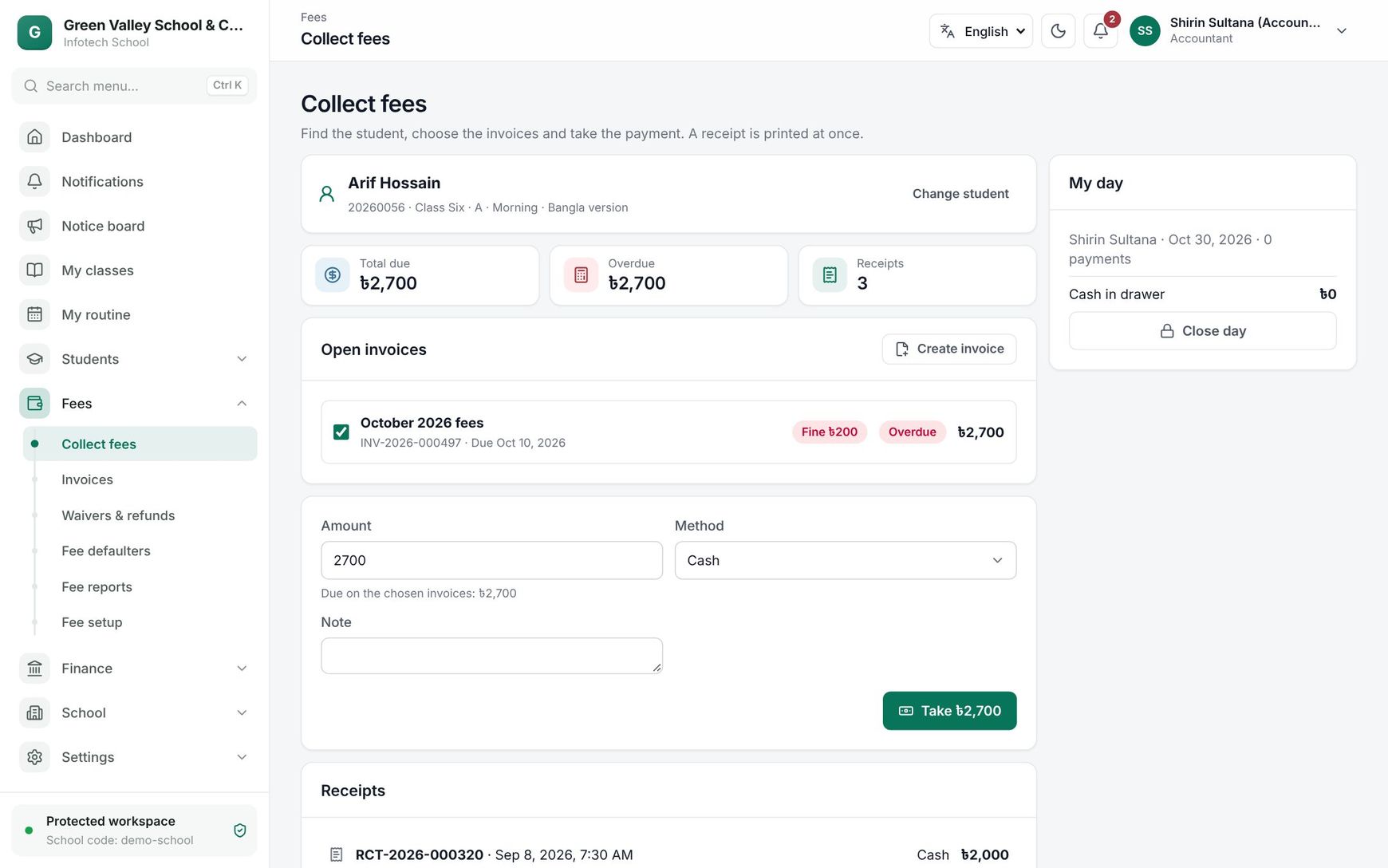 The Collect fees counter with a student's open invoices and My day
One-off invoices
For something outside the usual fees (a lost ID card, a study tour, books), pick the student and choose Create invoice above the open invoices. Enter a Title and Due date, then one line per fee with Fee head and Amount (Add line for more, up to 20). Choose Create invoice. Approved waivers apply to one-off invoices too.
Close the day
The My day card on the right shows your own collections today: your name, the number of payments, the total by method and the Cash in drawer.
- Count the cash in the drawer and choose Close day.
- Enter Counted cash. The Difference from the Expected cash shows as you type.
- Add a Note (for example why Tk 50 is missing) and choose Close day.
The card then shows "Day closed", with the counted cash and the difference. Once closed, you cannot take more payments today ("Your day is closed. No more payments today."). Each cashier closes their own day; others can keep collecting.
Good to know
- Invoice and receipt numbers run in sequence per year.
- A guardian sees the same invoices and receipts in Fees in the web app and the mobile app (see Online fee payment).
- The fine shown on an open invoice is today's fine; it is fixed when the invoice is paid.
Examples
Paying two months at once. Karim Hossain comes in on 12 November for his daughter Nusrat in Class Six A. Her October invoice (Tk 1,500 plus a Tk 20 fine) and November invoice (Tk 1,500) are both open. The cashier keeps both ticked, the amount shows Tk 3,020, method Cash, and chooses Take ৳3,020.00. One receipt covers both months.
A part payment by bKash. A father can pay only Tk 1,000 of Tk 3,000. The cashier enters 1,000, chooses bKash, types the bKash transaction ID in Reference, and takes the payment. The October invoice gets Tk 1,000 and stays Part paid; November is untouched.
Last updated 30 Oct 2026