Leave applications and low attendance
Two attendance jobs need a decision from the school: guardians asking for leave for their child, and students whose attendance has dropped too low. Leave applications collects the guardians' requests so the class teacher or office can approve them in one click, and Low attendance lists every student below your minimum so you can call the guardians in time.
Both pages are under Attendance in the sidebar.
Leave applications
How a guardian applies
In the mobile app, the guardian opens their child, goes to Leave applications and chooses Apply for leave, with the Dates and a Reason. The rules:
- up to 60 days per application, ending on or after the first day;
- leave can start at most a week ago (for a child who was ill last week);
- a reason is required.
The class teacher of the child's section gets a message in the app. Until it is decided, the guardian can Withdraw it.
Decide an application
Open Attendance › Leave applications. You need attendance:take or attendance:manage:
- the office (attendance:manage) sees every application;
- a teacher sees only applications for sections where they are the class teacher, and only the class teacher or the office can decide.
| Tab | Shows |
|---|---|
| Pending | Waiting for a decision, with a count |
| Approved | Approved applications |
| Rejected | Rejected applications |
Each card shows the student, section, the dates, the number of days, the reason and Applied with the time. To decide:
- Choose Approve or Reject.
- Add a Note to the guardian (optional).
- Confirm with Approve or Reject.
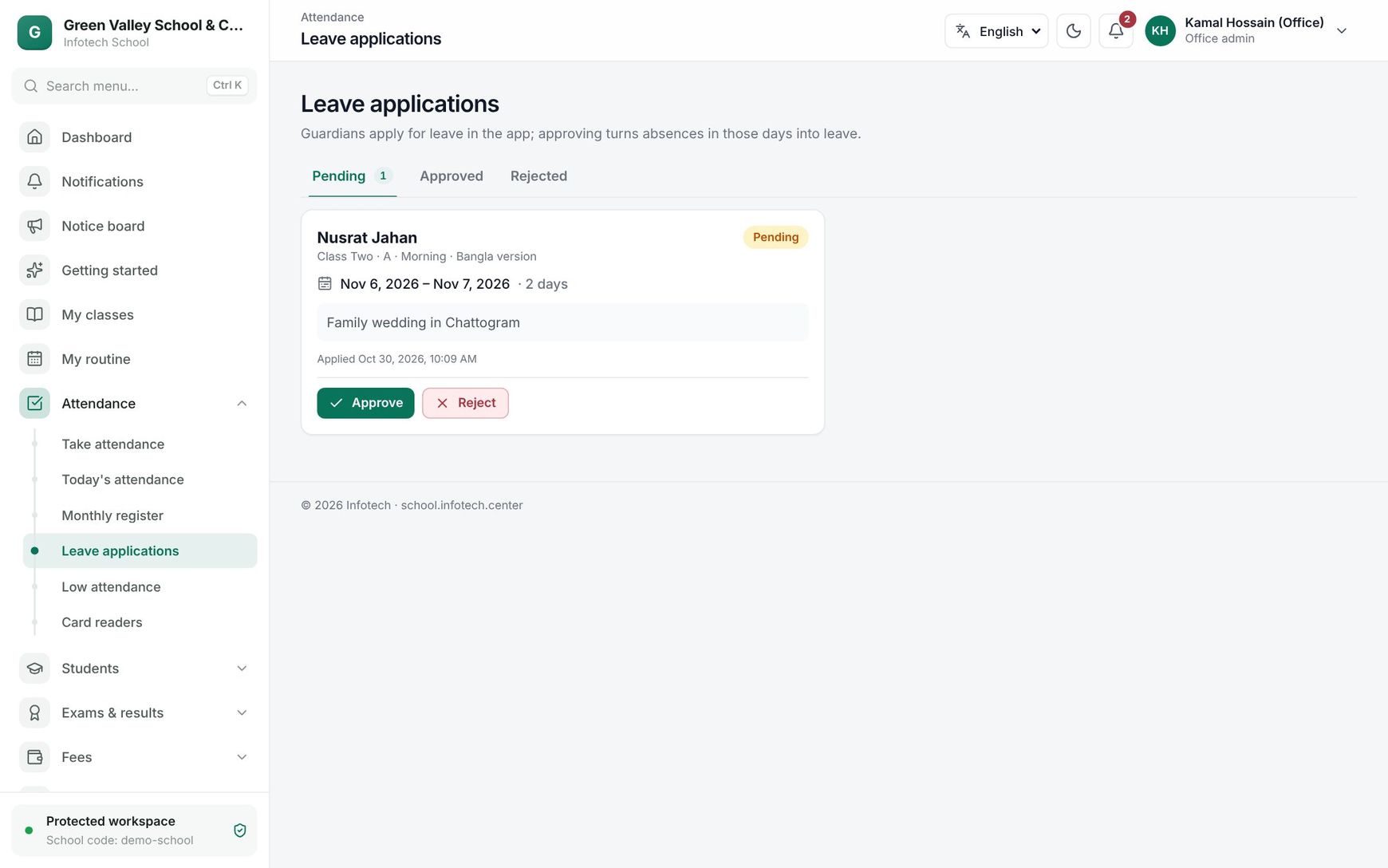 Pending leave applications from guardians
The guardian is told in the app either way. When you approve:
- Days already marked absent become leave, and the day totals are recounted.
- Days not yet taken start as Leave on Take attendance, with "on approved leave" under the student's name.
- Leave counts as attended in the percentage.
Note: A decision is final. A second decision on the same application gives "This application was already decided."
| Status | Meaning |
|---|---|
| Pending | Waiting |
| Approved | Approved, days count as leave |
| Rejected | Not approved, absences stay absent |
| Withdrawn | The guardian withdrew it before a decision |
Low attendance
Attendance › Low attendance needs attendance:manage. It lists students of the current academic year whose attendance from the start of the year until today is below the limit, lowest first.
- Below % starts at your Minimum attendance % from Settings › Attendance rules (75 if you never changed it). Change it to look at a different line, for example 60, without changing the rule.
- Class narrows the list to one class.
| Column | Shows |
|---|---|
| Name | The student |
| Section | Their section |
| Present, Absent, Late, Leave | Days this year |
| % | Attendance: present, late and leave divided by all marked days |
CSV downloads the list (with Student no.) for a spreadsheet and Print prints it for a meeting. When nobody is below the limit, the page shows Nobody below the minimum.
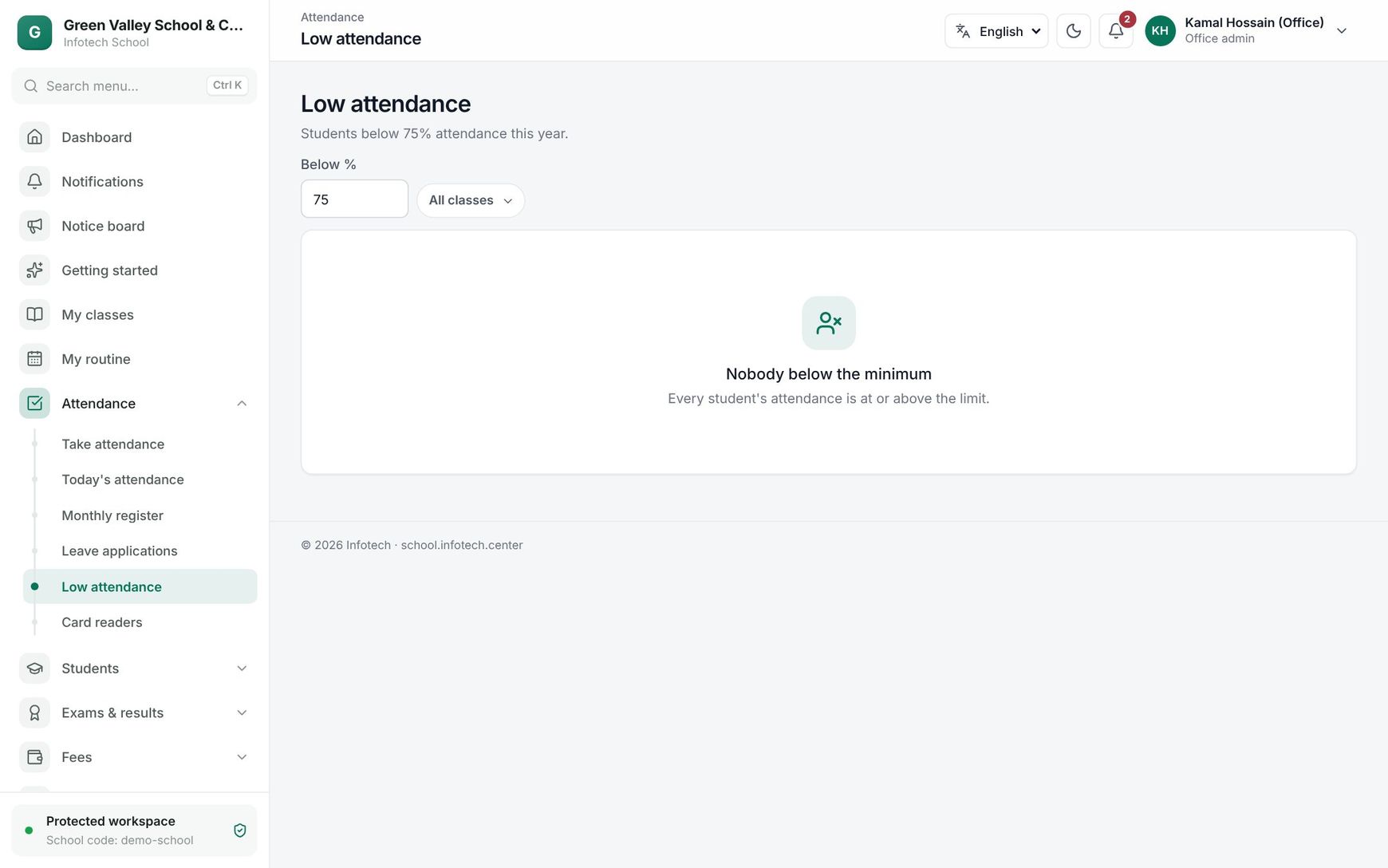 The low attendance list with percentages in red
Good to know:
- Only days that were actually taken count. A student whose section has no attendance yet is not listed.
- Guardians see their child's attendance percentage in the app, with "The school asks for at least 75%" and a warning when below.
- To tell the guardians, use SMS or Notices.
Examples
Fever leave. On Sunday, Salma Khatun applies in the app for her son Arif (Class Seven B) for Sunday to Tuesday, reason "fever". The class teacher had already marked Arif absent on Sunday. She approves with the note "Get well soon": Sunday changes from absent to leave, and Monday and Tuesday start as leave on the register.
Before the half-yearly exam. The principal opens Low attendance, leaves Below % at 75 and picks Class Ten. Four students are listed, the lowest at 61%. He prints the list for the teachers' meeting and the office sends an SMS to those guardians.
Last updated 30 Oct 2026