Fee setup
Fee setup is where you tell Infotech School what each class pays: the fee heads (tuition, session, exam…), a fee structure per class, the due day and late fine, reminders, and the school's own online payment gateways. Once this is done, the app makes every student's monthly invoice by itself, and the office only has to collect.
Open Fees › Fee setup. You need the fee:setup permission: the Owner, Principal and Accountant roles have it. The Fees menu appears only when the school's plan includes the Fees module (see Subscription and add-on store).
The page has four tabs: Fee structures, Fee heads, Rules and Payment gateways.
Fee heads
A fee head is one kind of fee. The first time the list is opened, the usual Bangladeshi heads are added for you: Monthly tuition fee, Admission fee, Session fee, Development fee, Exam fee, Lab fee, Transport fee, ID card fee and Board registration fee. Rename them, switch off the ones you don't use, or choose Add fee head.
| Field | What it does |
|---|---|
| Code | Short and unique, for example TUITION. Up to 20 letters, numbers or _. It cannot be changed later, and FINE is reserved for late fines |
| Frequency | Monthly, One time or Yearly |
| Name (English), Name (Bangla) | What invoices and receipts show. The Bangla name is used when the app is in Bangla |
| Active | Shown when editing. An inactive head is no longer billed |
Fee structures
A fee structure says which fees one class pays in the academic year, how much, and when. Choose the year at the top (the active year is selected), then Add structure.
- Choose the Class. It cannot be changed afterwards.
- Give a Structure name if you like (the class name is used when empty).
- Leave Group, Shift and Medium on Any group, Any shift, Any medium, or narrow the structure when, for example, the Science group or the English medium pays more.
- Choose Add line for each fee: pick the Fee head and the Amount.
- For a Monthly fee, click the months it is charged in. Leave all months off to charge it Every month.
- For a One time or Yearly fee, enter the Due date. The same one-time fee can be added twice with different due dates, for instalments.
- The bottom of the dialog shows the Monthly total. Choose Save.
Each structure appears as a card with its fees and amounts. Use the pencil to edit it, or the bin to delete it (you are asked to confirm Delete structure).
When a class has several structures, each student gets the most specific one that fits their section: a structure for "Class Nine, Science group, Day shift" wins over one for "Class Nine, any group".
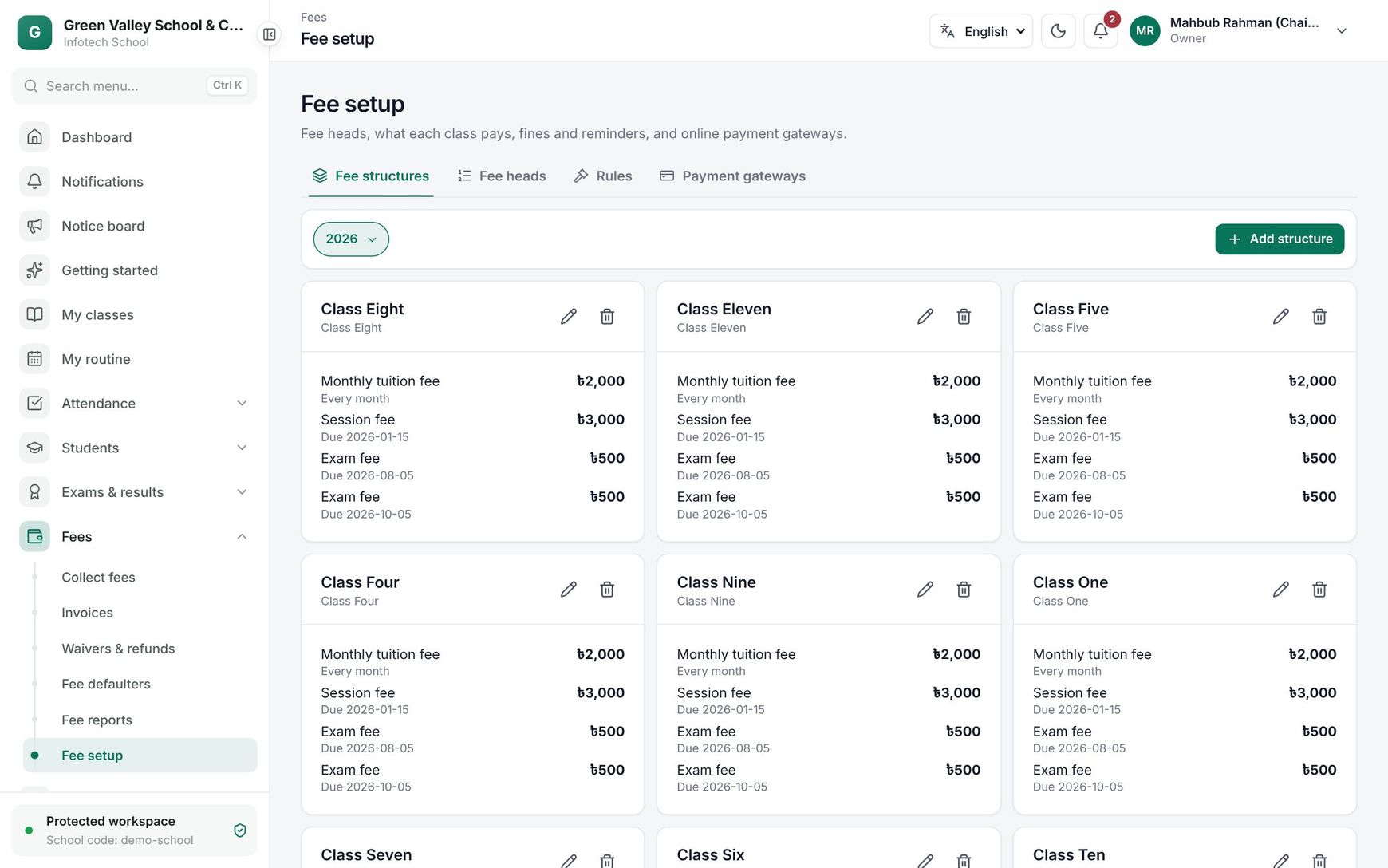 The Fee structures tab with one card per class
Rules
| Field | What it does |
|---|---|
| Due day | Day of the month the monthly invoice is due, 1 to 28 |
| Late fine | No fine, Flat amount (charged once when late) or Per day (for each day late) |
| Fine amount / Fine per day | The fine |
| Grace days | Days after the due day without a fine (0 to 60) |
| Fine cap | The most fine one invoice can get. Leave it empty for no cap |
| Remind before due (days) | Families get an in-app reminder this many days before an invoice is due (0 to 15; 0 turns reminders off) |
| Block admit cards when fees are overdue | Admit cards of students with overdue fees are shown as blocked, with the amount due (see Exam hall) |
| Send an SMS receipt for each payment | The primary guardian gets an SMS for every payment. Each SMS uses the school's SMS credits (see SMS) |
Choose Save.
How the fine works: nothing is charged within the grace days. After that, a flat fine is charged once; a per-day fine counts every day from the due date. The fine keeps growing while the invoice is unpaid and is fixed once it is paid. When someone pays, the fine is paid first.
Payment gateways
Here you connect the school's own merchant accounts, so guardians can pay online and the money goes straight to the school (see Online fee payment). There is one card each for bKash, Nagad and SSLCommerz (cards, internet banking and other wallets).
- Enter the credentials your provider gave you:
- bKash: Username, Password, App key, App secret
- Nagad: Merchant ID, Merchant number, Merchant private key, Nagad public key
- SSLCommerz: Store ID, Store password
- Keep Sandbox (test mode) ticked while you test with the provider's sandbox account. Untick it when the provider approves your live account.
- Tick Take payments and choose Save. The card shows On.
Secrets are stored encrypted and never shown again: the field only shows the last four characters. Leave secrets blank to keep the saved ones. A gateway cannot be switched on until all its fields are filled.
Note: Only staff with fee:setup can see this tab.
Good to know
- Structures belong to one academic year. Add new ones when the next year starts.
- Changing a structure affects invoices made after the change; invoices already made keep their amounts.
- Every change here is written to the Audit log.
Examples
Class Six at a Dhaka school. Fee heads Monthly tuition fee (Monthly), Session fee (Yearly) and Exam fee (One time). Structure "Class Six": tuition Tk 1,500 every month; session fee Tk 3,000 due 15 January; exam fee Tk 500 due 10 June and again Tk 500 due 10 November. The January invoice is Tk 4,500, the June one Tk 2,000, and other months Tk 1,500.
A per-day fine. Due day 10, Per day Tk 10, Grace days 5, Fine cap Tk 200. Rahima Begum pays her son's tuition on the 14th: no fine. If she pays on the 20th, the fine is 10 days × Tk 10 = Tk 100.
Last updated 30 Oct 2026